
Currency Settings
Eventixa lets you configure the currency used for event ticket prices, checkout totals, bookings, and supported payment gateways.
Set the currency before publishing paid tickets so that pricing is displayed consistently throughout the registration and payment workflow.
Available in: Eventixa Core
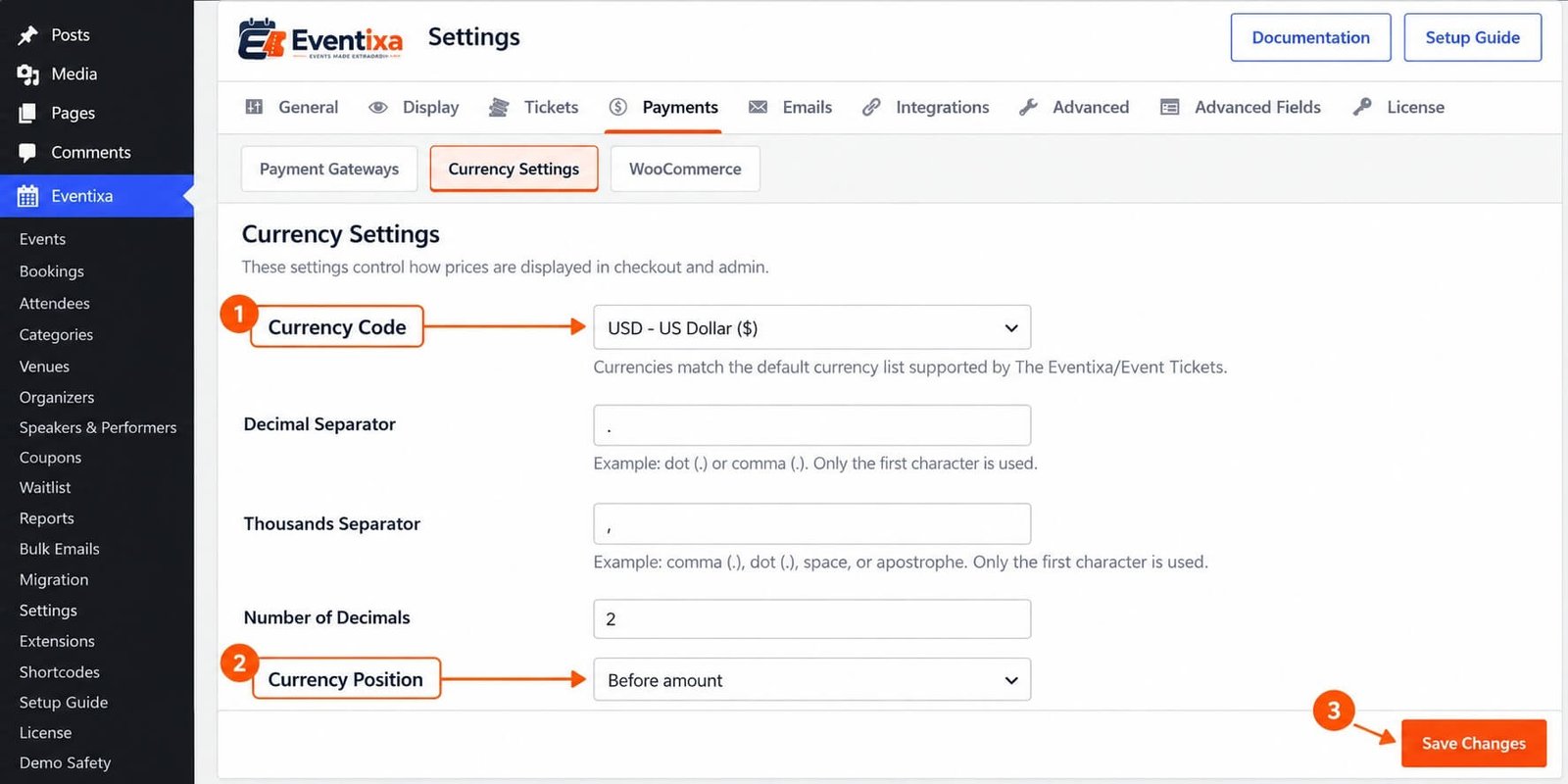
Location: Eventixa → Settings → Payments → Currency Settings
Related features: Tickets, Checkout, Payments, Coupons, Bookings
Open Currency Settings
From the WordPress dashboard, go to: Eventixa → Settings → Payments
Then open: Currency Settings
This section controls how monetary values are represented across Eventixa.
Why Currency Settings Matter
The configured currency can affect:
- Event ticket prices
- Checkout totals
- Booking amounts
- Coupon discounts
- Payment gateway transactions
- Refund calculations
- Reports
- Administrative payment displays
Your currency settings should therefore be configured before accepting live registrations.
Currency Code
Choose the currency that your Eventixa site will use for ticket pricing and payments.
Examples include:
- USD — United States Dollar
- EUR — Euro
- GBP — British Pound
- INR — Indian Rupee
- AUD — Australian Dollar
- CAD — Canadian Dollar
Use the currency supported by your payment provider and appropriate for your customers.
Example
If the configured currency is: USD
a ticket may appear as: $49.00
If the configured currency is: INR
the same configured numerical price would be displayed using the applicable rupee currency representation.
Currency Position
Eventixa also lets you control where the currency symbol appears relative to the amount.
Common formats include:
Left $49.00
or:
Right 49.00 $
Use the format familiar to your audience.
Currency Position Examples
Depending on your configured currency and position, ticket prices may appear like:
$19.00
₹1,500
19.00 €
The currency position affects presentation only; it does not change the ticket’s numerical value.
Save Currency Settings
After selecting your preferred currency configuration, click: Save Changes
Then check a paid event on the frontend to confirm that prices are displayed correctly.
Where the Currency Appears
Your Eventixa currency can be displayed throughout the booking workflow.
This includes areas such as:
- Event ticket selection
- Ticket price
- Checkout
- Booking Summary
- Coupon discounts
- Booking Details
- Payment records
- Reports
Ticket Prices
When creating a paid ticket, you enter the numerical price.
For example:
Ticket price: 49
Eventixa displays that price using the site’s configured currency.
If USD is configured: $49.00
Free Tickets
Free tickets remain free regardless of the configured currency.
For example: Free or $0.00 depending on the applicable Eventixa display.
No payment transaction is required.
Checkout Summary
The same currency should appear throughout the checkout summary.
For example:
Standard Event Pass 1 × $19.00
Subtotal: $19.00
Maintaining the same currency throughout checkout helps prevent customer confusion.
Payment Gateway Currency
Your payment gateway must support the currency configured in Eventixa.
Before launching paid tickets, verify currency compatibility with your gateway.
PayPal and Currency
PayPal supports many currencies, but availability depends on your PayPal account and region.
Before accepting live Eventixa PayPal payments, confirm that the configured Eventixa currency is supported by your PayPal setup.
Stripe and Currency
Stripe requires Eventixa Pro
Stripe supports many currencies, but available currencies can depend on your Stripe account and region.
Make sure the Eventixa currency and Stripe transaction currency match.
WooCommerce Currency
When using WooCommerce checkout, keep Eventixa and WooCommerce currency configuration compatible.
Review:
Eventixa → Settings → Payments → Currency Settings and your WooCommerce currency settings.
The checkout and resulting order should represent the intended currency consistently.
Local / Offline Payment
Local payment also uses the Eventixa booking currency.
For example:
Booking total: $100
If the customer pays by bank transfer or at the venue, the organizer should collect the same amount in the configured currency unless another arrangement has explicitly been made.
Coupons
Coupons use the configured currency when working with fixed discounts.
For example:
Ticket subtotal: $100
Fixed coupon: $20
Final total: $80
A percentage coupon is calculated against the booking value regardless of symbol position.
Percentage Coupon Example
Suppose:
Ticket: $100
Coupon: 20%
The discount becomes: $20 and the final amount becomes: $80
Fixed Coupon Example
Suppose:
Ticket: $100
Fixed discount: $25
The final amount becomes: $75
Fixed discount values therefore depend directly on the Eventixa currency.
Recurring Events
Recurring-event tickets use the same Eventixa currency configuration.
Each occurrence does not require its own separate site currency.
Virtual and Hybrid Events
Virtual and Hybrid events also use the global Eventixa currency for eligible paid tickets.
Virtual-event type does not change the currency behavior.
Guest Checkout
Guest purchasers see the same configured currency as logged-in customers.
The account state does not change ticket currency.
Booking Details
When viewing a paid booking under: Eventixa → Bookings → Open Booking
the booking total and payment amount should use the configured currency representation.
Transactions
Gateway transaction amounts should correspond to the Eventixa booking amount and currency.
For example:
Eventixa booking: $80 USD
The corresponding gateway transaction should also represent: 80 USD where applicable.
Verify Amount and Currency
When reconciling payments, never compare only the numerical amount.
For example:
100 USD and 100 EUR are not the same financial value.
Verify both:
- Amount
- Currency
Refunds
Refunds should use the same transaction currency as the original payment.
For example:
Original transaction: $80 USD
A full refund should relate to the same: $80 USD transaction.
Changing Currency After Taking Bookings
Be careful when changing the Eventixa currency after real bookings already exist.
Historical bookings were created using the currency configured at the time of purchase.
Changing the global currency later should not be treated as converting existing historical transactions.
Currency Change Does Not Convert Prices
Changing: USD → EUR
does not mean: $100
automatically becomes the equivalent EUR exchange value.
If a ticket’s stored numerical price remains: 100
it may simply be represented using the newly configured currency.
Review ticket pricing whenever changing currency.
Example of Currency Change
Before:
Currency: USD
Ticket numerical price: 100
Display: $100
If you change the site currency to EUR without changing the ticket price, the ticket may effectively represent: €100
It is not automatically converted using an exchange rate.
No Automatic Exchange-Rate Conversion
Eventixa currency settings define the currency used for the booking.
They are not a live foreign-exchange conversion system.
If you change currencies, manually review your ticket prices.
Existing Transactions
Never assume an old Stripe, PayPal, or WooCommerce payment changed currency just because Eventixa settings were modified later.
The external payment provider retains the real currency used by that transaction.
Recommended Time to Set Currency
Configure currency before:
- Creating final ticket prices
- Publishing events
- Testing gateways
- Running promotions
- Accepting live registrations
This avoids unnecessary price and payment inconsistencies.
Currency and Payment Testing
After configuring currency, complete a test booking.
Verify the currency in:
- Event ticket selector
- Checkout
- Booking Summary
- Payment gateway
- Eventixa Booking Details
All should represent the intended currency consistently.
PayPal Currency Test
When testing PayPal, compare: Eventixa checkout currency with PayPal payment currency
They should match the intended setup.
Stripe Currency Test
For Stripe, compare:
- Eventixa total
- Stripe amount
- Stripe currency
Do not launch if the currency does not match.
WooCommerce Currency Test
For WooCommerce checkout, verify:
- Eventixa ticket currency
- WooCommerce cart currency
- WooCommerce order currency
- Payment gateway currency
The complete workflow should remain consistent.
Currency and Reports
Revenue reports should be interpreted using the site’s configured monetary context.
Avoid combining amounts from different currencies as though they were directly comparable.
Single-Currency Setup
For most Eventixa sites, using one consistent site currency is the simplest and safest setup.
For example:
USD for all paid events or INR for all paid events
This keeps tickets, checkout, payments, and reports straightforward.
Multiple-Currency Expectations
The Eventixa currency setting should not be treated as a per-customer automatic currency converter.
If you require advanced multi-currency behavior through WooCommerce or another system, test the integration carefully.
The Eventixa booking must still remain financially consistent with the resulting payment.
Currency Symbol
The appropriate currency symbol is associated with the selected currency.
Examples:
- USD → $
- EUR → €
- GBP → £
- INR → ₹
You normally should not need to type a currency symbol directly into individual ticket prices.
Enter Numeric Ticket Prices
When creating tickets, enter the numerical ticket amount.
For example: 49 rather than manually entering: $49
Eventixa applies the configured monetary display.
Common Problems
Wrong Currency Appears on Tickets
Go to: Eventixa → Settings → Payments → Currency Settings and verify the selected currency.
Currency Symbol Is on the Wrong Side
Review Currency Position.
Choose the position appropriate for your audience.
Payment Gateway Uses a Different Currency
Check:
- Eventixa currency
- Gateway account
- Gateway configuration
- WooCommerce currency if applicable
Do not accept live payments until the mismatch is resolved.
Ticket Price Changed After Switching Currency
Remember that Eventixa does not automatically perform exchange-rate conversion.
Review and manually update ticket prices where necessary.
PayPal Rejects the Currency
Confirm that your PayPal account supports the selected Eventixa currency.
Stripe Payment Fails After Currency Change
Check whether Stripe supports the new currency for your account and payment method.
WooCommerce Shows a Different Symbol
Compare Eventixa and WooCommerce currency settings.
Fixed Coupon Value Is Wrong After Currency Change
A fixed coupon is denominated using the site’s monetary context.
Review fixed coupon values after changing currencies.
Existing Booking Shows Historical Currency
This may be correct.
Historical financial transactions should represent the currency used when the payment was created.
Recommended Currency Setup Workflow
- Go to Eventixa → Settings → Payments.
- Open Currency Settings.
- Select the currency.
- Choose the currency position.
- Save Changes.
- Open a paid event.
- Verify ticket price display.
- Proceed to checkout.
- Verify Booking Summary.
- Complete a test payment.
- Verify gateway amount and currency.
- Open the Eventixa booking.
- Confirm the recorded amount is correct.
Recommended Checklist Before Going Live
Confirm:
- Correct currency is selected.
- Currency position is correct.
- Ticket prices are correct.
- Fixed coupon amounts are correct.
- PayPal supports the currency.
- Stripe supports the currency if used.
- WooCommerce uses a compatible currency if enabled.
- Offline payment instructions identify the correct amount/currency.
- Checkout displays the correct symbol.
- Test transactions use the expected currency.
Important Notes
- Currency Settings are available in Eventixa Core.
- Configure them under Eventixa → Settings → Payments → Currency Settings.
- The configured currency is used throughout Eventixa ticket pricing and payment workflows.
- Currency Position controls how the symbol is displayed.
- Payment gateways must support the selected currency.
- Changing currency does not automatically convert existing ticket prices.
- Eventixa is not an automatic foreign-exchange conversion system.
- Review ticket prices and fixed coupons after changing currency.
- Historical transactions should be reconciled using the currency actually used by the payment provider.
- Always test the complete payment workflow after changing currency.


