
Event Archive and Listings
The Eventixa event archive is the frontend area where visitors can browse published events.
It can display your events using available calendar or listing views and helps visitors find upcoming events more easily.
Available in: Eventixa Core
Settings: Eventixa → Settings → Display
Related features: Event Categories, Venues, Event Views, Filters
How the Event Archive Works
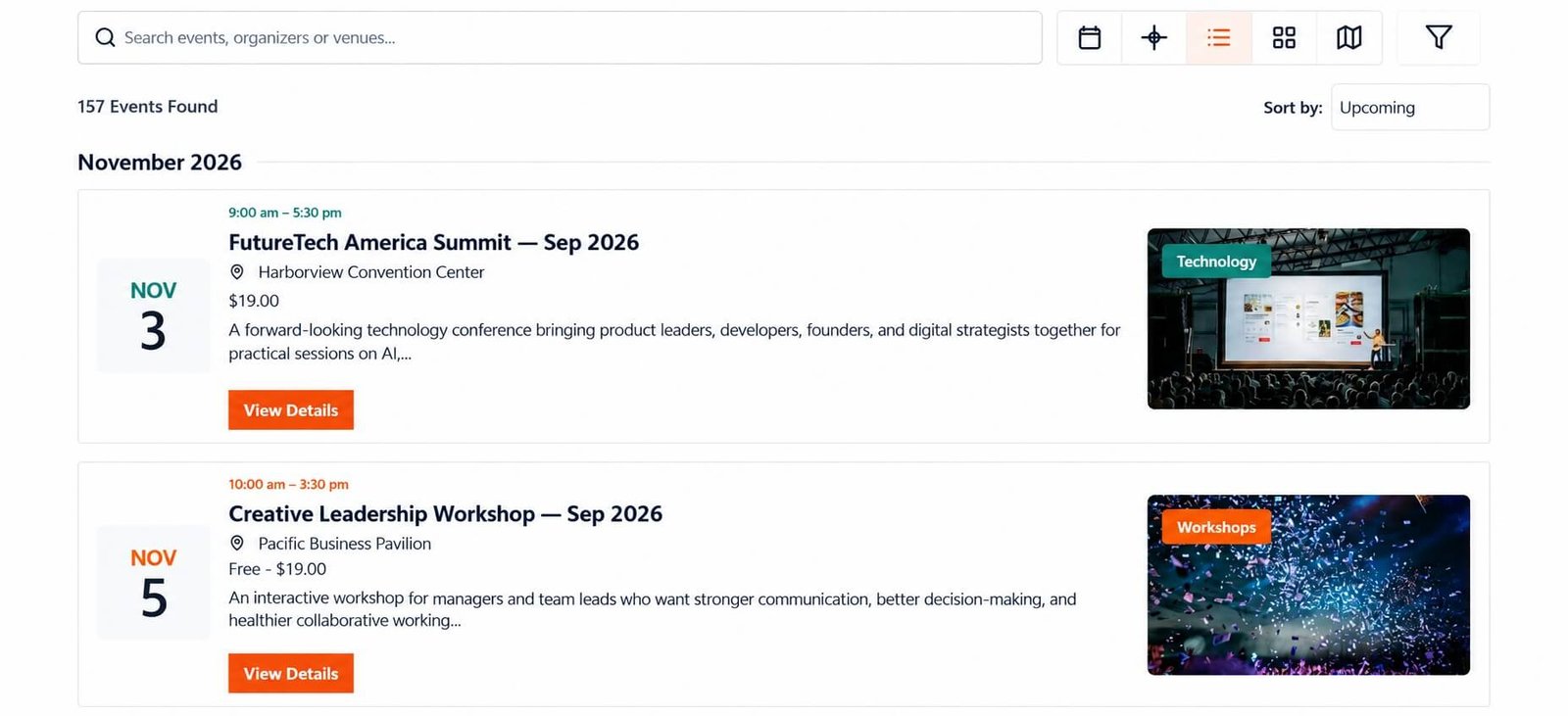
Published Eventixa events can appear in the frontend event archive according to your display settings.
The archive can show information such as:
- Event image
- Event title
- Date and time
- Event category
- Venue
- Event status
- Registration information
- Recurring event indicators where applicable
The exact presentation depends on the selected view and Eventixa display configuration.
Event Archive Views
Eventixa supports multiple event browsing views.
Available views can include:
- List
- Month
- Day
- Grid
- Map
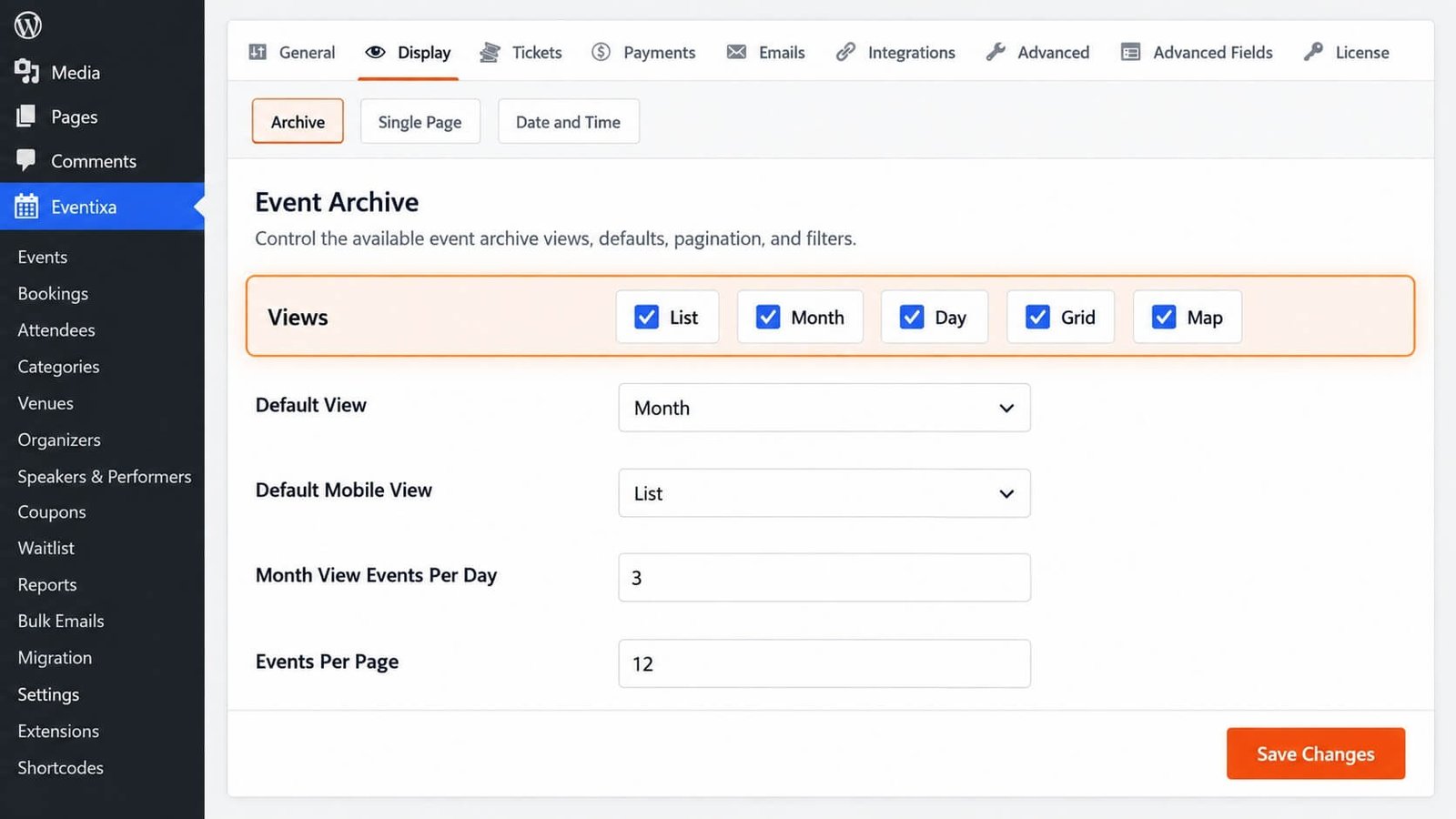
The views available to visitors depend on which options are enabled in Eventixa settings.
Configure Available Views
Go to: Eventixa → Settings → Display or use the corresponding setup options from the Setup Guide.
Choose which views should be available on the event archive.
For example, you may enable:
- List
- Month
- Day
and leave other views disabled.
Default View
The Default View controls which event view opens first when a visitor loads the event archive.
For example:
| Default View | Best suited for |
|---|---|
| List | General event directories |
| Month | Calendar-focused websites |
| Day | Sites with many events on individual dates |
| Grid | Visual event browsing |
| Map | Location-focused event discovery |
Choose the view that best matches how visitors normally browse your events.
Mobile Default View
Eventixa can also use a separate default view for mobile devices.
This allows you to provide a simpler browsing experience on smaller screens.
For example:
- Desktop Default View: Month
- Mobile Default View: List
This can make event browsing easier on phones.
Event Cards and Listing Information
Depending on the selected view, Eventixa can display event information such as:
- Featured image
- Title
- Event date
- Start time
- Category
- Venue
- Event status
Recurring events can also display recurrence information where supported.
Event Filters
Filters help visitors narrow the event archive.
Depending on the enabled Eventixa functionality, visitors can filter events using available criteria such as:
- Category
- Venue
- Organizer
- Date-related options
Enable filters when your website contains enough events that visitors would benefit from narrowing the list.
Events Per Page
The Events Per Page setting controls how many events appear before pagination is used.
For example:
| Setting | Result |
|---|---|
| 6 | Six events per page |
| 10 | Ten events per page |
| 20 | Twenty events per page |
Use a value that keeps the page easy to browse without making it excessively long.
Pagination
When the number of published events exceeds the configured events-per-page value, visitors can use pagination to move through additional events.
Pagination helps maintain performance and keeps large event directories manageable.
Categories in Event Listings
Event categories help visitors understand the type of event being displayed.
Examples include:
- Conference
- Workshop
- Webinar
- Networking
- Community
For detailed category management, see How to Create and Manage Event Categories in Eventixa.
Venue Information in Listings
For in-person events, listing layouts can use venue information to help visitors understand where an event takes place.
Venue details come from the venue assigned to the event.
For detailed venue setup, see How to Create and Manage Event Venues in Eventixa.
Recurring Events in Listings
Requires Eventixa Pro
Recurring events can display occurrence-aware schedule information in Eventixa listings.
Depending on the view, visitors can see information such as:
- Next occurrence
- Recurring status
- Upcoming occurrences
The recurrence rules themselves are managed from the event editor.
Published, Upcoming and Past Events
Eventixa uses event schedule information together with publication status to determine how events are presented.
An event can appear as:
- Upcoming
- Ongoing
- Past
Only properly published events should normally appear in public event listings.
Event Search
Where available, visitors can use search controls to find events more quickly.
Search is especially useful for websites with:
- Many events
- Long event archives
- Multiple categories
- Multiple venues
Use clear event titles so search results are meaningful.
Frontend Listing Best Practices
For a clean event archive:
- Use consistent featured images.
- Keep event titles clear.
- Assign meaningful categories.
- Use accurate venue information.
- Avoid unnecessary duplicate events.
- Keep dates and times correct.
- Use the most appropriate default view for your audience.
If an Event Does Not Appear
Check:
- The event is published.
- The event date is valid.
- The archive view is configured correctly.
- Active filters are not hiding the event.
- The event belongs to the expected category or venue.
- Cached frontend content has been refreshed.
If the Wrong View Opens
Go to: Eventixa → Settings → Display
Review the configured Default View and Default Mobile View.
Save the settings and reload the archive.
If Filters Do Not Appear
Check that:
- Filters are enabled.
- Relevant filterable data exists.
- Events have categories, venues, or other supported values assigned.


