
Event Categories
Event categories help you organize Eventixa events into clear groups so visitors can browse related events more easily.
You can create reusable categories and assign them to multiple events.
Available in: Eventixa Core
Location: Eventixa → Categories
Also available from: Event editor → Event Categories
Open Event Categories
Go to: Eventixa → Categories
From here, you can create and manage reusable event categories.
Examples include:
- Conference
- Workshop
- Webinar
- Networking
- Training
- Community
- Music
- Sports
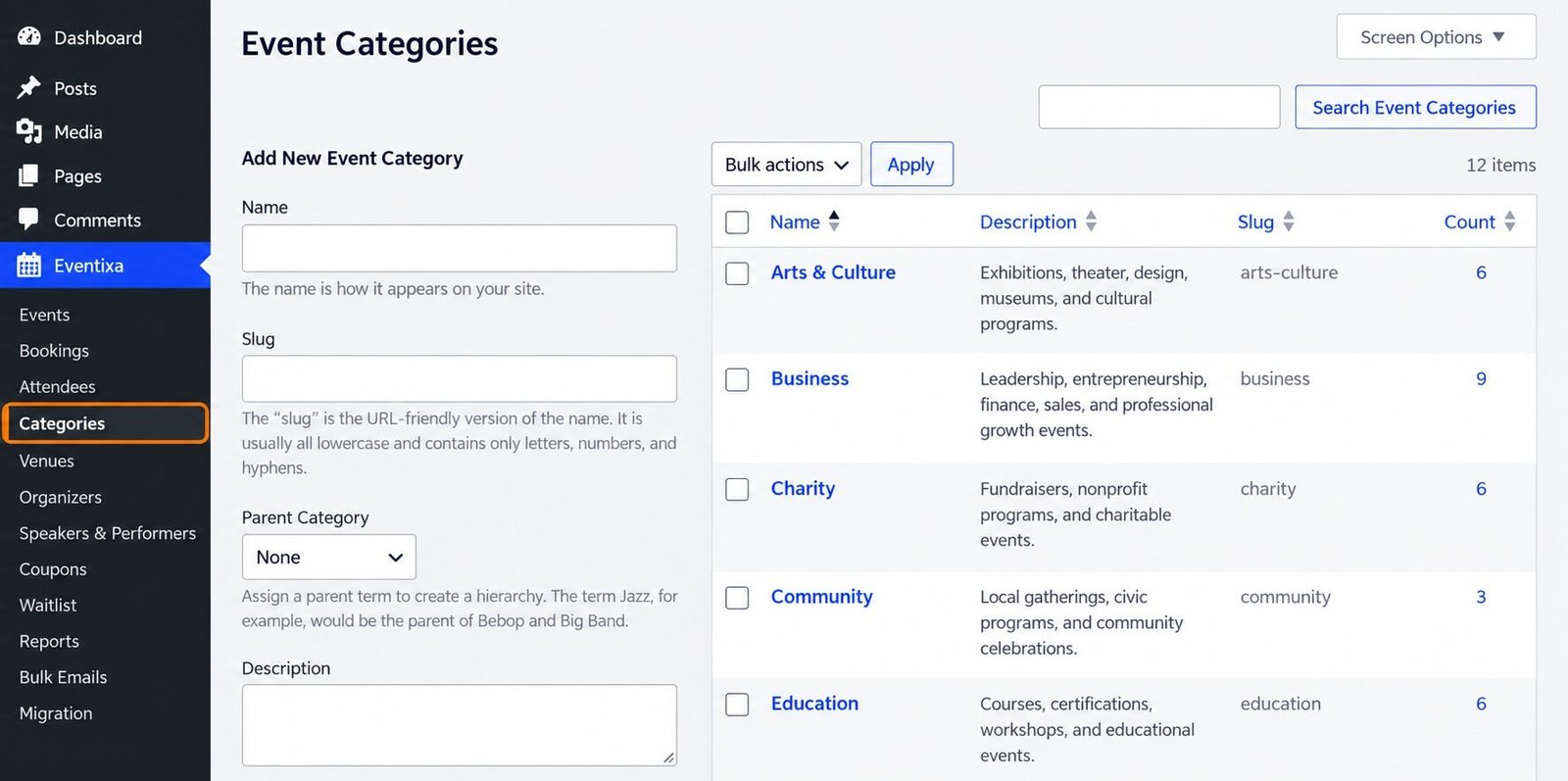
Create a New Category
To create a category:
- Go to Eventixa → Categories.
- Enter the category name.
- Add the slug if required.
- Add a description if you want to provide additional context.
- Save the category.
The new category can now be assigned to Eventixa events.
Category Name
Use a clear, visitor-friendly category name.
Good examples:
- Business
- Technology
- Workshops
- Webinars
- Networking
- Community Events
Avoid overly specific category names unless your event directory genuinely needs that level of detail.
Category Slug
The slug is the URL-friendly version of the category name.
For example:
Category: Business Events
Slug: business-events
Keep slugs:
- Short
- Descriptive
- Lowercase
- Easy to understand
If WordPress generates the slug automatically, you usually do not need to change it.
Category Description
You can add a description to explain what belongs in the category.
For example: Technology
Events focused on software, digital products, development, AI, and technology trends.
Descriptions can be useful for:
- Administration
- Category archives
- SEO
- Visitor context
Whether the description appears on the frontend depends on your Eventixa and theme configuration.
Assign a Category to an Event
Edit an existing event or create a new one.
Find the Event Categories area in the event editor.
Select the category or categories that apply to the event.
For example: Digital Marketing Workshop could be assigned to:
- Workshop
- Business
Add a Category While Editing an Event
You can also create a new category directly from the event editor.
Use: + Add New Event Category
Enter the new category name and save it.
The new category becomes available for other events as well.
Assign Multiple Categories
An event can be assigned to more than one relevant category where appropriate.
For example: AI for Business Conference could use:
- Conference
- Technology
- Business
However, avoid assigning unnecessary categories just to increase visibility.
Use only categories that genuinely describe the event.
Edit an Existing Category
Go to: Eventixa → Categories
Open the category you want to change.
You can update information such as:
- Name
- Slug
- Description
Changes apply wherever that category is used.
Be careful when changing the slug of a category that is already indexed or linked publicly.
Delete a Category
You can remove categories that are no longer needed.
Before deleting a category, check whether active events still use it.
Deleting a category does not normally mean deleting the associated events, but those events will no longer belong to that category.
Category Naming Best Practices
Use a consistent category structure across your event directory.
For example, instead of mixing:
- Business Workshop
- Business Event
- Corporate Event
- Business Conference
you may use broader categories such as:
- Business
- Workshop
- Conference
This makes event filtering and browsing more predictable.
Categories and Event Listings
Categories can help visitors narrow down larger event directories.
For example, a site with many events could use:
- Business
- Technology
- Education
- Community
- Music
Visitors can then focus on the event types they are interested in.
The exact frontend category and filtering behavior depends on your Eventixa display configuration.
Categories and SEO
Use category names that reflect how visitors naturally understand your events.
Good category naming can help create clearer:
- Event navigation
- Archive structure
- Internal linking
- Search relevance
Avoid creating many nearly identical categories because this can create thin or repetitive archive pages.
Common Category Mistakes
Too Many Similar Categories
Avoid creating multiple categories that mean almost the same thing.
For example:
- Seminar
- Seminar Event
- Seminars
- Educational Seminar
Choose one consistent term.
Category Is Too Specific
A category should usually be reusable.
Instead of: October 2026 WordPress Workshop use: Workshop
The event title and date already provide the specific context.
Event Is in the Wrong Category
Edit the event and update the Event Categories selection.
Duplicate Categories
Review existing categories before creating a new one.
Recommended Category Structure
For many Eventixa websites, a simple starting structure could include:
- Conference
- Workshop
- Webinar
- Networking
- Training
- Community
You can expand the category structure later if your event directory grows.
Related Documentation
Continue with:


