
Adding Speakers & Performers to Events
After creating speaker and performer profiles, you can assign them to individual Eventixa events.
Eventixa uses the Speakers & Sessions area to organize the people and program shown for each event.
Available in: Eventixa Core
Location: Eventixa → Events → Edit Event → Speakers & Sessions
Requires: Existing speaker or performer profiles
Related features: Participant Groups, Sessions, Event Agenda
Before You Begin
Create the participant profiles you want to use first.
Go to: Eventixa → Speakers & Performers
If the participant does not exist yet, create the profile before assigning it to an event.
See How to Create Speakers & Performers in Eventixa for the full workflow.
Open Speakers & Sessions
Go to: Eventixa → Events
Open the event you want to edit.
Then select: Event Settings → Speakers & Sessions
This section controls the people and program associated with the event.
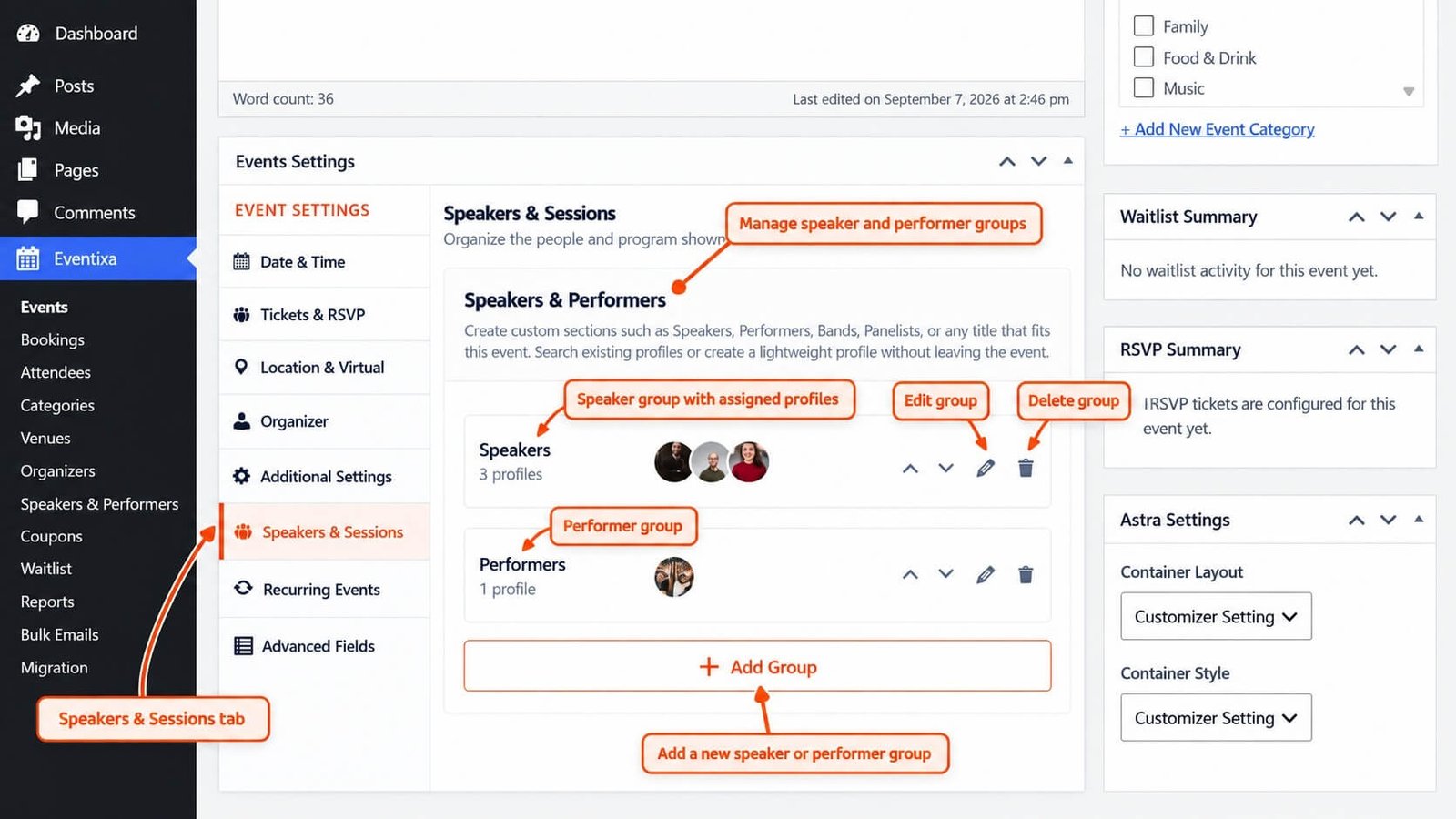
Speakers & Performers Groups
Eventixa organizes assigned participants into groups.
Examples include:
- Speakers
- Performers
- Panelists
- Bands
- Hosts
- Moderators
Each group can contain one or more participant profiles.
For example:
Speakers
- Natalie Wong
- Ethan Clarke
- Ava Thompson
Performers
- Nova Collective
Add a New Group
Click: Add Group
Create the group title you want to use for the event.
Examples:
- Speakers
- Performers
- Keynote Speakers
- Panelists
- Workshop Hosts
Use a title that makes sense to visitors.
Add Participants to a Group
Open or edit the group.
Search for existing participant profiles and select the people or groups you want to include.
Eventixa can use profiles already created under: Eventixa → Speakers & Performers
Depending on the current workflow, you may also be able to create a lightweight participant profile without leaving the event editor.
Example
Suppose you are creating a technology conference.
You could configure:
Keynote Speakers
- Natalie Wong
- Ethan Clarke
Panelists
- Ava Thompson
- Daniel Brooks
Performers
- Nova Collective
This gives the event a structured participant presentation instead of one undifferentiated list.
Reorder Groups
Groups can be reordered where supported.
For example:
- Keynote Speakers
- Speakers
- Panelists
- Performers
Use the up/down controls to arrange them in the desired frontend order.
Edit a Group
Use the group edit control to:
- Change the group title
- Add participants
- Remove participants
- Adjust the group’s configuration
Updating a group affects only the current event’s participant organization.
It does not rename the reusable participant profiles themselves.
Delete a Group
Use the delete control to remove a participant group from the event.
Deleting the event-level group does not automatically delete the participant profiles from:
Eventixa → Speakers & Performers
This allows those profiles to remain available for other events.
Participant Profiles vs Event Groups
These are different things.
| Item | Purpose |
|---|---|
| Participant Profile | Reusable person or group record |
| Event Group | Organizes participant profiles within one event |
For example:
Participant Profile: Natalie Wong
Event Group: Keynote Speakers
The same Natalie Wong profile could belong to a different group on another event.
Reuse Participants Across Multiple Events
A participant can be assigned to multiple Eventixa events.
For example:
Ethan Clarke could be:
- A keynote speaker at one event
- A panelist at another event
- A session speaker at a third event
You do not need to duplicate his profile.
Connect Participants to Sessions
Speakers and performers can also be connected to individual sessions.
For example:
| Session | Participant |
|---|---|
| Opening Keynote | Natalie Wong |
| Career Strategy Workshop | Ethan Clarke |
| Closing Performance | Nova Collective |
Session assignment is handled through the Eventixa session workflow.
The participant should normally already belong to the event before you use them in its agenda.
Frontend Display
Participant groups can appear on the single event page.
Depending on the selected presentation settings, visitors can see information such as:
- Group title
- Profile image
- Participant name
- Role
- Organization
- Biography
- Social links
Eventixa Pro can provide additional professional presentation controls where applicable.
Updating an Assigned Participant
If the person’s profile information needs changing, update the reusable participant profile from:
Eventixa → Speakers & Performers
Changes can then appear on all events using that profile.
If you only need to change which participants belong to one event, update the event’s Speakers & Sessions configuration instead.
Removing a Participant from an Event
Do not delete the participant profile just because the person should no longer appear on one event.
Instead:
- Edit the event.
- Open Speakers & Sessions.
- Edit the relevant group.
- Remove the participant.
- Update the event.
The profile remains available for other events.
Duplicate Events
When you duplicate an event, supported speaker and performer assignments can also be copied.
After duplication, review:
- Group titles
- Assigned speakers
- Assigned performers
- Session relationships
Remove any participants that do not belong to the new event.
Recurring Events
For recurring events, the main participant assignments remain part of the event configuration.
If your event uses occurrence-specific agenda information, review the participant and session relationships for the relevant occurrence.
Common Problems
Speaker Does Not Appear in Search
Check that:
- The participant profile has been saved.
- The profile is published or otherwise available.
- You are searching from the correct event.
Participant Appears in the Wrong Group
Edit the relevant group and move or reassign the participant.
Participant Appears on Other Events After Editing
This can happen when you edit the reusable participant profile itself.
Profile changes can affect every event using that profile.
Deleting a Group Removed It from the Event
This is expected.
The group belongs to that event. The reusable participant profiles remain available separately.
Recommended Workflow
- Create reusable participant profiles.
- Open the event.
- Go to Speakers & Sessions.
- Create the required groups.
- Add participants to each group.
- Reorder groups if needed.
- Create sessions.
- Assign participants to sessions.
- Preview the event page.
- Update or publish the event.


