
Booking Details
The Eventixa Booking Details screen gives administrators a complete view of a single event registration.
From one page, you can review the booking, event occurrence, customer information, ticket totals, attendees, payment information, booking status, internal notes, and available booking actions.
Available in: Eventixa Core
Location: Eventixa → Bookings → Open a Booking
Related features: Bookings, Attendees, Payments, Recurring Events, Refunds
Open a Booking
Go to: Eventixa → Bookings
Locate the registration you want to inspect.
Click the booking reference or open the applicable booking action.
Eventixa opens the Edit Booking screen.
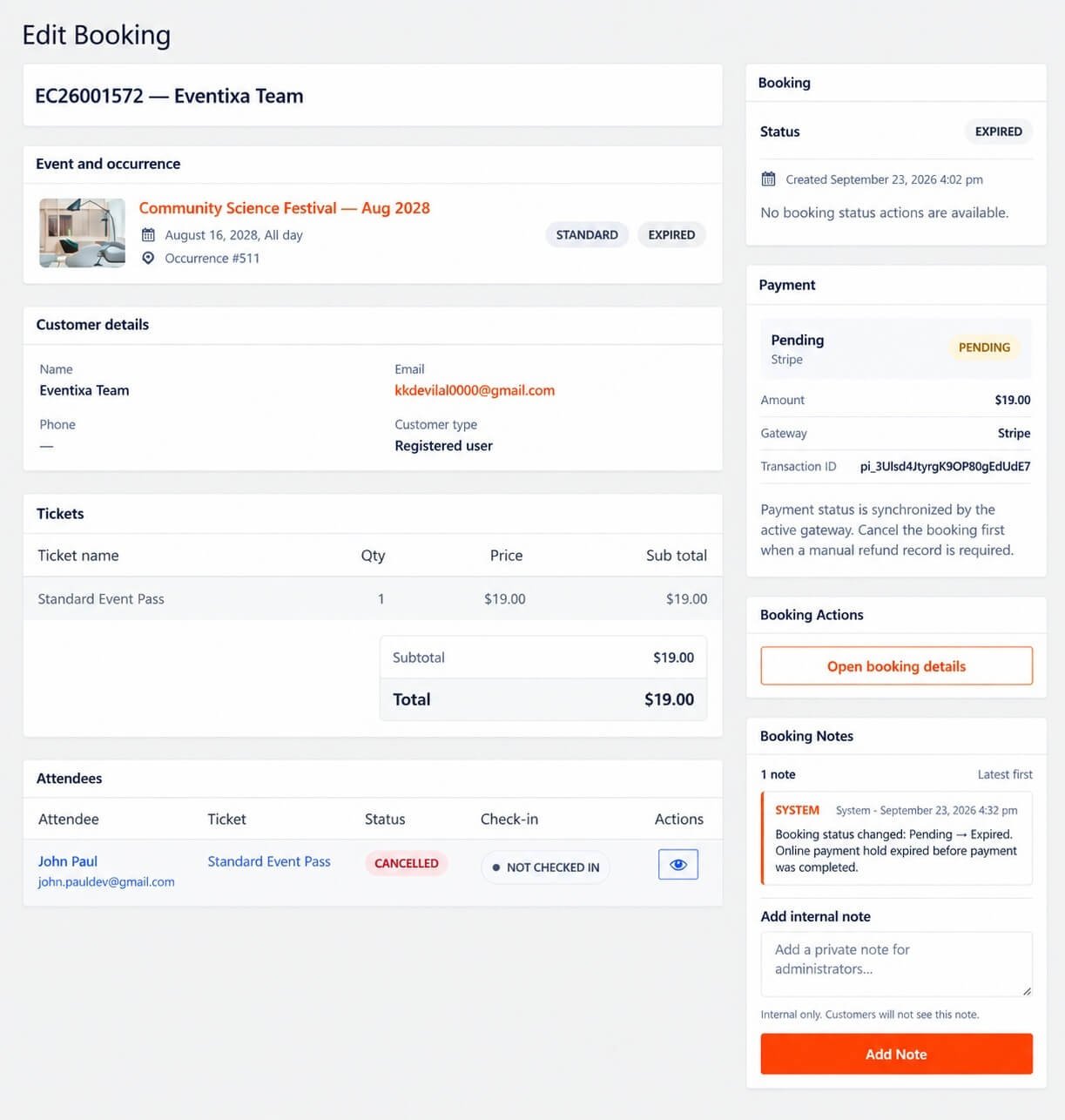
The Eventixa Booking Details screen brings the registration, customer, ticket, attendee, payment, and booking status information together in one place.Booking Header
At the top of the page, Eventixa displays the booking reference together with the purchaser or booking name.
For example: EC26001572 — Eventixa Team
The booking reference gives each registration a unique identifier that can be used when investigating support, payment, or attendee issues.
Why the Booking Reference Matters
The booking reference can help administrators:
- Locate a registration
- Match payment information
- Review customer support requests
- Verify attendee records
- Investigate booking history
- Distinguish similar registrations
When discussing a booking internally, use the booking reference where possible.
Event and Occurrence
The Event and occurrence section identifies the event connected to the booking.
It can display information such as:
- Event title
- Event date
- Event time
- Occurrence reference
- Registration type
- Booking state
For example:
Community Science Festival — Aug 2028
with: August 16, 2028, All day and: Occurrence #511
Single Events
For a single event, the booking points to that event’s scheduled date.
There is no need for the administrator to choose an occurrence.
Recurring Events
For recurring events, Eventixa also identifies the exact occurrence used during registration.
This is important because multiple dates can use the same event and ticket configuration.
For example:
Occurrence #511 represents one specific occurrence of the recurring event.
Why Occurrence Information Matters
Occurrence information affects workflows such as:
- Capacity
- Attendees
- Check-in
- Virtual access
- Reports
- Booking troubleshooting
Always verify the occurrence before changing a recurring-event booking.
Registration Type
The Event and occurrence panel can also identify the registration type.
For example: STANDARD
This helps distinguish normal ticket bookings from RSVP or other registration workflows.
Customer Details
The Customer details section shows information about the purchaser.
Depending on the booking, it can include:
- Name
- Phone
- Customer type
For example:
Name: Eventixa Team
Email: customer@example.com
Customer type: Registered user
Purchaser vs Attendee
The customer shown in Customer details is the purchaser.
The purchaser is not necessarily the same person as every attendee.
One purchaser can create a booking containing multiple attendees.
Registered User
If checkout was completed by an authenticated WordPress user, Customer type can indicate: Registered user
The booking follows the account-linked customer workflow.
Guest Customer
Bookings created with Guest Checkout can identify the customer through the details entered during checkout without requiring a WordPress account.
Guest bookings remain fully manageable from the same Booking Details screen.
Customer Email
The purchaser email is important for:
- Booking correspondence
- Payment troubleshooting
- Confirmation emails
- Ticket delivery
- Customer support
Verify the purchaser email when investigating a registration issue.
Tickets Section
The Tickets section summarizes what was purchased or registered.
It can show:
- Ticket name
- Quantity
- Price
- Subtotal
For example:
| Ticket name | Qty | Price | Subtotal |
|---|---|---|---|
| Standard Event Pass | 1 | $19.00 | $19.00 |
Ticket Quantity
Quantity represents the number of ticket places included in the booking.
For example:
Qty: 3 means the booking contains three places for that ticket.
Where individual attendee collection is active, those places can correspond to three attendee records.
Ticket Price
The Price column shows the ticket unit price associated with the booking.
For example:
Price: $19.00
Subtotal
Subtotal shows the value contributed by that ticket line.
For one $19 ticket:
Subtotal: $19.00
For three $19 tickets:
Subtotal: $57.00
before any applicable discounts or adjustments.
Booking Total
The ticket summary can also display:
- Subtotal
- Total
The Total represents the applicable final booking amount recorded by Eventixa.
Free Bookings
For free tickets, the total can be:
$0.00
The booking still contains standard registration and attendee information even though no payment was required.
RSVP Bookings
RSVP registrations do not behave like paid ticket purchases.
The Booking Details screen can still show the applicable registration information while the financial total remains zero.
Attendees Section
The Attendees section lists individual attendees included in the booking.
Each attendee row can contain:
- Attendee name
- Ticket
- Status
- Check-in state
- Actions
This lets administrators review individual participation separately from the overall booking.
One Booking, Multiple Attendees
Suppose a purchaser books:
Standard Event Pass × 3
The Booking Details screen can contain:
- One customer
- One booking
- One ticket line
- Three attendee records
This distinction is important when handling check-in or attendee-specific changes.
Attendee Status
Each attendee can have their own attendee status.
For example:
CANCELLED
An attendee’s state can differ from the overall booking workflow depending on the registration history.
Check-In Status
The attendee list can also show check-in state.
For example:
NOT CHECKED IN
Check-in is tracked per attendee rather than only at booking level.
This means one booking can contain both checked-in and not-checked-in attendees.
Attendee Actions
The Actions column can provide attendee-specific controls.
For example, the view action can open the individual attendee record.
Use attendee-level actions when the change concerns one participant rather than the full booking.
Booking Status Panel
The right side of the Booking Details screen contains the booking status panel.
This shows the current state of the overall booking.
For example:
EXPIRED
It can also display when the booking was created.
Booking Created Date
The booking status area can show:
Created September 23, 2026 4:02 pm
This timestamp helps administrators understand when the registration entered the Eventixa system.
Status Actions
Available status actions depend on the current booking state.
Some bookings may offer actions such as:
- Confirm
- Cancel
- Refund-related action
Other states may have no available actions.
For example:
No booking status actions are available.
This can occur when the current status no longer allows a valid transition.
Expired Booking
An Expired booking can result when an online checkout or payment hold expires before payment is completed.
An expired booking should not be treated as a successfully completed registration.
Payment Panel
The Payment panel displays information associated with the booking’s payment.
It can include:
- Payment state
- Gateway
- Amount
- Transaction ID
For example:
Payment status: Pending
Gateway: Stripe
Amount: $19.00
Payment Status
Payment status represents the financial state, not the booking state.
For example:
Booking status: Expired
Payment status: Pending
These values serve different purposes and should be reviewed separately.
Payment Gateway
The Gateway field identifies which payment method processed or attempted to process the booking.
Examples can include:
- Stripe
- PayPal
- WooCommerce
- Local / Offline
Transaction ID
Online payments can include a provider transaction identifier.
For example:
Transaction ID: pi_...
This can be useful when matching Eventixa records with the external payment provider.
Protect Transaction Information
Transaction IDs can be useful for administrative reconciliation.
Do not publish them publicly or share them unnecessarily with attendees.
Use them when verifying the payment directly with the gateway.
Gateway-Synchronized Status
For supported online gateways, Eventixa can synchronize payment status with the active payment provider.
This means administrators should avoid manually changing financial state without verifying the actual gateway transaction.
Pending Online Payment
A pending gateway payment should not be treated as paid.
Before making manual changes, verify:
- Transaction status
- Gateway response
- Booking status
- Amount
Payment and Expired Bookings
An expired booking can still show an associated pending online payment record.
This can happen when the checkout hold expires before the payment reaches a completed state.
Always verify the transaction with the gateway before taking financial action.
Booking Actions
The Booking Actions panel provides actions related to the current booking.
The available controls depend on the booking status and workflow.
For example:
Open booking details or other context-specific booking actions.
Status-Dependent Actions
Eventixa restricts actions based on the current booking state.
This helps prevent invalid transitions.
For example, an already expired booking may not provide the same actions as a completed booking.
Booking Notes
The Booking Notes panel keeps a history of important booking events and administrator notes.
Notes can be:
- System-generated
- Administrator-created
This gives the booking an audit-style timeline.
System Notes
Eventixa can automatically add system notes when meaningful booking events occur.
For example:
Booking status changed: Pending → Expired. Online payment hold expired before payment was completed.
System notes help administrators understand why a booking reached its current state.
Why System Notes Are Useful
System notes can help explain:
- Status changes
- Payment events
- Expiration
- Administrative actions
- Other booking lifecycle events
Review notes before changing a booking manually.
Internal Notes
Administrators can add private notes to a booking.
The Add internal note field can be used for information such as:
- Customer contacted by phone
- Payment confirmed manually
- Refund requested
- Organizer approval received
- Registration issue investigated
Internal Notes Are Private
Internal notes are for administrators.
They are not intended to be shown to customers.
This makes them useful for internal support and operational communication.
Add an Internal Note
To add a note:
- Open the booking.
- Find Booking Notes.
- Enter the note under Add internal note.
- Click Add Note.
Keep notes concise and factual.
Good Internal Note Example
For example:
Customer confirmed duplicate booking by email. Waiting for refund confirmation before marking Refunded.
This explains the current operational state without relying on memory.
Avoid Sensitive Information
Do not store unnecessary sensitive information in booking notes.
For example, never add:
- Passwords
- Full card numbers
- Security codes
- Authentication secrets
Use the payment provider for payment-sensitive information.
Booking History
Booking notes effectively provide a chronological history of important actions.
Before troubleshooting, review the existing notes to understand what already happened.
Booking Details and Capacity
A booking can affect ticket capacity according to its current state.
For example:
- Active completed booking → capacity consumed
- Relevant pending booking → capacity may remain reserved
- Cancelled booking → capacity released
- Expired checkout → temporary hold released
The exact effect depends on the applicable booking workflow.
Booking Details and Cancellation
For an eligible active booking, administrators can cancel the registration.
Cancellation can:
- Change booking state
- Release capacity
- Affect attendees
- Trigger Waitlist handling where enabled
Cancellation is documented separately.
Booking Details and Refunds
Refunding a booking requires careful distinction between:
- Eventixa booking state
- Actual monetary refund
The Booking Details page can help identify:
- Gateway
- Amount
- Transaction ID
- Current payment state
Use this information before processing a refund.
Manual Refund Requirement
If a monetary refund must be processed manually:
- Verify the booking.
- Verify the external gateway transaction.
- Cancel the Eventixa booking where appropriate.
- Process the actual refund through the payment provider.
- Mark the booking Refunded when the real refund has been completed.
Do not mark a booking Refunded simply because it was cancelled.
Booking Details and Waitlist
Requires Eventixa Pro
When a booking cancellation releases capacity, the Waitlist system may immediately reserve that capacity for another visitor.
Review booking notes and capacity state when investigating a sold-out event with Waitlist enabled.
Booking Details and Recurring Events
For recurring events, always review:
- Event
- Date
- Occurrence reference
before changing the booking.
Two bookings for the same recurring event can belong to completely different event dates.
Booking Details and Virtual Events
For Virtual and Hybrid events, the booking determines attendee eligibility for applicable online access.
However, actual join-link visibility can still depend on:
- Event access rules
- Reveal timing
- Occurrence
- Attendee status
A valid booking does not automatically mean access should be visible at all times.
Booking Details and Check-In
The Booking Details attendee table makes it easy to see the check-in state of each participant.
For example:
Booking: Completed
may contain:
- Attendee A — Checked In
- Attendee B — Not Checked In
Check-in should be managed at attendee level.
Booking Details and RSVP
RSVP bookings can display their relevant attendee and response information without requiring payment details.
For an RSVP registration:
- Going can represent attending participants.
- Not Going represents a decline.
- Financial total remains zero.
Booking Details and Free Tickets
Free ticket bookings still use the standard Booking Details structure.
You can still review:
- Event
- Customer
- Tickets
- Attendees
- Status
- Notes
even though there is no paid transaction.
Common Problems
Booking Shows Expired
Review the Booking Notes and Payment panel.
The checkout or online payment hold may have expired before payment was completed.
Payment Says Pending but Booking Says Expired
These are different states.
Verify the actual transaction with the payment gateway before changing anything.
No Status Actions Are Available
The current booking state may not support another administrative transition.
Review the booking status and notes.
Customer Says They Paid but Booking Is Not Completed
Check:
- Gateway
- Transaction ID
- Payment provider
- Payment amount
- Booking notes
Verify the external transaction before asking the customer to pay again.
Wrong Event Date Appears
For recurring events, check the occurrence reference.
Attendee Is Cancelled but Booking Still Exists
Attendee status and booking status can represent different parts of the registration.
Review the full booking history.
Attendee Is Not Checked In
Check-in is managed per attendee.
Use the attendee record or check-in workflow rather than changing the booking.
Total Does Not Match Expected Amount
Review:
- Ticket quantity
- Unit price
- Coupon
- Booking subtotal
- Gateway amount
Internal Note Is Missing
Make sure the note was submitted using Add Note.
Customer Cannot See an Internal Note
This is expected.
Internal notes are administrator-only.
Recommended Booking Review Workflow
- Open Eventixa → Bookings.
- Select the booking.
- Verify the booking reference.
- Review event and occurrence.
- Confirm purchaser details.
- Review tickets and quantities.
- Verify subtotal and total.
- Review individual attendees.
- Check attendee status.
- Check check-in state.
- Review booking status.
- Review payment information.
- Verify the gateway transaction if needed.
- Read Booking Notes.
- Add an internal note if administrative context is needed.
- Apply booking actions only after all relevant information is confirmed.
Important Notes
- Booking Details provides a complete view of one Eventixa registration.
- The booking reference uniquely identifies the registration.
- Purchaser and attendee information are separate.
- One booking can contain multiple attendees.
- Recurring-event bookings show occurrence information.
- Booking status and payment status are separate.
- Payment information can include gateway, amount, and transaction ID.
- Check-in is handled at attendee level.
- Booking Notes provide useful lifecycle history.
- Internal notes are private to administrators.
- Verify the payment provider before manually changing financial state.
- Cancellation and financial refund are separate workflows.


