
Advanced Attendee Fields
Eventixa Pro extends the attendee registration form with a flexible field builder for collecting additional information from attendees.
You can add custom fields such as text, textarea, email, telephone, URL, number, date, dropdown, and other supported field types directly to a ticket’s attendee form.
Available in: Eventixa Pro
Location: Eventixa → Events → Edit Event → Tickets & RSVP → Edit Ticket
Requires: Individual attendee collection enabled
Related features: Attendee Registration Fields, Tickets, RSVP, Checkout
What Are Advanced Attendee Fields?
Advanced Attendee Fields let you collect more than just the basic attendee name and email.
Examples include:
- Company
- Job title
- Telephone
- Website
- Birth date
- Qualification
- Dietary requirements
- T-shirt size
- Custom registration questions
Each field becomes part of the attendee registration form for that ticket.
Before You Begin
Open the event and edit a ticket.
Go to: Tickets & RSVP → Edit Ticket
First choose how attendee information should be collected.
Depending on the ticket, you can use options such as:
- No Individual Attendee Collection
- Allow Individual Attendee Collection
- Require Individual Attendee Collection
Advanced attendee fields are relevant when individual attendee information is being collected.
Attendee Collection Modes
No Individual Attendee Collection
Only purchaser information is collected.
The attendee field builder remains unused for individual attendee records.
Allow Individual Attendee Collection
Name and Email can be added automatically, while attendee details may remain optional depending on the workflow.
Require Individual Attendee Collection
Name and Email are included automatically and required.
Additional attendee fields can then be added to extend the form.
Open the Attendee Field Builder
Scroll to: Attendees Information Fields
The interface contains two main areas:
- Add New Field
- Active Fields
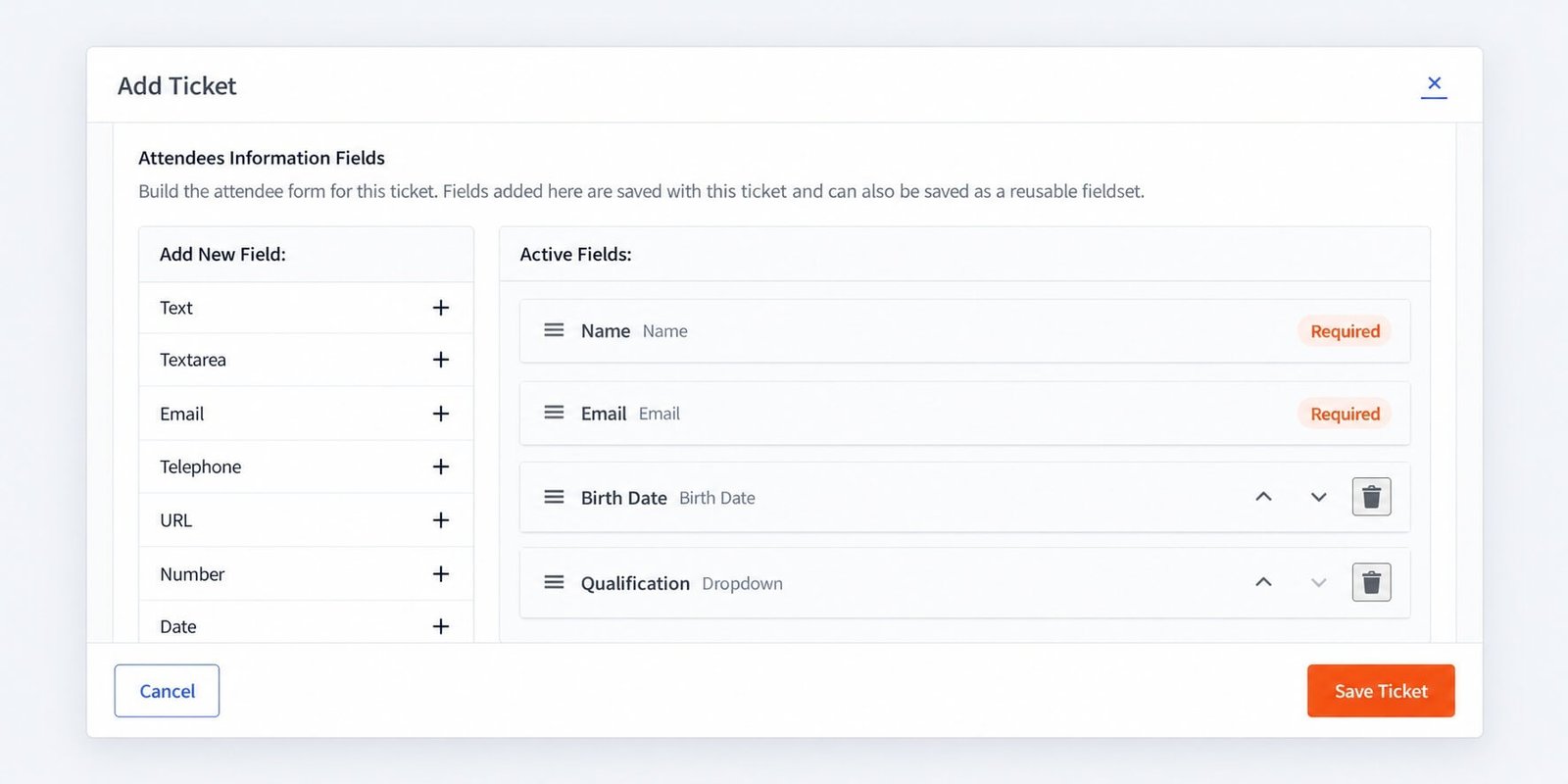
Add New Field
The Add New Field area contains the available field types.
Depending on the current Eventixa Pro build, available options can include:
- Text
- Textarea
- Telephone
- URL
- Number
- Date
- Dropdown
Select the required field type to add it to the active attendee form.
Text Field
Use a Text field for short single-line information.
Examples:
- Company
- Job Title
- Department
- Employee ID
- City
Avoid using Text for long responses.
Textarea Field
Use Textarea for longer responses.
Examples:
- Special requirements
- Accessibility notes
- Questions for the speaker
- Additional comments
Textarea fields are best when attendees may need more than one short line.
Email Field
Use an Email field when you need an additional email value.
For most attendee forms, the built-in attendee Email field is already sufficient.
Add another Email field only when the workflow genuinely requires it.
Telephone Field
Use Telephone for phone or mobile numbers.
Examples:
- Mobile number
- Emergency contact
- Business phone
Only request phone information when it is operationally necessary.
URL Field
Use URL when attendees need to provide a website or profile link.
Examples:
- Company website
- Portfolio
- LinkedIn profile
- Project URL
Number Field
Use Number for numeric responses.
Examples:
- Age
- Years of experience
- Team size
- Membership number where purely numeric
Use a Text field instead if the value may contain letters or formatting.
Date Field
Use Date for date-based information.
Examples:
- Birth date
- Arrival date
- Certification date
The frontend can present an appropriate date input for attendees.
Dropdown Field
Use Dropdown when attendees should select one option from a predefined list.
Examples:
Qualification
- Student
- Graduate
- Professional
- Other
or:
T-shirt Size
- S
- M
- L
- XL
Dropdowns help keep responses consistent.
Active Fields
Once a field is added, it appears under: Active Fields
This area represents the fields currently included in the attendee form.
For example:
- Name
- Birth Date
- Qualification
Name and Email
When individual attendee collection is required, Eventixa can automatically include:
- Name
These are core attendee identity fields and can be marked Required.
They form the base of the attendee form.
Reorder Fields
Active fields can be reordered.
Use the drag handle or available move controls to arrange the form in the order attendees should see it.
For example:
- Name
- Company
- Job Title
- Qualification
- Dietary Requirements
Keep related fields together.
Remove a Field
Custom fields can be removed from the active field list using the delete action.
Before removing a field from an event that already has registrations, consider whether existing attendee records already contain data for it.
Deleting the form field does not mean historical attendee information should be treated as if it never existed.
Required vs Optional Fields
Custom attendee fields should be required only when the information is essential.
Good candidates for required fields include:
- Information needed for admission
- Required compliance data
- Essential logistical information
Optional fields are better for information that is helpful but not necessary.
Too many required fields can reduce registration completion rates.
Field Labels
Use clear labels that attendees immediately understand.
Good:
- Company Name
- Job Title
- Dietary Requirements
Avoid:
- Field 1
- Extra Info
- Other Data
The label should describe exactly what the attendee should enter.
Field Options
Fields such as Dropdown require predefined options.
Keep option lists:
- Clear
- Short
- Mutually understandable
- Relevant to the event
Avoid long option lists when a simpler field type would work better.
Example: Business Conference
You could build an attendee form with:
- Name — Required
- Email — Required
- Company — Required
- Job Title — Optional
- LinkedIn URL — Optional
This gives organizers useful professional attendee information without overloading the form.
Example: Workshop
A workshop attendee form might use:
- Name
- Experience Level — Dropdown
- Questions for Instructor — Textarea
This lets instructors understand participant needs before the session.
Example: Catering Event
For an event with meals:
- Name
- Dietary Requirements — Textarea
Collect only the information needed for catering preparation.
Reusable Fieldsets
Eventixa Pro can support saving attendee field configurations as reusable fieldsets.
This is useful when several tickets or events need the same attendee form.
For example:
Professional Conference Fieldset
could contain:
- Company
- Job Title
- Telephone
- LinkedIn URL
Instead of recreating these fields repeatedly, the configuration can be reused.
When to Use a Reusable Fieldset
Reusable fieldsets are helpful for:
- Repeated conference formats
- Similar training events
- Organization-wide registration standards
- Multiple tickets with the same attendee questions
They reduce setup time and improve consistency.
Ticket-Specific Fields
Fields added inside the ticket editor belong to that ticket’s attendee form.
This means different ticket types can collect different information.
For example:
General Admission
- Name
Speaker Pass
- Name
- Company
- Biography
- Website
This gives you more control over registration requirements.
Advanced Fields and RSVP
Advanced attendee information can also be used with RSVP workflows where supported.
For RSVP, remember that attendee collection may behave differently depending on whether the response is:
- Going
- Not Going
Avoid requiring unnecessary extra fields for attendees who are simply declining.
Multi-Attendee Booking
If a booking contains multiple attendees, Eventixa can show the configured advanced fields for each attendee.
For example:
Quantity: 3
Each attendee can provide:
- Name
- Company
- Qualification
This produces complete attendee records for every participant.
Advanced Fields at Checkout
The configured attendee form appears as part of the registration and checkout flow.
A typical flow is: Select Tickets → Enter Attendee Details → Complete Checkout
The attendee fields are validated according to their configuration before registration completes.
Validation
Different field types can use appropriate validation.
For example:
- Email should contain a valid email format.
- URL should contain a valid URL.
- Number expects numeric input.
- Required fields cannot be left empty.
Choose the correct field type instead of using generic Text for everything.
Editing Fields After Registrations Exist
Be cautious when changing attendee forms after registration has opened.
Possible changes include:
- Adding fields
- Removing fields
- Changing required status
- Reordering fields
Existing registrations may not contain values for newly added fields.
Do not assume older attendees will automatically have data for fields added later.
Removing Required Fields
If you remove a required field after registrations exist, historical attendee records may still contain that data.
The registration form configuration and stored attendee data are separate concerns.
Attendee Data in Administration
Collected custom field values can be associated with the attendee record.
Administrators can use this information when managing attendees and event operations.
The exact display depends on the applicable Eventixa attendee management screen.
Advanced Fields and Check-In
Custom attendee fields can support operational workflows around check-in.
For example, organizers may review:
- Company
- Ticket category
- Registration answers
However, check-in itself should continue to rely on the attendee’s valid Eventixa registration state.
Advanced Fields and Recurring Events
If advanced attendee fields are used on recurring events, the attendee’s custom data remains associated with their registration for the relevant event occurrence.
Test more than one occurrence if your recurring event uses custom registration fields.
Migration Considerations
If events are migrated from another event system, not every source custom field can always map directly to an Eventixa attendee field.
Where a field cannot be mapped safely, migration should avoid blocking the event itself and surface an appropriate warning.
Review migrated attendee forms before opening registration.
Privacy and Data Collection
Only collect information that you genuinely need.
Before adding a custom field, ask:
- Do we need this information?
- Will we actually use it?
- Should it be required?
- Does the attendee understand why it is being requested?
Shorter forms are generally easier for attendees to complete.
Common Problems
Field Builder Is Empty
Check whether individual attendee collection is enabled.
Name and Email Are Missing
Review the attendee collection mode.
When required individual attendee collection is enabled, Eventixa should include the core Name and Email fields.
Added Field Does Not Appear
Make sure:
- The field was added to Active Fields.
- The ticket was saved.
- You are testing the correct ticket.
Dropdown Has No Options
Edit the field and configure its selectable choices.
Attendees Can Skip a Field
Check whether the field is configured as required.
Existing Attendees Do Not Have Data for a New Field
This is expected if the field was added after those registrations were completed.
Too Many Fields Appear for Every Attendee
Remove unnecessary fields or review whether individual attendee collection is appropriate for that ticket.
Recommended Workflow
- Open the ticket editor.
- Choose the attendee collection mode.
- Open Attendees Information Fields.
- Review automatic Name and Email fields.
- Add only necessary custom fields.
- Configure labels and options.
- Mark essential fields as required.
- Reorder the fields.
- Save the ticket.
- Preview the registration form.
- Test a single-attendee registration.
- Test a multi-attendee registration.
- Verify the stored attendee data.
Important Notes
- Advanced Attendee Fields require Eventixa Pro.
- Individual attendee collection must be enabled for attendee-specific fields.
- Name and Email form the core attendee identity.
- Use the correct field type for better validation.
- Keep forms concise.
- Required fields should be genuinely necessary.
- Different tickets can use different attendee forms.
- Review existing registrations before changing an active form.


