
PayPal Payment
Eventixa includes PayPal support for accepting online payments for paid event tickets.
Once PayPal is configured and active, eligible customers can choose PayPal during Eventixa checkout and complete their payment through PayPal’s payment flow.
Available in: Eventixa Core
Location: Eventixa → Settings → Payments → Payment Gateways → PayPal
Used for: Paid standard tickets
Related features: Checkout, Bookings, Coupons, Refunds
Open PayPal Settings
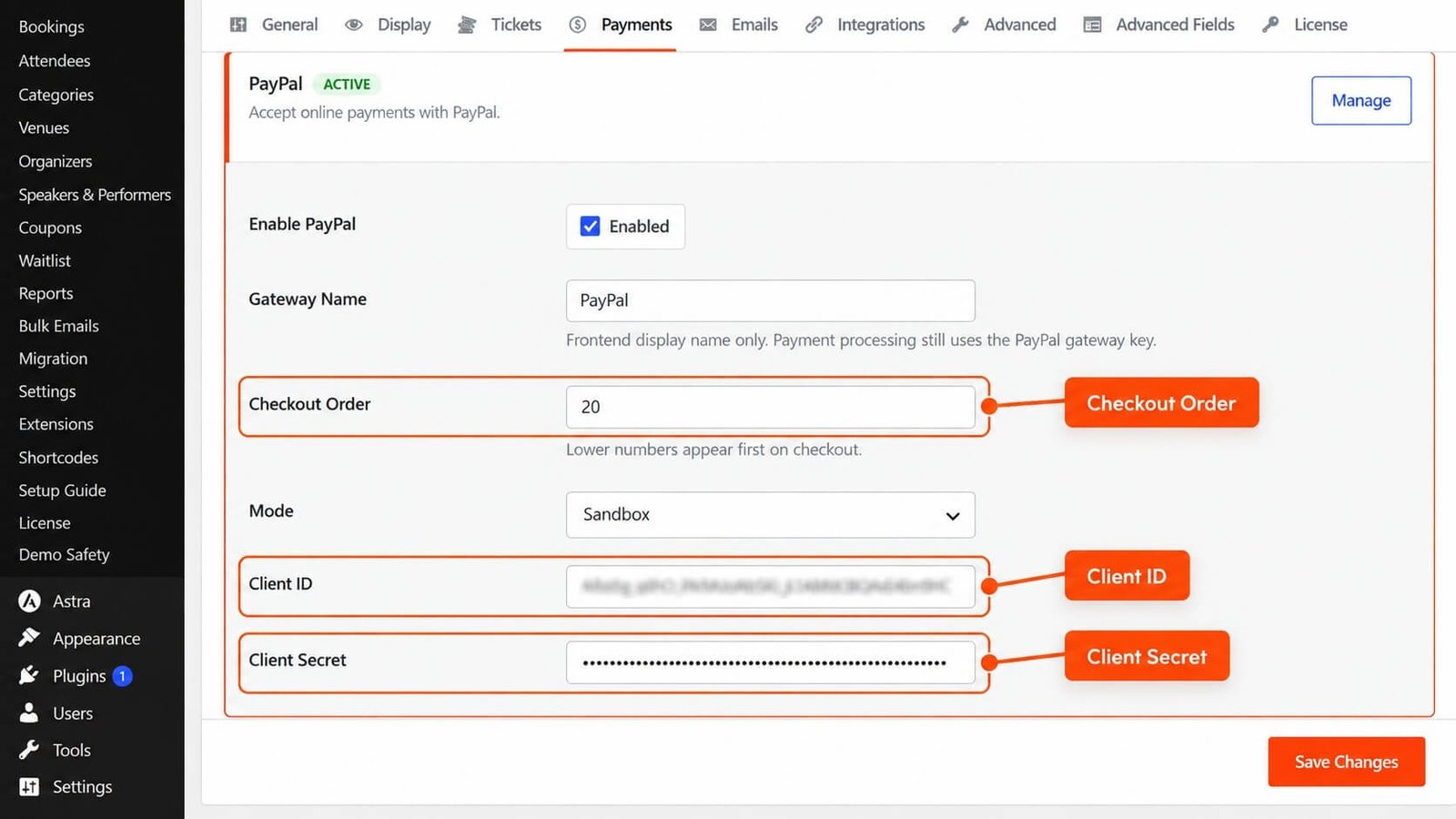
From the WordPress dashboard, go to: Eventixa → Settings → Payments
Open: Payment Gateways
Find: PayPal
Click: Manage to configure the gateway.
PayPal Gateway Status
The Payment Gateways screen shows whether PayPal is currently active.
For example: PayPal — ACTIVE
Only active payment methods are available to customers during checkout.
Enable PayPal
Open the PayPal settings and enable the gateway.
After configuration is complete, save the settings.
PayPal can then become available for eligible paid Eventixa bookings.
PayPal Account
You need a PayPal account capable of receiving payments.
Before configuring Eventixa, make sure your PayPal account is ready for the environment you plan to use.
You may use:
- Sandbox credentials for testing
- Live credentials for production payments
Sandbox vs Live Mode
Sandbox
Use Sandbox mode while testing the payment workflow.
No real money is transferred.
Live
Use Live mode only after testing is complete and you are ready to accept real payments.
Do not use production credentials for routine development testing.
PayPal Credentials
Eventixa requires the applicable PayPal credentials for the selected environment.
Depending on the integration, this can include values such as:
- Client ID
- Secret
Enter the credentials provided by PayPal.
Do not share these credentials publicly.
Where to Get PayPal Credentials
Create or manage the appropriate PayPal application from your PayPal developer account.
Use the credentials belonging to the same environment configured in Eventixa.
For example:
Sandbox mode → Sandbox credentials
Live mode → Live credentials
Mixing environments can cause payment failures.
Save PayPal Settings
After entering the required PayPal configuration, click: Save Changes
Then return to the Payment Gateways screen and verify PayPal appears active.
PayPal at Checkout
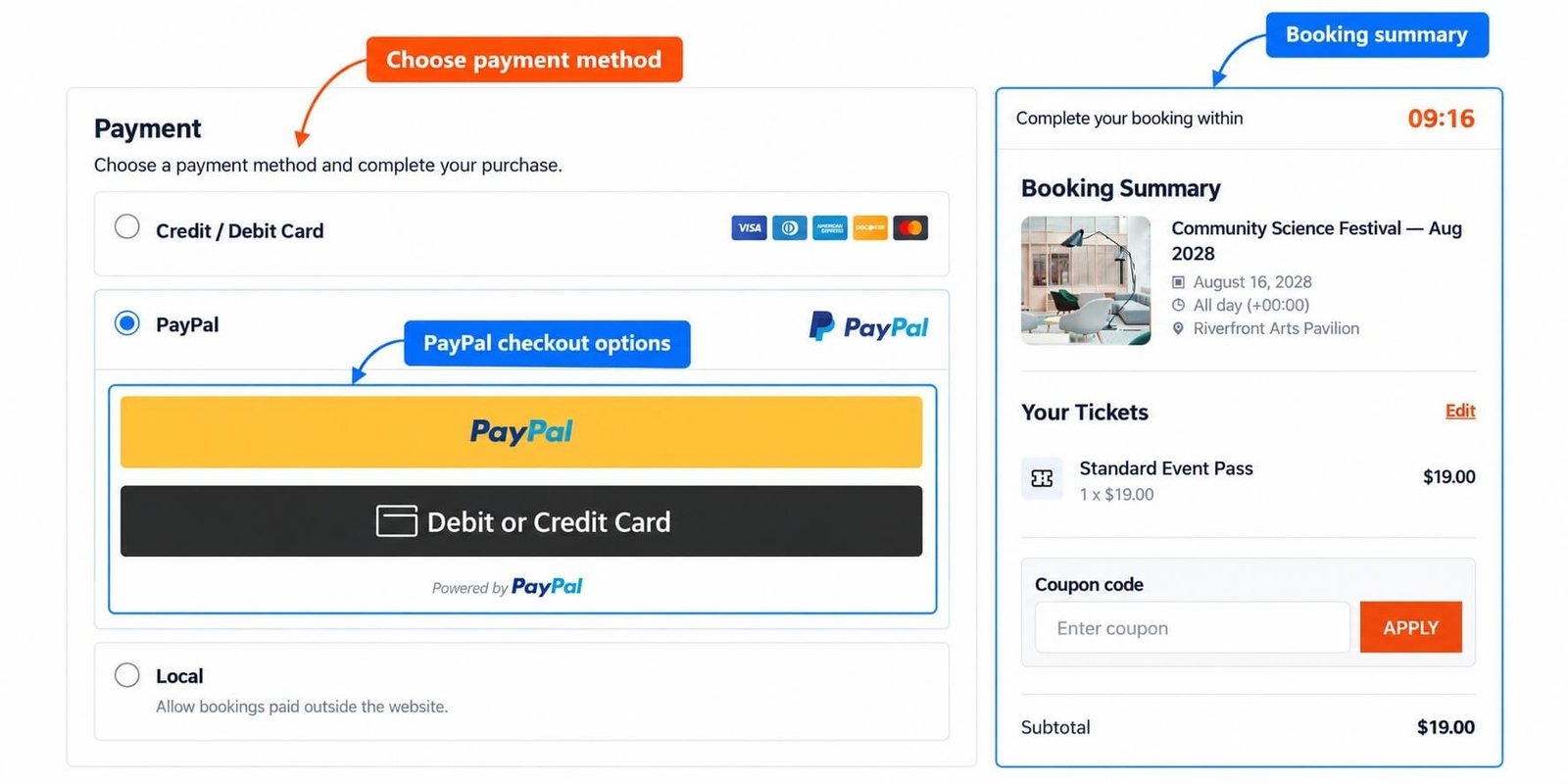
When PayPal is enabled and the booking requires payment, customers can use PayPal during the Payment step.
The typical flow is:
- Select paid ticket.
- Proceed to checkout.
- Enter attendee information.
- Enter purchaser information.
- Continue to Payment.
- Select PayPal.
- Complete payment.
- Return to the Eventixa booking flow.
Example
Suppose an event has:
Standard Event Pass — $49
The customer selects one ticket and chooses PayPal.
Eventixa sends the applicable payment amount into the PayPal workflow.
After a successful payment, the booking can continue to its completed paid state.
PayPal and Ticket Quantity
PayPal receives the payable amount after Eventixa calculates the selected ticket quantity.
For example:
Ticket: $49
Quantity: 2
Subtotal: $98
PayPal should process: $98
before any applicable discount.
PayPal and Coupons
If an eligible coupon is applied, Eventixa calculates the discounted amount first.
For example:
Subtotal: $100
Coupon: -$20
Total: $80
PayPal should receive: $80
Verify the Final Amount
Before launching live payments, verify that:
- Eventixa checkout total
- Eventixa booking total
- PayPal transaction amount
all match.
This is especially important when using:
- Coupons
- Multiple tickets
- Recurring events
- Waitlist reservations
Successful PayPal Payment
After PayPal confirms the transaction, the related Eventixa booking can update to the appropriate successful state.
A typical successful result may include:
Booking status: Completed
Payment status: Paid
Gateway: PayPal
Payment Confirmation
Do not rely only on what the purchaser reports.
For payment-related support, compare:
- Eventixa booking
- Payment status
- PayPal transaction
The external PayPal transaction is the financial source of truth for whether money was actually transferred.
Pending PayPal Payment
A booking may temporarily remain pending while the payment workflow is incomplete or awaiting a result.
Do not manually mark it paid without verifying the PayPal transaction.
Failed PayPal Payment
A failed PayPal attempt should not be treated as a successful paid booking.
Possible causes can include:
- Customer cancelled
- Payment authorization failed
- Invalid configuration
- Gateway communication problem
- Environment mismatch
Review both Eventixa and PayPal before changing the booking manually.
Customer Cancels PayPal
If the customer leaves or cancels the PayPal payment flow, the booking should not be treated as successfully paid.
They may return to checkout and retry where supported.
Checkout Session
Eventixa checkout uses a limited session to protect ticket capacity.
The standard checkout session lasts: 10 minutes
Refreshing the page does not restart the timer.
The purchaser should complete PayPal payment within the active checkout flow.
Ticket Capacity During PayPal Checkout
Eventixa can temporarily reserve ticket capacity while the customer is completing checkout.
This helps prevent two customers from purchasing the same final ticket.
If the booking expires without payment, the reserved capacity can be released.
PayPal and Booking Expiration
If the payment process is not completed before the allowed booking hold expires, the booking can become: Expired
The capacity can then return to availability according to Eventixa rules.
Late Payment Concerns
If PayPal reports a successful payment after Eventixa believes the booking has expired, do not make assumptions.
Review:
- Booking ID
- PayPal transaction
- Payment timestamp
- Booking Notes
- Ticket availability
Then reconcile the booking carefully.
PayPal Transaction Reference
A completed PayPal payment can include an external transaction reference.
Keep this information for:
- Support
- Reconciliation
- Refunds
- Payment disputes
Do not expose sensitive payment details unnecessarily.
Booking Details
To review a PayPal booking, go to: Eventixa → Bookings
Open the booking.
The payment area can show information such as:
- Payment status
- Gateway
- Amount
- Transaction reference
PayPal Badge in Bookings
The Eventixa Bookings listing can identify PayPal bookings using a PayPal payment-method badge.
This makes it easier to distinguish PayPal transactions from:
- Stripe
- Local / Offline
- WooCommerce
- Free
- RSVP
PayPal and Guest Checkout
When Guest Checkout is enabled, guests can pay using PayPal without first creating a WordPress account.
Guest checkout still follows the normal:
- Ticket rules
- Capacity rules
- Checkout session
- Payment validation
PayPal and Logged-In Users
Logged-in customers can use PayPal through the same Eventixa checkout flow.
Their booking can remain associated with their WordPress account.
PayPal and Recurring Events
PayPal can be used for eligible paid recurring-event registrations.
The payment does not change which event occurrence the customer selected.
When troubleshooting, verify:
- Event
- Occurrence
- Ticket
- Booking
- PayPal transaction
PayPal and Virtual Events
Virtual and Hybrid events can use PayPal for paid registration.
Successful payment alone does not bypass virtual access rules.
Access can still depend on:
- Booking validity
- Attendee status
- Reveal timing
- Occurrence
PayPal and Waitlist
If a waitlisted visitor receives a protected reservation for an available paid ticket, they can complete payment through the applicable Eventixa checkout flow.
When PayPal is selected, the payment must match that reservation and booking.
Payment Match Protection
Eventixa validates payment context to prevent one payment from being incorrectly applied to another booking.
This is especially important when customers:
- Open multiple checkout tabs
- Retry payment
- Use protected waitlist links
- Create several bookings
PayPal and Full Discounts
If a coupon reduces the payable amount to: $0
PayPal should not need to process a zero-value online payment.
Test this workflow before launching full-discount campaigns.
PayPal Refunds
Cancelling an Eventixa booking does not automatically mean the PayPal payment has been returned.
Cancellation and refund are separate actions.
Recommended PayPal Refund Workflow
- Open the Eventixa booking.
- Verify the PayPal payment.
- Cancel the booking where applicable.
- Confirm capacity is released.
- Process the financial refund through the appropriate PayPal workflow.
- Verify the PayPal refund.
- Mark the Eventixa booking Refunded where appropriate.
- Add an internal note if useful.
Refund the Actual Amount Paid
If the booking used a coupon, refund the real amount paid.
For example:
Ticket subtotal: $100
Coupon: -$20
PayPal payment: $80
The financial transaction was: $80
Use the actual PayPal transaction amount when processing a refund.
Partial Refunds
If a partial refund is needed, manage the financial amount carefully through PayPal according to the supported workflow.
Keep the Eventixa booking notes clear so administrators understand what happened.
PayPal and Manual Refund Records
If the payment is refunded outside Eventixa, update the Eventixa booking afterward so its administrative state reflects the real financial outcome.
Do not mark a booking Refunded before the refund has actually occurred.
Test PayPal Before Going Live
Always test PayPal before accepting real registrations.
Test:
- Successful payment
- Cancelled payment
- Failed payment
- Multiple ticket quantity
- Coupon discount
- Guest checkout
- Logged-in checkout
- Checkout expiration
- Booking status
- Attendee creation
- Capacity
- Confirmation email
Sandbox Test
Use PayPal Sandbox accounts and Sandbox credentials.
Complete a full registration exactly as a real customer would.
Verify both:
- Eventixa
- PayPal Sandbox
Verify Booking After Test
After a successful Sandbox payment, check: Eventixa → Bookings
Confirm:
- Correct event
- Correct ticket
- Correct quantity
- Correct total
- PayPal gateway
- Correct payment state
- Correct booking state
Verify Attendees
Go to: Eventixa → Attendees
Confirm the expected attendee records were created.
Verify Capacity
Return to the event and confirm availability changed by the correct quantity.
Verify Ticket Delivery
Confirm the customer receives the expected:
- Booking confirmation
- Event ticket
- Other enabled emails
Test Failure Handling
Do not test only successful transactions.
Also test what happens when:
- Customer cancels PayPal
- Payment fails
- Checkout expires
- Browser is refreshed
- Payment is retried
Going Live with PayPal
After Sandbox testing is complete:
- Open PayPal settings.
- Switch to Live mode where applicable.
- Enter Live PayPal credentials.
- Save Changes.
- Verify PayPal remains active.
- Complete a controlled live test if appropriate.
- Verify the Eventixa booking.
- Verify the actual PayPal transaction.
Do Not Mix Sandbox and Live Credentials
A common setup mistake is using Sandbox credentials while the gateway is configured for Live mode, or vice versa.
Always match: Mode ↔ Credentials
Common Problems
PayPal Does Not Appear at Checkout
Check:
- Ticket has a price above zero.
- PayPal is active.
- PayPal settings are saved.
- Required credentials are configured.
- The gateway environment is correct.
PayPal Is Active but Payment Fails
Review:
- Client credentials
- Sandbox vs Live mode
- PayPal application
- Currency
- PayPal account status
Payment Succeeded in PayPal but Booking Is Pending
Do not immediately create another payment.
First verify:
- PayPal transaction
- Eventixa booking
- Transaction reference
- Booking Notes
Then reconcile the status.
Customer Was Charged but Booking Expired
Verify the payment directly in PayPal.
Do not ask the customer to pay again until the first payment is understood.
PayPal Amount Is Wrong
Check:
- Ticket price
- Quantity
- Coupon
- Eventixa final checkout total
The PayPal amount should match the final payable amount.
Customer Cancels PayPal
The booking should not be treated as successfully paid.
Let the customer retry through the supported checkout workflow.
PayPal Refund Completed but Eventixa Still Shows Paid
Verify the refund in PayPal, then update the applicable Eventixa booking state so your administrative records stay consistent.
PayPal Shows Duplicate Payments
Check the actual PayPal transaction records before assuming both are valid charges.
Compare them with:
- Eventixa booking references
- Amounts
- Timestamps
Recommended PayPal Setup Workflow
- Go to Eventixa → Settings → Payments.
- Open Payment Gateways.
- Find PayPal.
- Click Manage.
- Enable PayPal.
- Select Sandbox mode for testing.
- Enter Sandbox credentials.
- Save Changes.
- Create or open an event with a paid ticket.
- Complete a frontend test checkout.
- Select PayPal.
- Finish the Sandbox payment.
- Verify Eventixa booking.
- Verify payment status.
- Verify attendees.
- Verify capacity.
- Verify email delivery.
- Test cancellation and failure.
- Test refund workflow.
- Replace Sandbox configuration with Live credentials only after testing succeeds.
Recommended Production Checklist
Before accepting live PayPal payments, confirm:
- PayPal is active.
- Live credentials are configured.
- Correct currency is configured.
- Paid ticket pricing is correct.
- Coupon calculations are correct.
- Guest Checkout behaves correctly.
- Booking status updates correctly.
- Capacity updates correctly.
- Confirmation emails work.
- Refund workflow has been tested.
Important Notes
- PayPal is available in Eventixa Core.
- Configure PayPal from Eventixa → Settings → Payments → Payment Gateways.
- Only active gateways appear during eligible checkout.
- Use Sandbox for testing and Live mode for real payments.
- Keep Sandbox and Live credentials separate.
- PayPal processes the final Eventixa payable total after eligible discounts.
- Booking status and payment status are separate.
- A cancelled Eventixa booking does not automatically prove a PayPal refund occurred.
- Always verify financial results directly with PayPal.
- Test successful, cancelled, failed, expired, discounted, and refunded workflows before going live.


