
Creating a Recurring Event
Eventixa Pro lets you turn a normal Eventixa event into a recurring event by defining how often it repeats.
You can create daily, weekly, monthly, or yearly recurrence schedules, control the repeat interval, define when recurrence ends, exclude unwanted dates, and add extra dates outside the normal pattern.
Available in: Eventixa Pro
Location: Eventixa → Events → Add New / Edit Event → Recurring Events
Requires: Eventixa Core + Eventixa Pro
Related features: Occurrences, Tickets, Sessions, Virtual Events
Before You Begin
Before configuring recurrence, create the main event information.
At minimum, configure:
- Event title
- Start date
- End date
- Start time
- End time
- Venue or virtual configuration where needed
The main event schedule provides the starting point for the recurring schedule.
Create or Edit an Event
Go to: Eventixa → Events
Then either:
- Click Add New Event, or
- Open an existing event.
Configure the basic event information first.
Open Recurring Events
In the Event Settings panel, select: Recurring Events
This opens the recurrence configuration.
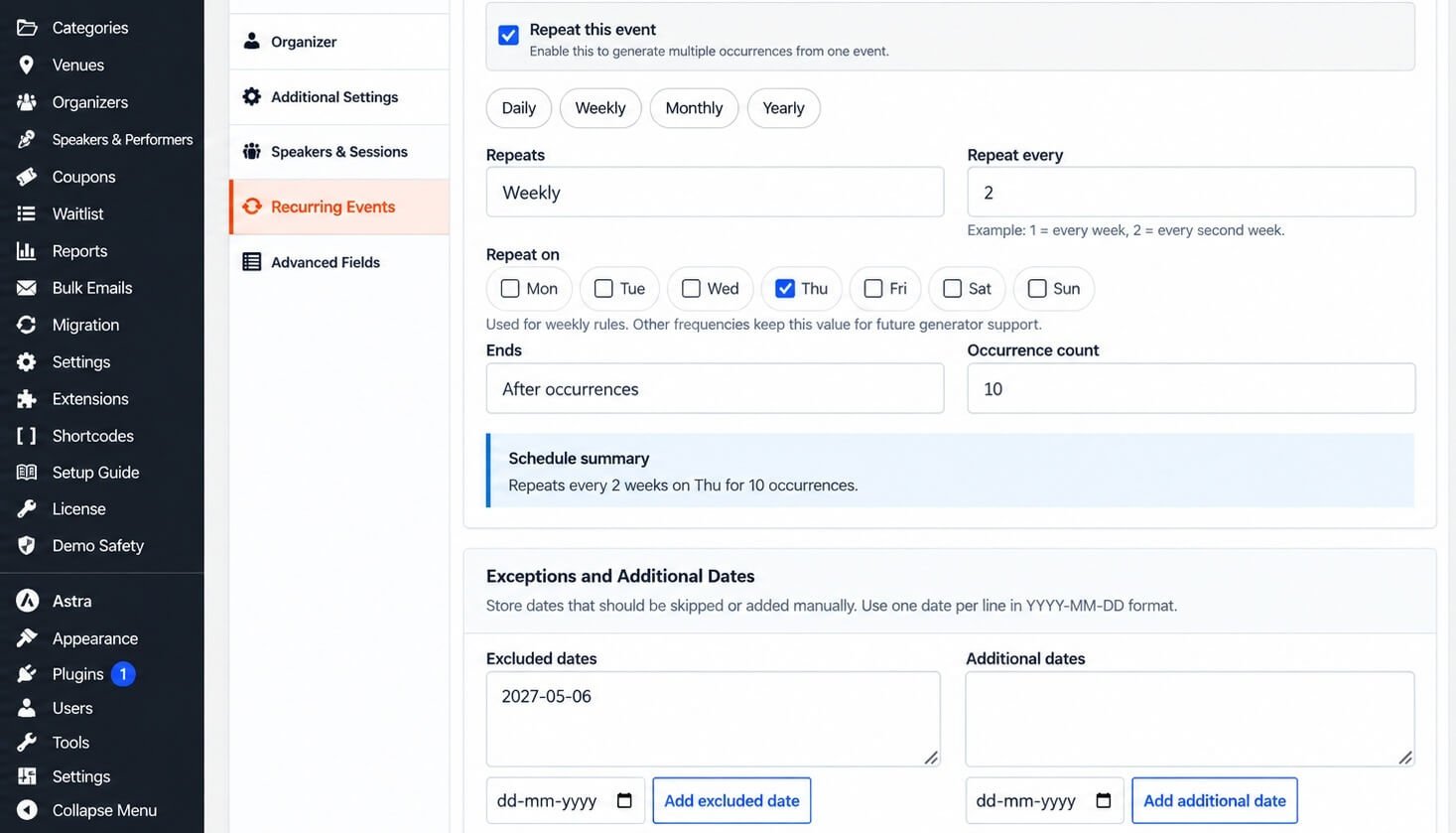
Enable Recurrence
Enable: Repeat this event
Once enabled, Eventixa displays the recurrence controls.
This tells Eventixa Pro to generate multiple occurrences from the main event instead of treating it only as a single date.
Choose the Recurrence Frequency
Eventixa supports these main recurrence frequencies:
- Daily
- Weekly
- Monthly
- Yearly
Choose the option that matches how your event repeats.
Daily Recurrence
Use Daily when an event repeats every day or every few days.
Example:
Repeat every: 1
Result: Every day.
Another example:
Repeat every: 3
Result: Every third day.
Daily recurrence can be useful for:
- Multi-day training
- Daily exhibitions
- Repeated classes
- Short-term event programs
Weekly Recurrence
Use Weekly when the event repeats on selected days of the week.
For example:
Repeats: Weekly
Repeat every: 2
Repeat on: Thursday
This means: Every second Thursday
Weekly recurrence is useful for:
- Classes
- Workshops
- Networking events
- Community meetings
- Training programs
Choose Weekly Days
For weekly recurrence, use the Repeat on controls to choose the relevant day or days.
Available days include:
- Monday
- Tuesday
- Wednesday
- Thursday
- Friday
- Saturday
- Sunday
For example, you could configure an event for: Every week on Tuesday and Thursday
Use only the days on which the event genuinely occurs.
Monthly Recurrence
Choose Monthly when the event repeats monthly.
This can be useful for:
- Monthly networking events
- Community meetings
- Recurring seminars
- Monthly workshops
Set the recurrence interval according to how frequently the event should repeat.
For example:
Repeat every: 1 means every month.
Repeat every: 2 means every second month.
Yearly Recurrence
Use Yearly when the event repeats on an annual schedule.
Examples include:
- Annual conferences
- Festivals
- Anniversary events
- Yearly summits
For example:
Repeat every: 1 means once every year.
Repeat Every
The Repeat every field controls the recurrence interval.
Examples:
| Frequency | Repeat Every | Result |
|---|---|---|
| Daily | 1 | Every day |
| Daily | 2 | Every second day |
| Weekly | 1 | Every week |
| Weekly | 2 | Every second week |
| Monthly | 1 | Every month |
| Yearly | 1 | Every year |
This lets you create schedules beyond simple once-per-period repetition.
Set When Recurrence Ends
Use the Ends setting to control how long the recurring schedule continues.
Depending on the available options, you can configure recurrence to end based on the recurrence controls shown in Eventixa.
One useful option is: After occurrences
This lets you specify exactly how many occurrences Eventixa should generate.
End After a Number of Occurrences
For example:
Ends: After occurrences
Occurrence count: 10
Eventixa generates ten occurrences based on the configured recurrence rule.
Example:
Repeats: Weekly
Repeat every: 2
Repeat on: Thursday
Occurrence count: 10
The schedule summary can display:
Repeats every 2 weeks on Thu for 10 occurrences.
Review the Schedule Summary
Eventixa shows a Schedule Summary based on the current recurrence settings.
Use it to verify the schedule before saving.
The summary helps confirm:
- Recurrence frequency
- Repeat interval
- Weekly day selection
- End behavior
- Number of occurrences
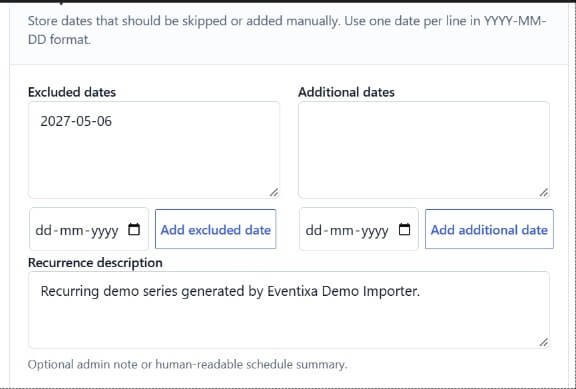
Always check this summary after changing the recurrence configuration.
Exclude a Date
Sometimes a generated occurrence should not happen.
For example, a weekly event may fall on a public holiday.
Use: Exceptions and Additional Dates → Excluded dates
You can add a date that Eventixa should skip.
Add an Excluded Date
You can add excluded dates using the date control or supported date-entry workflow.
For example: 2027-05-06
If that date would normally be generated by the recurrence rule, Eventixa excludes it from the occurrence schedule.
Add Multiple Excluded Dates
If several generated dates should be skipped, add each required date.
Typical reasons include:
- Public holidays
- Venue closures
- Speaker unavailability
- Maintenance
- Seasonal breaks
Review the resulting occurrence list afterward.
Add an Additional Date
Sometimes an event needs an extra occurrence outside the normal recurrence rule.
Use: Additional dates
For example:
A workshop normally happens every Thursday, but you want one additional Saturday session.
Add that Saturday as an additional date.
Excluded Dates vs Additional Dates
| Setting | Purpose |
|---|---|
| Excluded Date | Removes a normally generated occurrence |
| Additional Date | Adds an occurrence outside the normal pattern |
Both features let you customize the recurrence schedule without creating a separate event.
Save or Update the Event
After configuring recurrence:
- Review the recurrence rule.
- Check the Schedule Summary.
- Review excluded dates.
- Review additional dates.
- Save or update the event.
Eventixa then synchronizes the occurrence schedule.
Review Generated Occurrences
After saving, scroll to the Occurrences section.
Eventixa can show information such as:
- Occurrence date
- Time
- Type
- Status
- Booking information
- Available actions
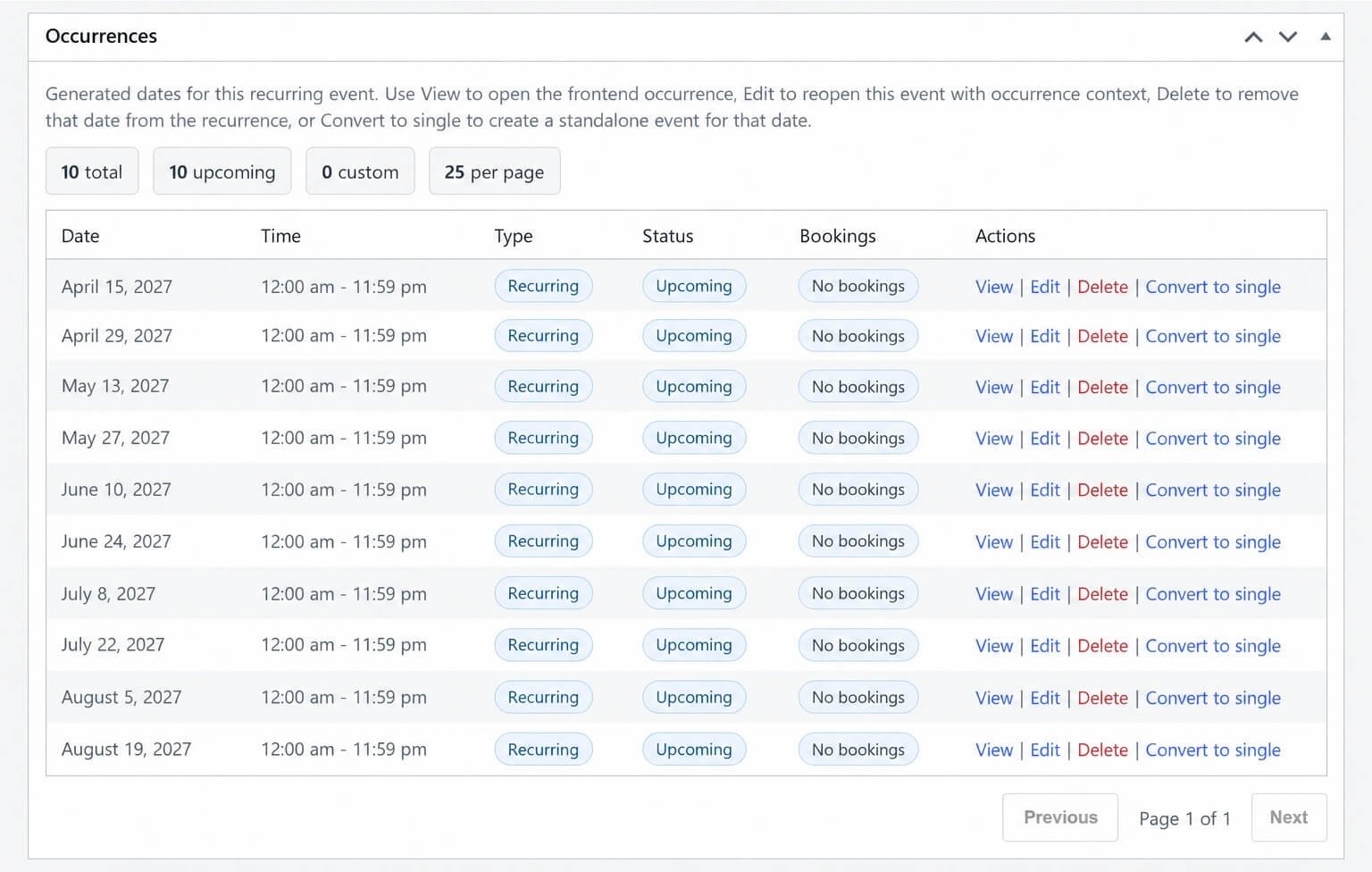
Occurrence Actions
Depending on the occurrence, available actions can include:
- View
- Edit
- Delete
- Convert to single
These controls let you manage individual dates after the recurring schedule has been created.
The dedicated Managing Event Occurrences guide covers these actions in detail.
Example: Every Second Thursday
Suppose you are creating a workshop that happens every two weeks.
Configure:
| Setting | Value |
|---|---|
| Repeat this event | Enabled |
| Repeats | Weekly |
| Repeat every | 2 |
| Repeat on | Thursday |
| Ends | After occurrences |
| Occurrence count | 10 |
Eventixa then creates ten occurrences every second Thursday.
Example: Weekly Event with a Holiday Exception
Suppose the event runs every Thursday, but one Thursday is a public holiday.
Configure the normal weekly recurrence, then add the holiday date under: Excluded dates
Eventixa generates the normal schedule while skipping that date.
Example: Monthly Event with an Extra Session
Suppose an event occurs monthly but needs one additional special session.
Create the monthly recurrence and add the special date under: Additional dates
The extra occurrence appears alongside the generated monthly schedule.
Recurring Event Tickets
After creating the recurrence, configure tickets according to the event’s registration requirements.
Recurring event ticket behavior is covered in: Recurring Event Tickets
Review ticket availability carefully after changing recurrence.
Recurring Agenda
Recurring events can also have sessions and agendas.
You can use:
- Same agenda for all occurrences
- Different agenda per occurrence
For full configuration instructions, see Recurring Event Agendas.
Recurring Virtual Events
A recurring event can also be:
- Virtual
- Hybrid
With Eventixa Pro, recurring virtual events can use supported managed providers such as Zoom and Google Meet.
Meeting behavior can use:
- Same meeting for all occurrences
- Separate meeting per occurrence
See Recurring Virtual Events for details.
Editing the Rule Later
You can reopen: Event Settings → Recurring Events
and change the recurrence rule.
However, recurrence changes can affect generated occurrence dates.
Always review existing:
- Bookings
- Attendees
- Tickets
- Sessions
- Virtual meetings
before making major schedule changes.
Recurrence Diagnostics
Eventixa may provide recurrence diagnostics in the event editor.
This can help identify issues such as:
- Missing occurrence records
- Duplicate dates
- Invalid rows
- Stale occurrence data
- Broken booking links
A healthy recurring event should show a consistent occurrence schedule.
Use repair tools only when needed and after understanding the affected recurring event.
Run Safe Repair
Where available, Run safe repair can rebuild recurrence data while preserving matching occurrence IDs where possible and cleaning stale rows after synchronization.
This is primarily a maintenance or troubleshooting function.
Do not use it as part of the normal recurring-event creation workflow unless the recurrence diagnostics indicate a problem.
Common Problems
Repeat This Event Is Missing
Check that Eventixa Pro is active.
No Occurrences Are Created
Verify:
- Repeat this event is enabled.
- The recurrence frequency is selected.
- Repeat every has a valid value.
- End settings allow occurrences to be generated.
Then save or update the event.
Weekly Event Occurs on the Wrong Day
Review the Repeat on day selection.
Too Many Occurrences Are Generated
Check:
- Repeat interval
- End behavior
- Occurrence count
A Holiday Date Still Appears
Confirm that the exact date was added under Excluded dates and the event was updated afterward.
Extra Date Does Not Appear
Check that the date was saved under Additional dates and does not conflict with another generated occurrence.
Schedule Summary Looks Incorrect
Review each recurrence field before saving.
The summary reflects the currently configured rule.
Recommended Workflow
- Create the event.
- Configure its base date and time.
- Open Recurring Events.
- Enable Repeat this event.
- Choose Daily, Weekly, Monthly, or Yearly.
- Set Repeat every.
- Choose weekly days if applicable.
- Configure when recurrence ends.
- Add excluded dates.
- Add additional dates.
- Review the Schedule Summary.
- Save the event.
- Review generated occurrences.
- Configure tickets, agenda, and virtual meetings.
- Test several occurrences before launch.
Important Notes
- Recurring Events require Eventixa Pro.
- Set the main event date before building the recurrence rule.
- Review the Schedule Summary before saving.
- Use excluded dates instead of manually deleting normal schedule dates whenever appropriate.
- Use additional dates for exceptional extra occurrences.
- Review existing registrations before changing an active recurrence schedule.
- Test more than the first occurrence.


