
Offline Payment
Eventixa includes a Local / Offline Payment gateway for registrations where payment is collected outside the website.
This is useful when organizers want to accept payment through methods such as bank transfer, cash, manual invoice, payment at the venue, or another offline process.
Available in: Eventixa Core
Location: Eventixa → Settings → Payments → Payment Gateways → Local
Used for: Paid standard tickets
Related features: Checkout, Bookings, Payment Status, Manual Refunds
What Is Offline Payment?
Offline Payment lets a customer create an Eventixa booking without completing an online card or PayPal transaction.
The organizer then collects payment separately.
Typical examples include:
- Bank transfer
- Cash payment
- Payment at the venue
- Manual invoice
- Check or local payment arrangement
- Organizer-managed payment
The exact payment method is determined by the instructions you provide.
Open Offline Payment Settings
From the WordPress dashboard, go to: Eventixa → Settings → Payments
Open: Payment Gateways
Find: Local
and click: Manage to configure the gateway.
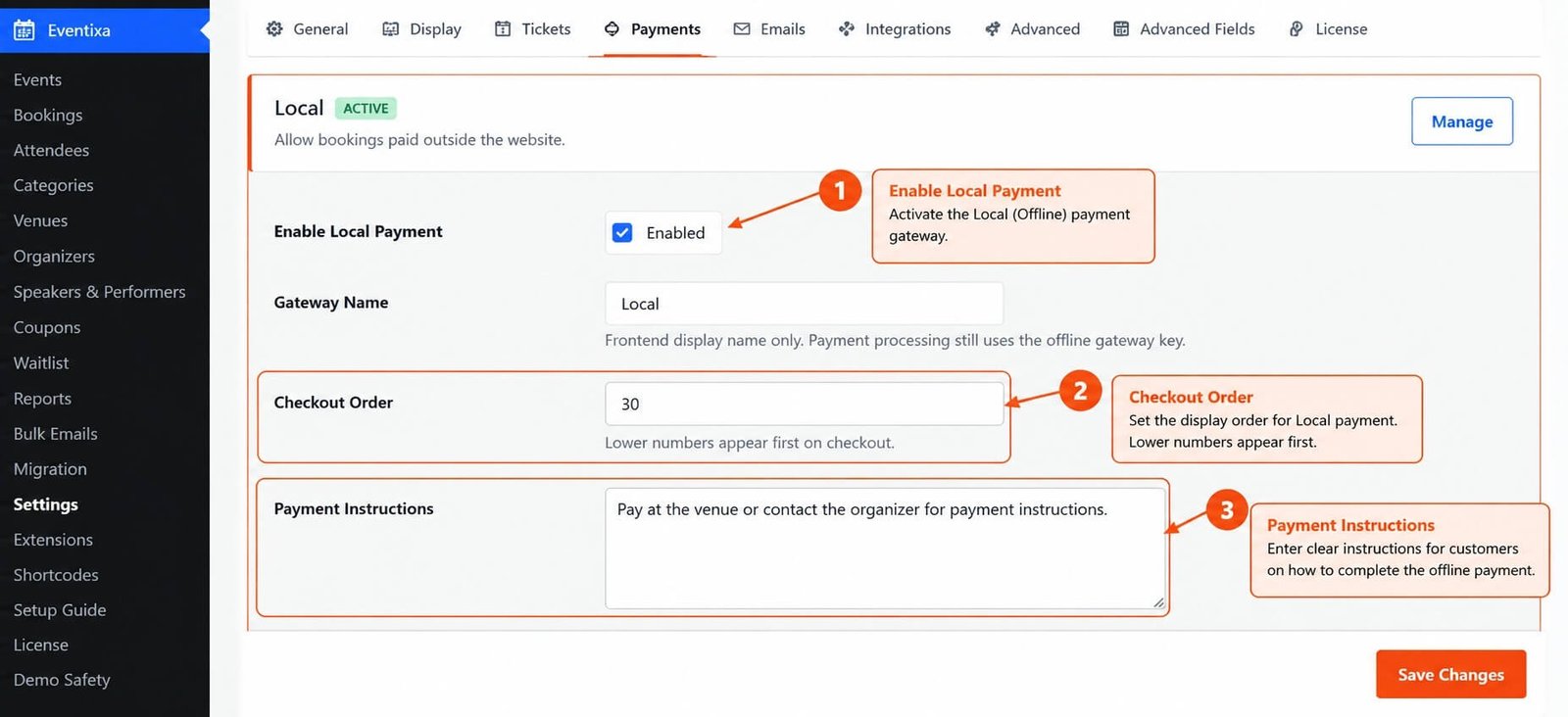
Enable Local Payment
Enable the Local payment gateway.
Once active, eligible customers can choose it during the Eventixa payment step.
After configuring the settings, click: Save Changes
Gateway Name
The gateway name controls how the payment option is presented to customers.
For example, you could use: Local or a more descriptive frontend name such as: Bank Transfer
or Pay at Venue
Use a label customers will understand immediately.
Checkout Order
The Checkout Order controls where the payment gateway appears relative to other enabled gateways.
Lower numbers appear earlier during checkout.
For example:
- Stripe — 10
- PayPal — 20
- Local — 30
This would display Stripe before PayPal and Local.
Payment Instructions
Offline payment requires clear customer instructions.
Depending on your setup, instructions may include:
- Bank name
- Account name
- Account number
- Payment reference
- Payment deadline
- Venue payment instructions
- Organizer contact information
Never include sensitive administrator credentials.
Example Bank Transfer Instructions
For example:
Payment method: Bank Transfer
Instructions: Transfer the booking amount to the provided account and include your Eventixa booking reference with the payment.
After payment is verified, the organizer can update the booking accordingly.
Example Pay-at-Venue Instructions
For example:
Payment method: Pay at Venue
Instructions: Complete your registration now and pay at the event registration desk before entry.
Use this only when your event operations support payment collection at the venue.
Offline Payment at Checkout
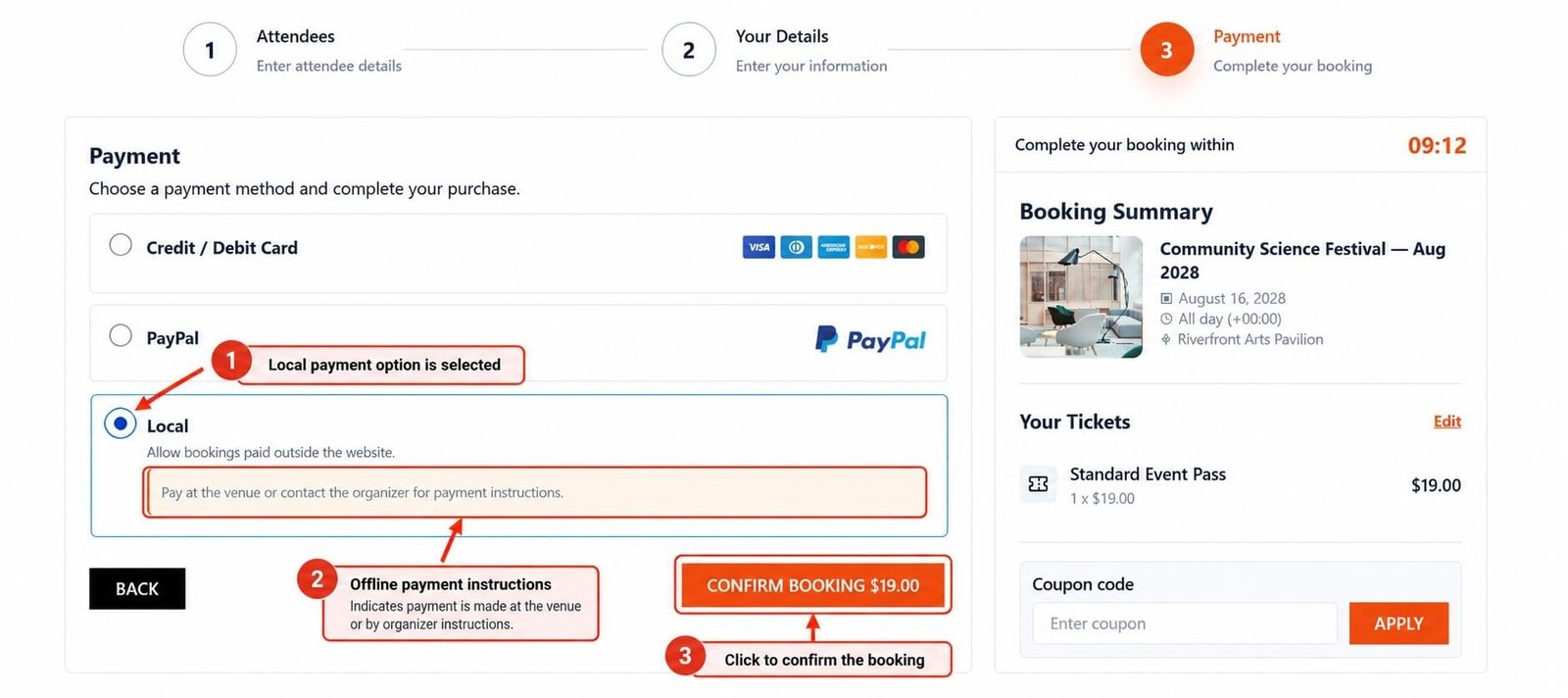
When Local payment is active, customers can see it alongside other available payment methods.
For example:
- Credit / Debit Card
- PayPal
- Local
The customer selects: Local
and completes the applicable checkout flow.
What Happens After Checkout?
Because Eventixa does not receive an automatic online payment confirmation for a Local payment, the booking may require administrator review.
The organizer collects payment separately and then keeps the Eventixa booking state aligned with the real payment outcome.
Booking Status vs Payment Status
Offline payment makes the distinction between booking status and payment status especially important.
Booking Status
Describes the registration state.
Payment Status
Describes whether the money has actually been received.
Do not mark a payment as Paid simply because the booking exists.
Pending Offline Payment
An offline booking can remain pending until the organizer verifies payment.
For example:
Booking status: Pending
Payment status: Pending
Gateway: Local
The exact status combination depends on the applicable Eventixa workflow.
Confirming Offline Payment
When payment is received outside the website:
- Open the booking.
- Verify the booking reference.
- Confirm the amount received.
- Verify the payer if necessary.
- Update the applicable payment/booking state.
- Add an internal note if useful.
Only mark the booking as paid after the payment has actually been confirmed.
Open the Booking
Go to: Eventixa → Bookings
Locate the offline booking.
Open the booking details screen.
Review:
- Event
- Ticket
- Purchaser
- Attendees
- Total
- Payment method
- Payment status
- Booking status
Verify the Booking Reference
Ask customers to include the booking reference when making bank or other manual payments.
For example: EC26001572
This makes reconciliation much easier.
Verify the Amount
Always compare the received amount with the Eventixa booking total.
For example:
Booking total: $80
The customer should pay: $80 unless you have explicitly agreed to another arrangement.
Coupons and Offline Payment
Coupons can reduce the amount due before the Local payment booking is created.
For example:
Subtotal: $100
Coupon: -$20
Amount due: $80
The organizer should collect: $80 not the original $100 ticket value.
Multiple Tickets
If multiple tickets are selected, the offline payment amount reflects the total booking value.
For example:
Ticket: $25
Quantity: 4
Subtotal: $100
If no discount applies, the customer owes: $100
Offline Payment and Capacity
Offline payment bookings still use Eventixa’s ticket and capacity rules.
If a booking reserves or confirms tickets, those registrations affect availability according to the applicable booking status.
Offline payment is not a way to bypass capacity.
Payment Deadline
If you accept bank transfers or other delayed payments, give customers a clear deadline.
For example:
Payment must be received within 48 hours.
This prevents unpaid bookings from holding capacity indefinitely.
Unpaid Bookings
If the customer never completes payment, review the booking and apply the appropriate cancellation or expiration workflow.
Do not leave abandoned offline bookings active indefinitely if they are consuming limited capacity.
Cancelling an Unpaid Offline Booking
A typical workflow is:
- Confirm payment was not received.
- Open the booking.
- Cancel the booking.
- Verify capacity is released.
- Add an internal note.
Offline Payment and Checkout Session
The standard Eventixa checkout session still applies while the customer is completing the initial registration flow.
The checkout timer protects ticket availability while the booking is being created.
Once the offline booking exists, payment itself may happen later according to your configured instructions.
Offline Payment and Guest Checkout
Guest customers can use Local payment when:
- Guest Checkout is enabled
- Local payment is active
- The ticket is otherwise eligible
A WordPress account is not required simply because payment is offline.
Offline Payment and Logged-In Users
Logged-in users can also select Local payment during checkout.
Their booking remains associated with their account where applicable.
Offline Payment and Recurring Events
Offline payment can be used for eligible paid recurring-event registrations.
When reviewing payment, verify:
- Event
- Occurrence
- Ticket
- Booking reference
- Amount
This helps prevent applying a payment to the wrong occurrence.
Offline Payment and Virtual Events
Virtual and Hybrid events can use Local payment for paid registrations.
However, virtual access should still depend on the applicable valid booking and attendee rules.
Do not manually provide access simply because the customer says payment was sent.
Verify it first.
Offline Payment and Waitlist
Waitlist requires Eventixa Pro
A waitlisted customer may receive a protected opportunity to book a released paid ticket.
If Local payment is available, consider carefully whether a delayed offline payment fits your reservation-expiration workflow.
A short protected waitlist reservation and a long bank-transfer window can conflict operationally.
Choosing Offline Payment for Waitlist Reservations
If your waitlist reservation expires quickly, online gateways are usually easier to reconcile because they can confirm payment immediately.
If Local payment is allowed, make your deadline and reservation policy clear.
Manual Confirmation
Offline payment requires more administrator involvement than automatic online gateways.
The organizer is responsible for confirming that:
- The payment exists
- The correct amount was received
- The payment belongs to the correct booking
Do not rely only on a customer’s message or screenshot.
Bank Transfer Reconciliation
For bank transfers:
- Ask customer to include booking reference.
- Check your bank statement or payment source.
- Match amount and reference.
- Open Eventixa booking.
- Confirm the correct attendee registration.
- Update booking/payment status.
- Add a note if useful.
Cash Payment Reconciliation
For cash payments:
- Verify the customer or attendee.
- Confirm the amount collected.
- Record payment according to your organization’s process.
- Update Eventixa.
- Add an internal note if needed.
Manual Invoice Workflow
If your organization invoices customers separately:
- Customer creates Eventixa booking.
- Organizer generates invoice.
- Customer pays invoice.
- Organizer verifies receipt.
- Eventixa booking is updated.
The invoice system and Eventixa should remain consistent.
Payment Notes
Internal booking notes are useful for offline transactions.
Examples:
Bank transfer received September 25, 2026. Amount verified.
or:
Customer requested pay-at-venue arrangement.
Keep notes concise and relevant.
Do Not Store Sensitive Financial Details
Avoid placing sensitive payment information in Eventixa notes.
Do not store:
- Full bank credentials
- Card numbers
- Security codes
- Passwords
- Online banking credentials
Only record the information needed for administration.
Offline Payment and Ticket Delivery
Whether a ticket should be delivered immediately or only after payment confirmation depends on the Eventixa workflow and booking state.
For paid offline registrations, verify that your status configuration reflects when an attendee should be considered confirmed.
Event-Day Payment
If customers are allowed to pay at the venue, staff should be able to determine:
- Whether payment is still due
- Booking amount
- Attendee
- Ticket
- Booking reference
Confirm payment before treating the attendee as fully settled.
Offline Payment and Check-In
Check-in and payment are different concepts.
An attendee may have:
Payment: Pending
while the organizer still needs to decide whether check-in is allowed.
Your operational policy should define whether unpaid attendees can enter.
Offline Payment and Refunds
If an offline payment needs to be refunded, money must be returned through the method your organization used to collect it.
Examples:
- Bank transfer back to customer
- Cash refund
- Invoice reversal
Eventixa does not physically move offline funds.
Recommended Offline Refund Workflow
- Open the booking.
- Verify the amount originally received.
- Cancel the registration if applicable.
- Return the money outside Eventixa.
- Verify the customer received the refund.
- Mark the Eventixa booking Refunded where appropriate.
- Add an internal note.
Refund the Actual Amount Paid
If a coupon reduced the booking:
Subtotal: $100
Coupon: -$25
Offline amount paid: $75
The financial refund should be based on: $75 not the original $100 subtotal.
Partial Offline Refunds
If only part of the offline payment is refunded, document the details clearly.
For example:
$25 partial refund issued by bank transfer.
Make sure Eventixa records and your accounting records remain understandable.
Do Not Mark Refunded Before Returning Money
Changing Eventixa to Refunded does not return offline funds.
Complete the real refund first.
Then update Eventixa.
Why Use Offline Payment?
Offline Payment is useful when:
- Customers prefer bank transfer
- Your organization accepts invoice payments
- Event payments happen on arrival
- Online payment gateways are unavailable
- Local payment practices are important to your audience
When Online Payment May Be Better
An automatic gateway such as PayPal or Stripe can be easier when:
- Capacity is very limited
- Immediate payment confirmation is required
- You have many registrations
- Staff cannot manually reconcile payments
- Waitlist reservations expire quickly
Testing Offline Payment
Before publishing an event:
- Enable Local payment.
- Create a paid ticket.
- Complete a frontend test booking.
- Select Local payment.
- Verify instructions are clear.
- Verify booking is created.
- Verify amount.
- Verify payment method.
- Test manual confirmation.
- Test cancellation of unpaid booking.
- Test refund workflow.
Test the Customer Experience
Read the payment instructions as if you were a first-time attendee.
The customer should know:
- How to pay
- How much to pay
- What reference to use
- When payment is due
- Who to contact
If any of these are unclear, improve the instructions before launch.
Common Problems
Local Payment Does Not Appear
Check:
- The ticket is paid.
- Local gateway is enabled.
- Settings are saved.
- The gateway is active.
Customer Does Not Know How to Pay
Improve the payment instructions.
Include:
- Method
- Amount
- Reference
- Deadline
- Contact details where appropriate
Customer Paid but Booking Still Shows Pending
Offline payments are not automatically verified.
Confirm the payment manually and update the Eventixa booking as appropriate.
Customer Says They Paid but You Cannot Find It
Ask for:
- Booking reference
- Payment date
- Amount
- Transaction/reference information
Then verify with your actual payment source.
Wrong Amount Was Paid
Compare:
- Ticket subtotal
- Coupon
- Final booking total
- Amount received
Contact the customer before changing the booking.
Unpaid Booking Is Holding Capacity
Review your payment deadline and cancellation process.
Cancel abandoned bookings when appropriate so capacity can return.
Offline Booking Was Refunded in Eventixa but Money Was Not Returned
Updating Eventixa does not transfer funds.
Process the real refund outside Eventixa.
Customer Used the Wrong Booking Reference
Use other details such as:
- Name
- Amount
- Payment date
to reconcile carefully.
Recommended Offline Payment Setup Workflow
- Go to Eventixa → Settings → Payments.
- Open Payment Gateways.
- Find Local.
- Click Manage.
- Enable the gateway.
- Enter a clear gateway name.
- Set checkout order.
- Configure customer payment instructions.
- Save Changes.
- Create or open a paid event.
- Complete a test booking.
- Select Local payment.
- Verify customer instructions.
- Verify booking details.
- Test payment confirmation.
- Test unpaid-booking cancellation.
- Test refund handling.
Recommended Administrator Workflow
For each offline payment:
- Find the booking.
- Verify the booking reference.
- Verify the expected total.
- Check the external payment source.
- Confirm amount received.
- Update Eventixa.
- Add an internal note.
- Confirm attendee/ticket state.
Recommended Bank Transfer Instructions
Your instructions should clearly state:
- Account/payment destination
- Booking reference requirement
- Exact amount due
- Payment deadline
- What happens after payment
- Support contact if needed
Never place secret banking login information in customer-facing instructions.
Important Notes
- Local / Offline Payment is available in Eventixa Core.
- Configure it under Eventixa → Settings → Payments → Payment Gateways → Local.
- Offline payment is collected outside Eventixa.
- Eventixa cannot automatically verify cash or bank transfers.
- Administrators must reconcile offline payments manually.
- Use the Eventixa booking reference to match payments.
- Coupons affect the amount customers need to pay.
- Offline payment does not bypass ticket capacity.
- Establish a clear deadline for unpaid bookings.
- Cancelling a booking does not return offline money.
- Refunding offline payment requires manually returning the funds.
- Update Eventixa only after verifying the real financial outcome.


