
In-Person, Virtual & Hybrid Events
Eventixa supports three event formats: In-Person, Virtual, and Hybrid.
The event format determines whether visitors attend at a physical venue, online, or through both options.
Available in: Eventixa Core
Location: Eventixa → Events → Edit Event → Location & Virtual
Core virtual provider: Custom Meeting URL
Eventixa Pro providers: Zoom and Google Meet
Related features: Venues, Virtual Event Access, Recurring Events
Open Location & Virtual Settings
Go to: Eventixa → Events
Open an existing event or create a new one.
Then select: Event Settings → Location & Virtual
The Event Format section lets you choose:
- In-Person
- Virtual
- Hybrid
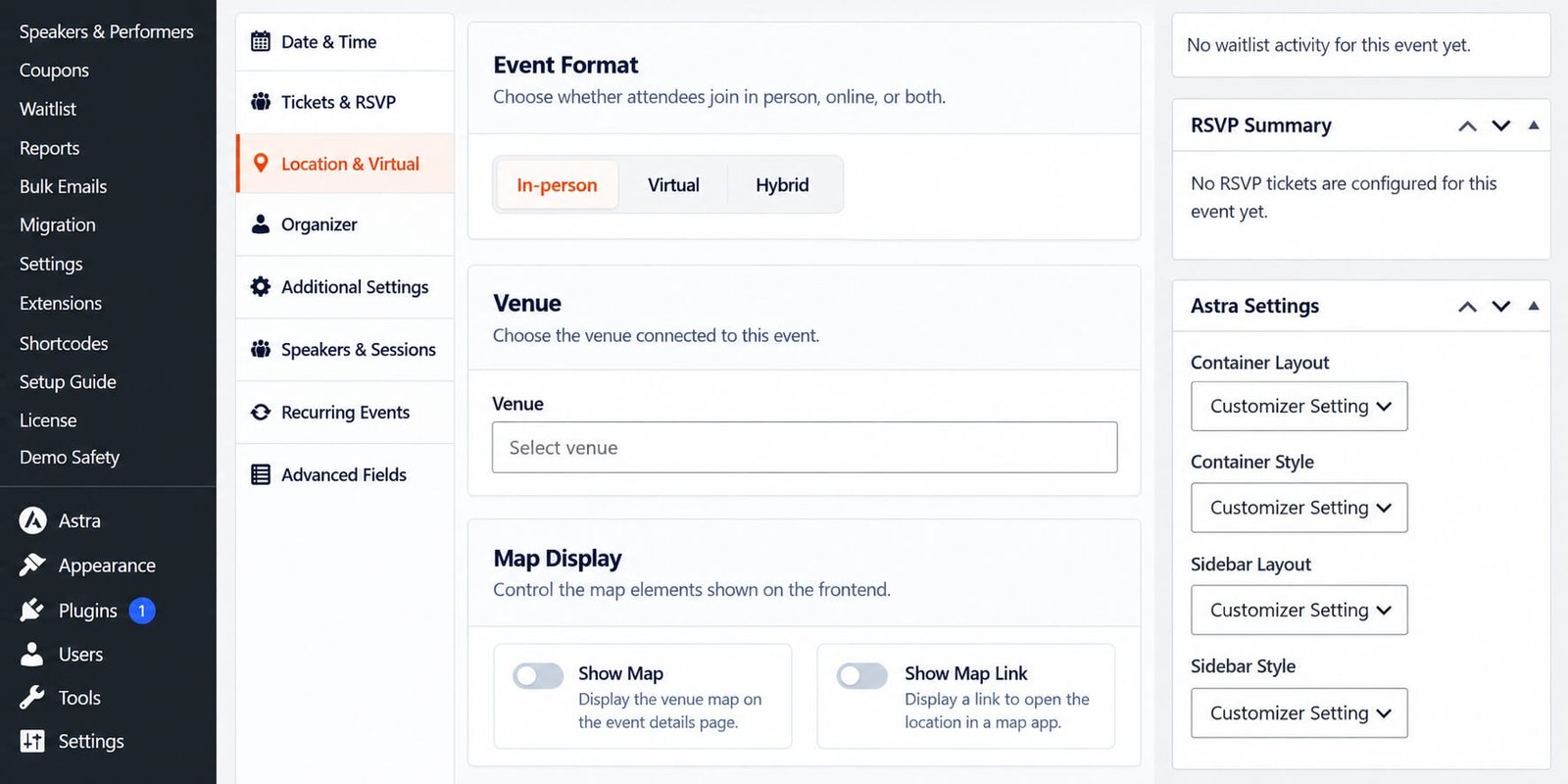
In-Person Events
Choose In-Person when attendees physically travel to the event location.
Common examples include:
- Conferences
- Workshops
- Networking events
- Exhibitions
- Festivals
- Training programs
For an in-person event, assign a venue to tell visitors where the event is taking place.
Configure an In-Person Event
To create an in-person event:
- Open Location & Virtual.
- Choose In-Person.
- Select the required venue.
- Configure map display options if needed.
- Save or update the event.
The event can then show its physical location on the frontend.
Venue
The Venue field connects the event to a reusable Eventixa venue.
Venues are managed from: Eventixa → Venues
A venue can contain information such as:
- Venue name
- Address
- City
- State or region
- Country
- Map information
Use an existing venue where possible instead of creating duplicate location records.
Map Display
For physical events, Eventixa can provide map-related options.
These can include:
- Show Map
- Show Map Link
Show Map
Displays the configured venue location on the event page.
Show Map Link
Provides a link visitors can use to open the location in a map service.
Map functionality depends on the site’s configured mapping integration.
Virtual Events
Choose Virtual when the event takes place entirely online.
Examples include:
- Webinars
- Online workshops
- Remote training
- Virtual conferences
- Online community sessions
Virtual events use a meeting or access method instead of a physical venue.
Virtual Providers
The available virtual providers depend on your Eventixa edition.
Eventixa Core
Eventixa Core supports:
- Custom Meeting URL
Eventixa Pro
When Eventixa Pro is active, additional providers become available:
- Zoom
- Google Meet
- Custom Meeting URL
The virtual event uses the selected provider to control online access.
Custom Meeting URL
The Custom Meeting URL option is available in Eventixa Core.
Use it when your event uses an external online platform or manually managed access URL.
Examples include:
- Microsoft Teams
- Webex
- Livestream platform
- Private webinar service
- Custom video meeting platform
Enter the appropriate access URL according to the event configuration.
A dedicated guide covers Custom Meeting URL settings in more detail.
Zoom
Requires Eventixa Pro
Eventixa Pro can connect virtual events to Zoom.
When the Zoom integration is connected, Eventixa can use Zoom as the event’s virtual provider.
Zoom configuration itself is documented under Integrations, as required by the documentation plan.
Google Meet
Requires Eventixa Pro
Eventixa Pro can also use Google Meet for virtual event access.
Like Zoom, Google Meet account and integration setup is documented separately under the Integrations category.
Hybrid Events
Choose Hybrid when attendees can participate either:
- At a physical venue
- Online
Hybrid events combine venue information with virtual access.
This is useful for:
- Conferences with remote attendees
- Training programs with online participation
- Hybrid workshops
- Seminars with livestream access
Configure a Hybrid Event
To create a hybrid event:
- Open Location & Virtual.
- Choose Hybrid.
- Select the physical venue.
- Configure map options if required.
- Select the virtual provider.
- Configure the virtual access information.
- Save the event.
- Preview both the venue and online information on the frontend.
Event Format Comparison
| Format | Physical Venue | Online Access |
|---|---|---|
| In-Person | Yes | No |
| Virtual | No | Yes |
| Hybrid | Yes | Yes |
Choose the format according to how attendees will actually join the event.
Changing the Event Format
You can change the event format while editing the event.
For example: In-Person → Hybrid
or: Virtual → In-Person
After switching formats, review all location and virtual settings carefully.
A format change can affect:
- Venue display
- Map information
- Meeting access
- Attendee instructions
- Emails
- Recurring meeting configuration
Changing Provider
For virtual or hybrid events, the provider can be changed where supported.
For example: Custom URL → Zoom or Zoom → Google Meet
When changing provider, review the previous provider connection and meeting information to make sure outdated access data is not presented to attendees.
Virtual Event Access
Virtual meeting information should be handled carefully because not every piece of meeting data should necessarily appear publicly.
Depending on the workflow, access information can be associated with:
- Event configuration
- Attendee communication
- Generated meeting information
- Individual join links
The dedicated Virtual Event Access guide covers this behavior in more detail.
Recurring Virtual Events
Requires Eventixa Pro
Recurring virtual events can use one of two meeting strategies:
- Same meeting for all occurrences
- Separate meeting per occurrence
This allows organizers to decide whether every occurrence uses one meeting or each occurrence gets its own meeting information.
The same concept applies to supported managed providers such as Zoom and Google Meet.
Same Meeting for All Occurrences
Choose this when every recurring date should use the same meeting.
This is useful for:
- Weekly classes
- Recurring team sessions
- Ongoing workshops
One virtual meeting can be reused across the recurring schedule.
Separate Meeting per Occurrence
Choose this when each recurring occurrence should use its own meeting.
This is useful when:
- Each date requires separate access
- Different meeting records are needed
- Occurrence-level management is preferred
Eventixa can manage the meeting information for each generated occurrence where supported.
Duplicating Virtual Events
When a virtual event is duplicated, Eventixa avoids copying attendee-specific managed join URLs that should remain unique to the original meeting or attendee.
After duplicating a virtual or hybrid event, always review:
- Provider
- Meeting configuration
- Event date
- Recurrence
- Attendee access behavior
Do not assume all meeting access data should be reused.
Frontend Display
The single event page can display information appropriate to the selected format.
In-Person
Visitors can see:
- Venue
- Address
- Map
- Map link
Virtual
Visitors can see the supported online-event presentation and access workflow.
Hybrid
Visitors can see both physical venue information and relevant virtual participation information.
Exact access visibility depends on the provider and Eventixa workflow.
Example: In-Person Conference
Format: In-Person
Venue: Manhattan Summit Center
Map: Enabled
Visitors attend physically at the configured venue.
Example: Virtual Webinar
Format: Virtual
Provider: Custom Meeting URL
Visitors attend through the configured online meeting link.
Example: Hybrid Workshop
Format: Hybrid
Venue: Austin Innovation Hub
Provider: Zoom
Local attendees can attend physically, while remote attendees can participate online.
Common Problems
Venue Field Does Not Appear
Confirm the event format is:
- In-Person
- Hybrid
Virtual-only events do not require a physical venue.
Zoom or Google Meet Is Disabled
Check that:
- Eventixa Pro is active.
- The relevant integration is connected.
- The provider setup has been completed.
Custom Meeting URL Is Missing
Check that Custom Meeting URL is selected as the virtual provider.
Map Does Not Display
Review:
- Venue address
- Map integration settings
- Show Map option
- Event venue assignment
Wrong Virtual Meeting Appears
Review the selected provider and meeting configuration.
For recurring events, also check whether the event uses:
- Same meeting for all occurrences
- Separate meeting per occurrence
Provider Was Changed but Old Information Remains
Review the event after changing providers and save the updated configuration.
Also verify the frontend and any attendee-facing information.
Recommended Workflow
In-Person Event
- Create a venue.
- Create or edit the event.
- Open Location & Virtual.
- Choose In-Person.
- Select the venue.
- Configure map options.
- Preview the event.
Virtual Event
- Create or edit the event.
- Open Location & Virtual.
- Choose Virtual.
- Select the virtual provider.
- Configure meeting access.
- Preview the event workflow.
Hybrid Event
- Create a venue.
- Create or edit the event.
- Choose Hybrid.
- Select the venue.
- Configure map options.
- Select the virtual provider.
- Configure virtual access.
- Preview both participation methods.
Important Notes
- Use the event format that reflects the actual attendee experience.
- Verify venue information before publishing physical events.
- Keep virtual access information secure where necessary.
- Review meeting information after changing providers.
- Check recurring meeting behavior for recurring virtual events.
- Always test the frontend event page before registrations open.


