
Managing Event Occurrences
Once a recurring event is created, Eventixa Pro generates individual occurrences for the dates defined by its recurrence rule.
The Occurrences section lets you review those generated dates and work with individual occurrences without treating every date as a completely separate event.
Available in: Eventixa Pro
Location: Eventixa → Events → Edit Recurring Event → Occurrences
Requires: A recurring Eventixa event
Related features: Tickets, Bookings, Sessions, Virtual Events
What Is an Event Occurrence?
An occurrence represents one generated date of a recurring event.
For example, if a workshop repeats every second Thursday, the recurring event may generate occurrences such as:
- April 15, 2027
- April 29, 2027
- May 13, 2027
- May 27, 2027
The recurring event stores the overall configuration, while each occurrence represents one scheduled instance.
Open the Occurrences Section
Go to: Eventixa → Events
Open the recurring event.
Scroll to or open the Occurrences section.
Eventixa displays the generated occurrence records for the event.
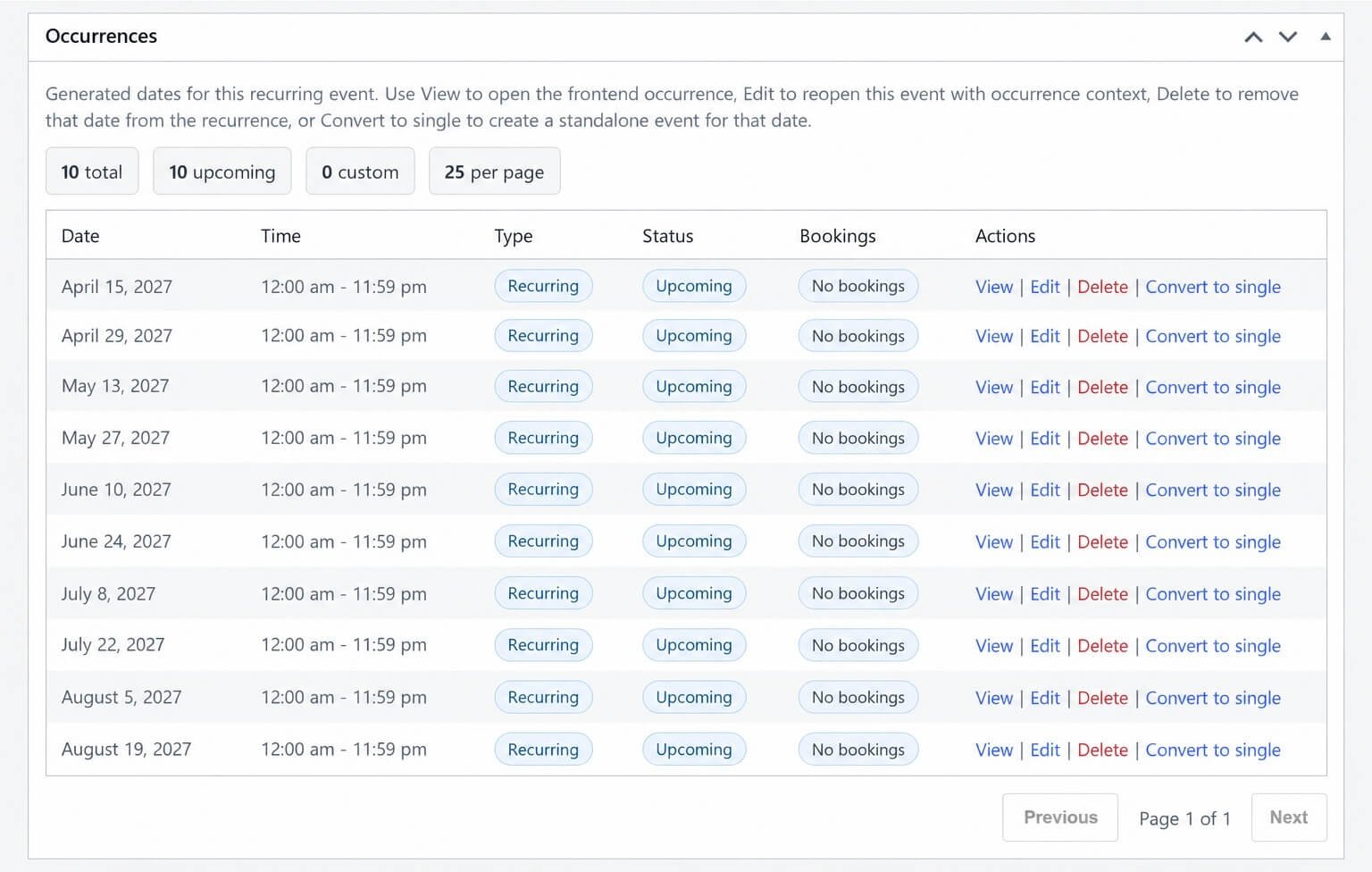
Understanding the Occurrences Table
The Occurrences table can show columns such as:
| Column | Purpose |
|---|---|
| Date | Date of the occurrence |
| Time | Start and end time |
| Type | Indicates recurring or custom occurrence |
| Status | Upcoming, ongoing, or past |
| Bookings | Booking activity for that occurrence |
| Actions | Available occurrence management actions |
This gives you a date-by-date view of the recurring event schedule.
Occurrence Summary
Above the table, Eventixa can show summary information such as:
- Total occurrences
- Upcoming occurrences
- Custom occurrences
- Items per page
For example:
10 total
10 upcoming
0 custom
This helps you quickly understand the current recurrence schedule.
View an Occurrence
Use View to open the frontend representation of a specific occurrence.
This is useful for checking:
- Date
- Time
- Event details
- Ticket availability
- Agenda
- Venue
- Virtual access
Always review a few occurrences after changing a recurrence rule.
Edit an Occurrence
Use Edit to reopen the recurring event in the context of that occurrence.
This is useful when you need to work with information that applies to a specific generated date.
Depending on the active Eventixa features, occurrence-aware workflows may include:
- Agenda information
- Virtual meeting data
- Tickets
- Registration context
Be careful not to confuse occurrence-specific changes with changes to the entire recurring series.
Delete an Occurrence
Use Delete when one generated occurrence should no longer happen.
For example:
A weekly event normally occurs every Thursday, but one date is cancelled.
Deleting or excluding that occurrence removes the date from the active recurring schedule.
Before removing an occurrence, check whether it already has:
- Bookings
- Attendees
- Payments
- Tickets
- Virtual meetings
Do not remove an occurrence with active registrations without first handling those registrations appropriately.
Delete vs Excluded Date
Eventixa also supports Excluded Dates in the recurrence rule.
These two workflows are closely related.
Use an excluded date when you know in advance that a date should not be generated.
Use occurrence management when reviewing or changing an already generated schedule.
For a long-term clean recurrence configuration, the underlying recurrence rule should accurately represent which dates belong to the series.
Convert an Occurrence to a Single Event
Eventixa can provide a Convert to single action.
This creates a standalone event for that occurrence date instead of keeping it tied to the recurring series.
This is useful when one occurrence needs to become significantly different from the rest.
Examples include:
- A special edition of the event
- Different ticket setup
- Different venue
- Different speakers
- Different schedule
- Different virtual meeting
- Different marketing page
When to Convert to Single
Suppose a recurring workshop runs every two weeks.
Most occurrences are identical, but one date becomes a special full-day conference.
Instead of forcing many exceptions into the recurring series, you can convert that occurrence into a standalone event.
The original recurring series continues, while the converted date can be managed independently.
What Happens After Conversion
After converting an occurrence to a single event, review the new standalone event carefully.
Check:
- Event title
- Date and time
- Venue
- Organizer
- Tickets
- Sessions
- Speakers
- Virtual meeting
- Featured image
- Registration settings
The converted event should be treated as its own event going forward.
Recurring vs Custom Occurrences
The Type column can distinguish normal recurring occurrences from custom dates.
Recurring
Generated automatically by the recurrence rule.
Custom
Added outside the normal recurrence pattern, such as through Additional Dates.
This helps administrators understand why a particular occurrence exists.
Occurrence Status
An occurrence can have a schedule-based status such as:
- Upcoming
- Ongoing
- Past
The status depends on the occurrence date and time.
Use it to quickly identify which dates still require operational attention.
Occurrence Bookings
The Occurrences table can show booking information for each date.
For example:
- No bookings
- Existing bookings
- Booking-related references
This is especially important before:
- Deleting an occurrence
- Changing dates
- Converting to single
- Modifying tickets
Before Deleting an Occurrence with Bookings
If an occurrence has registrations:
- Review its bookings.
- Review attendees.
- Determine whether the event is cancelled or moved.
- Notify affected attendees.
- Handle refunds where applicable.
- Only then remove or change the occurrence.
Avoid deleting dates with active registrations without a clear attendee-management plan.
Occurrence Tickets
Recurring events can have ticket behavior connected to individual occurrences.
Before editing occurrence dates, review whether ticket inventory or bookings are associated with the affected date.
A dedicated Recurring Event Tickets guide covers this in more detail.
Occurrence Agenda
Recurring events can use:
- Same agenda for all occurrences
- Different agenda per occurrence
If your event uses occurrence-specific agendas, editing or removing an occurrence can also affect the sessions assigned to that date.
Review the agenda whenever occurrence dates change.
Occurrence Virtual Meetings
Recurring Virtual or Hybrid events can use:
- Same meeting for all occurrences
- Separate meeting per occurrence
If a removed or converted occurrence has its own Zoom or Google Meet meeting, review the provider-side meeting configuration as well.
Changing the Recurrence Rule
Editing the main recurrence rule can regenerate the occurrence schedule.
Changes can affect:
- Existing dates
- New dates
- Removed dates
- Occurrence IDs
- Booking references
Before changing an active recurring series, review the Occurrences table.
Excluded Dates
If an occurrence should permanently be skipped from the recurring pattern, add the date under:
Recurring Events → Exceptions and Additional Dates → Excluded dates
This makes the rule itself reflect the skipped date.
Additional Dates
Extra dates added through Additional Dates can appear in the Occurrences table as custom occurrences.
These dates can then be managed alongside normal recurring occurrences.
Recurrence Diagnostics
Eventixa can provide recurrence diagnostics for the series.
Diagnostic information can help identify problems such as:
- Stale occurrence rows
- Duplicate dates
- Invalid rows
- Missing booking links
- Sequence inconsistencies
A healthy recurring event should show consistent occurrence data.
Safe Repair
Where available, Run safe repair can regenerate recurrence data while preserving matching occurrence IDs where possible.
It can also remove stale rows after a successful synchronization.
Use safe repair for maintenance or troubleshooting—not as part of normal daily occurrence management.
Pagination
Large recurring schedules can contain many occurrences.
The Occurrences table can paginate the results to keep the editor manageable.
For example: 25 per page
Use pagination to review longer recurring schedules.
Example: Cancel One Date
Suppose a class repeats every Thursday.
One occurrence on May 6 cannot happen.
You can:
- Review the May 6 occurrence.
- Check whether it has bookings.
- Notify registered attendees if needed.
- Remove that date.
- Add it to excluded dates if appropriate.
- Confirm later occurrences remain correct.
Example: Turn One Date into a Special Event
Suppose June 24 becomes a larger special event.
You can:
- Find June 24 in Occurrences.
- Click Convert to single.
- Open the new standalone event.
- Customize its tickets, venue, speakers, and agenda.
- Keep the remaining recurring series unchanged.
Example: Review Future Schedule
Before promoting a recurring event:
- Open Occurrences.
- Review all upcoming dates.
- Check times.
- Confirm excluded dates are absent.
- Confirm additional dates are present.
- Open several occurrences with View.
- Test ticket registration.
Common Problems
Expected Occurrence Is Missing
Check:
- Recurrence frequency
- Repeat interval
- End behavior
- Excluded dates
- Main event date
Unexpected Occurrence Appears
Check:
- Additional dates
- Recurrence rule
- Excluded dates
Delete Action Should Not Be Used
If the occurrence has active bookings, review those bookings before removing the date.
Convert to Single Created a New Event
This is expected.
The converted occurrence becomes an independent event so it can be managed separately from the recurring series.
Booking Count Looks Wrong
Review:
- Booking records
- Occurrence association
- Recurrence diagnostics
If diagnostics indicate missing links or stale data, investigate before changing the series.
Occurrence View Shows Wrong Agenda
Check the recurring agenda mode and occurrence-specific session assignments.
Virtual Meeting Is Wrong
Review the recurring virtual meeting mode and the meeting configuration for that occurrence.
Recommended Workflow
- Create and save the recurring event.
- Open the Occurrences table.
- Review generated dates.
- Check each occurrence status.
- Review booking activity.
- Use View to inspect important dates.
- Use Edit for occurrence-aware management.
- Delete only after reviewing registrations.
- Convert unusual dates to standalone events when necessary.
- Recheck the schedule after changing recurrence.
Important Notes
- Occurrences belong to the recurring event until converted to a single event.
- Review bookings before deleting dates.
- Use excluded dates to keep the recurrence rule accurate.
- Use additional dates for exceptional extra occurrences.
- Converting to single creates an independent event.
- Review agendas and virtual meetings whenever occurrence dates change.
- Use recurrence diagnostics when occurrence data appears inconsistent.


