
General Settings
Eventixa General Settings control plugin-specific date and time presentation and the WordPress pages used by supported Eventixa frontend features.
These settings are global and apply across Eventixa rather than to one individual event.
Available in: Eventixa Core
Location: Eventixa → Settings → General
Requires: Eventixa Core
Related features: Event Dates, Event Timezone, Checkout, My Account, Frontend Pages
Overview
The General settings area contains two subtabs:
- General
- Pages
The General subtab controls Eventixa-specific date and time formatting.
The Pages subtab is used to assign WordPress pages to supported Eventixa frontend features.
This separation lets you configure Eventixa display behavior independently from WordPress-wide settings while keeping frontend page assignments in one location.
How to Open General Settings
- Sign in to your WordPress dashboard.
- Go to Eventixa → Settings.
- Open the General tab.
- Select either General or Pages.
- Update the required settings.
- Click Save Changes.
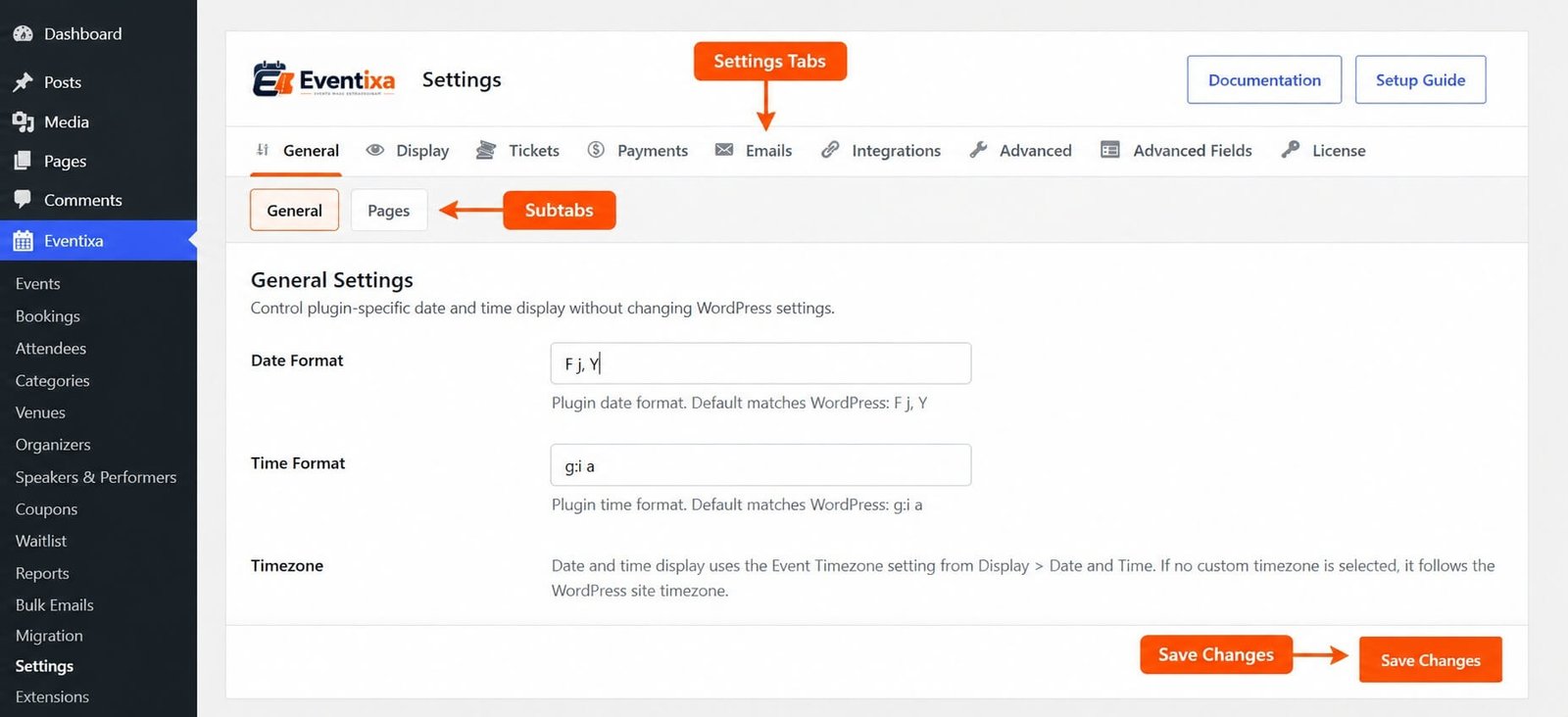
General Settings Explained
The General subtab contains the main Eventixa date and time display settings.
| Setting | Description |
|---|---|
| Date Format | Controls how Eventixa displays dates. |
| Time Format | Controls how Eventixa displays times. |
| Timezone | Explains which timezone Eventixa uses for date and time display. |
Date Format
The Date Format field controls how dates are displayed by Eventixa.
The current default matches the standard WordPress format: F j, Y
For example: September 26, 2026
You can change the format without changing the global WordPress date format.
This is useful when you want Eventixa event dates to follow a different presentation style from the rest of your WordPress site.
Time Format
The Time Format field controls how Eventixa displays time values.
The current default matches the WordPress time format: g:i a
For example: 7:30 pm
You can use a different supported WordPress/PHP time format if your event audience prefers another style.
For example: H:i would display: 19:30
Timezone
Timezone behavior is not configured directly from the General subtab.
Eventixa uses the Event Timezone setting available under:
Eventixa → Settings → Display → Date and Time
If no custom Event Timezone is selected, Eventixa follows the WordPress site timezone.
This keeps Eventixa date and time output consistent with either:
- The Eventixa Event Timezone setting
- The WordPress site timezone as the fallback
General Settings vs Display Date and Time Settings
The General and Display areas handle different parts of Eventixa date and time behavior.
General Settings control how date and time values are formatted.
Display → Date and Time controls event timezone behavior and other date/time settings used by Eventixa event and occurrence data.
For example:
- General → Date Format controls whether a date appears as “September 26, 2026” or another format.
- Display → Date and Time controls the timezone context used when Eventixa processes and displays event times.
Using WordPress Date and Time Format Characters
Eventixa date and time fields use standard WordPress/PHP-style formatting characters.
Common date format characters include:
| Format | Meaning | Example |
|---|---|---|
| F | Full month name | September |
| M | Short month name | Sep |
| j | Day without leading zero | 6 |
| d | Day with leading zero | 06 |
| Y | Four-digit year | 2026 |
| y | Two-digit year | 26 |
Common time format characters include:
| Format | Meaning | Example |
|---|---|---|
| g | 12-hour format without leading zero | 7 |
| h | 12-hour format with leading zero | 07 |
| H | 24-hour format with leading zero | 19 |
| i | Minutes | 30 |
| a | Lowercase am/pm | pm |
| A | Uppercase AM/PM | PM |
Example Date Formats
You can use formats such as:
| Format | Example |
|---|---|
| F j, Y | September 26, 2026 |
| M j, Y | Sep 26, 2026 |
| d/m/Y | 26/09/2026 |
| m/d/Y | 09/26/2026 |
| Y-m-d | 2026-09-26 |
Choose a format that is clear for your audience.
Example Time Formats
Common Eventixa time formats include:
| Format | Example |
|---|---|
| g:i a | 7:30 pm |
| g:i A | 7:30 PM |
| H:i | 19:30 |
| h:i A | 07:30 PM |
Use one consistent time format throughout your event website.
Pages Settings
Open: Eventixa → Settings → General → Pages
The Pages section is used to choose the WordPress pages used by Eventixa frontend features.
These page assignments connect Eventixa workflows with the correct WordPress pages.
Page settings are especially important for frontend areas such as checkout and customer account experiences.
How Page Assignments Work
Eventixa does not create a completely separate frontend application for every workflow.
Instead, supported Eventixa functionality is connected to WordPress pages.
The assigned page acts as the frontend location where the corresponding Eventixa feature is displayed.
Because of this, assigned pages should remain published and accessible.
Changing an Assigned Page
To change a page assignment:
- Go to Eventixa → Settings → General → Pages.
- Find the Eventixa page you want to change.
- Select the replacement WordPress page.
- Click Save Changes.
- Open the page on the frontend.
- Verify that the Eventixa feature works correctly.
Do not delete the old page until you confirm that the new assignment is working.
Page Assignment Best Practices
When configuring Eventixa pages:
- Use published WordPress pages.
- Avoid assigning the same page to unrelated Eventixa workflows unless the feature specifically supports it.
- Do not permanently delete an assigned page without updating Eventixa.
- Test frontend pages after changing assignments.
- Exclude checkout and account-related pages from aggressive page caching where necessary.
- Keep page URLs stable once the site is live when possible.
How General Settings Work
Eventixa stores its own date and time format configuration so you can control Eventixa presentation independently from WordPress-wide settings.
This means you can keep your WordPress site using one date format while Eventixa uses another.
Timezone handling follows a separate hierarchy: Event Timezone setting → WordPress site timezone fallback
Frontend page assignments work by telling Eventixa which WordPress pages should handle supported frontend workflows.
Example
Suppose your WordPress site uses:
Date Format: Y-m-d but you want event visitors to see dates as: September 26, 2026
You can set Eventixa Date Format to: F j, Y without changing the rest of your WordPress site.
If your events should use a specific timezone, configure that separately under: Eventixa → Settings → Display → Date and Time
If no custom Event Timezone is selected, Eventixa uses the WordPress site timezone.
Important Notes
- General Settings are available in Eventixa Core.
- General Settings are located at Eventixa → Settings → General.
- The General tab contains General and Pages subtabs.
- Date Format controls Eventixa-specific date presentation.
- Time Format controls Eventixa-specific time presentation.
- Changing Eventixa formatting does not require changing WordPress-wide date and time settings.
- Event Timezone is configured under Display → Date and Time, not directly in the General subtab.
- If no custom Event Timezone is selected, Eventixa follows the WordPress site timezone.
- Pages settings connect supported Eventixa frontend features to WordPress pages.
- Test frontend workflows after changing page assignments.
Troubleshooting
Date Format Does Not Change
Check that:
- The new format was saved.
- You entered a valid date format.
- Page or object caching has been cleared.
- The frontend component you are viewing uses the Eventixa global date format.
Time Format Does Not Change
Confirm that:
- The Time Format field contains a valid format.
- The settings were saved.
- Cached frontend output has been cleared where applicable.
Event Timezone Is Incorrect
Go to: Eventixa → Settings → Display → Date and Time
Review the Event Timezone setting.
If no custom Event Timezone is selected, also check: WordPress → Settings → General → Timezone
Frontend Page Does Not Work
Go to: Eventixa → Settings → General → Pages
Confirm that:
- The correct WordPress page is assigned.
- The page still exists.
- The page is published.
- The page is accessible on the frontend.
- Caching or redirection rules are not interfering with the page.
Assigned Page Was Deleted
Create or select an appropriate replacement page and update the assignment under: Eventixa → Settings → General → Pages
Then test the corresponding frontend workflow again.
Related Documentation
Frequently Asked Questions
Can Eventixa Use a Different Date Format from WordPress?
Yes. Eventixa General Settings allow you to configure plugin-specific date and time formats without changing the equivalent WordPress-wide settings.
Where Do I Set the Event Timezone?
Go to: Eventixa → Settings → Display → Date and Time
The Event Timezone setting is managed there.
What Happens If I Do Not Select a Custom Event Timezone?
Eventixa follows the WordPress site timezone.
What Does the Pages Subtab Do?
The Pages subtab lets you assign WordPress pages to supported Eventixa frontend features.
Do I Need to Recreate Eventixa Pages After Changing the Date Format?
No. Date and time formatting and frontend page assignments are separate settings.


