
Viewing Event Tickets
Customers can access ticket-related information by opening an eligible booking from Eventixa My Account.
Eventixa does not use a separate My Tickets account tab in the current customer dashboard. Instead, customers open Bookings, select View Details, and review the Attendees & Tickets section for that booking.
When Eventixa Pro QR & PDF Tickets are enabled, eligible attendees can also receive a Download Ticket action for their individual event ticket.
My Account: Eventixa Core
Ticket Details Location: My Account → Bookings → View Details
QR/PDF Ticket Download: Eventixa Pro
Ticket Eligibility: Depends on booking, attendee, and registration status
Where Customers View Their Tickets
Open the Eventixa My Account page and select: Bookings
Find the required registration and click: View Details
For an RSVP registration, the action can appear as Manage RSVP instead.
The Booking Details page contains the ticket and attendee information associated with that registration.
There Is No Separate My Tickets Menu
The current Eventixa My Account navigation contains customer account sections such as:
- Dashboard
- Bookings
- Profile Details
- Change Password
- Logout
Ticket access is handled from the relevant booking rather than through a separate Tickets menu.
This keeps each ticket connected to its booking, event, and attendee information.
Tickets Count on the Dashboard
The Eventixa My Account dashboard includes a Tickets statistics card.
This gives the logged-in customer a quick count of tickets associated with their account activity.
To inspect an individual ticket, open the related booking.
Open a Booking
From My Account → Bookings, locate the required event registration.
The booking table can display:
- Booking ID
- Event
- Date
- Total
- Status
- Action
Click View Details to continue.
Booking Details
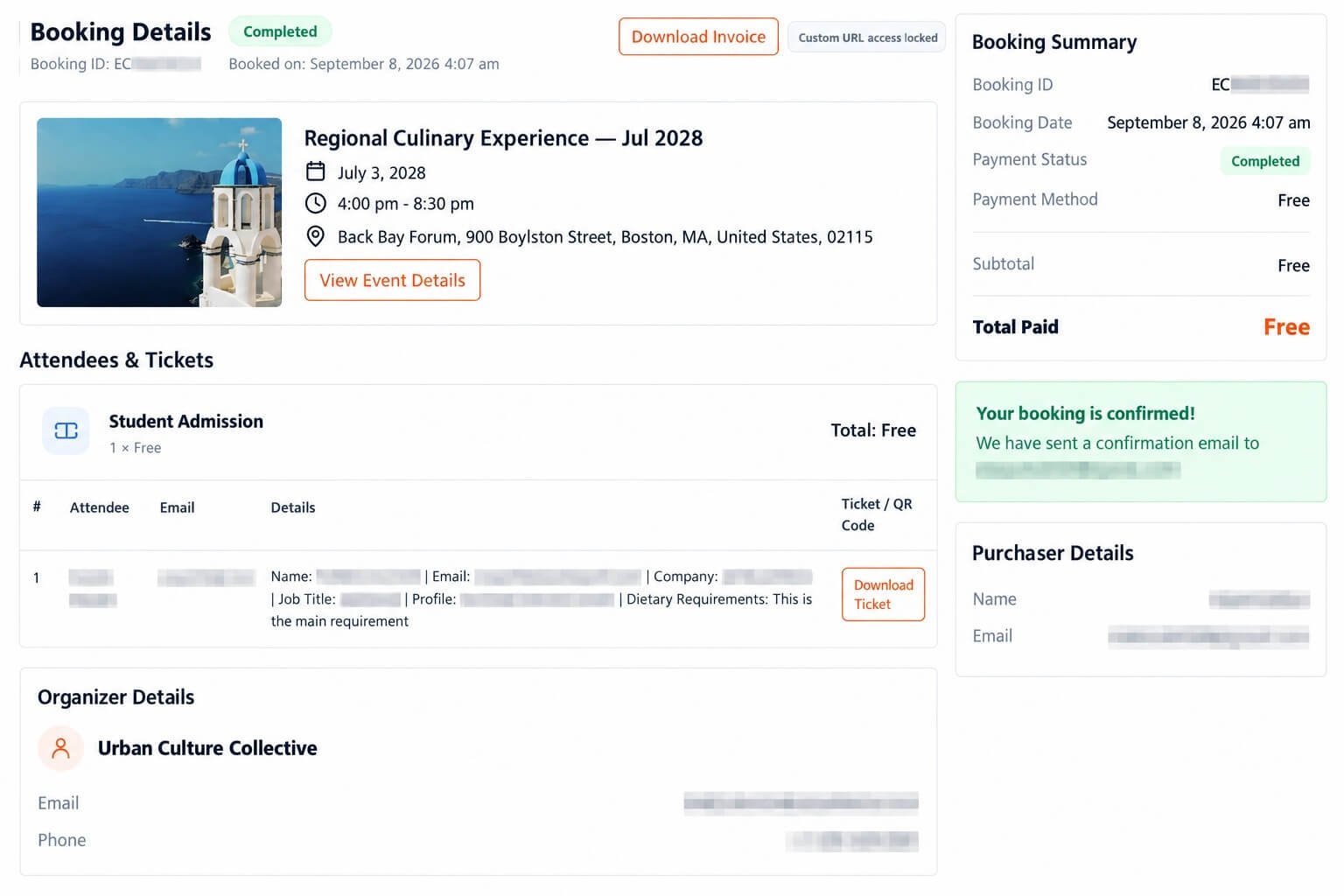
The Booking Details page brings together the event, booking, attendee, and ticket information for the selected registration.
The page can include:
- Booking status
- Booking ID
- Booking date
- Event information
- Event date and time
- Venue
- Attendees & Tickets
- Booking Summary
- Purchaser Details
- Organizer Details
The information shown depends on the booking type and event configuration.
Attendees & Tickets
For standard Eventixa bookings, the ticket section is labeled:
Attendees & Tickets
This section groups attendees under the ticket they registered with.
For RSVP bookings, the section is labeled:
RSVP Attendees
Ticket Group
Each ticket group can show the ticket name together with quantity and pricing information.
For a normal ticket booking, the ticket heading can include information such as:
- Ticket name
- Quantity
- Unit price
- Ticket total
For example:
2 × $19.00
with the calculated ticket-group total displayed alongside it.
RSVP Ticket Groups
RSVP registrations use attendee-count information instead of normal paid ticket pricing.
For example, the RSVP ticket group can show:
2 attendees
instead of quantity × price.
Attendee Table
Each ticket group can include an attendee table.
The current table contains columns for:
- Attendee
- Details
- Ticket / QR Code
This makes it possible to identify which ticket belongs to each attendee.
Individual Attendee Tickets
Eventixa treats ticket access at the attendee level.
If a booking contains several attendees, each attendee can have their own ticket action when the ticket is eligible.
This is important for QR-based check-in because each attendee represents an individual event admission record.
Attendee Name
The Attendee column identifies the person associated with the ticket.
Attendee Email
The Email column displays the attendee email stored with that registration.
This may differ from the purchaser email when one person books tickets for multiple attendees.
Attendee Details
The Details column can show submitted attendee-field information.
When an event uses additional registration fields, Eventixa can present the stored answers here.
Ticket / QR Code
The Ticket / QR Code column is where ticket-specific actions can appear.
With the appropriate Eventixa Pro ticket functionality enabled and the attendee eligible, Eventixa can display: Download Ticket
Download Ticket Requires Eventixa Pro
Downloadable QR/PDF tickets are provided by the Eventixa Pro QR & PDF Tickets feature.
Eventixa Core provides the booking and attendee/ticket relationship, while Eventixa Pro adds the downloadable ticket document.
Download an Event Ticket
For an eligible attendee:
- Sign in to the Eventixa customer account.
- Open Bookings.
- Find the required registration.
- Click View Details.
- Locate Attendees & Tickets.
- Find the correct attendee.
- Click Download Ticket.
Eventixa generates the attendee’s ticket PDF and downloads it.
Individual Ticket Download
The Download Ticket action is attached to the individual attendee.
This prevents customers from having to guess which ticket belongs to which person when several attendees are registered in the same booking.
Ticket PDF
When PDF ticket generation is enabled, Eventixa creates a downloadable ticket document for the attendee.
The ticket is generated from the attendee’s secure ticket token rather than exposing the attendee’s WordPress post ID as the access credential.
Secure Ticket Link
Eventixa creates a unique ticket token for an eligible attendee.
The token is used to build the ticket download URL.
This makes the ticket link suitable for customer-facing use without exposing a simple predictable attendee identifier as the authorization mechanism.
Ticket Number
Eventixa Pro can also generate a ticket number for each eligible attendee.
Ticket numbers use the configured ticket-number prefix and attendee record.
For example, a configured prefix such as: TKT can be used as part of the generated ticket numbering format.
QR Code Tickets
When QR ticket functionality is enabled, the attendee ticket can include the QR data required for Eventixa check-in.
The QR ticket is intended for the individual attendee represented by that ticket.
Tickets and QR Check-In
At the venue, the Eventixa check-in workflow can scan the attendee’s ticket QR code.
The ticket therefore serves two related purposes:
- Customer event admission document
- Attendee identifier for Eventixa QR check-in
For complete scanning instructions, see the QR Tickets and QR Scanner documentation.
When Is a Ticket Available?
A downloadable ticket is not available for every attendee in every state.
Eventixa checks ticket eligibility before exposing the download action.
Completed Attendee Requirement
The attendee must be in an eligible completed state before Eventixa Pro makes the ticket available.
If the attendee is not yet eligible, Eventixa does not expose a usable ticket download.
Booking Relationship
The attendee must belong to a valid Eventixa booking.
The ticket workflow uses the attendee’s booking relationship to determine registration type and eligibility.
Standard Ticket Booking
For a completed standard ticket registration, an eligible attendee can receive a downloadable ticket when the QR/PDF ticket functionality is enabled.
Free Ticket Booking
An eligible completed free-ticket attendee can also use the ticket workflow.
The absence of a payment does not by itself prevent ticket generation.
RSVP Going
For RSVP bookings, ticket eligibility depends on the RSVP response.
An attendee associated with an RSVP Going registration can be eligible for a ticket.
RSVP Not Going
An RSVP Not Going response is not eligible for the normal ticket workflow.
Eventixa does not provide the same downloadable ticket for a Not Going response because that attendee is not attending the event.
Why RSVP Not Going Has No Ticket
A ticket represents active event admission.
Generating an admission ticket for someone who explicitly responded Not Going would conflict with the RSVP status and check-in workflow.
Ticket Available After Confirmation
When no ticket action is currently available, the Booking Details interface can display:
Available after confirmation
This indicates that the attendee does not currently have an available ticket action in that booking-details view.
Why a Ticket May Not Be Available
Possible reasons include:
- Booking is not confirmed
- Attendee is not completed
- RSVP response is Not Going
- QR/PDF Tickets feature is disabled
- Ticket downloads are disabled
- Eventixa Pro is not active
- Booking/attendee relationship is incomplete
Booking Status and Ticket Availability
The booking status and attendee state are related to ticket eligibility.
A registration should not be treated as having an active admission ticket merely because a booking record exists.
Expired Bookings
An expired booking is no longer an active registration.
Customers should not rely on an old ticket from an expired booking as valid event admission.
Cancelled Bookings
When a booking is cancelled, its associated ticket should not be treated as an active admission document.
The booking may remain visible as customer history.
Refunded Bookings
A refunded booking can remain visible in My Account, but the historical record should not be confused with an active event ticket.
Multiple Ticket Types in One Booking
A booking can contain multiple ticket groups.
For example, a customer could have attendees registered under different ticket types.
Eventixa groups attendees under their corresponding ticket information on the Booking Details page.
Multiple Attendees on One Ticket Type
If several attendees are registered using the same ticket type, they appear together inside that ticket group.
Each attendee remains an individual record.
Ticket Quantity
For standard tickets, the ticket group displays the number of tickets included in that group.
Eventixa can also display the unit price and total.
Ticket Price
The Booking Details page uses the booking’s stored ticket/order information rather than requiring the customer to look up the current public ticket price.
This is important because the current ticket price may differ from the amount originally booked.
Booking Summary
The right side of the Booking Details page can contain a Booking Summary.
For standard bookings, it can show information such as:
- Booking ID
- Booking Date
- Payment Status
- Payment Method
- Subtotal
- Discount
- Tax
- Total / Total Paid
The exact financial rows depend on the booking.
RSVP Booking Summary
For RSVP bookings, the summary focuses on the RSVP response rather than normal payment information.
It can display:
- Booking ID
- Booking Date
- Response
- Status where applicable
Event Information
The Booking Details page also shows the event associated with the ticket.
This can include:
- Event title
- Date
- Time
- Venue
- View Event Details
This helps customers confirm that they are using the correct ticket.
Recurring Event Tickets
When the booking belongs to a recurring event, Eventixa resolves the date and time from the booking’s occurrence relationship.
This helps ensure the customer sees the ticket in the context of the occurrence they actually registered for.
Verify the Occurrence Date
For recurring events, customers should verify the displayed booking/event date before using the ticket.
Two tickets for the same recurring event title can belong to different occurrences.
Ticket Downloads and Email
Eventixa Pro can also support attaching generated ticket PDFs to applicable Eventixa emails when the corresponding ticket settings are enabled.
My Account remains useful because customers can return to the booking later instead of relying only on the original email.
Lost Ticket Email
If a customer loses their ticket email but still has access to their Eventixa account, they can:
- Open My Account.
- Open Bookings.
- Open the relevant booking.
- Locate their attendee row.
- Download the ticket again when eligible.
Administrator Ticket Resend
Eventixa Pro also provides an administrator workflow for resending eligible attendee tickets.
This is separate from the customer’s self-service ticket download.
See the Resend Event Tickets documentation for details.
Ticket Downloads Are Customer-Facing
The Booking Details page is designed to give customers access to information associated with their registration.
Administrators have separate ticket and attendee controls in the Eventixa WordPress admin.
Ticket Privacy
Ticket URLs and QR codes should be treated as private admission information.
Avoid publishing a customer’s ticket URL in public content, screenshots, support forums, or documentation.
Do Not Share QR Codes Publicly
A documentation screenshot containing a real QR ticket should obscure or replace the actual QR code.
A publicly exposed working QR code could be copied and used by another person.
Protect Ticket Screenshots
Before publishing screenshots of Booking Details, blur or replace:
- Attendee names
- Attendee email addresses
- Purchaser name
- Purchaser email
- Booking ID where appropriate
- Ticket number
- QR code
- Ticket download token
- Other registration-field answers
Booking Details Security
The booking-details workflow uses a booking access key and verifies access to the requested booking.
For a logged-in user, Eventixa also verifies that the booking belongs to that user or matches the user’s account email, unless the current user has appropriate administrative permission.
Logged-In Customer Ownership
For logged-in customers, Eventixa allows booking access when the booking is associated with the current user ID or matching customer email.
This helps keep customer booking and ticket information isolated.
Guest Booking Details
The booking-details system also supports secure booking URLs using a booking key.
This is separate from the authenticated My Account booking list.
The secure key should not be exposed publicly.
Ticket Download Link Does Not Work
If Download Ticket is visible but the request fails, check whether:
- Eventixa Pro is active
- QR/PDF Tickets are enabled
- Ticket downloads are enabled
- The attendee is still eligible
- The download token is valid
- PDF generation can complete on the server
Invalid Ticket Link
If Eventixa cannot resolve the secure ticket token, it can return:
Invalid ticket link.
This can happen when an incorrect, incomplete, or obsolete ticket URL is used.
Ticket Not Available
When the attendee is not currently eligible for ticket access, Eventixa can return:
Ticket is not available for this attendee yet.
Check the attendee and booking state.
Ticket Could Not Be Generated
If Eventixa resolves the attendee but cannot create a readable PDF, the download can return:
Ticket could not be generated.
This should be investigated as a PDF/ticket-generation issue rather than a My Account booking-list issue.
No Attendees Were Found
A ticket group can display:
No attendees were found for this ticket.
If you expect attendee records, check the corresponding Eventixa booking in the WordPress admin.
Download Ticket Button Is Missing
Check:
- Eventixa Pro is active.
- QR & PDF Tickets are enabled.
- Ticket downloads are enabled.
- The attendee is completed.
- The booking is eligible.
- RSVP response is Going when using RSVP.
- The attendee belongs to the expected booking.
RSVP Ticket Is Missing
Check the current RSVP response.
A Not Going registration intentionally does not receive the normal active ticket.
Wrong Attendee Appears Under a Ticket
Review the booking’s attendee-to-ticket relationship in Eventixa admin.
Each attendee should resolve to the correct ticket ID.
Ticket Shows the Wrong Event Date
For a recurring event, verify the booking’s occurrence relationship.
For a single event, verify the event date configuration.
Ticket Information Differs from Current Ticket Price
The booking can preserve the pricing information associated with the registration.
The public ticket configuration may have changed after the customer booked.
Customer Cannot See Booking
Because tickets are reached from the booking, first resolve the My Account booking-access problem.
Confirm the customer is signed into the correct account and owns the booking.
Recommended Customer Ticket Workflow
A normal ticket-access workflow is:
- Sign in.
- Open My Account.
- Select Bookings.
- Find the required event.
- Click View Details.
- Locate Attendees & Tickets.
- Find the correct attendee.
- Click Download Ticket when available.
- Save the PDF to the device.
- Present the QR ticket at event check-in.
Recommended Administrator Test
Before launching downloadable tickets:
- Enable the Eventixa Pro QR/PDF ticket feature.
- Enable customer ticket downloads.
- Create a normal paid test booking.
- Create a free-ticket test booking.
- Create an RSVP Going registration.
- Create an RSVP Not Going response.
- Sign in as the customer.
- Open each booking.
- Verify Download Ticket only appears for eligible attendees.
- Download the PDF.
- Verify its ticket information.
- Test the QR code using the Eventixa scanner.
- Confirm Not Going does not receive an active ticket.
- Repeat with a recurring event if your site uses recurrence.
Common Questions
Is There a My Tickets Menu in Eventixa My Account?
No. In the current account interface, customers access ticket information through Bookings → View Details.
Where Is the Ticket Shown?
Open the booking and locate Attendees & Tickets.
Can Each Attendee Have Their Own Ticket?
Yes. Ticket actions are associated with individual attendee records.
Can Customers Download Tickets?
Yes, when Eventixa Pro QR/PDF Tickets and ticket downloads are enabled and the attendee is eligible.
Does Eventixa Core Include PDF Ticket Downloads?
No. The booking and attendee/ticket information is available through the Core booking-details workflow, while downloadable QR/PDF ticket functionality is provided by Eventixa Pro.
Does a Free Booking Get a Ticket?
An eligible completed free-ticket attendee can use the ticket workflow.
Does RSVP Going Get a Ticket?
An eligible RSVP Going attendee can receive a ticket when the required ticket feature is enabled.
Does RSVP Not Going Get a Ticket?
No. A Not Going response is not eligible for the normal admission-ticket workflow.
Can a Booking Contain Several Tickets?
Yes. A booking can contain multiple ticket groups and multiple attendees.
Can Customers Download a Ticket Again?
If the ticket remains eligible and downloads are enabled, the customer can return to the booking details and use Download Ticket again.
Does a Ticket Include a QR Code?
Eventixa Pro’s QR/PDF ticket functionality can provide the QR-enabled ticket used with Eventixa check-in.
Can Customers Access Tickets from an Email Too?
Ticket PDFs can also be attached to applicable emails when the Eventixa Pro ticket settings are configured to do so.
Can Admins Resend Tickets?
Yes. Eventixa Pro provides a resend-ticket workflow for eligible attendees.
Should Ticket QR Codes Be Shared Publicly?
No. Treat the QR ticket as private admission information.
Important Notes
- The current Eventixa My Account interface does not have a separate My Tickets navigation item.
- Customers access ticket information from My Account → Bookings → View Details.
- Standard bookings use the Attendees & Tickets section.
- RSVP bookings use RSVP Attendees.
- Each attendee can have an individual ticket action.
- Downloadable QR/PDF tickets require Eventixa Pro.
- Ticket downloads must also be enabled.
- An attendee must be eligible before Download Ticket is shown.
- RSVP Going can be eligible for a ticket.
- RSVP Not Going is not eligible for the normal ticket workflow.
- Recurring bookings use occurrence-specific event date/time information.
- Ticket download links use secure attendee ticket tokens.
- Real ticket QR codes and ticket URLs should never be exposed in public documentation screenshots.
- Customers can return to Booking Details to download an eligible ticket again.


