
Managing Attendees
Eventixa provides a dedicated Attendees screen for managing the individual people registered for your events.
While the Bookings screen focuses on the overall registration transaction, the Attendees screen focuses on each participant included in those bookings.
Available in: Eventixa Core
Location: Eventixa → Attendees
Related features: Bookings, Tickets, RSVP, Check-In, Recurring Events
Open the Attendees Screen
From the WordPress dashboard, go to: Eventixa → Attendees
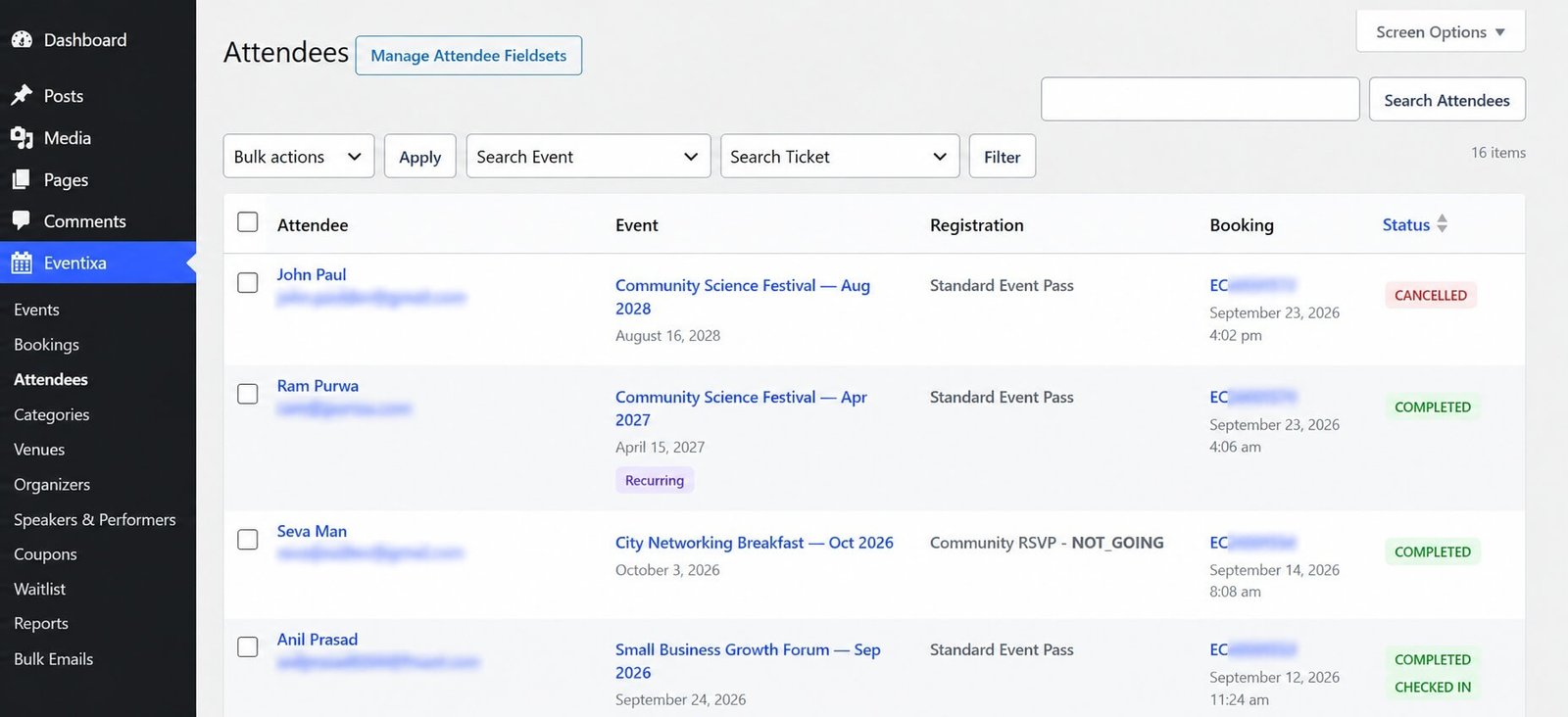
The Attendees screen lists individual participants created through Eventixa registrations.
From here, you can review attendee information, registration type, event, status, and check-in information.
Booking vs Attendee
Bookings and attendees are related but represent different things.
Booking
A booking represents the overall registration transaction.
For example: 1 booking can contain: 3 tickets
Attendees
Attendees represent the individual participants inside that booking.
That same booking can therefore contain:
- Attendee 1
- Attendee 2
- Attendee 3
This is why the number of attendees can be higher than the number of bookings.
Example
A purchaser buys: Standard Event Pass × 3
Eventixa creates: 1 Booking and, where individual attendee collection is enabled: 3 Attendee records
Each attendee can then be managed individually.
Attendees List
The Eventixa Attendees page provides a compact overview of registered participants.
Depending on the registration type, the list can show information such as:
- Attendee
- Event
- Registration
- Status
- Check-in
This lets administrators review individual registrations without opening each booking.
Attendee Information
The Attendee column can display information such as:
- Name
This identifies the individual participant.
For example:
John Pauljohn@example.com
Event Information
Each attendee is linked to the event they registered for.
The Event column helps administrators identify:
- Event title
- Event occurrence where applicable
For recurring events, Eventixa can also display a recurring indicator or occurrence-related context.
Registration Type
An attendee can come from different registration workflows.
Examples include:
- Standard ticket
- Free ticket
- RSVP Going
- RSVP Not Going
- Manual booking
The attendee record remains associated with the applicable registration type.
Standard Ticket Attendees
Standard ticket attendees are created from normal Eventixa ticket registrations.
For example: Standard Event Pass
An attendee registered through that ticket is linked to both:
- The ticket
- The booking
Free Ticket Attendees
Free tickets also create normal attendee records.
The fact that the ticket price is $0 does not change the attendee-management workflow.
Free attendees can still participate in:
- Attendee lists
- Event communication
- Check-in
- Ticket delivery
where applicable.
RSVP Attendees
RSVP registrations can also create attendee records.
RSVP attendees can be associated with responses such as:
- Going
- Not Going
The RSVP response affects how the attendee should be treated operationally.
Going RSVP Attendees
A Going RSVP means the attendee plans to participate.
Going attendees can count toward the applicable event capacity and can participate in attendee workflows such as check-in.
Not Going RSVP Attendees
A Not Going RSVP records that the attendee is declining attendance.
Not Going attendees should not behave like normal attending ticket holders.
They should not be treated as consuming normal attending capacity or eligible for standard check-in.
Attendee Status
Each attendee has an attendee status.
Depending on the workflow, statuses can include states such as:
- Active
- Cancelled
- Other registration-specific states
The attendee status helps administrators understand whether that individual registration remains valid.
Booking Status vs Attendee Status
Booking status and attendee status are separate concepts.
For example:
One booking may contain several attendees.
An attendee-specific state can differ from the overall booking when the workflow supports individual attendee changes.
Always review both the booking and attendee when troubleshooting.
Check-In Status
Eventixa tracks check-in at attendee level.
This is important because one booking can contain multiple attendees who arrive separately.
For example:
Booking with 3 attendees can contain:
- Attendee 1 — Checked In
- Attendee 2 — Not Checked In
- Attendee 3 — Checked In
Checked In
A checked-in attendee has already been admitted or marked present for the event.
Depending on the Eventixa setup, check-in can be performed manually or through supported QR workflows.
Not Checked In
A Not Checked In status means the attendee has not yet been recorded as present.
This is the normal state before arrival.
Why Check-In Is Attendee-Based
Suppose one customer purchases four tickets for a group.
If only two people have arrived, Eventixa needs to track those two separately.
Booking-level check-in would not provide enough detail.
Attendee-level check-in solves this problem.
Attendee and Ticket
Each attendee remains associated with the ticket used during registration.
For example:
Attendee: John Paul
Ticket: Standard Event Pass
This helps administrators understand what access or registration level belongs to that participant.
Attendee and Booking
An attendee also remains connected to the original booking.
This lets administrators trace the attendee back to information such as:
- Purchaser
- Payment
- Booking status
- Booking reference
Use the Booking Details screen when you need transaction-level information.
Search Attendees
Use the available attendee search when you need to locate a participant quickly.
Useful search values can include:
- Attendee name
This is particularly useful at event entry or when responding to support questions.
Filtering Attendees
Where applicable, attendee filters can help narrow the list.
Useful filters may include event or registration-related criteria depending on the current Eventixa interface.
For large events, combine filters and search to locate attendees faster.
Recurring Event Attendees
Attendees registered for recurring events must remain associated with the correct event occurrence.
For example:
Weekly Workshop — September 10 and Weekly Workshop — September 17 are separate attendance dates even if they use the same ticket.
Recurring Badge
Eventixa can display a recurring indicator in the Event column for registrations associated with recurring events.
This makes it easier to identify recurring-event attendees directly from the attendee list.
Why Occurrence Matters
For recurring events, the occurrence determines:
- Capacity
- Attendee list
- Check-in
- Virtual access
- Reports
Always verify the occurrence before editing or checking in an attendee.
Virtual Event Attendees
Virtual and Hybrid event attendees are managed through the same Attendees screen.
Their booking can also determine eligibility for online-event access.
Virtual access can depend on:
- Booking validity
- Attendee status
- Occurrence
- Access reveal timing
Attendee Details
Open an attendee when you need more information than the list provides.
The attendee details screen can include information such as:
- Name
- Ticket
- Event
- Booking
- Status
- Check-in state
- Custom attendee fields
The exact information depends on the attendee’s registration.
Custom Attendee Fields
If the ticket collected additional attendee information, those values can remain associated with the attendee record.
Examples include:
- Company
- Job title
- Telephone
- Birth date
- Qualification
- Dietary requirements
Advanced attendee fields require the applicable Eventixa Pro functionality.
Editing Attendees
Eventixa supports attendee editing through the applicable attendee-management workflow.
Editing can be useful when:
- Name was entered incorrectly
- Email address is wrong
- Custom attendee information needs correction
Editing attendees is covered separately in Add and Edit Attendees.
Attendee Email
The attendee email can be important for:
- Ticket delivery
- Event communication
- Virtual-event information
- Re-send ticket workflows
Verify the email carefully before making changes.
Attendee Ticket Delivery
Where ticket delivery is enabled, Eventixa can associate a ticket with the individual attendee.
This is especially important when a booking contains multiple participants.
Each attendee can receive their own ticket information.
Re-Send Event Ticket
Requires Eventixa Pro
Where supported, administrators can re-send an attendee’s ticket.
This can be useful if:
- The attendee lost the email
- The email address was corrected
- Ticket delivery failed
- The attendee requests another copy
This workflow is documented separately in Resend Event Tickets.
QR Check-In
Requires Eventixa Pro
Where QR Check-In is enabled, Eventixa can use the attendee’s ticket or QR data to check them in.
Each attendee is checked in independently.
Manual Check-In
Depending on the active Eventixa setup, administrators can also manage attendee check-in manually.
Always verify:
- Attendee
- Event
- Occurrence
before confirming check-in.
Not Going and Check-In
RSVP attendees marked Not Going should not participate in the normal check-in flow.
If an RSVP response changes, update the registration through the supported RSVP workflow before treating the attendee as attending.
Cancelled Attendees
A cancelled attendee should not be treated as a valid active participant.
Before admitting someone whose attendee record shows cancelled, investigate:
- Booking status
- Attendee status
- Cancellation history
Attendees and Capacity
Active attendee quantity is connected to ticket capacity.
For example:
Ticket capacity: 100
Active attendees: 85
The attendee count is part of how registration availability is determined.
Multi-Attendee Bookings
One booking can contain many attendees.
For example:
Booking EC2600200
contains:
- Alice
- Bob
- Chris
- Diana
All four attendees can be managed separately while still belonging to the same booking.
Guest Checkout Attendees
Guest Checkout does not create a separate type of attendee.
Attendees created from guest bookings still appear in: Eventixa → Attendees
They can be managed alongside attendees from logged-in bookings.
Manual Booking Attendees
Attendees created through Add Booking also appear in the standard Attendees screen.
This keeps frontend and administrator-created registrations in one attendee-management system.
Attendees and Booking Cancellation
If an entire booking is cancelled, the attendees belonging to that booking should no longer be treated as active registrations.
Review attendee status after booking cancellation if you are troubleshooting registration state.
Attendee Cancellation vs Booking Cancellation
These are not always the same thing.
Booking Cancellation
Cancels the overall booking.
Attendee-Level Change
Affects an individual participant where the supported workflow allows it.
Before making changes, determine whether the request concerns:
- One attendee
- The whole booking
Attendees and Refunds
Refunds primarily belong to the booking/payment workflow.
Attendees themselves do not represent the financial transaction.
If an attendee-related change requires a payment refund, review the associated booking before taking action.
Attendee and Payment Information
The Attendees list focuses on participants, not payment reconciliation.
For payment information, open the related booking.
There you can review:
- Payment gateway
- Amount
- Payment status
- Transaction ID
Attendee Notes
Administrative booking notes belong to the Booking Details workflow.
If an attendee issue is connected to a broader payment or registration problem, add the appropriate note to the booking so other administrators can understand the history.
Attendees and Bulk Emails
Eventixa can use attendee information in communication workflows.
For example, Bulk Emails can target event registrants according to supported registration filters.
Make sure attendee email data is accurate before sending event communications.
Registration Type Filters
Bulk email recipient selection can distinguish registration types such as:
- Standard
- RSVP
- All
This makes accurate attendee registration data important.
Attendee Data and Reports
Attendee records can contribute to event reporting.
Accurate attendee information helps with:
- Registration counts
- Attendance counts
- Check-in statistics
- Event performance analysis
Duplicate Attendees
If you see apparently duplicate attendees, check the related bookings before deleting anything.
Possible reasons include:
- Customer booked twice
- Multiple tickets use the same name
- Same person registered for multiple occurrences
- Duplicate booking attempt
Use the booking reference and event date to determine whether the records are genuinely duplicates.
Attendee Registered for Multiple Occurrences
The same person may legitimately appear multiple times if they registered for several recurring-event occurrences.
For example: Alex Smith — September 10 and Alex Smith — September 17 are valid separate attendee records.
Attendee Status After Checkout Expiration
An expired checkout should not leave a participant treated as a valid completed attendee.
If you find inconsistent attendee data, review the associated booking status and Booking Notes.
Attendee Status After Failed Payment
If a paid booking fails, its attendee records should not be treated as confirmed participants.
Verify the associated booking before check-in or ticket delivery.
Attendee List Before the Event
Before an event begins, review the attendee list and verify:
- Expected attendee count
- Correct occurrence
- Cancelled records
- RSVP response
- Check-in state
- Ticket assignment
This helps avoid issues at event entry.
Event-Day Workflow
On the event day:
- Open Eventixa → Attendees.
- Filter or search for the event.
- Locate the attendee.
- Confirm registration status.
- Verify the occurrence.
- Check the attendee in using the supported workflow.
After the Event
After the event, attendee records remain useful for:
- Attendance reporting
- Support
- Registration history
- Event analysis
- Follow-up communication
Avoid deleting attendee history unnecessarily.
Common Problems
Attendee Is Missing
Check:
- Associated booking
- Booking status
- Ticket quantity
- Attendee collection mode
- Event occurrence
Booking Exists but Attendee Does Not
Review whether individual attendee records were expected for that booking workflow.
Attendee Appears More Than Once
Check whether:
- Multiple bookings exist
- Multiple occurrences were booked
- Multiple tickets belong to the same person
Do not assume duplication without reviewing the booking history.
Attendee Shows Wrong Event Date
For recurring events, verify the occurrence associated with the attendee’s booking.
Attendee Is Cancelled
Open the related booking and review the cancellation history.
Attendee Cannot Be Checked In
Check:
- Attendee status
- Booking status
- RSVP response
- Event occurrence
Not Going RSVP Appears in Attendees
This is expected if the RSVP workflow creates a record for the response.
Not Going attendees should not be treated as attending participants.
Attendee Email Is Wrong
Use the supported attendee-editing workflow to correct it.
Then re-send the ticket if applicable.
Check-In Status Is Incorrect
Verify whether another administrator or QR check-in action already changed the attendee’s status.
Attendee Ticket Was Not Received
Check:
- Attendee email
- Email delivery
- Registration status
Where supported, use Resend Event Tickets.
Recommended Attendee Management Workflow
- Go to Eventixa → Attendees.
- Search or filter for the attendee.
- Verify their name and email.
- Confirm the event.
- Check the recurring occurrence if applicable.
- Review the registration type.
- Verify attendee status.
- Check the check-in state.
- Open the attendee if more information is needed.
- Open the related booking for payment or transaction details.
- Edit attendee information only when necessary.
- Re-send the event ticket where supported.
- Preserve attendee history instead of deleting valid records unnecessarily.
Recommended Event-Day Review
Before admitting attendees, confirm:
- Attendee name
- Event
- Event date
- Ticket
- Registration status
- RSVP response
- Check-in status
This is especially important for recurring and sold-out events.
Important Notes
- Eventixa attendees are managed from Eventixa → Attendees.
- A booking can contain multiple attendees.
- Booking count and attendee count are not the same.
- Check-in is tracked per attendee.
- RSVP Going and Not Going records should be treated differently.
- Recurring-event attendees must remain associated with the correct occurrence.
- Guest and Manual Booking attendees appear in the same attendee system.
- Payment information belongs to the related booking.
- Cancelled attendees should not be treated as valid active registrations.
- Avoid deleting attendee history unless there is a genuine reason.
- Use attendee editing for participant data and Booking Details for transaction information.


