
Add and Edit Attendees
Eventixa lets administrators review and update individual attendee records from the WordPress dashboard.
The Edit Attendee screen brings together attendee status, event and ticket information, registration answers, booking details, check-in controls, ticket actions, editable attendee fields, and internal notes.
Available in: Eventixa Core
Location: Eventixa → Attendees → Open Attendee
Related features: Attendees, Bookings, Check-In, Ticket PDF, Re-Send Ticket
Open an Attendee
Go to: Eventixa → Attendees
Locate the attendee you want to manage.
Click the attendee name to open the Edit Attendee screen.
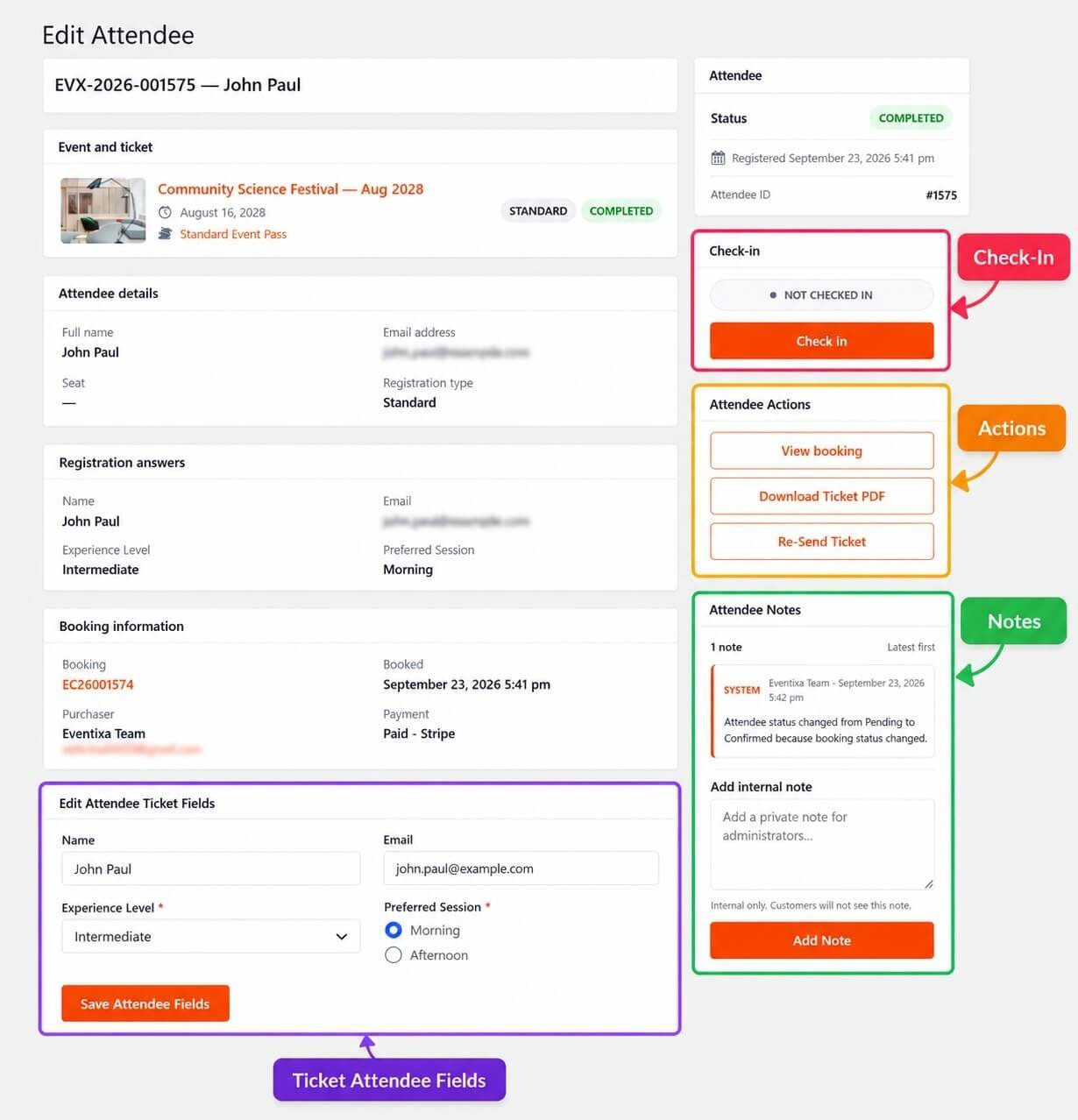
Attendee Header
At the top of the page, Eventixa shows the attendee reference and name.
For example: EVX-2026-001575 — John Paul
The attendee reference helps identify the exact attendee record.
Event and Ticket
The Event and ticket panel shows the registration context.
It can include:
- Event title
- Event date
- Ticket name
- Registration type
- Attendee status
For recurring events, make sure the displayed event date matches the correct occurrence.
Attendee Status
The attendee status appears in the right-side Attendee panel.
For example:
COMPLETED: This represents the current state of the attendee record.
Do not confuse attendee status with booking status or payment status.
Registered Date
The Attendee panel can also show when the attendee record was created.
For example:
Registered September 23, 2026 5:41 pm
This can help when reviewing attendee history.
Attendee ID
Each attendee also has an internal attendee ID.
For example:
#1575: This can help administrators identify a specific record.
Attendee Details
The Attendee details section shows core attendee information such as:
- Full name
- Email address
- Seat
- Registration type
The exact fields depend on the registration.
Registration Answers
The Registration answers section shows the attendee data submitted during registration.
This can include:
- Name
- Experience Level
- Preferred Session
- Other custom attendee fields
These values help administrators understand what the attendee originally submitted.
Booking Information
The Booking information panel links the attendee back to the overall booking.
It can show:
- Booking reference
- Purchaser
- Booking date
- Payment status
- Payment method
Use this section when you need transaction-level context.
Purchaser vs Attendee
The purchaser and attendee are not always the same person.
For example:
Purchaser: Eventixa Team
Attendee: John Paul
One purchaser can register multiple attendees in a single booking.
Edit Attendee Ticket Fields
The Edit Attendee Ticket Fields section lets administrators update the attendee information stored for the ticket.
This is useful when information was entered incorrectly or needs to be corrected after registration.
Editable Fields
Depending on the ticket configuration, editable fields can include:
- Name
- Dropdown fields
- Radio fields
- Text fields
- Other configured attendee fields
For example:
- Experience Level
- Preferred Session
Update Name
If an attendee name is incorrect, change it in the editable attendee fields.
After making the change, click:
Save Attendee Fields
Update Email
The attendee email can also be corrected where supported.
This is important because the email can be used for:
- Ticket delivery
- Re-send ticket
- Event communication
- Virtual-event information
Double-check the new email before saving.
Update Custom Fields
If the ticket uses additional registration fields, you can update those values.
For example:
Experience Level: Intermediate
or:
Preferred Session: Morning
Edit the applicable field and save the attendee record.
Save Attendee Fields
After making changes, click: Save Attendee Fields
Always verify that the updated values are displayed correctly afterward.
Check-In
The Check-in panel shows the attendee’s current check-in state.
For example:
NOT CHECKED IN
If the attendee is eligible, you can use the: Check in button to mark them as present.
Manual Check-In
Manual check-in is useful when:
- QR scanning is not being used
- An attendee arrives without their ticket
- An administrator needs to confirm attendance manually
Before checking in, verify:
- Attendee
- Event
- Occurrence
- Registration status
Check-In and Recurring Events
For recurring events, verify the correct occurrence before checking in an attendee.
A person registered for one date should not be checked in for a different occurrence.
Cancelled Attendees
If the attendee record is cancelled, do not treat it as a valid registration.
Review the associated booking before attempting check-in.
RSVP Not Going
RSVP attendees marked Not Going should not use the normal check-in workflow.
Their response indicates they are not attending.
Attendee Actions
The Attendee Actions panel can provide actions such as:
- View booking
- Download Ticket PDF
- Re-Send Ticket
The available actions depend on the attendee and Eventixa features.
View Booking
Click: View booking to open the booking associated with the attendee.
Use this when you need to review:
- Purchaser
- Payment
- Booking status
- Ticket quantity
- Booking Notes
Download Ticket PDF
Where PDF ticket functionality is available, administrators can download the attendee’s ticket PDF.
This is useful when:
- Printing a replacement ticket
- Checking the ticket content
- Providing a copy manually
Re-Send Ticket
Requires Eventixa Pro
The Re-Send Ticket action sends the attendee ticket again to the applicable email address.
This is useful when:
- The original email was lost
- Email address was corrected
- Ticket delivery failed
- Attendee requests another copy
Re-Send Ticket is documented separately.
Correct Email Before Re-Sending
If the attendee email is wrong:
- Edit the attendee email.
- Save the attendee fields.
- Confirm the updated email.
- Re-send the ticket.
Do not re-send first if the ticket would still go to the wrong address.
Attendee Notes
The Attendee Notes panel keeps administrative context for the attendee record.
Notes can include:
- System-generated entries
- Private administrator notes
System Notes
Eventixa can automatically create system notes when important attendee state changes occur.
For example:
Attendee status changed from Pending to Confirmed because booking status changed.
These notes help explain why the attendee record changed.
Add Internal Note
Administrators can add private notes using the: Add internal note field.
Examples include:
- Attendee requested email correction
- Ticket was re-sent
- Check-in issue reviewed
- Registration details updated
Internal Notes Are Private
Internal attendee notes are not shown to customers.
They are intended for administrative use only.
Good Attendee Note Example
For example:
Email corrected at attendee request. Replacement ticket re-sent successfully.
This gives useful context for other administrators.
Avoid Sensitive Information
Do not store unnecessary sensitive information in attendee notes.
Avoid adding:
- Passwords
- Payment card details
- Security codes
- Authentication secrets
Edit Attendee After Booking Completion
Attendee information can still need correction after the booking is completed.
Examples:
- Typo in name
- Wrong email
- Incorrect custom field answer
Use attendee editing rather than changing the overall booking when only the participant’s information is wrong.
Editing Does Not Change the Booking Payment
Changing attendee fields does not mean the payment transaction changed.
For payment-related changes, open the booking.
Editing Does Not Automatically Change Capacity
Updating an attendee name, email, or custom field does not change ticket quantity.
Capacity remains based on the registration quantity unless the booking itself changes.
Attendee and Ticket Assignment
The attendee remains linked to the ticket used during registration.
Editing attendee details does not automatically move the attendee to another ticket.
Adding Attendees
New attendees are normally created through:
- Frontend registration
- Manual Booking
- Applicable administrative booking workflow
The Attendees screen is primarily used to manage attendee records after they exist.
For administrator-created registrations, use: Eventixa → Bookings → Add Booking
Add Attendee Through Manual Booking
If you need to add a participant manually:
- Go to Eventixa → Bookings.
- Click Add Booking.
- Select the event.
- Select the ticket.
- Choose quantity.
- Enter attendee information.
- Create the booking.
The attendee will then appear under Eventixa → Attendees.
Why Add Through Booking?
An attendee belongs to a registration context.
Creating them through the booking workflow ensures Eventixa can correctly manage:
- Ticket
- Capacity
- Booking
- Payment
- Event occurrence
Recurring Event Attendee Editing
For attendees belonging to recurring events, verify the event occurrence before changing anything.
Do not assume that two attendee records with the same event title belong to the same date.
Virtual Event Attendee Editing
For Virtual and Hybrid events, attendee eligibility may affect access to meeting information.
If you change attendee status or registration information, review whether the attendee should still have access.
Check-In After Editing
If you update attendee information before the event, verify that the check-in record still refers to the correct attendee.
The attendee ID and booking relationship remain important.
Editing Advanced Attendee Fields
Requires Eventixa Pro
If the ticket uses Advanced Attendee Fields, those fields can appear in the editable attendee section.
Examples include:
- Company
- Job title
- Phone
- Date
- Dropdown
- Custom questions
Edit only the values that genuinely need correction.
Validation
Custom fields can have validation rules.
For example:
- Email expects an email address
- Number expects numeric input
- Required fields cannot be empty
- Dropdown must use an allowed value
Use valid data when updating attendee fields.
Attendee Status and Booking Status
An attendee’s state can be influenced by the associated booking.
For example, if a booking is cancelled, the attendee should no longer be treated as an active confirmed participant.
Review the booking if attendee status seems unexpected.
Attendee Status History
System notes can help explain attendee status changes over time.
Before manually changing or troubleshooting a record, review the existing notes.
Duplicate Attendee Records
If an attendee appears duplicated, do not delete a record immediately.
Check whether:
- Two bookings exist
- Attendee registered twice
- Different recurring occurrences were selected
- Two tickets were purchased using the same name
Review the booking references first.
Wrong Event Date
If an attendee appears under the wrong date, check the associated recurring occurrence.
The issue may belong to the booking rather than the attendee fields.
Wrong Ticket
If the attendee is associated with the wrong ticket, review the booking.
Editing name or email does not change the ticket assignment.
Wrong Payment Information
Payment information is managed at booking level.
Use:
View booking
to inspect gateway, amount, payment status, and transaction information.
Common Problems
Attendee Name Is Wrong
Edit the Name field and save the attendee fields.
Attendee Email Is Wrong
Update the email, save, then re-send the ticket if needed.
Custom Field Answer Is Wrong
Edit the applicable attendee ticket field and save.
Save Button Does Not Update the Record
Check required fields and validation.
Make sure all required attendee fields contain valid values.
Check-In Button Is Missing
Review:
- Attendee status
- Registration type
- Event state
- Check-in configuration
Attendee Is Already Checked In
The attendee may already have been checked in manually or through QR Check-In.
Verify the current check-in state before changing anything.
Re-Send Ticket Sends to Wrong Address
Correct the attendee email first, save, and then re-send.
Download Ticket PDF Is Missing
Confirm that the applicable Ticket PDF functionality is enabled.
Attendee Shows Cancelled
Open the related booking and review its status and history.
Attendee Details and Booking Details Do Not Match
Review the booking and attendee notes to understand what changed.
Attendee Has Wrong Recurring Date
Verify the occurrence linked to the booking.
Recommended Attendee Editing Workflow
- Go to Eventixa → Attendees.
- Locate the attendee.
- Open the attendee record.
- Verify event and occurrence.
- Review attendee status.
- Review registration answers.
- Review booking information.
- Edit only the required attendee fields.
- Click Save Attendee Fields.
- Verify the saved information.
- Re-send the ticket if the email changed and a replacement is needed.
- Add an internal note when useful.
- Check in the attendee only when they are eligible and present.
Recommended Event-Day Workflow
For attendee entry:
- Search for the attendee.
- Open the attendee record if needed.
- Verify event and occurrence.
- Confirm attendee status.
- Confirm ticket.
- Review check-in state.
- Click Check in when appropriate.
Important Notes
- Attendee records are managed from Eventixa → Attendees.
- The Edit Attendee screen combines attendee, ticket, booking, check-in, action, and note information.
- Update attendee fields only when participant information needs correction.
- Editing attendee fields does not change the booking payment.
- Editing attendee fields does not change ticket quantity or capacity.
- Check-in is tracked per attendee.
- Re-Send Ticket should be used after correcting the email when necessary.
- Payment-related changes belong to the booking workflow.
- New attendees should normally be created through frontend registration or Manual Booking.
- Always verify recurring-event occurrence before editing or checking in an attendee.


