
Eventixa Admin Dashboard Overview
The Eventixa admin area gives you one central place to manage events, bookings, attendees, payments, integrations, settings, and other event operations from WordPress.
Available in: Eventixa Core
Additional menu items: Available when Eventixa Pro is active
Location: Eventixa
Open the Eventixa Admin Area
After activating Eventixa, a new Eventixa menu appears in the WordPress dashboard.
The available menu items depend on:
- Eventixa Core or Pro
- Enabled features
- Installed integrations
- Your WordPress user permissions
Eventixa Admin Menu
The main Eventixa menu can include:
| Menu | Purpose |
|---|---|
| Events | Create and manage events |
| Bookings | Manage registrations and purchases |
| Attendees | Manage individual attendees |
| Categories | Organize events |
| Venues | Manage reusable event locations |
| Organizers | Manage event organizers |
| Speakers & Performers | Manage speakers, performers, and participants |
| Coupons | Create ticket discounts |
| Waitlist | Manage sold-out event waitlists |
| Reports | View event and revenue reports |
| Bulk Emails | Send messages to event audiences |
| Migration | Import supported event data |
| Settings | Configure Eventixa |
| Extensions | Explore available Eventixa features |
| Shortcodes | View Eventixa shortcode options |
| Setup Guide | Reopen the setup wizard |
| License | Manage Eventixa Pro licensing |
Some items, such as Waitlist, Reports, and License, require Eventixa Pro.
Events
Go to: Eventixa → Events
Use this screen to:
- Create events
- Edit existing events
- Review event schedules
- Check registration information
- View event status
- Duplicate supported events
This is the main Eventixa event management screen.
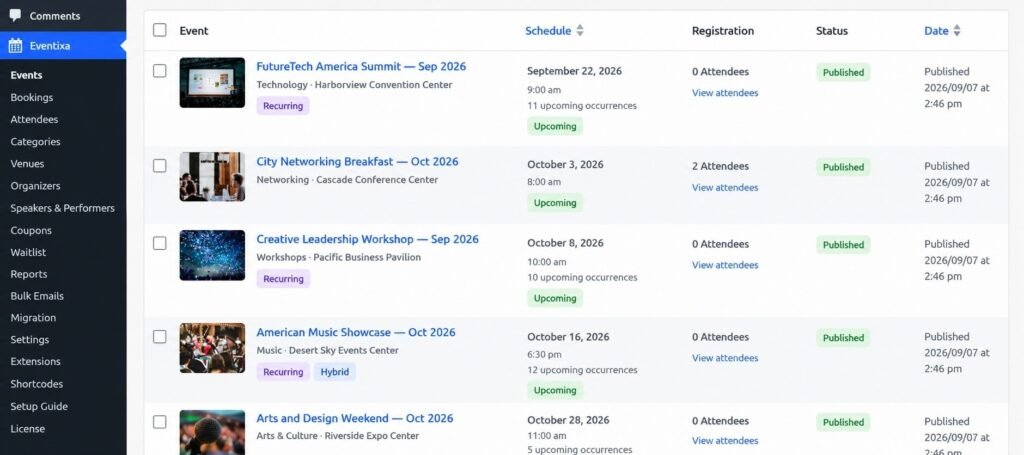
For more information, see WordPress Event Management with Eventixa.
Bookings
Go to: Eventixa → Bookings
A booking represents the overall registration or ticket purchase.
Use this section to review:
- Event
- Registration type
- Attendee count
- Booking status
- Payment method
- Booking date
For detailed booking management, use the dedicated Booking documentation.
Attendees
Go to: Eventixa → Attendees
An attendee represents an individual person registered for an event.
Use this section to review information such as:
- Name
- Event
- Ticket
- Registration type
- Attendee status
- Check-in status
One booking can contain multiple attendees.
Categories
Go to: Eventixa → Categories
Use categories to organize events into groups such as:
- Conferences
- Workshops
- Webinars
- Networking
- Training
Categories can also help visitors browse event listings more easily.
Venues
Go to: Eventixa → Venues
Venues store reusable event location information.
Create a venue once and assign it to multiple in-person or hybrid events.
Organizers
Go to: Eventixa → Organizers
Organizers represent the person, company, or organization responsible for an event.
Organizer profiles can be reused across multiple events.
Speakers & Performers
Go to: Eventixa → Speakers & Performers
Use this area to create reusable profiles for:
- Speakers
- Performers
- Presenters
- Panelists
- Hosts
These profiles can be assigned to events and sessions.
Coupons
Go to: Eventixa → Coupons
Use coupons to create discounts for eligible event ticket purchases.
Eventixa Pro can add advanced coupon functionality.
Waitlist
Requires: Eventixa Pro
Go to: Eventixa → Waitlist
Use the Waitlist screen to manage visitors waiting for ticket availability when an eligible event sells out.
Eventixa can reserve newly available capacity for the next eligible visitor and provide a time-limited booking offer.
Reports
Requires: Eventixa Pro
Go to: Eventixa → Reports
Reports help you review supported event data such as:
- Registrations
- Tickets
- Attendees
- Payments
- Revenue
Bulk Emails
Go to: Eventixa → Bulk Emails
Bulk Emails lets you send messages to selected event audiences.
Recipients can include supported groups such as:
- Purchasers
- Attendees
- Specific registration types
Migration
Go to: Eventixa → Migration
Use Migration to import compatible event data from supported external event plugins.
Current migration functionality includes support for compatible data from The Events Calendar.
Settings
Go to: Eventixa → Settings
This is where you configure global Eventixa behavior.
Settings can include:
- General
- Display
- Tickets
- Payments
- Emails
- Integrations
- Advanced
- Advanced Fields
- License
Available tabs can vary depending on your Eventixa edition.
Extensions
Go to: Eventixa → Extensions
The Extensions page helps you discover additional Eventixa functionality and integrations available for your site.
Shortcodes
Go to: Eventixa → Shortcodes
Use this screen to view available Eventixa shortcodes for frontend functionality such as:
- Event listings
- Tickets
- Checkout
- My Account
- Booking details
- Waitlist
- Check-in
Availability depends on the active Eventixa features.
Setup Guide
Go to: Eventixa → Setup Guide
This opens the Eventixa Setup Wizard, where you can review the main initial configuration.
License
Requires: Eventixa Pro
Go to: Eventixa → License
Use this area to activate and manage your Eventixa Pro license.
See How to Install and Activate Eventixa Pro.
Booking vs Attendee
Understanding this difference is important.
| Record | Meaning |
|---|---|
| Booking | The overall registration or purchase |
| Attendee | An individual person associated with a ticket |
For example, if one customer purchases three tickets:
- Eventixa creates 1 booking
- The booking can contain 3 attendees
This allows payment and purchaser information to remain at the booking level while each attendee is managed separately.
Global Settings vs Event Settings
Eventixa has two main levels of configuration.
Global Settings
Configured from: Eventixa → Settings
Examples include:
- Currency
- Date format
- Guest checkout
- Payment gateways
- Integrations
Event-Specific Settings
Configured while editing an individual event.
Examples include:
- Event date and time
- Venue
- Organizer
- Tickets
- Speakers
- Sessions
- Virtual meeting information
- Recurrence
- Waitlist
If a feature is not behaving as expected, check both the global and event-specific settings.
Next Steps
Continue with:


