
Virtual Event Access
Virtual Event Access controls how attendees join online Eventixa events.
For Virtual and Hybrid events, Eventixa can use a Custom Meeting URL in Core, while Eventixa Pro adds managed Zoom and Google Meet integrations.
Available in: Eventixa Core + Eventixa Pro enhancements
Location: Eventixa → Events → Edit Event → Location & Virtual
Requires: Event format set to Virtual or Hybrid
Core provider: Custom Meeting URL
Pro providers: Zoom and Google Meet
How Virtual Event Access Works
When an event is configured as Virtual or Hybrid, Eventixa adds online access settings to the event.
The basic workflow is:
Choose event format → Select virtual provider → Configure access → Publish event → Attendees use the appropriate join workflow
The exact behavior depends on the selected provider.
Enable Virtual Access
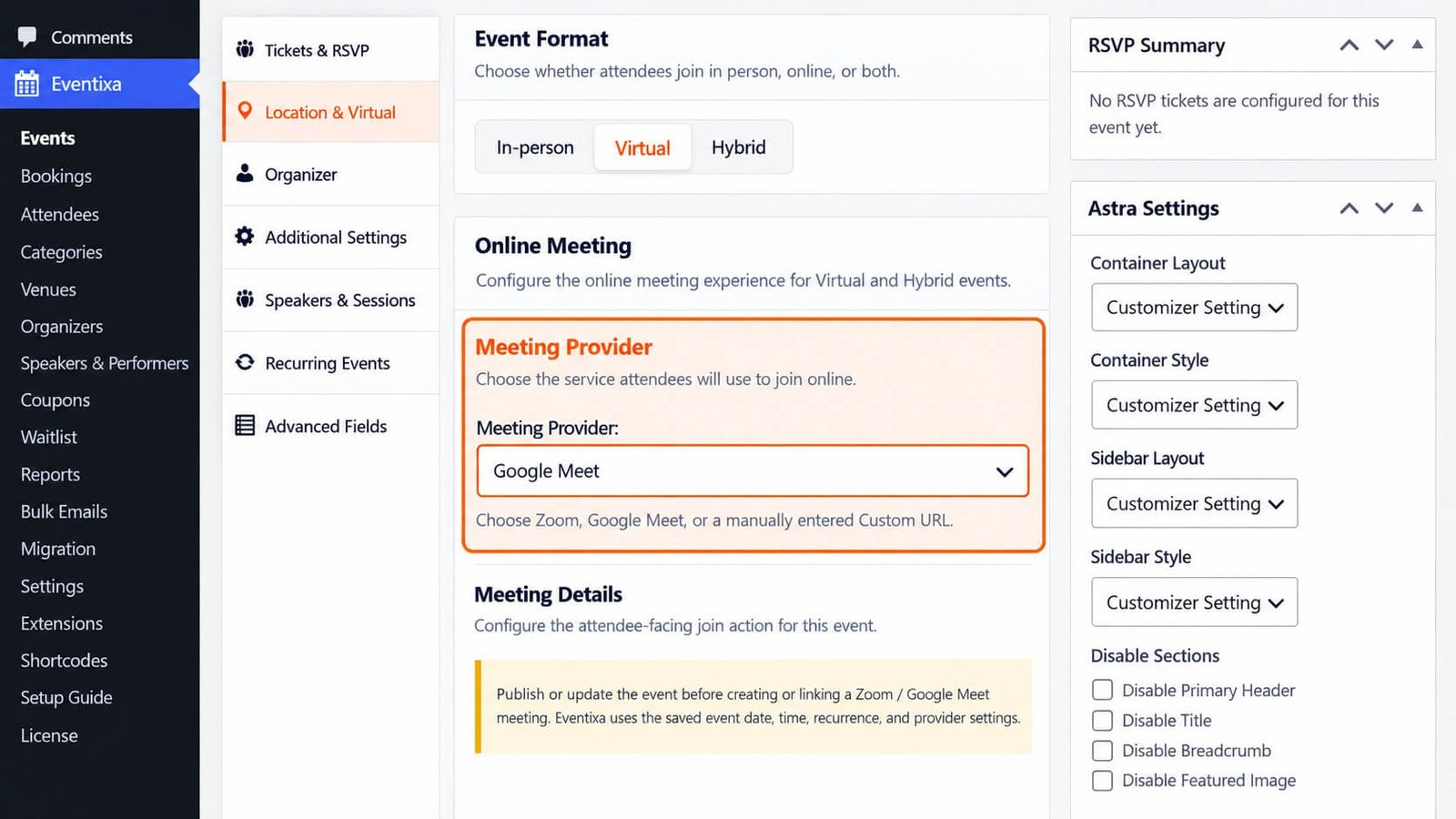
Edit the event and open: Event Settings → Location & Virtual
Choose either:
- Virtual
- Hybrid
Virtual access settings then become available.
Available Virtual Providers
The provider list depends on the Eventixa edition.
Eventixa Core
Core supports:
- Custom Meeting URL
Eventixa Pro
When Pro is active, Eventixa supports:
- Zoom
- Google Meet
- Custom Meeting URL
This allows you to use either manually managed access or a connected meeting provider.
Custom Meeting URL
Custom Meeting URL is the simplest virtual access method.
Use it when the meeting is hosted outside Eventixa’s managed Zoom or Google Meet integrations.
Examples:
- Microsoft Teams
- Webex
- Webinar platform
- Livestream URL
- Private meeting system
- Other external online event service
A dedicated guide covers this provider in detail.
Zoom Access
Requires Eventixa Pro
When the Zoom integration is configured, Zoom can be selected as the virtual provider.
Eventixa Pro can use the connected Zoom configuration for the event and, where applicable, recurring meetings.
The Zoom account connection itself should be configured from the Eventixa integrations area.
See the dedicated Zoom Integration documentation for connection setup.
Google Meet Access
Requires Eventixa Pro
Google Meet works in the same overall Eventixa virtual-event workflow.
Once the integration is connected, Google Meet can be selected for supported Virtual and Hybrid events.
The Google account connection and integration setup are covered in the dedicated Google Meet Integration guide.
Public Event Information vs Attendee Access
Virtual event information should not automatically be treated as public information.
There is an important difference between:
- Information visitors can see before registration
- Information registered attendees need in order to join
Where Eventixa or the provider generates attendee-specific access information, that information should remain tied to the appropriate attendee or booking workflow.
Attendee Join Information
For managed providers, attendee access can include provider-generated meeting information.
Depending on the workflow, access details may be available through:
- Registration communication
- Ticket information
- Attendee-specific links
- Event-related emails
- Account or booking views
Do not manually expose private attendee join URLs on a public event page.
Custom URL Access
Custom Meeting URL is manually controlled by the organizer.
Because the URL is entered by the site administrator, make sure you understand whether the URL is:
- Public
- Intended only for registered attendees
- Protected by the external meeting platform
Use the Eventixa workflow that matches how the meeting should be distributed.
Hybrid Event Access
For Hybrid events, Eventixa can combine:
- Physical venue information
- Virtual meeting access
This allows visitors to understand both ways of attending.
For example:
Venue: Austin Innovation Hub
Virtual Provider: Zoom
In-person attendees use the venue information, while remote attendees use the online access workflow.
Recurring Virtual Events
Requires Eventixa Pro
Recurring virtual events can use:
- Same meeting for all occurrences
- Separate meeting per occurrence
This controls whether all recurring dates share one online meeting or each occurrence gets its own meeting record.
Same Meeting for All Occurrences
Use this when every occurrence should use the same virtual meeting.
Example:
A weekly online class running for eight weeks can reuse the same Zoom or Google Meet meeting.
This keeps access simple for recurring attendees.
Separate Meeting per Occurrence
Use this when each occurrence requires its own online meeting.
For example:
October 5 → Meeting A
October 12 → Meeting B
October 19 → Meeting C
This is useful when each occurrence needs separate provider-side management or access.
Recurring Meeting Schedule
When separate meetings are used, Eventixa can maintain occurrence-related meeting configuration based on the recurring event schedule.
Review the recurring meeting schedule whenever you change:
- Event recurrence
- Occurrence dates
- Excluded dates
- Additional dates
- Virtual provider
Changing Virtual Provider
A Virtual or Hybrid event can switch providers where supported.
For example: Custom Meeting URL → Zoom or Zoom → Google Meet
After changing providers:
- Review the new provider configuration.
- Confirm the previous meeting information is no longer used.
- Save the event.
- Preview the frontend.
- Review attendee communication if registrations already exist.
Disconnecting a Provider
If a connected provider is disconnected, review any existing events using it.
A provider disconnect can affect:
- Meeting management
- New meeting creation
- Event editing
- Recurring meeting behavior
Existing event data should be reviewed before further registrations are accepted.
Duplicating Virtual Events
When a Virtual or Hybrid event is duplicated, Eventixa protects meeting data that should not be reused.
For supported Zoom and Google Meet workflows, attendee-specific managed join URLs are not copied to the duplicated event.
After duplication, review:
- Provider
- Meeting details
- Event date
- Recurrence
- Join workflow
The duplicated event should have valid access information of its own.
Changing Event Dates
If you change the schedule of a virtual event, also review the meeting.
For managed providers, confirm that the provider-side meeting schedule still matches the Eventixa event schedule.
This is especially important for:
- Zoom
- Google Meet
- Recurring virtual events
Before Opening Registration
Verify:
- Event format
- Virtual provider
- Meeting configuration
- Event date
- Event time
- Timezone
- Attendee access workflow
- Recurring meeting behavior, if applicable
Then complete a test registration.
Common Problems
Virtual Settings Do Not Appear
Check that the event format is:
- Virtual
- Hybrid
In-Person events do not need online access settings.
Zoom or Google Meet Is Disabled
Check:
- Eventixa Pro is active.
- The relevant integration is connected.
- The provider connection is valid.
Join Information Is Missing
Review:
- Selected provider
- Event-level meeting configuration
- Registration status
- Relevant attendee communication
Wrong Meeting Appears
Check:
- Provider selection
- Event meeting configuration
- Recurring meeting mode
- Occurrence date
Duplicate Event Uses Incorrect Meeting Information
Edit the duplicated event and verify its meeting configuration.
Do not rely on attendee-specific access data from the original event.
Recurring Occurrence Has No Meeting
Check:
- Recurrence rule
- Meeting mode
- Occurrence schedule
- Provider connection
If using separate meetings per occurrence, confirm the affected occurrence has valid meeting configuration.
Security and Access Notes
Treat meeting information as access credentials when appropriate.
Avoid exposing private or attendee-specific meeting links in:
- Public documentation
- Public event descriptions
- Unrestricted frontend areas
Use Eventixa’s normal attendee workflow and the selected provider’s access controls.
Recommended Workflow
- Create or edit the event.
- Choose Virtual or Hybrid.
- Select the provider.
- Configure meeting access.
- Configure recurring meeting behavior if needed.
- Save the event.
- Preview the frontend.
- Complete a test registration.
- Verify attendee access.
- Test at least one meeting join flow before promoting the event.


