
Migration from The Events Calendar
Eventixa includes a dedicated migration workflow for moving supported data from The Events Calendar ecosystem into Eventixa.
The migration can read events from The Events Calendar and, when the corresponding source data is available, migrate supported information from Events Calendar Pro, Event Tickets, and Event Tickets Plus.
Admin Location: Eventixa → Migration
Source: The Events Calendar
Source Safety: Eventixa reads the original source records without modifying them.
What Can Be Migrated from The Events Calendar?
The migration starts with the Eventixa event itself and can also migrate supported related records.
Depending on the plugins installed and the source event configuration, migration can include:
- Event information
- Event dates and times
- All-day configuration
- Timezone
- Event website
- Featured image
- Categories
- Tags
- Venue
- Organizers
- Tickets
- Attendee field definitions
- Virtual-event information
- Recurring events with Eventixa Pro
- Historical bookings when selected
- Historical attendees when selected
- Historical check-in state with supported Pro functionality
Not every source feature has a direct Eventixa equivalent. When Eventixa cannot safely reproduce something, it reports a warning or marks the source as unsupported rather than silently creating incorrect data.
Supported Source Plugins
The migration adapter recognizes data from the following The Events Calendar ecosystem plugins:
- The Events Calendar
- Events Calendar Pro
- Event Tickets
- Event Tickets Plus
WooCommerce can also be detected as part of the source environment when relevant historical ticket/order data is available.
The Events Calendar Is the Required Source
The base source is The Events Calendar.
Eventixa only enables this migration source when The Events Calendar is detected.
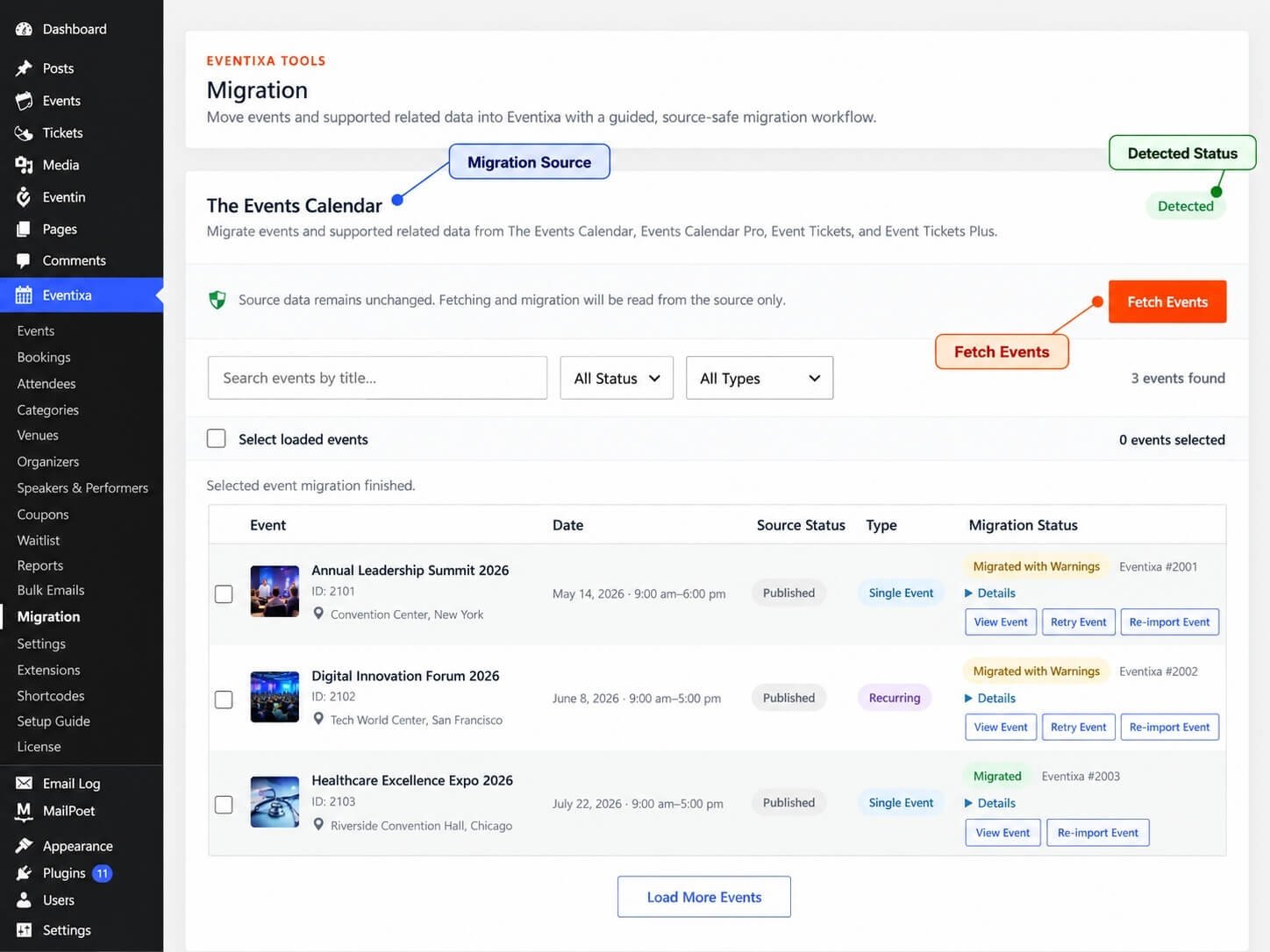
Go to Eventixa → Migration and locate The Events Calendar.
A green Detected status confirms that Eventixa can read the source.
Source Data Is Not Modified
Eventixa treats The Events Calendar as a read-only migration source.
The Migration screen displays: Source data remains unchanged. Fetching and migration will be read from the source only.
Migration creates corresponding Eventixa records but does not intentionally rewrite or delete the original TEC events.
Back Up Before Migrating
Although the source is read-only, create a full WordPress database and file backup before performing a large migration.
This gives you a recovery point while verifying:
- Event records
- Tickets
- Recurrence
- Historical bookings
- Historical attendees
- Virtual-event access
- Custom fields
Step 1 — Open Eventixa Migration
Go to: Eventixa → Migration
The migration source card for The Events Calendar appears when the source plugin is available.
The card also identifies the related ecosystem supported by the adapter.
Step 2 — Fetch Events
Click Fetch Events.
Eventixa discovers the canonical TEC events available for migration.
Fetching does not create Eventixa events yet.
It only loads the source event browser.
Recurring Series Are Listed Once
For recurring TEC events, Eventixa reads the canonical source event rather than treating every generated occurrence as an independent source event.
This helps prevent the Migration browser from showing the same recurring series multiple times as separate migration candidates.
Step 3 — Find the Events You Want
The source browser includes:
- Search field
- Status filter
- Type filter
- Event selection
- Migration status
Use these controls to narrow a large source library before selecting records.
Search by Event Title
Enter part of an event title in Search events by title.
Only matching source events are returned.
Filter by Source Status
Available source-status filters include:
- Published
- Draft
- Pending
- Private
- Scheduled
Choose All Status to view every supported status.
Filter Single and Recurring Events
Use the event-type filter to choose:
- All Types
- Single Events
- Recurring Events
This is especially useful when testing recurring migration separately from normal event migration.
Event Preview Information
Each migration row can display source information such as:
- Event title
- Source event ID
- Date and time
- Venue
- Source status
- Single or Recurring type
- Current migration status
- Existing Eventixa destination ID when already migrated
Featured images can also appear when available.
Step 4 — Select Events
Select individual events using their checkboxes.
You can also use Select loaded events to select all events currently loaded in the browser.
The interface displays the current selected-event count.
Load Additional Events
Eventixa loads source records in pages rather than forcing every event onto the screen at once.
Click Load More Events when more source events are available.
Step 5 — Choose Migration Scope
Below the source event list, Eventixa displays Migration Scope.
Core event configuration and supported ticket data are included automatically.
Historical transactional records are optional.
Included by Default
The Migration Scope shows these items as included by default:
- Event details & dependencies
- Tickets & attendee field definitions
- Event & ticket reconciliation
These do not require an additional historical-data checkbox.
Event Details
Eventixa reads supported TEC event information and maps it into the Eventixa event structure.
Supported core information includes data such as:
- Event title
- Event content
- Event excerpt
- Published status
- Start date
- End date
- Start time
- End time
- All-day status
- Timezone
- Event website
- Map display settings where supported
Featured Images
When the TEC event has a WordPress featured image, Eventixa can associate the corresponding media attachment with the migrated Eventixa event.
Categories
Supported TEC event categories can be migrated into Eventixa event categories.
Eventixa maintains migration mappings so previously migrated dependencies can be recognized during retries or reimports.
Tags
Supported event tags can also be assigned to the migrated Eventixa event.
Venues
If the source event has a TEC venue, Eventixa migrates the supported venue data and associates the resulting Eventixa venue with the event.
This avoids requiring you to manually recreate the venue for each migrated event.
Organizers
TEC organizers can be migrated and associated with the Eventixa event.
If the source contains multiple organizers, Eventixa preserves the organizer mapping internally but may report a warning where the primary Eventixa event field cannot represent the complete source arrangement directly.
Invalid Source Timezone
Eventixa validates source timezone information before saving it.
If the source contains a timezone that WordPress/PHP does not recognize as a valid timezone identifier, Eventixa can migrate the event while reporting an invalid_source_timezone warning.
Review the migrated event timing whenever a timezone warning appears.
Ticket Migration
If Event Tickets data is available, Eventixa can migrate supported source ticket definitions.
Ticket migration is part of the normal migration scope.
You do not need to enable historical bookings simply to migrate the ticket configuration itself.
Event Tickets and Event Tickets Plus
The source adapter can read supported ticket and registration information from the TEC ticketing ecosystem.
The exact data available depends on the source ticket provider and plugins installed on the site.
Ticket Reconciliation
After ticket import, Eventixa performs reconciliation between the TEC source ticket and the migrated Eventixa ticket.
This helps identify mismatches instead of assuming that a created destination record is automatically correct.
Ticket Source Mapping
Eventixa stores source-to-destination mappings for migrated ticket records.
These mappings are important when:
- Retrying an event
- Reimporting an event
- Migrating historical bookings
- Migrating attendees
- Reconciling ticket quantities
Attendee Field Definitions
Supported Event Tickets attendee-field definitions can be migrated as part of the standard migration.
This includes fields that Eventixa can represent safely in its registration-field system.
Advanced Fields
When a source attendee field requires an Eventixa Pro capability, the migration can use Eventixa Pro’s additional-field migration support when available.
If a source field cannot be safely mapped, Eventixa can skip that individual field and report a warning rather than necessarily failing the entire event.
Recurring Events
Recurring-event migration is provided through Eventixa Pro.
Eventixa reads TEC recurrence information, translates supported rules into Eventixa recurrence settings, generates Eventixa occurrences, and validates the generated occurrence dates against the source.
Supported Recurrence Families
The migration code supports compatible recurrence rules based on:
- Daily
- Weekly
- Monthly
- Yearly
The rule must be representable safely by Eventixa.
Weekly Recurrence
Supported weekly recurrence can preserve selected weekdays and recurrence intervals.
For example, a recurring event that repeats every week on Monday and Wednesday can be translated when the source rule fits Eventixa’s supported recurrence model.
Monthly and Yearly Rules
Monthly and yearly recurrence is supported where the source rule can be represented using Eventixa’s current recurrence model.
Some positional or highly customized TEC recurrence rules are not automatically converted.
Recurrence Exclusions
Supported date-based recurrence exclusions can be migrated.
These allow specific dates to remain excluded from an otherwise recurring schedule.
Additional Recurrence Dates
Supported date-based additional occurrences can also be represented where they use the same event timing.
Unsupported Recurrence Rules
Eventixa does not guess when a TEC recurrence rule cannot be safely translated.
Unsupported structures can include certain:
- Positional monthly rules
- Custom monthly-day rules
- Positional yearly rules
- Multiple-month yearly rules
- Recurring exclusions that are not simple date exclusions
- Rules using timing overrides that cannot be represented safely
The exact warning depends on the source recurrence configuration.
Occurrence Validation
After saving a recurring migration, Eventixa compares the generated Eventixa occurrence dates with the TEC source occurrences.
If the occurrence sets do not match within the source recurrence window, migration returns an occurrence mismatch instead of silently accepting an inaccurate schedule.
The Events Calendar Series
A TEC event may belong to a Series.
Eventixa distinguishes recurrence-backed TEC series information from a standalone/manual Series structure.
If an event belongs to a TEC Series that is not backed by a recurrence rule and Eventixa has no equivalent destination entity, the migration marks it as unsupported rather than creating a misleading Eventixa recurrence.
Virtual Event Migration
Eventixa can read supported virtual-event information from The Events Calendar ecosystem.
The migration attempts to preserve the usable event-access configuration when the source contains virtual-event data.
Custom Virtual URLs
When a source virtual event provides a usable meeting or event URL that can be represented as an Eventixa Custom URL, the migration can preserve that access information.
Zoom and Google Meet Source Data
Provider-specific source information can be inspected during migration.
Eventixa only adopts managed Zoom or Google Meet information when it can safely represent the relationship in the destination.
A migration should not assume ownership of a remote managed meeting when Eventixa cannot safely establish that relationship.
Virtual Provider Fallback
When a managed provider cannot be adopted safely, Eventixa can fall back to a supported Custom URL representation when a usable meeting link or identifier can be preserved.
This avoids unnecessarily losing attendee access information.
Historical Bookings
Enable Bookings & orders if you want supported historical registration/order information migrated.
This option is disabled by default because historical migration is more complex than importing configuration alone.
Historical Payment Information
When supported by the source, historical booking migration can preserve a snapshot of information such as:
- Booking status
- Payment status
- Payment method
- Transaction/order relationship
- Ticket quantities
- Financial values
- Currency
The purpose is historical preservation rather than reprocessing the original payment.
Historical Orders Are Not Recharged
Migration does not charge customers again.
Historical payment information is treated as imported record data.
Historical Attendees
Enable Attendees & responses to migrate supported attendee records.
Because each Eventixa attendee requires a booking parent, Eventixa automatically includes bookings when attendee migration is enabled.
RSVP Data
Supported historical RSVP attendee/response information can be migrated when the source provides the necessary relationships.
The destination attendee and booking must be mapped correctly to the migrated Eventixa event and ticket.
Historical Check-In
With the required Eventixa Pro capability, you can enable Historical check-in state.
This preserves supported previous attendee check-in information.
Enabling historical check-in also requires attendees and bookings.
Historical Check-In Does Not Trigger a New Check-In
Imported check-in state is historical data.
Eventixa does not treat the imported state as if the attendee just checked in during the migration.
This avoids triggering current live check-in behavior for old records.
Step 6 — Start Migration
After choosing the events and scope, click Migrate Selected Events.
Eventixa creates a migration run and begins processing the selected records.
Migration Progress
The progress section displays information such as:
- Processed
- Migrated
- Warnings
- Failed
- Pending
A progress bar shows how much of the selected migration run has been processed.
Migration Continues Independently of the Page
The migration run uses persistent progress.
Closing or navigating away from the Migration page does not simply discard the run state.
You can return and recover an unfinished run.
Pause Migration
Click Pause Migration when you want Eventixa to stop beginning additional migration work.
The migration is paused at a safe processing point.
Resume Migration
Click Resume Migration to continue a paused migration run.
You do not need to select all events again.
Migration Statuses
An individual TEC event can show statuses including:
- Not Migrated
- Queued
- Migrating
- Migrated
- Migrated with Warnings
- Skipped
- Failed
- Requires Pro
- Unsupported
Migrated
Migrated means the supported migration and validation workflow completed without migration warnings.
Migrated with Warnings
Migrated with Warnings means the Eventixa event exists and the primary migration completed, but Eventixa identified one or more issues that should be reviewed.
Do not treat this status as equivalent to a completely verified migration.
Failed
Failed means Eventixa could not complete the required workflow for the event.
Review the migration details before retrying.
Requires Pro
A recurring event or another source feature can require a capability supplied by Eventixa Pro.
When that destination capability is unavailable, Eventixa can mark the event Requires Pro rather than degrading the source data silently.
Unsupported
Unsupported means Eventixa has deliberately stopped because the source structure cannot currently be represented safely.
This is different from a temporary migration failure.
View Migration Details
Click Details beside an event to inspect its migration result.
Use the details when an event shows warnings, failure, Requires Pro, or Unsupported.
View the Migrated Event
After successful migration, use View Event to open the Eventixa destination record.
Check the migrated event before moving on to a large production migration.
Retry Event
Use Retry Event when an event encountered a migration problem that may now be resolved.
Retrying uses the existing migration mapping where appropriate.
Re-import Event
Use Re-import Event when you intentionally want Eventixa to process an already migrated source event again.
This can be useful after changing source data or correcting migration-related configuration.
Reimport Does Not Blindly Duplicate Records
Eventixa uses source-to-destination mappings.
Where the mapped Eventixa record still exists, the migration system can recognize the previous relationship rather than automatically creating a new unrelated event.
Deleted Destination Event
If an Eventixa event previously created from TEC is deleted, the migration system can recognize that the mapped destination no longer exists.
The source event can then be processed again instead of remaining permanently associated with a missing Eventixa post.
Retry Failed
Use Retry Failed in the migration progress area to retry failed events in the current run.
This is useful after correcting a shared issue that affected several events.
View Report
Click View Report to review migration results across the run.
The report helps identify:
- Successful migrations
- Warnings
- Failed events
- Unsupported items
- Reconciliation results
Reconciliation After Migration
Eventixa performs reconciliation rather than relying only on successful record creation.
Supported reconciliation can compare:
- Source tickets and Eventixa tickets
- Historical bookings
- Historical attendees
- Booking relationships
- Ticket quantities
- Booking statuses
- Payment statuses
- Financial snapshots
- Currency
Why Reconciliation Matters
An import can technically create records while still having incorrect relationships or values.
Reconciliation helps Eventixa detect these inconsistencies and report them as migration warnings or failures.
Recommended First Migration
For your first migration, select a small number of representative TEC events.
A useful test set is:
- One simple single event.
- One event with a venue and organizer.
- One event with paid tickets.
- One RSVP event.
- One event with attendee fields.
- One virtual event if you use virtual events.
- One recurring event if Eventixa Pro is active.
- One event with historical attendees if you plan to migrate historical data.
Verify these before migrating the complete event library.
Verify the Migrated Event
After migration, compare the source TEC event with Eventixa.
Check:
- Title
- Content
- Date
- Time
- Timezone
- Venue
- Organizer
- Categories
- Tags
- Featured image
- Event format
- Ticket configuration
- Registration fields
- Recurring occurrences
- Virtual-event access
Verify Tickets
For ticketed events, confirm:
- Ticket names
- Ticket type
- Price
- Capacity
- Availability
- Sale schedule
- Registration fields
Do not remove the source ticketing system until the destination ticket workflow has been tested.
Verify Recurring Events Carefully
Recurring events require additional review because the destination recurrence must produce the same intended occurrence dates as TEC.
Check several occurrences throughout the series, not only the first one.
Verify Historical Records
When historical migration is enabled, compare:
- Booking count
- Attendee count
- Ticket quantities
- Booking status
- Payment status
- Currency
- Check-in state
Historical data should be treated as complete only after these relationships have been reviewed.
Keep The Events Calendar Installed During Verification
Do not immediately deactivate or remove The Events Calendar after the migration finishes.
Keep the source available until you have checked the Eventixa records and frontend workflows.
This gives you a reliable reference for comparison.
Migration Is Not Continuous Sync
The migration creates Eventixa records from TEC source data.
It does not establish permanent two-way synchronization.
If you edit the TEC source after migration, you should not assume the Eventixa event automatically changes.
Use Re-import intentionally when you need to process the source event again.
Common Problems
The Events Calendar Shows Not Detected
Confirm The Events Calendar is installed and active.
The source adapter requires the base TEC plugin to be available.
Fetch Events Is Disabled
The source must be detected and its migration adapter must be available before Eventixa enables event discovery.
My Recurring Event Says Requires Pro
Recurring migration requires Eventixa Pro.
Activate Eventixa Pro and retry the event.
My Recurring Event Is Unsupported
The TEC recurrence rule may use a structure that Eventixa cannot translate safely.
Open the migration details to review the reason.
A TEC Series Is Unsupported
A manually managed TEC Series without recurrence-backed scheduling does not currently have a direct equivalent Eventixa Series entity.
Eventixa leaves it unsupported rather than converting it incorrectly.
The Event Migrated with Warnings
Open Details.
The main event may have migrated successfully while a dependency, timezone, additional field, recurrence detail, or another supported item produced a warning.
Some Attendee Fields Were Not Migrated
The source field may not have a safe Eventixa destination mapping.
When possible, Eventixa continues migrating the main event and reports the field issue as a warning.
Historical Attendees Are Missing
Confirm Attendees & responses was enabled in Migration Scope.
Historical attendee migration is optional.
Historical Bookings Are Missing
Confirm Bookings & orders was selected.
Historical bookings are not included by default.
Check-In Information Is Missing
Historical check-in must be explicitly selected and requires the necessary Eventixa Pro capability.
A Virtual Meeting Provider Changed to Custom URL
Eventixa may have been unable to safely adopt the original managed provider relationship.
When possible, it preserves usable access through Custom URL instead.
The Migrated Event Time Looks Wrong
Review any timezone warnings and compare the source timezone with the Eventixa event.
I Deleted the Eventixa Event
You can migrate the source event again.
Eventixa can detect when the previously mapped destination record no longer exists.
Retry Event and Re-import Event Are Both Visible
Use Retry Event for an event that encountered a migration problem.
Use Re-import Event when you intentionally want to process an already migrated source event again.
Before Removing The Events Calendar
Complete these checks first:
- Review all migration warnings.
- Open each important migrated event.
- Verify ticket availability.
- Test a frontend booking.
- Test RSVP if used.
- Verify attendee fields.
- Check recurring occurrences.
- Test virtual-event access.
- Compare historical bookings if migrated.
- Compare historical attendees.
- Verify historical check-in where applicable.
- Keep a full backup.
Only after verification should you consider deactivating the old event system.
Important Notes
- The Events Calendar is the current built-in Eventixa migration source.
- Eventixa also recognizes supported data from Events Calendar Pro, Event Tickets, and Event Tickets Plus.
- The source is read-only during migration.
- Fetch Events does not immediately migrate anything.
- You choose which source events to migrate.
- Categories, tags, venues, organizers, tickets, attendee fields, and other supported dependencies can be migrated.
- Historical bookings and attendees are optional.
- Historical check-in is optional and requires its supported destination capability.
- Recurring migration requires Eventixa Pro.
- Eventixa validates generated recurring occurrences against the source.
- Unsupported recurrence structures are not silently converted.
- Manual TEC Series without equivalent recurrence behavior can remain unsupported.
- Virtual-event information is migrated only when it can be represented safely.
- Eventixa maintains source-to-destination mappings for retries and reimports.
- Migration reports and reconciliation should be reviewed before removing the source plugin.
- Migration is not permanent synchronization between TEC and Eventixa.


