
Ticket Management Overview
Eventixa includes a complete ticket and registration system for creating free tickets, paid tickets, and RSVP registration for your events.
Ticket settings control how attendees register, how many places are available, when registration opens and closes, and what information is collected during booking.
Available in: Eventixa Core
Location: Eventixa → Events → Edit Event → Tickets & RSVP
Related features: Checkout, Bookings, Attendees, Payments, Waitlist
Open Ticket Management
Go to: Eventixa → Events
Create a new event or open an existing event.
Then select: Event Settings → Tickets & RSVP
This section contains the event’s registration options.
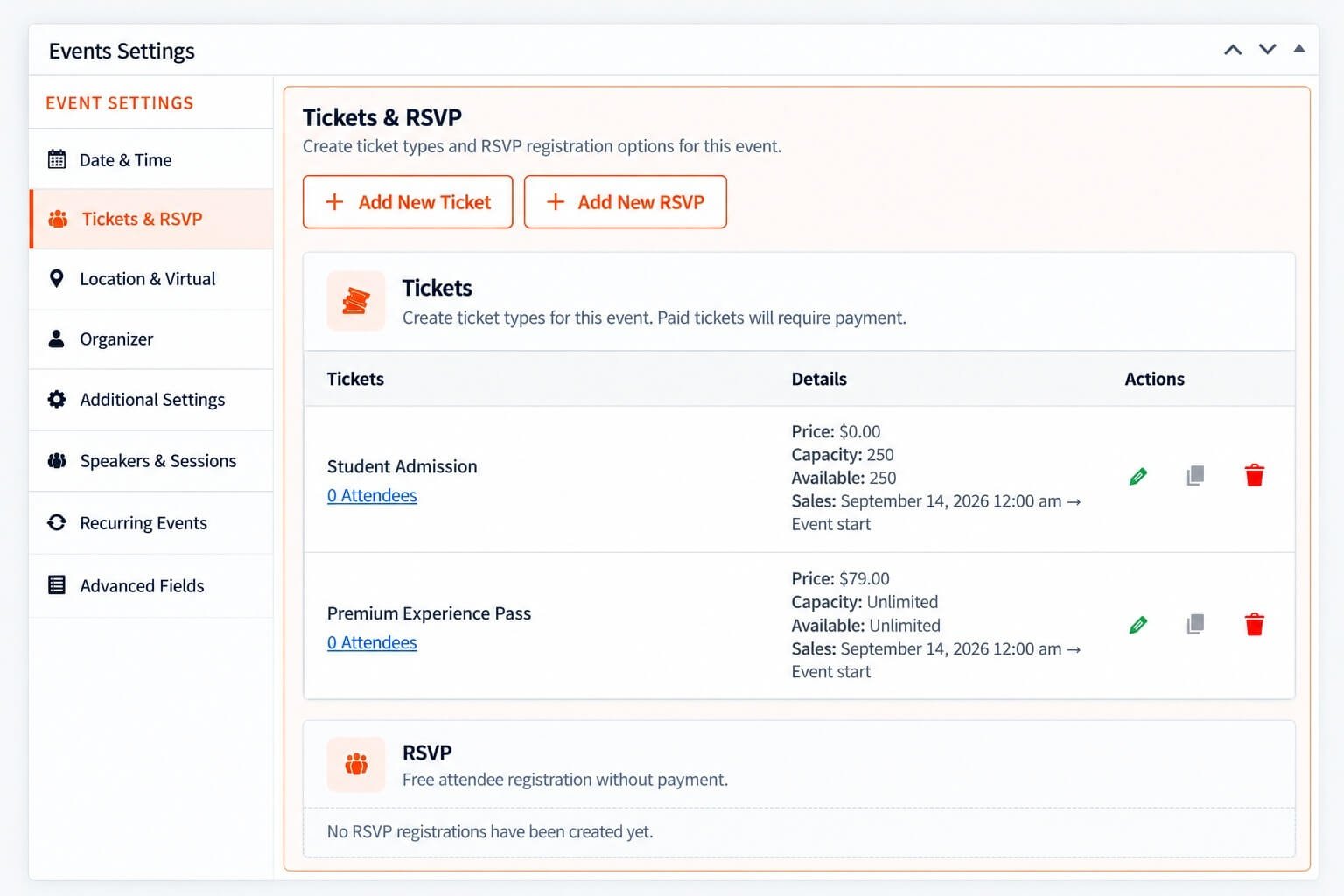
Ticket Types in Eventixa
Eventixa supports two primary registration types:
- Standard Tickets
- RSVP
Standard tickets are used for normal free or paid registration.
RSVP is used when attendees respond with options such as Going or Not Going.
Standard Tickets
Standard tickets can be used for:
- Paid admission
- Free registration
- VIP tickets
- Early-bird tickets
- General admission
- Multiple ticket tiers
You can create more than one ticket type for the same event.
Example Ticket Setup
A conference might use:
| Ticket | Price |
|---|---|
| Early Bird | $49 |
| General Admission | $79 |
| VIP Pass | $149 |
Each ticket can have its own settings.
Add a New Ticket
From Tickets & RSVP, click: Add New Ticket
Eventixa opens the ticket editor.
You can then configure settings such as:
- Ticket name
- Description
- Price
- Capacity
- Sale dates
- Quantity limits
- Attendee fields
A dedicated guide covers ticket creation step by step.
Ticket Name
Use a clear visitor-facing ticket name.
Good examples:
- General Admission
- VIP Pass
- Student Ticket
- Early Bird
- Workshop Access
Avoid internal names that attendees may not understand.
Ticket Description
Use the ticket description to explain what the ticket includes.
For example: Premium Experience Pass
Premium admission with enhanced event access and additional attendee benefits.
Keep descriptions concise and focused on what makes the ticket different.
Free Tickets
A standard ticket can have no price.
Free tickets are useful for:
- Community events
- Free workshops
- Meetups
- Training sessions
- Promotional events
Even though no payment is required, Eventixa still creates the booking and attendee records.
Paid Tickets
Paid tickets use the Eventixa checkout and payment workflow.
Depending on your configuration, payment methods can include:
- PayPal
- Offline Payment
- WooCommerce
- Stripe with Eventixa Pro
The available payment methods depend on your Eventixa setup.
RSVP Registration
RSVP registration is designed for events where you want attendees to indicate whether they plan to participate.
Depending on the RSVP configuration, attendees can respond with options such as:
- Going
- Not Going
RSVP registration does not require the same paid checkout flow as a standard paid ticket.
Multiple Ticket Types
You can create multiple ticket options for a single event.
For example:
Standard Admission
- $40
- Capacity: 100
VIP Admission
- $100
- Capacity: 20
Free Volunteer Registration
- Free
- Capacity: 10
This lets you serve different attendee groups from one event.
Ticket Capacity
Capacity controls how many registrations a ticket can accept.
For example:
Capacity: 100
Eventixa tracks remaining availability as registrations are created.
Capacity management is important for preventing overselling.
Total Event Capacity
The Tickets & RSVP area can also provide event-level capacity information based on the configured tickets.
Review ticket capacity carefully before opening registration.
Availability
Ticket availability can depend on several factors:
- Ticket capacity
- Existing bookings
- Pending reservations
- Sale start date
- Sale end date
- Event schedule
A ticket can therefore become unavailable even when the event itself is still published.
Ticket Sale Schedule
You can control when a ticket is available for purchase.
For example:
Sale starts: October 1
Sale ends: October 20
Outside that period, the ticket should no longer be available for normal registration.
Use ticket sale schedules for:
- Early-bird periods
- Registration deadlines
- Limited-time ticket tiers
Quantity Rules
Ticket quantity settings control how many tickets can be selected in one booking.
For example:
Minimum quantity: 1
Maximum quantity: 4
This prevents one purchaser from exceeding the intended per-booking limit.
Individual Attendees
A booking can contain multiple attendees.
For example:
A purchaser selects: 3 tickets
Eventixa can collect separate attendee information for each person.
This is useful when you need individual:
- Names
- Email addresses
- Registration details
- Check-in records
Attendee Registration Fields
Eventixa includes basic attendee information fields.
Depending on your setup, attendee information can include:
- Name
Additional registration fields can also be configured.
Advanced Attendee Fields
Requires Eventixa Pro
Eventixa Pro extends attendee data collection through the Advanced Fields system.
This can be used to collect additional information needed for the event.
Examples:
- Company
- Job title
- Dietary requirement
- T-shirt size
- Custom responses
Advanced Fields are documented separately.
Booking Creation
When a visitor successfully registers, Eventixa creates booking and attendee records.
A standard registration workflow can look like:
Select ticket → Enter attendee details → Checkout → Payment if required → Booking created
Free tickets skip the payment requirement while still creating the registration.
Ticket Status and Booking Status
Ticket availability and booking status are separate concepts.
A ticket defines what can be purchased.
A booking records what a purchaser actually registered for.
Bookings can later have statuses depending on the Eventixa workflow.
Pending Checkout and Capacity
Eventixa can account for registrations that are in progress or pending.
This is important when availability is limited because two users should not be able to purchase the same final place at the same time.
Capacity and pending reservation behavior are covered in the dedicated capacity guide.
Checkout Session Timer
Eventixa uses a checkout session workflow to help protect ticket availability while a purchaser completes registration.
Where the frontend checkout timer is shown, the visitor should complete checkout before the reservation session expires.
This reduces the chance of capacity being held indefinitely.
Ticket Availability on the Frontend
Visitors can see available tickets from the single event page.
A ticket card can display information such as:
- Ticket name
- Description
- Availability
- Price
- Quantity selector
- Minimum and maximum quantity
The attendee chooses the required quantity and proceeds to checkout.
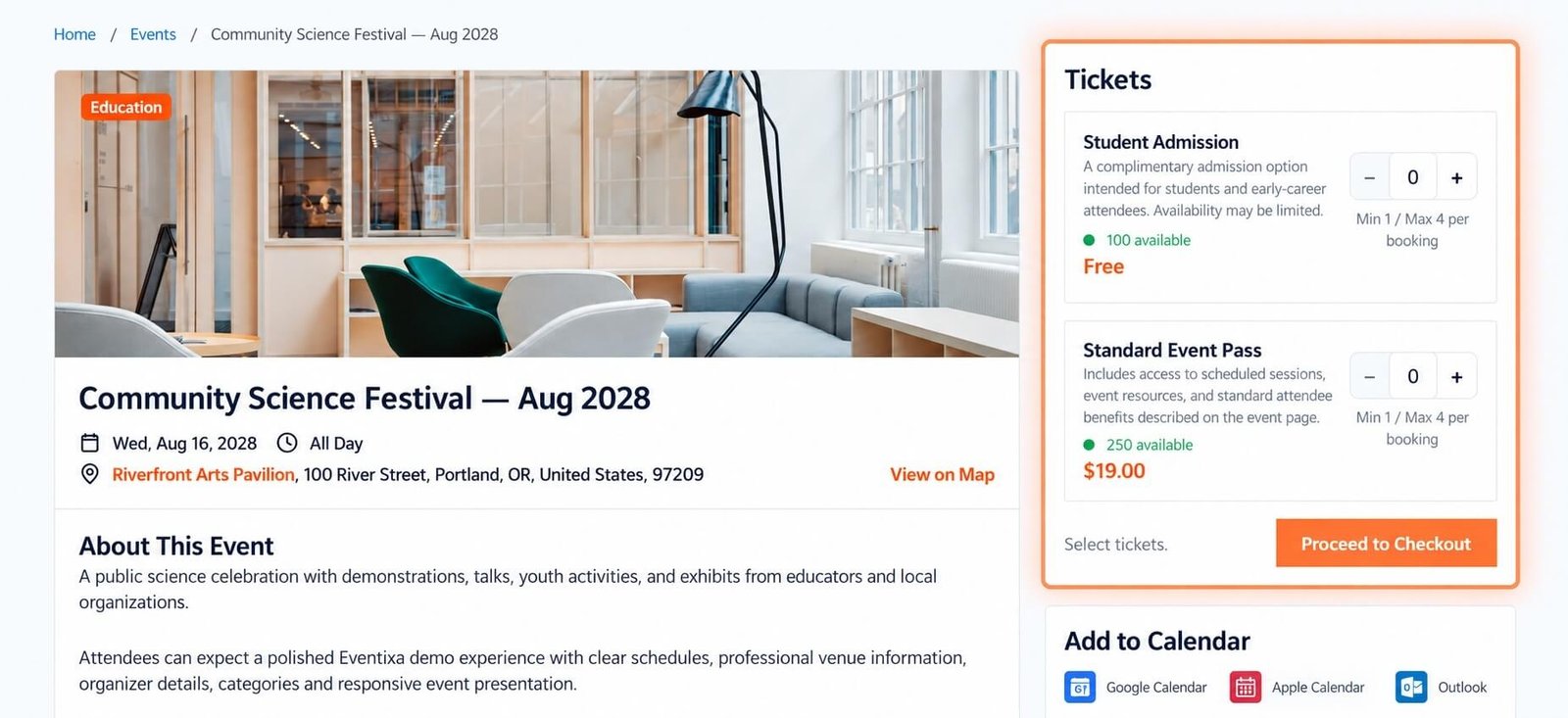
Ticket Description on Frontend
When enabled, the ticket description can appear in the frontend ticket form.
Use this when ticket tiers need explanation.
For simple ticket setups, short descriptions are usually enough.
Bookings and Tickets
Every successful ticket registration creates a booking relationship.
From Eventixa administration, you can review:
- Ticket purchased
- Quantity
- Registration type
- Attendees
- Payment method
- Booking status
Booking management is covered in its own documentation category.
Attendees and Tickets
Each registered attendee can be represented as an attendee record.
This enables features such as:
- Attendee management
- Ticket delivery
- QR check-in with Eventixa Pro
- RSVP status
- Individual attendee information
Ticket Emails
Ticket and booking information can be included in Eventixa email workflows.
Depending on configuration, attendees can receive booking confirmation and ticket-related information after registration.
PDF Tickets
Requires Eventixa Pro
Eventixa Pro can provide PDF ticket functionality where enabled.
This gives attendees a downloadable or email-delivered ticket representation.
QR Check-In
Requires Eventixa Pro
Eligible Eventixa tickets can work with QR check-in.
Each valid attendee ticket can be used for event check-in according to the Eventixa Pro check-in workflow.
Waitlist
Requires Eventixa Pro
When capacity is full, Eventixa Waitlist can help manage demand.
If a place becomes available later, the waitlist workflow can reserve that place for an eligible waiting attendee.
Waitlist behavior is documented separately.
Recurring Event Tickets
Recurring events can also use Eventixa tickets.
For recurring events, bookings and availability must remain associated with the correct occurrence.
See Recurring Event Tickets for occurrence-specific details.
Editing a Ticket
You can edit an existing ticket from the event’s Tickets & RSVP settings.
Changes can include:
- Ticket name
- Description
- Price
- Capacity
- Sale schedule
- Quantity limits
Be careful when changing tickets after registrations already exist.
Deleting a Ticket
Before deleting a ticket, check whether bookings or attendees already use it.
Deleting an active ticket with existing registrations can create operational problems.
If sales should simply stop, changing the sale schedule or availability may be safer than removing the ticket immediately.
Example: Simple Paid Event
A small workshop might use:
| Setting | Value |
|---|---|
| Ticket | Workshop Admission |
| Price | $25 |
| Capacity | 30 |
| Minimum | 1 |
| Maximum | 3 |
Visitors select the quantity, provide attendee details, and complete payment.
Example: Free Event
A community meetup could use:
| Setting | Value |
|---|---|
| Ticket | Free Registration |
| Price | Free |
| Capacity | 100 |
No payment is required, but attendees are still registered in Eventixa.
Example: Multi-Tier Conference
A conference could use:
- Early Bird
- General Admission
- VIP
Each ticket can have different:
- Price
- Capacity
- Sale schedule
- Quantity limits
Common Problems
Ticket Does Not Appear
Check:
- Ticket is saved.
- Sale schedule is valid.
- Capacity remains.
- Event is published.
- Event schedule is valid.
Ticket Shows Sold Out
Review:
- Capacity
- Confirmed bookings
- Pending reservations
- Occurrence if recurring
Price Is Incorrect
Edit the ticket and confirm the configured price.
For already completed bookings, changing the ticket price does not necessarily mean historical orders should change.
Quantity Selector Stops at a Certain Number
Check the ticket’s maximum quantity and remaining availability.
Attendee Fields Are Missing
Review the event’s attendee registration field configuration.
Paid Ticket Does Not Show a Payment Method
Check the enabled payment gateways under Eventixa payment settings.
Recommended Workflow
- Create the event.
- Open Tickets & RSVP.
- Decide between Standard Ticket and RSVP.
- Create the required ticket types.
- Configure price.
- Set capacity.
- Set sale dates.
- Set quantity limits.
- Configure attendee fields.
- Save the event.
- Preview the frontend ticket form.
- Complete a test booking.
- Verify booking and attendee records.
- Verify payment when applicable.
Important Notes
- Ticket capacity and event capacity should be planned before registration opens.
- Test free and paid tickets separately.
- Verify sale dates.
- Test minimum and maximum quantities.
- Complete a full checkout before launch.
- Review existing bookings before changing active tickets.
- For recurring events, test multiple occurrences.


