
Skip to content
  • Home
  • Features
    • Event Management
    • Email Notifications
    • Payment Processing
    • Recurring Events
  • Documentation
  • Pricing
  • Contact Us
  • Live Demo
    • Simple Event
    • Recurring Event
    • Virtual Event
    • Free Event
    • Paid Event
    • RSVP Event
    • Waitlist Event

EARLY ADOPTER OFFER — Eventixa Pro: $49/year $0 (FREE) · First 100 Pro subscriptions only. Get Pro Free →

Eventixa – Events Calendar, Tickets and Bookings
  • Home
  • Features
    • Event Management
    • Email Notifications
    • Payment Processing
    • Recurring Events
  • Documentation
  • Pricing
  • Contact Us
  • Live Demo
    • Simple Event
    • Recurring Event
    • Virtual Event
    • Free Event
    • Paid Event
    • RSVP Event
    • Waitlist Event
Get Started

EARLY ADOPTER OFFER — Eventixa Pro: $49/year $0 (FREE) · First 100 Pro subscriptions only. Get Pro Free →

Eventixa – Events Calendar, Tickets and Bookings

Getting Started

  • Welcome to Eventixa
  • How to Install Eventixa on WordPress
  • How to Install and Activate Eventixa Pro
  • Setup Wizard
  • Eventixa Admin Dashboard Overview
  • Create Your First Event
  • Eventixa Core vs Pro

Event Management

  • Events Overview
  • Creating an Event
  • Editing and Managing Events
  • Duplicating an Event
  • Event Date and Time Settings
  • Event Categories
  • Venues
  • Organizers
  • Event Archive and Listings
  • Single Event Page
  • Event Templates & Overriding
  • Eventixa Design System

Speakers, Performers & Event Agenda

  • Creating Event Sessions
  • Speakers & Performers Overview
  • Speaker & Performer Groups
  • Creating Speakers & Performers
  • Adding Speakers & Performers to Events
  • Sessions & Event Agenda
  • Recurring Event Agendas

In-Person, Virtual & Hybrid Events

  • In-Person, Virtual & Hybrid Events
  • Virtual Event Access
  • Custom Meeting URL

Tickets & Registration

  • Ticket Management Overview
  • Creating Event Tickets
  • Free and Paid Tickets
  • RSVP Tickets
  • Ticket Capacity and Availability
  • Ticket Sale Schedule
  • Ticket Quantity Rules
  • Attendee Registration Fields
  • Advanced Attendee Fields

Recurring Events

  • Recurring Events Overview
  • Creating a Recurring Event
  • Managing Event Occurrences
  • Recurring Event Tickets
  • Recurring Virtual Events

Checkout & Bookings

  • Checkout Overview
  • Guest Checkout
  • Managing Bookings
  • Booking Details
  • Booking Statuses
  • Manual Bookings
  • Canceling and Refunding Bookings
  • Booking Emails

Attendees

  • Managing Attendees
  • Add and Edit Attendees
  • Resend Event Tickets

Coupons & Discounts

  • Event Coupons Overview
  • Creating a Coupon
  • Advanced Coupon Rules

Payments

  • Payment Overview
  • Currency Settings
  • Stripe Payment
  • PayPal Payment
  • WooCommerce Integration
  • Offline Payment
  • Payment Statuses
  • Transactions
  • Refunds

Emails & Bulk Emails

  • Email Notifications Overview
  • Customer Emails
  • Administrator Emails
  • Email Templates
  • Email Placeholders
  • Reminder Emails
  • Bulk Emails

QR Tickets & Check-In

  • QR Tickets
  • Event Check-In
  • QR Scanner

Waitlist

  • Event Waitlist Overview
  • Enable Waitlist for an Event
  • Waitlist Reservations & Offers
  • Managing the Waitlist
  • Waitlist Emails

Reports

  • Reports Overview
  • Event Reports
  • Ticket & Registration Reports
  • Revenue Reports
  • Filtering Reports

Integration

  • Integrations Overview
  • MailPoet Integration
  • Mailchimp Integration
  • WooCommerce Integration
  • Zoom Integration
  • Google Meet Integration
  • Webhooks

Migration

  • Migration Overview
  • Migration from The Events Calendar
  • Supported Migration Data
  • Recurring Event Migration
  • Migration Warnings & Troubleshooting

My Account & Customer Experience

  • Eventixa My Account
  • Viewing Event Bookings
  • Viewing Event Tickets

Shortcodes, Blocks & Display

  • Eventixa Shortcodes
  • Gutenberg Blocks
  • Elementor Integration

Settings

  • Eventixa Settings Overview
  • General Settings
  • Display Settings
  • Ticket Settings
  • Payment Settings
  • Email Settings
  • Integration Settings
  • License Settings

Troubleshooting

  • Troubleshooting Overview
  • Ticket Availability Problems
  • Checkout Problems
  • Payment Problems
  • Email Delivery Problems
  • Virtual Event Integration Problems
  • QR Ticket & Check-In Problems
View Categories
  • Home
  • Documentations
  • Event Management
  • Event Date and Time Settings

Event Date and Time Settings

0:00 / 4:49
  • View as Markdown Open this page as plain Markdown (opens in a new tab)
  • Open in ChatGPT Ask questions about this page (opens in a new tab)
  • Open in Claude Ask questions about this page (opens in a new tab)
  • Open in Google AI Studio Ask questions about this page (Google account required) (opens in a new tab)

The Date & Time settings control when an Eventixa event starts, ends, and how the schedule is interpreted.

Accurate date, time, and timezone configuration is important because these values can affect ticket sales, reminders, recurring events, virtual meetings, and attendee check-in.

Available in: Eventixa Core
Location: Eventixa → Events → Edit Event → Date & Time
Related Pro feature: Recurring Events

Open Date & Time Settings

Edit an existing event or create a new one.

Then open: Event Settings → Date & Time

This section contains the main event schedule controls.
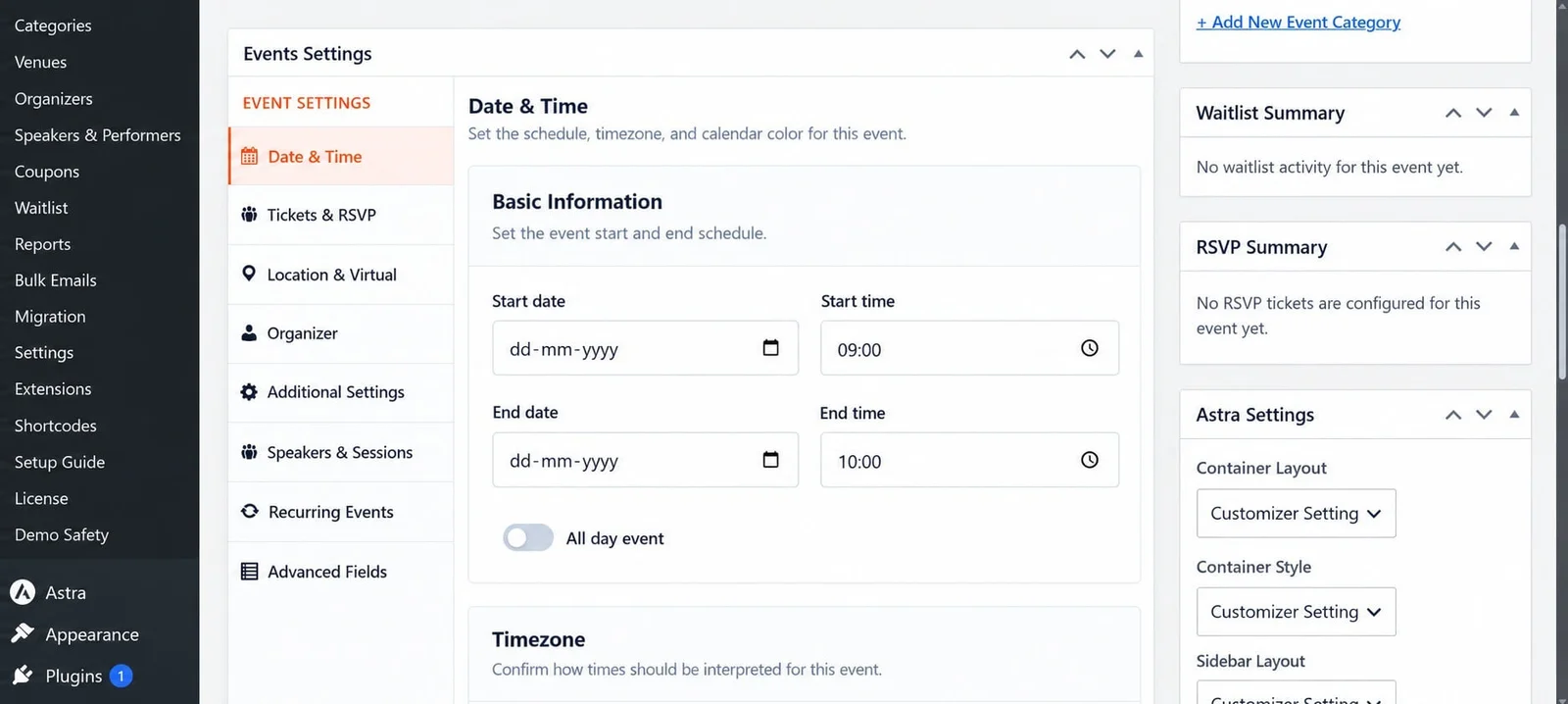
Eventixa event start date end date start time and end time settings
Use Date & Time to configure when the event starts, ends, and whether it runs all day.

Basic Event Schedule

Configure the start and end of the event.

SettingDescription
Start DateDate the event begins
Start TimeTime the event begins
End DateDate the event finishes
End TimeTime the event finishes
All Day EventRemoves the need for a specific start and end time

For a one-day event, the start and end dates can be the same.

Example: One-Day Event

A workshop running from 10:00 AM to 4:00 PM could use:

SettingExample
Start DateOctober 20, 2026
Start Time10:00 AM
End DateOctober 20, 2026
End Time4:00 PM

This is the most common setup for conferences, workshops, meetings, and training sessions.

Example: Multi-Day Event

For an event running across several days:

SettingExample
Start DateOctober 20, 2026
Start Time9:00 AM
End DateOctober 22, 2026
End Time5:00 PM

Use this for:

  • Conferences
  • Festivals
  • Retreats
  • Multi-day workshops
  • Exhibitions

All-Day Events

Enable All Day Event when the event does not need a specific start and end time.

This can be useful for:

  • Festivals
  • Exhibitions
  • Open days
  • Multi-day public events
  • All-day conferences

When enabled, Eventixa can display the event primarily by date instead of a precise time range.

Event Timezone

The timezone determines how Eventixa interprets the event schedule.

Use the timezone that matches the actual event location or the intended online event schedule.

Timezone accuracy is especially important for:

  • Virtual events
  • Attendees in different regions
  • Reminder emails
  • Recurring events
  • Ticket sale schedules
  • Check-in
  • Waitlist expiration

Website Timezone and Event Timezone

Your WordPress website also has a timezone setting.

You can review it from: Settings → General → Timezone

Keep the WordPress and Eventixa timezone configuration consistent unless you intentionally need different behavior.

If event times appear incorrect, check both settings.

Date and Time Display Format

The way Eventixa displays dates and times can be controlled through global Eventixa settings.

Go to: Eventixa → Settings

Depending on your configuration, you can choose formats such as:

  • Day / Month / Year
  • Month / Day / Year
  • 12-hour time
  • 24-hour time

These display settings do not change when the event actually occurs. They only change how the date and time are shown to visitors.

How Date and Time Affect Tickets

Ticket availability can use its own sale start and end schedule.

For example:

Event Date: October 20
Ticket Sales End: October 19

This allows ticket sales to close before the event begins.

When changing an event date, also review the related ticket sale dates.

How Date and Time Affect Virtual Events

For virtual and hybrid events, the event schedule can affect meeting access and attendee communication.

If you change the event time after registrations have started:

  • review the meeting schedule
  • review attendee emails
  • verify the meeting provider settings
  • notify registered attendees

This is especially important for Zoom and Google Meet events.

How Date and Time Affect Recurring Events

Requires: Eventixa Pro

Recurring Events use the event schedule as part of the recurrence configuration.

Open: Event Settings → Recurring Events to configure repeated occurrences.

The recurrence system can use:

  • Daily
  • Weekly
  • Monthly
  • Yearly schedules
  • Repeat intervals
  • End conditions
  • Excluded dates
  • Additional dates

If you change the base event schedule, review the generated occurrence schedule before saving.

How Date and Time Affect Sessions

Event sessions can have their own start and end times.

Session times should normally fall within the overall event schedule.

For example:

Event: 9:00 AM – 5:00 PM

Session 1: 10:00 AM – 11:00 AM

Session 2: 1:00 PM – 2:30 PM

Review the agenda after changing the main event time.

Editing the Schedule After Registrations Start

You can change the schedule of a published event, but take extra care when attendees have already registered.

If you change:

  • Date
  • Start time
  • End time
  • Timezone

consider notifying attendees.

Also review:

  • Reminder emails
  • Virtual meeting details
  • Sessions
  • Tickets
  • Check-in
  • Recurring occurrences

Common Date and Time Problems

Event Shows the Wrong Time

Check:

  1. Eventixa timezone.
  2. WordPress timezone.
  3. Event start and end time.
  4. Browser or caching issues.
  5. Recurring event configuration if applicable.

Event Appears on the Wrong Day

This is often caused by timezone differences.

Confirm the configured timezone before changing the actual event date.

Ticket Sales Close at the Wrong Time

Review the ticket sale schedule separately from the main event schedule.

Virtual Meeting Time Is Incorrect

Check:

  • Event timezone
  • Meeting provider timezone
  • Recurring meeting settings
  • Event occurrence date

Recurring Occurrences Are Incorrect

Open the Recurring Events settings and review:

  • Frequency
  • Repeat interval
  • End conditions
  • Excluded dates
  • Additional dates

Before Saving

Check:

  • Start date
  • Start time
  • End date
  • End time
  • Timezone
  • All-day setting
  • Ticket sale dates
  • Session times
  • Virtual meeting schedule
  • Recurrence schedule

Then update the event and review the frontend event page.

Related Documentation

Continue with:

  1. How to Create an Event in WordPress with Eventixa
  2. How to Edit and Manage Events in Eventixa
  3. How to Duplicate an Event in Eventixa
  4. WordPress Event Management with Eventixa

Share This Article :

  • Facebook
  • X
  • LinkedIn
  • Pinterest
Duplicating an EventEvent Categories

Eventixa is a modern WordPress event management plugin for creating events, selling tickets, managing attendees, and delivering seamless booking experiences—all from a single platform.

Help Center

  • Documentation
  • Starter Guide
  • Contact Us

Features

  • Event Management
  • Email Notifications
  • Payment Processing
  • Recurring Events
  • Live Demo

Company

  • Contact Us
  • Privacy Policy
  • Refund Policy
  • T&Cs

Copyright © 2026 - All rights reserved.