
Email Settings
Eventixa Email Settings control the global sender information, booking email templates, and visual styling used by supported Eventixa email notifications.
Use these settings to keep customer and administrator emails consistent across event registrations, bookings, ticket communication, and other supported Eventixa workflows.
Available in: Eventixa Core + Eventixa Pro enhancements
Location: Eventixa → Settings → Emails
Requires: Eventixa Core
Related features: Bookings, Tickets, Attendees, Customer Emails, Administrator Emails, Email Templates
Overview
The Eventixa Emails area is divided into three main sections:
- Senders
- Templates
- Styling
These sections correspond to:
- Email Sender Settings
- Email Templates
- Email Styling
The Email Sender Settings section controls sender details and global email behavior.
The Email Templates section manages booking email triggers, subjects, headings, and message templates.
The Email Styling section controls the global email wrapper applied when booking and ticket emails are rendered.
How to Open Email Settings
- Sign in to your WordPress dashboard.
- Go to Eventixa → Settings.
- Open the Emails tab.
- Choose Senders, Templates, or Styling.
- Update the required settings.
- Click Save Changes.
- Test an Eventixa booking or email workflow.
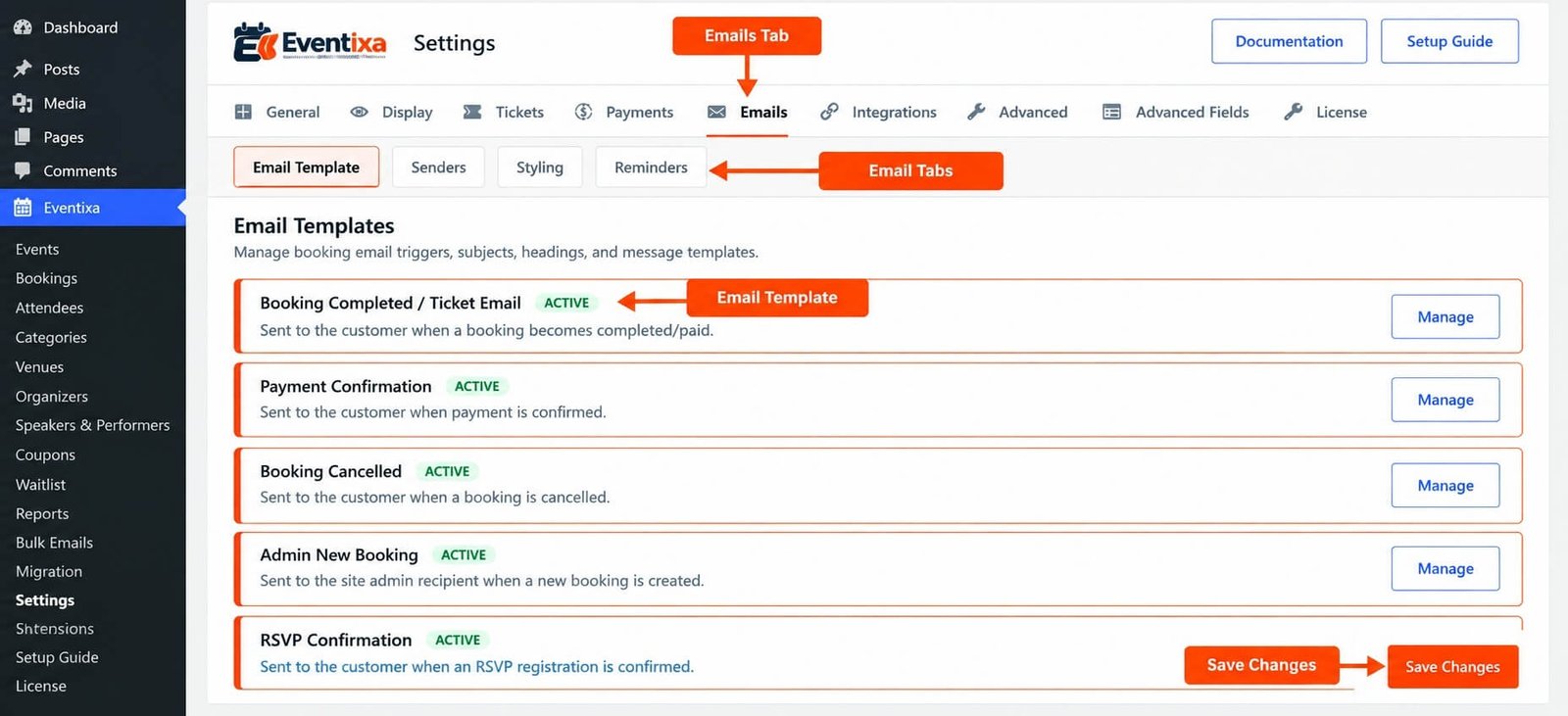
Email Settings Explained
| Section | What It Controls |
|---|---|
| Senders | Sender details and global Eventixa email behavior |
| Templates | Booking email triggers, subjects, headings, and email message templates |
| Styling | Global visual wrapper used by Eventixa booking and ticket emails |
These sections are part of the current Eventixa email settings system.
Email Sender Settings
Open: Eventixa → Settings → Emails → Senders
The Email Sender Settings section controls the sender information and global behavior used by Eventixa emails.
Sender information helps recipients understand who the email came from.
Use recognizable sender information that matches your website, organization, or event brand.
Why Sender Information Matters
Clear sender information can improve the customer experience because recipients can immediately identify the source of booking and ticket emails.
Sender information is especially important for emails related to:
- Booking confirmation
- Event registration
- Ticket communication
- Booking status updates
- Event-related notifications
- Administrator notifications
Avoid using confusing or unrelated sender details.
Sender Email and Email Delivery
The sender configured in Eventixa controls how supported Eventixa emails identify themselves.
Actual email delivery still depends on the WordPress mail environment.
That can include:
- WordPress mail configuration
- Hosting mail configuration
- SMTP plugins
- Transactional email services
- Domain authentication
- Spam filtering
Changing Eventixa sender settings does not by itself configure an SMTP service.
Email Templates
Open: Eventixa → Settings → Emails → Templates
The Email Templates section manages booking email triggers, subjects, headings, and message templates.
This is the main area for controlling the content of supported Eventixa email notifications.
What an Email Template Controls
Depending on the template, Eventixa can manage email information such as:
- Whether the supported email trigger is active
- Email subject
- Email heading
- Email message content
Templates are used by Eventixa workflows when the corresponding email condition is triggered.
Email Triggers
Email templates are connected to specific Eventixa actions or booking states.
A template is used when its related workflow occurs.
Examples of Eventixa email workflows can include:
- Booking-related customer notifications
- Administrator booking notifications
- Ticket communication
- Other supported event email actions
The exact template should be configured according to the workflow it represents.
Email Subject
The email subject is the text recipients see in their inbox before opening the message.
Use a clear subject that explains the purpose of the email.
For example: Your Event Booking Confirmation
A useful subject should help the recipient identify:
- The purpose of the message
- The relevant event or registration context
- Whether any action is required
Email Heading
The email heading appears inside the rendered Eventixa email.
It should summarize the main purpose of the message.
For example: Booking Confirmed or Your Event Ticket
Keep headings short and easy to understand.
Email Message Content
The message body contains the main information delivered to the customer or administrator.
Depending on the template and workflow, this can include booking, event, attendee, ticket, or other supported Eventixa information.
Write message content that is clear and directly relevant to the notification.
Email Placeholders
Eventixa email templates can work with supported placeholders to insert dynamic information into messages.
Placeholders help avoid manually entering information that changes for every booking or event.
For example, dynamic email information can represent values related to:
- Customer
- Booking
- Event
- Ticket
- Attendee
- Payment
Use only placeholders supported by the Eventixa email system.
The dedicated Email Placeholders documentation should be used when you need the complete supported placeholder reference.
Template Content vs Email Styling
Email Templates and Email Styling perform different jobs.
Templates control the actual email content.
This includes items such as:
- Subject
- Heading
- Message
Styling controls the shared visual wrapper used around supported Eventixa emails.
This separation allows you to update the overall appearance without editing every email template individually.
Email Styling
Open: Eventixa → Settings → Emails → Styling
The Email Styling section customizes the global Eventixa email wrapper.
These styling settings are automatically applied when booking and ticket emails are rendered.
Use this area when you want supported Eventixa emails to share a consistent visual presentation.
Global Email Wrapper
The global wrapper provides the common presentation around Eventixa email content.
Instead of rebuilding the visual structure inside every template, Eventixa applies the shared email styling when messages are rendered.
A simplified workflow is: Email Template Content → Eventixa Email Styling → Rendered Email
This helps maintain consistent branding throughout the email system.
Why Use Global Email Styling?
Global styling is useful because it keeps different Eventixa email types visually consistent.
For example, a booking confirmation and ticket email can use different message content while still sharing the same overall presentation.
This reduces duplicated styling work.
Booking Emails
Eventixa booking emails are connected to the booking workflow.
When a supported booking event occurs, Eventixa can use the corresponding configured template to prepare the email.
The final rendered email combines:
- Template settings
- Dynamic Eventixa information
- Global email styling
Ticket Emails
Supported ticket emails also use the Eventixa email rendering system.
Where the ticket workflow sends an email, the configured template and global styling are used to produce the final message.
Ticket-specific capabilities can vary depending on the Eventixa features active on the website.
Customer Emails
Customer-facing emails are intended for the purchaser or attendee associated with the Eventixa workflow.
These messages can provide important information such as:
- Registration confirmation
- Booking information
- Ticket information
- Event details
- Payment-related context
- Other supported customer communication
Use customer-facing wording that is easy for event attendees to understand.
Administrator Emails
Administrator notifications are designed to help site administrators stay informed about supported Eventixa activity.
Administrator messages can be structured differently from customer-facing templates because their purpose is operational rather than attendee-facing.
Keep administrator emails concise and useful for event management.
Email Settings and Bulk Emails
The global Email Settings and Eventixa Bulk Emails serve different purposes.
Email Settings control automated email behavior and templates used by supported Eventixa workflows.
Bulk Emails allow administrators to send supported messages to selected event-related recipients.
Changing an automated email template does not automatically change the content of every manually created Bulk Email.
Email Settings and MailPoet
MailPoet is configured separately under: Eventixa → Settings → Integrations
The MailPoet integration makes MailPoet available to Eventixa events, while list selection and event-specific behavior are managed through the integration workflow.
MailPoet does not replace the native Eventixa email template system.
They serve different purposes.
How Eventixa Emails Work
A simplified Eventixa email workflow is: Eventixa Action → Email Trigger → Template → Dynamic Data → Global Styling → WordPress Mail System
For example:
- A supported booking action occurs.
- Eventixa determines which email workflow applies.
- The configured template is loaded.
- Dynamic Eventixa information is inserted.
- Global email styling is applied.
- The message is passed to the WordPress email system.
This is why both Eventixa configuration and the WordPress mail environment matter when troubleshooting delivery.
Example: Configure Booking Emails
A practical setup workflow is:
- Go to Eventixa → Settings → Emails.
- Open Senders.
- Configure recognizable sender information.
- Save the settings.
- Open Templates.
- Review the booking-related email templates.
- Configure the subject, heading, and message content.
- Save the settings.
- Open Styling.
- Configure the global email appearance.
- Save the settings.
- Create a test Eventixa booking.
- Confirm the expected email is received.
- Review the rendered email on desktop and mobile.
Example: Update Email Branding
Suppose you want all Eventixa booking and ticket emails to share an updated brand presentation.
Instead of editing each email template individually:
- Open Eventixa → Settings → Emails → Styling.
- Update the supported global email styling.
- Save your changes.
- Trigger a test booking email.
- Trigger a supported ticket email.
- Confirm that both use the updated wrapper.
Template-specific content remains separate from the shared styling.
Recommended Email Testing
Before launching registrations, test:
- Sender information
- Customer email delivery
- Administrator email delivery
- Email subjects
- Email headings
- Template message content
- Supported placeholders
- Booking confirmation emails
- Ticket-related emails
- Free booking workflows
- Paid booking workflows
- Email appearance
- Mobile rendering
- Spam/junk placement
- SMTP or transactional email delivery if used
Do not rely only on the settings screen. Trigger actual Eventixa workflows and inspect the resulting emails.
Important Notes
- Email Settings are located at Eventixa → Settings → Emails.
- The Email area contains Senders, Templates, and Styling sections.
- Email Sender Settings control sender details and global email behavior.
- Email Templates manage booking email triggers, subjects, headings, and message templates.
- Email Styling controls the global wrapper used by Eventixa emails.
- Global email styling is automatically applied when supported booking and ticket emails are rendered.
- WordPress or SMTP configuration still controls actual message transport.
- MailPoet integration is separate from native Eventixa email templates.
- Always test real Eventixa email workflows after changing email settings.
Troubleshooting
Eventixa Email Is Not Received
Check:
- Recipient email address
- Eventixa sender configuration
- Relevant email template
- WordPress email delivery
- SMTP configuration if used
- Spam or junk folder
- Hosting mail restrictions
- Transactional email logs where available
If no WordPress email is being delivered at all, the issue may be outside Eventixa.
Email Subject Is Incorrect
Go to: Eventixa → Settings → Emails → Templates
Open the relevant email template and review its subject.
Save your changes and trigger a new test email.
Previously sent emails will not be changed.
Email Heading Is Incorrect
Open the relevant template and review the configured heading.
The heading is separate from the inbox subject.
Email Content Is Missing Dynamic Information
Check that:
- The correct supported placeholder is being used.
- The relevant booking, attendee, event, or ticket data exists.
- The template was saved.
- You are testing the correct email workflow.
Use the Eventixa Email Placeholders documentation for supported placeholder references.
Email Styling Does Not Change
Go to: Eventixa → Settings → Emails → Styling
Confirm the new settings were saved.
Then trigger a new email.
Existing emails already delivered to an inbox will not be restyled automatically.
Booking Email Works but Ticket Email Looks Different
Confirm that both workflows use the Eventixa email rendering system and review any feature-specific ticket configuration.
Also check the global Email Styling settings.
Emails Go to Spam
Eventixa controls the content and sender configuration used by supported Eventixa emails, but spam placement also depends on mail infrastructure.
Review:
- Sender domain
- SMTP configuration
- SPF
- DKIM
- DMARC
- Hosting mail reputation
- Email content
Sender Address Is Rejected
Some hosting providers or SMTP services require the sender address to use a verified domain or authenticated mailbox.
Review your WordPress mail or SMTP configuration if the Eventixa sender is being rejected.
Related Documentation
- Eventixa Settings Overview
- Email Notifications Overview
- Customer Emails
- Administrator Emails
- Email Templates
- Email Placeholders
- Bulk Emails
Frequently Asked Questions
Where Are Eventixa Email Settings?
Go to: Eventixa → Settings → Emails
What Email Settings Does Eventixa Provide?
Eventixa provides:
- Email Sender Settings
- Email Templates
- Email Styling
What Can I Configure in Email Templates?
The Email Templates section manages booking email triggers, subjects, headings, and message templates.
Does Email Styling Apply to Every Template?
The global Eventixa email wrapper is automatically applied when supported booking and ticket emails are rendered.
Does Eventixa Configure SMTP?
No. Eventixa manages its own email settings and message content, while actual transport depends on the WordPress mail environment or any SMTP/transactional email system configured on the website.
Is MailPoet the Same as Eventixa Email Templates?
No. MailPoet is an integration configured separately, while Eventixa Email Templates control supported native Eventixa email workflows.


