
Checkout Overview
Eventixa provides a structured checkout workflow for standard event tickets.
Visitors select their tickets from the event page, provide purchaser and attendee information, review the booking, and complete payment when required.
Free tickets follow the same registration flow without requiring an online payment.
Available in: Eventixa Core
Starts from: Single Event Page → Tickets → Proceed to Checkout
Related features: Tickets, Attendee Fields, Payments, Bookings, Checkout Session
How Eventixa Checkout Works
A typical Eventixa checkout follows this flow:
- Visitor opens an event.
- Selects one or more tickets.
- Chooses ticket quantities.
- Clicks Proceed to Checkout.
- Enters purchaser details.
- Enters attendee details where required.
- Reviews the booking.
- Selects a payment method for paid tickets.
- Completes the booking.
- Eventixa creates the appropriate booking and attendee records.
Start from the Event Page
Available tickets are shown on the single event page.
A ticket can display:
- Ticket name
- Description
- Price
- Availability
- Quantity selector
- Minimum quantity
- Maximum quantity
The visitor selects the required quantity before proceeding.
Select Ticket Quantity
Use the plus and minus controls to choose the required number of tickets.
For example:
Standard Event Pass
- Price: $19
- Availability: 250
- Minimum: 1
- Maximum: 4
The visitor can select up to four tickets, subject to current availability.
Proceed to Checkout
After selecting a valid ticket quantity, click: Proceed to Checkout
Eventixa opens the checkout workflow for the selected event and tickets.
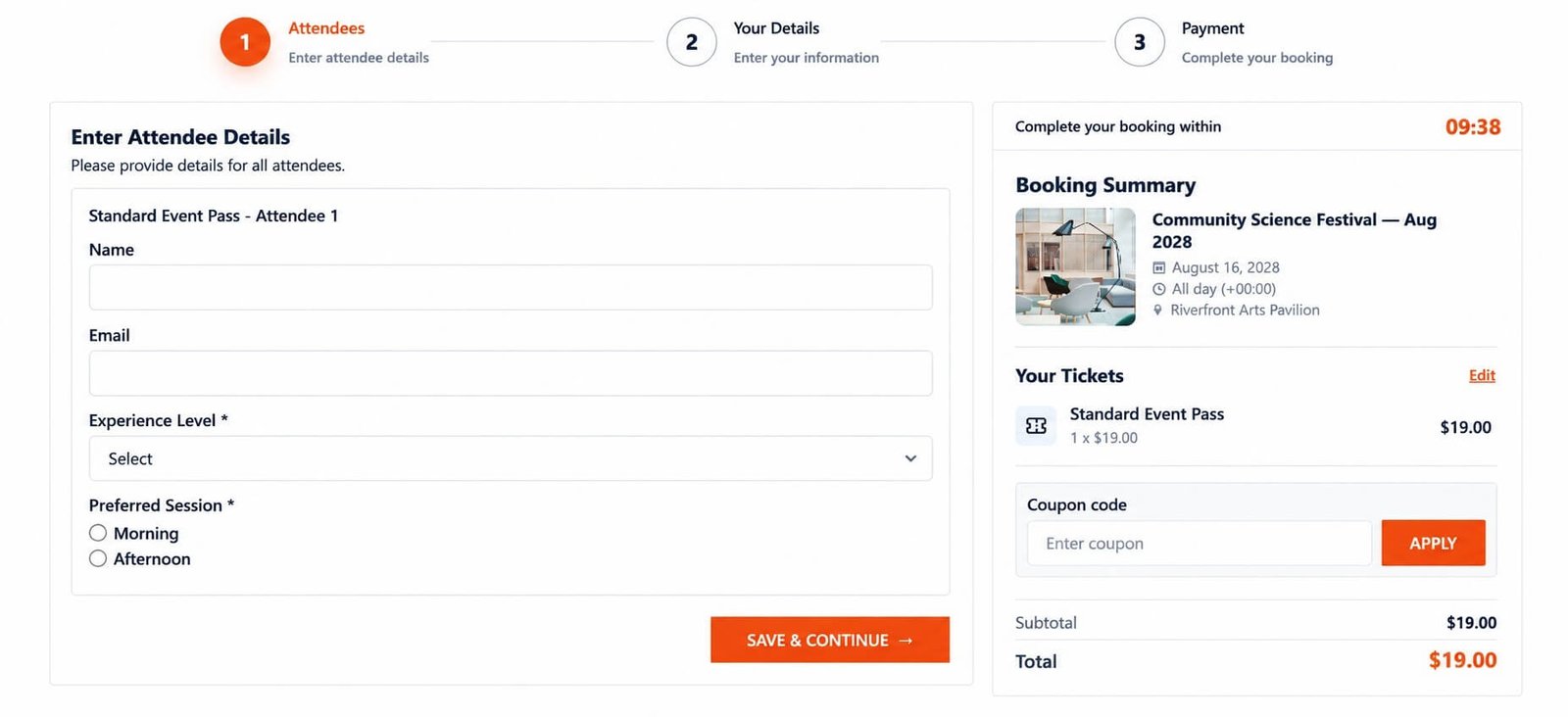
Checkout Session
When checkout begins, Eventixa creates a temporary checkout session.
The session helps protect ticket availability while the visitor completes the registration.
This is particularly important when an event has limited capacity.
Temporary Capacity Reservation
Suppose only two tickets remain.
Visitor A selects both and proceeds to checkout.
Eventixa can temporarily reserve those places so Visitor B cannot purchase the same final capacity at the same time.
This helps prevent overselling.
Checkout Countdown
Eventixa can display a checkout countdown inside the checkout summary.
The session duration is: 10 minutes
The timer shows how long the temporary reservation remains active.
Page Reload Does Not Reset the Timer
Refreshing the checkout page does not start a new ten-minute session.
The existing session continues from its original expiration time.
This prevents users from keeping limited ticket capacity indefinitely simply by refreshing the browser.
When the Session Expires
If checkout is not completed before the session expires, the temporary reservation can be released.
Those tickets then become available for other visitors.
The purchaser may need to restart the booking process.
Checkout Summary
The checkout summary gives visitors a clear review of what they selected.
Depending on the booking, it can include:
- Event
- Ticket types
- Quantities
- Ticket prices
- Subtotal
- Discounts
- Total
- Session countdown
Visitors should review this before completing registration.
Purchaser Information
The purchaser is the person creating the booking.
Eventixa can collect purchaser details such as:
- Name
Depending on the workflow, additional checkout details can also be required.
Logged-In Purchasers
When the visitor is logged into WordPress, Eventixa can use the authenticated customer information.
The logged-in email may be locked to the account email where applicable.
This helps keep bookings associated with the correct user account.
Guest Checkout
Eventixa can allow visitors to register without logging in when Guest Checkout is enabled.
The setting is managed under the Eventixa ticket settings.
When Guest Checkout is disabled, visitors may need to log in before completing registration.
Attendee Information
Purchaser information and attendee information are not necessarily the same.
If individual attendee collection is enabled, Eventixa can request details for each selected ticket.
For example:
Quantity: 3
Checkout can request:
- Attendee 1
- Attendee 2
- Attendee 3
Required Attendee Information
Depending on the ticket configuration, attendee information may be:
- Not collected
- Optional
- Required
When required, Eventixa normally collects core information such as:
- Name
Eventixa Pro can add advanced attendee fields.
Free Ticket Checkout
Free standard tickets do not require payment.
The workflow is generally: Select ticket → Enter details → Confirm booking
Eventixa then creates the booking and attendee records.
Paid Ticket Checkout
Paid tickets continue through payment.
The flow becomes:
Select ticket → Enter details → Choose payment method → Complete payment → Booking finalized
Available payment options depend on the site’s Eventixa configuration.
Payment Methods
Eventixa can support payment workflows such as:
- PayPal
- Offline Payment
- WooCommerce
- Stripe with Eventixa Pro
Only enabled and properly configured gateways are presented to the visitor.
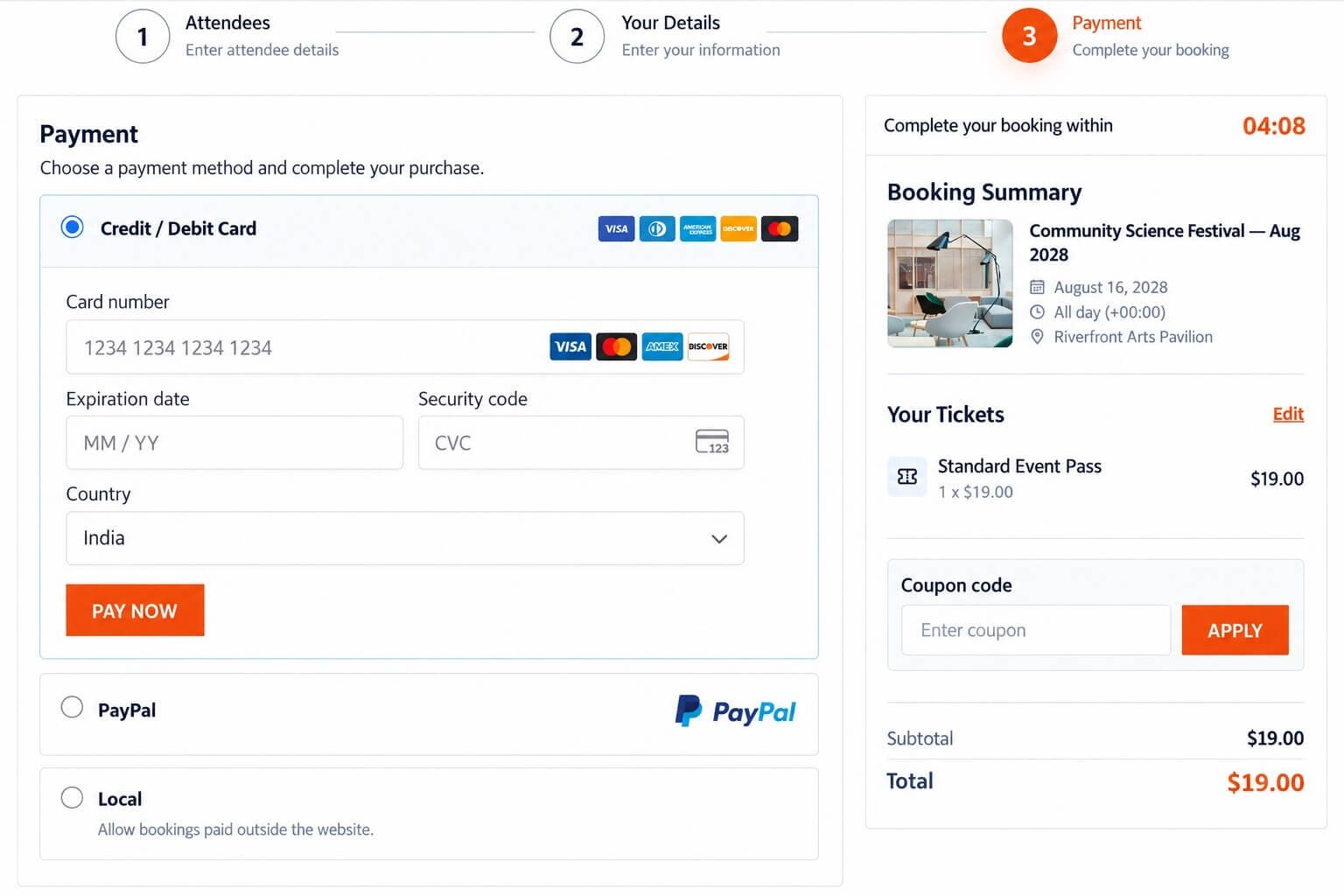
PayPal Checkout
When PayPal is enabled, the visitor can choose PayPal for an eligible paid ticket.
Eventixa connects the payment result with the booking workflow.
Offline Payment
Offline Payment allows payment to be handled outside the website.
Examples include:
- Pay at venue
- Bank transfer
- Direct organizer payment
The checkout can still create the Eventixa booking while payment is completed separately.
WooCommerce Checkout
Where WooCommerce integration is enabled, Eventixa can route the applicable checkout through WooCommerce.
This lets the site use its WooCommerce payment ecosystem for eligible bookings.
Stripe
Requires Eventixa Pro
Stripe provides card payment support for eligible paid tickets when configured in Eventixa Pro.
Coupon Codes
If coupon functionality is enabled for the event, eligible visitors can apply a coupon during the registration workflow.
The checkout summary should reflect the applicable discount.
Advanced Coupons
Requires Eventixa Pro
Eventixa Pro can provide advanced coupon functionality beyond basic event discounts.
See the dedicated coupon documentation for the available conditions and rules.
Checkout Total
For paid tickets, the checkout total is based on the selected ticket quantities and applicable adjustments.
For example:
Ticket price: $19
Quantity: 3
Subtotal: $57 before any applicable coupon or checkout adjustments.
Multiple Ticket Types
One event can have several ticket types.
For example:
- Student Admission — Free
- Standard Pass — $19
- Premium Pass — $79
Visitors can select the permitted quantities according to the active ticket configuration.
Booking Quantity Validation
Checkout validates the selected quantities against:
- Minimum quantity
- Maximum quantity
- Remaining availability
- Ticket status
A visitor cannot validly complete checkout with quantities that violate the ticket rules.
Capacity Validation
Eventixa rechecks capacity during the booking workflow.
This is important because availability may change between initial ticket selection and booking completion.
The checkout should not rely only on the availability that was displayed when the page first loaded.
Over-Capacity Protection
If requested quantity is greater than the valid remaining capacity, Eventixa should prevent the booking from completing.
This protects limited events from overselling.
Last Seat Scenario
Eventixa should correctly support purchasing the final available place.
For example:
Available: 1
A purchaser can reserve and complete that final place.
Once it is held or booked according to the active session state, other visitors should no longer be able to reserve it.
Pending Bookings
Pending bookings can influence capacity.
Eventixa accounts for relevant pending registration states so that reserved places are not unintentionally sold again.
Booking Creation
When checkout reaches the appropriate completion point, Eventixa creates the booking.
The booking records information such as:
- Event
- Ticket
- Quantity
- Purchaser
- Attendees
- Payment method
- Booking status
Attendee Creation
Individual attendee records are created according to the selected quantity and attendee collection configuration.
For example:
1 booking can contain 4 attendees
Booking count and attendee count are therefore not necessarily identical.
Successful Checkout
After successful completion, the visitor should receive confirmation that the booking was created.
Depending on the configuration, confirmation can also be delivered by email.
Booking Confirmation Emails
Eventixa can send booking-related emails after registration.
These may contain information such as:
- Event details
- Booking details
- Attendee information
- Ticket information
- Virtual-event access where permitted
Payment Failure
If an online payment fails, the booking should not be treated as successfully paid.
The visitor may need to retry or choose another supported payment method.
Reserved capacity should follow the relevant checkout and booking status rules.
Abandoned Checkout
If a visitor leaves checkout without completing it, the temporary reservation remains only until the checkout session expires.
After expiration, the held capacity can become available again.
Browser Refresh
Refreshing the page does not grant another full reservation period.
This ensures that the checkout timeout remains meaningful.
Opening Checkout in Another Tab
Avoid creating several simultaneous checkout attempts for the same ticket while testing.
Multiple sessions can temporarily affect capacity and make availability appear lower than expected.
Checkout and Coupons
When using a coupon, confirm:
- Coupon is valid for the event.
- Applicable conditions are met.
- Discount appears in the checkout summary.
- Final total is correct.
- Booking records the intended result.
Checkout and Recurring Events
Recurring events require occurrence-aware checkout.
The booking must remain associated with the correct occurrence.
For example:
April 15 and April 29 may use the same ticket configuration but represent different registration dates.
Always verify the selected occurrence before checkout.
Checkout and Virtual Events
Virtual or Hybrid event bookings can also participate in the Eventixa checkout workflow.
After registration, eligible attendees may receive access information according to the virtual-event access settings.
Access Rules
Virtual-event meeting access can depend on:
- Registration state
- Attendee eligibility
- Reveal timing
- Event occurrence
Do not manually expose managed join links during checkout unless that matches the intended Eventixa configuration.
Checkout and Waitlist
Requires Eventixa Pro
If the ticket has no available capacity, the normal checkout may no longer be available.
Where Waitlist is configured, visitors can instead join the waitlist.
If a place becomes available later, Eventixa can reserve it for an eligible waitlisted attendee and provide the appropriate checkout workflow.
Cancellation After Checkout
If a completed booking is later cancelled, Eventixa can release its capacity according to the booking workflow.
This can make the ticket available again or trigger Waitlist handling where enabled.
Manual Refund
Cancellation and payment refund are separate operational actions.
Eventixa can manage the booking state and released capacity.
For payment methods requiring manual refund handling, administrators should process the actual payment refund through the relevant provider.
Testing Checkout Before Launch
Every ticketed event should be tested before registration opens.
For free tickets, test:
- Ticket selection.
- Quantity.
- Attendee fields.
- Booking completion.
- Booking record.
- Attendee records.
- Confirmation email.
For paid tickets, also test:
- Payment method.
- Successful payment.
- Failed payment behavior.
Test Limited Capacity
If capacity is limited, test:
- Normal availability
- Maximum quantity
- Last available seat
- Competing checkout sessions
- Session timeout
- Capacity release
This is especially important for high-demand events.
Common Problems
Proceed to Checkout Is Disabled
Make sure a valid ticket quantity has been selected.
Checkout Says Ticket Is No Longer Available
Availability may have changed after ticket selection.
Another checkout or booking may have reserved the remaining capacity.
Timer Is Already Partially Expired After Refresh
This is expected.
The timer belongs to the existing checkout session and does not restart on page reload.
Attendee Fields Do Not Appear
Review the ticket’s attendee collection settings.
Checkout Requests Login
Check whether Guest Checkout is enabled.
No Payment Method Appears
Check:
- The ticket is paid.
- At least one payment gateway is enabled.
- The gateway is correctly configured.
Paid Booking Remains Pending
Review the payment result and gateway status.
Capacity Remains Held After Leaving Checkout
The session may still be active.
The reservation should release when the checkout session expires.
Wrong Recurring Date Is Booked
Review the selected occurrence before entering checkout.
Recommended Workflow
- Publish or preview the event.
- Select a ticket.
- Choose a valid quantity.
- Proceed to Checkout.
- Review the checkout timer.
- Enter purchaser details.
- Enter attendee information.
- Apply a coupon if needed.
- Select a payment method for paid tickets.
- Complete checkout.
- Verify the booking.
- Verify attendees.
- Verify confirmation email.
- Test cancellation and capacity release.
Important Notes
- Eventixa checkout temporarily protects selected capacity.
- Checkout sessions last 10 minutes.
- Reloading the page does not reset the session timer.
- Free tickets do not require payment.
- Paid tickets require an eligible payment workflow.
- Capacity is revalidated during booking.
- Attendee quantity can be greater than booking count.
- Recurring checkout must remain associated with the correct occurrence.
- Always test checkout before launching ticket sales.


