
Speaker & Performer Groups
Speaker & Performer Groups let you organize event participants into clearly labeled sections such as Speakers, Performers, Panelists, Hosts, or any other group that fits your event.
Each group can contain reusable profiles created in Eventixa.
Available in: Eventixa Core
Location: Eventixa → Events → Edit Event → Speakers & Sessions
Requires: Speaker or performer profiles
Related features: Speakers & Performers, Sessions, Event Agenda
What Is a Speaker or Performer Group?
A group is an event-specific section that contains one or more speaker or performer profiles.
For example:
Speakers
- Jordan Reed
- Ethan Clarke
- Amelia Brooks
Performers
- Nova Collective
The participant profiles themselves remain reusable across Eventixa.
Open Speaker & Performer Groups
Go to: Eventixa → Events
Edit the event you want to manage.
Then open: Event Settings → Speakers & Sessions
The Speakers & Performers section shows the groups currently assigned to the event.
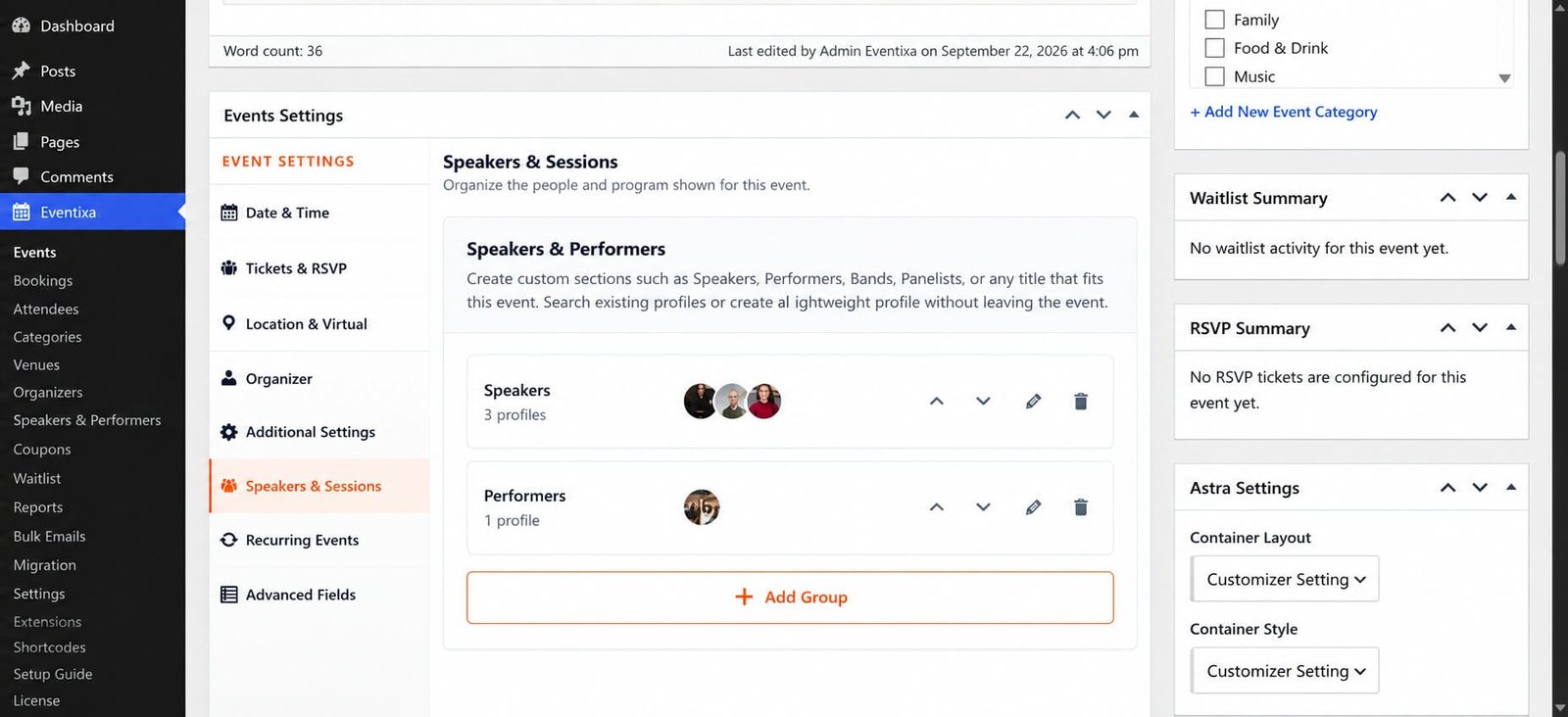
Create a New Group
Click: Add Group
Enter a clear group name.
Examples:
- Speakers
- Performers
- Keynote Speakers
- Panelists
- Moderators
- Workshop Hosts
- Bands
Then select the reusable participant profiles you want to include.
Set the Group Name
The Group Name is the label used to organize the participants.
Use a visitor-friendly name.
Good examples:
- Keynote Speakers
- Featured Performers
- Panelists
Avoid internal names such as:
- Group 1
- Team A
- Section X
unless they genuinely make sense to visitors.
Add Existing Profiles
Use the participant search field to find existing profiles.
Profiles come from: Eventixa → Speakers & Performers
Search by participant name and add the required profiles to the group.
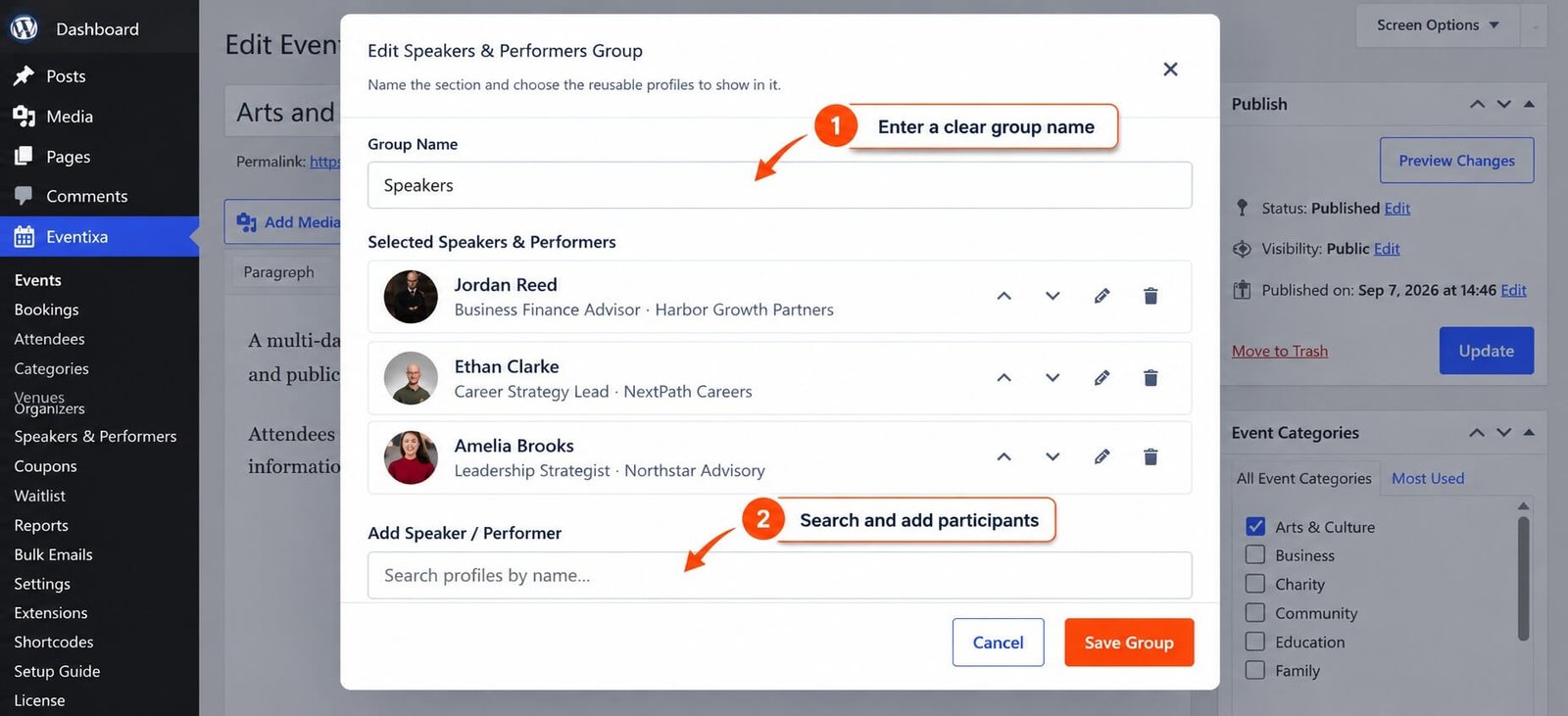
Selected Speakers & Performers
The group editor shows the profiles currently assigned to that group.
Each selected profile can display information such as:
- Profile image
- Name
- Role
- Organization
From this area, you can manage the participant’s position or remove the profile from the group.
Reorder Participants
Use the available up and down controls to change the order of participants inside the group.
For example:
- Jordan Reed
- Ethan Clarke
- Amelia Brooks
This order can affect how participants are presented on the frontend.
Use the sequence that matches the event program.
Edit a Participant from the Group
The group interface can provide an edit action for a selected participant.
Use this when you need to update the participant profile.
Remember that the profile is reusable.
Changing shared profile information can affect other events using the same participant.
Remove a Participant from a Group
Use the remove action to take a participant out of the current group.
This does not delete the reusable participant profile.
The participant remains available under:
Eventixa → Speakers & Performers
and can continue to be used by other events.
Save the Group
After configuring the group:
- Review the group name.
- Check selected participants.
- Reorder participants if necessary.
- Click Save Group.
The group is then added or updated inside the event.
Edit an Existing Group
From the Speakers & Sessions screen, use the edit icon for the group.
You can then:
- Change the group name
- Add participants
- Remove participants
- Reorder participants
Save the group after making changes.
Delete a Group
Use the delete icon to remove a group from the event.
Deleting the group removes that grouping from the current event only.
It does not automatically delete:
- Speaker profiles
- Performer profiles
- Profiles used by other events
This separation is important because Eventixa participant profiles are reusable.
Reorder Groups
Groups themselves can also be reordered.
For example:
- Keynote Speakers
- Panelists
- Workshop Hosts
- Performers
Use the available group order controls to set the preferred presentation sequence.
Custom Group Names
You are not limited to only Speakers and Performers.
You can use titles that match your event.
Examples:
- Artists
- Instructors
- Mentors
- Hosts
- Judges
- Special Guests
- Musicians
- Panel Members
This makes the participant system flexible enough for different event types.
Example: Conference
A business conference could use:
Keynote Speakers
- Jordan Reed
- Amelia Brooks
Panelists
- Ethan Clarke
- Natalie Wong
Moderators
- Ava Thompson
This makes the frontend event program easier to understand.
Example: Music Event
A festival could use:
Headliners
- Nova Collective
Guest Performers
- Acoustic Circle
- River Stage Band
Hosts
- Jamie Parker
The same Eventixa group system works for non-conference events.
Groups vs Participant Profiles
These are separate concepts.
| Item | Purpose |
|---|---|
| Participant Profile | Reusable person or group |
| Event Group | Event-specific collection of participant profiles |
For example:
Ethan Clarke is the participant profile.
Career Panelists could be the event group that contains Ethan Clarke.
Groups vs Sessions
Groups organize participants at the event level.
Sessions organize the event program.
For example:
Group: Keynote Speakers
Participant: Amelia Brooks
and:
Session: Opening Keynote
Speaker: Amelia Brooks
The same participant can therefore appear both in an event group and as a session presenter.
Duplicate Events
When an event is duplicated, supported speaker and performer group assignments can be preserved.
After duplication, review:
- Group names
- Participant assignments
- Participant order
- Session relationships
Remove any copied participants that do not apply to the new event.
Recurring Events
Speaker and performer groups belong to the main event configuration.
For recurring events, they can continue to represent the people associated with the event.
Occurrence-specific session and agenda behavior is managed separately through the recurring agenda workflow.
Common Problems
Participant Cannot Be Found
Check that the participant profile exists under:
Eventixa → Speakers & Performers
and has been saved.
Wrong Participant Is in the Group
Open the group editor, remove the incorrect profile, and add the correct one.
Participant Order Is Wrong
Use the group editor’s ordering controls and save the group.
Deleting the Group Did Not Delete the Speaker
This is expected.
Groups and reusable participant profiles are separate.
Profile Changes Appear on Other Events
This is also expected when editing a reusable profile.
If you only need to change one event’s group membership, edit the group instead of the participant profile.
Recommended Workflow
- Create reusable speaker and performer profiles.
- Edit the event.
- Open Speakers & Sessions.
- Click Add Group.
- Enter the group name.
- Search and add participant profiles.
- Reorder participants.
- Save the group.
- Reorder groups if necessary.
- Preview the event page.


