
Eventixa Settings Overview
Eventixa Settings provide the main configuration area for controlling global behavior across your Eventixa installation.
From this area, you can configure general plugin behavior, frontend display, ticket and checkout defaults, payment settings, email behavior, integrations, Eventixa pages, and advanced compatibility options.
Available in: Eventixa Core + Eventixa Pro enhancements
Location: Eventixa → Settings
Requires: Eventixa Core
Related features: Events, Tickets, Checkout, Payments, Emails, Integrations, Frontend Display
Overview
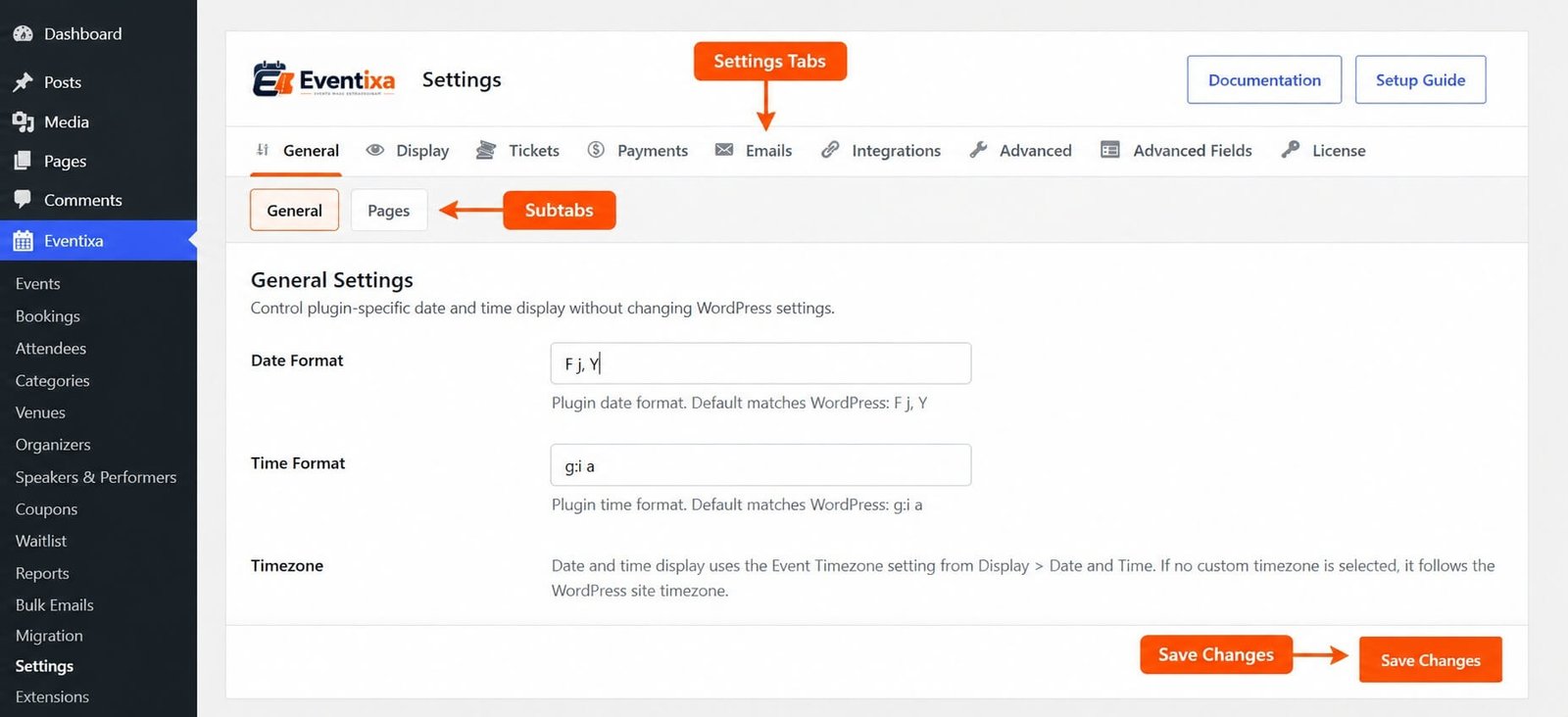
The Eventixa Settings area is organized into dedicated tabs and sections so you can configure site-wide behavior without editing individual events.
The current settings architecture includes areas for:
- General
- Display
- Tickets
- Payments
- Emails
- Integrations
- Advanced
Eventixa Pro and supported integrations can add extra sections inside these existing settings areas.
Before You Begin
Before changing Eventixa settings:
- Make sure Eventixa Core is active.
- Review your current live event configuration before making global changes.
- If your site is already accepting bookings, test important changes on staging where practical.
- Payment and integration settings may require credentials from external services.
- Some Pro-only options appear only when Eventixa Pro and the relevant feature are active.
How to Open Eventixa Settings
- Sign in to your WordPress dashboard.
- Go to Eventixa → Settings.
- Choose the settings tab you want to configure.
- Open the relevant subtab or section.
- Update the required options.
- Save your changes.
Changes made here can affect multiple Eventixa events and frontend workflows, so review each setting carefully before saving.
Settings Areas Explained
| Settings Area | What It Controls |
|---|---|
| General | Core plugin behavior and Eventixa frontend page assignments |
| Display | Date/time display, event archives, venue and organizer archives, and single-page presentation |
| Tickets | Global ticket and checkout defaults |
| Payments | Currency, payment gateways, and supported commerce checkout settings |
| Emails | Sender details, email templates, and email styling |
| Integrations | Supported external integrations such as Google Maps and MailPoet, plus Pro integrations when available |
| Advanced | Database and compatibility-related settings |
General Settings
The General area contains core Eventixa configuration.
It includes the main General Settings section and the Pages section.
General Settings
The General Settings section controls Eventixa-specific date and time display without changing the corresponding WordPress settings.
This allows Eventixa to use its own event-facing display configuration where required.
Pages
The Pages section is used to choose the WordPress pages used by Eventixa frontend features.
These page assignments are important because Eventixa uses them for supported frontend workflows such as checkout and account-related pages.
Avoid deleting assigned pages without updating Eventixa settings.
Display Settings
The Display area controls how Eventixa content is presented on the frontend.
The current Display settings include sections for:
- Date and Time Settings
- Event Archive
- Venue Archive
- Organizer Archive
- Single Event
- Single Venue
- Single Organizer
Date and Time Settings
The Date and Time Settings section controls date and time behavior used by Eventixa event and occurrence data.
These settings are used by the event editor and Eventixa event and occurrence records.
Event Archive
The Event Archive section controls the frontend event listing experience.
It includes settings related to:
- Available archive views
- Default view
- Pagination
- Filters
These settings determine how visitors browse Eventixa events.
Venue Archive
The Venue Archive section controls venue directory search and pagination.
Organizer Archive
The Organizer Archive section controls organizer directory search and pagination.
Single Event
The Single Event section controls the layout and visible elements on individual event pages.
Use this section when you want to adjust the presentation of Eventixa single-event pages without changing the actual event content.
Single Venue
The Single Venue section controls the information displayed on individual venue pages and related upcoming events.
Single Organizer
The Single Organizer section controls the information displayed on individual organizer pages and related upcoming events.
Ticket Settings
The Tickets area contains the global Ticket & Checkout Settings section.
This section controls global checkout access and the default behavior used for tickets created through the Eventixa event editor.
Event-specific ticket settings remain separate and are configured while editing an individual event or ticket.
Global vs Event-Specific Ticket Settings
Eventixa separates global ticket behavior from individual event configuration.
Global settings are configured under: Eventixa → Settings → Tickets
These settings provide site-wide checkout behavior and defaults.
Event-specific settings are configured while editing the relevant event.
This allows you to keep consistent defaults while still customizing individual events when required.
Payment Settings
The Payments area contains settings for currency and payment gateways.
The current settings structure includes:
- Currency Settings
- Available Payment Gateways
- WooCommerce Checkout when the WooCommerce integration is available
Currency Settings
The Currency Settings section controls how prices are displayed in Eventixa checkout and WordPress administration areas.
Configure your currency before accepting paid registrations.
Changing currency settings after live payments have already been processed should be handled carefully because existing transactions were created using their original currency.
Available Payment Gateways
The Available Payment Gateways section controls which Eventixa payment methods are available at checkout.
Only active payment methods are presented to customers.
The gateways shown depend on the Eventixa features and integrations active on your website.
WooCommerce Checkout
When WooCommerce integration is available, Eventixa adds a WooCommerce Checkout section under Payments.
This lets WooCommerce act as the checkout and payment engine for supported paid Eventixa bookings.
Email Settings
The Emails area contains the global Eventixa email configuration.
The current email settings include:
- Email Sender Settings
- Email Templates
- Email Styling
Email Sender Settings
The Email Sender Settings section controls sender details and global email behavior.
Use recognizable sender information so customers can identify booking, registration, and ticket emails sent by your website.
Email Templates
The Email Templates section manages booking email triggers, subjects, headings, and message templates.
These templates are used by supported Eventixa notification workflows.
Email Styling
The Email Styling section controls the global email wrapper used by Eventixa emails.
The configured styling is applied when booking and ticket emails are rendered, helping you maintain a consistent email appearance.
Integration Settings
The Integrations area contains global settings for supported third-party services.
Current Eventixa integration settings can include:
- Google Maps
- MailPoet
Eventixa Pro can extend this area with additional integrations.
Google Maps
The Google Maps section connects Eventixa with Google Maps functionality for venue location search and accurate location coordinates.
Use this configuration when your venues require map and location functionality.
MailPoet
The MailPoet section makes MailPoet available to Eventixa events.
The global setting controls integration availability, while list selection and event-specific behavior are configured at event level.
This allows you to enable MailPoet globally without forcing the same mailing behavior on every event.
Advanced Settings
Eventixa also includes an Advanced settings area.
The Database & Compatibility section documents and controls advanced compatibility-related behavior.
Event date and occurrence data use Eventixa custom tables, while tickets, attendees, bookings, and fieldsets remain stored using WordPress post types and postmeta.
Advanced settings should normally be changed only when you understand their impact.
How Eventixa Settings Work
Eventixa uses a shared settings system.
Core provides the main settings areas, while Eventixa Pro and supported integrations can extend those areas with additional configuration.
For example:
- WooCommerce can add payment-related settings.
- MailPoet appears under Integrations.
- Pro features can add configuration to existing Eventixa settings tabs.
This keeps related options together instead of creating separate administration pages for every feature.
Global Settings vs Individual Event Settings
Not every Eventixa option belongs in the global Settings area.
Eventixa separates:
Global configuration — options that apply across Eventixa or provide defaults.
Event configuration — options that apply only to one specific event.
For example, enabling an integration globally does not necessarily mean every event automatically uses that integration.
Individual events can still have their own feature-specific configuration.
Example
Suppose you are preparing Eventixa for a new ticket-selling website.
A practical setup workflow would be:
- Go to Eventixa → Settings.
- Review General Settings.
- Confirm the required frontend page assignments.
- Configure date and time behavior.
- Configure event archive and single-page display.
- Review Ticket & Checkout Settings.
- Select the correct currency.
- Enable and configure your payment method.
- Configure email sender information.
- Review email templates and styling.
- Configure required integrations.
- Save your changes.
- Create a test event and ticket.
- Complete a test checkout.
- Verify the booking, attendee, payment, and email results.
Testing the full workflow is more useful than checking each setting in isolation.
Important Notes
- Global Eventixa settings are available from Eventixa → Settings.
- Eventixa Core provides the main settings system.
- Eventixa Pro and supported integrations can extend existing settings areas.
- General settings include Eventixa behavior and frontend page assignments.
- Display settings control archive and single-page presentation.
- Ticket settings provide site-wide ticket and checkout defaults.
- Payment settings control currency and active payment methods.
- Email settings are divided into Sender Settings, Templates, and Styling.
- Integrations contain global configuration for supported external services.
- Event-level configuration remains separate from global settings.
- Eventixa also includes an Advanced area for database and compatibility-related configuration.
Troubleshooting
A Setting Does Not Appear
Check whether the setting requires:
- Eventixa Core
- Eventixa Pro
- A specific integration
- Another WordPress plugin
Some settings are registered only when the related feature is available.
Changes Do Not Appear on the Frontend
Check that:
- The settings were saved successfully.
- You changed the correct global option.
- The individual event does not contain a more specific setting.
- Page caching has been cleared where applicable.
- You are viewing the correct Eventixa archive or single page.
Checkout Does Not Work
Review your Eventixa page assignments and confirm that the required WordPress pages still exist.
Then review the Tickets and Payments settings.
A Payment Method Does Not Appear
Go to: Eventixa → Settings → Payments Confirm that the required payment method is active and correctly configured.
Only active payment methods are available during checkout.
Email Appearance Is Incorrect
Go to: Eventixa → Settings → Emails → Styling
Review the global email styling configuration.
These settings are applied when Eventixa booking and ticket emails are rendered.
An Integration Is Missing
Confirm that the required plugin, Eventixa module, or Pro feature is installed and active.
Supported integrations can add their settings dynamically to the Eventixa Settings area.
Related Documentation
- General Settings
- Display Settings
- Ticket Settings
- Payment Settings
- Email Settings
- Integration Settings
Frequently Asked Questions
Where Are Eventixa Settings?
Go to Eventixa → Settings in your WordPress dashboard.
Are Eventixa Settings Available in Core?
Yes. Eventixa Core provides the main settings system.
Eventixa Pro and supported integrations can add additional settings where required.
Do Global Settings Apply to Every Event?
Global settings control site-wide behavior and defaults, but individual events can still contain their own feature-specific configuration.
Where Do I Configure Payment Gateways?
Go to: Eventixa → Settings → Payments
Use this area to configure currency and available payment methods.
Where Do I Configure Eventixa Emails?
Go to: Eventixa → Settings → Emails
Email configuration is organized into Sender Settings, Email Templates, and Email Styling.


