
Creating Event Sessions
Eventixa sessions let you break an event into individual agenda items such as keynotes, workshops, panels, breaks, performances, and other scheduled activities.
Each session can contain its own title, description, time, location, and assigned speakers or performers.
Available in: Eventixa Core
Location: Eventixa → Events → Edit Event → Speakers & Sessions → Sessions
Related features: Speakers & Performers, Event Agenda, Recurring Events
Before You Begin
Create or open the Eventixa event that will contain the session.
For sessions with presenters, it is also useful to create the required participant profiles first from: Eventixa → Speakers & Performers
You can then associate those profiles with the session.
Open the Sessions Section
Go to: Eventixa → Events, Open the event you want to edit.
Then go to: Event Settings → Speakers & Sessions, Open the Sessions section.
Existing sessions appear in the agenda list.
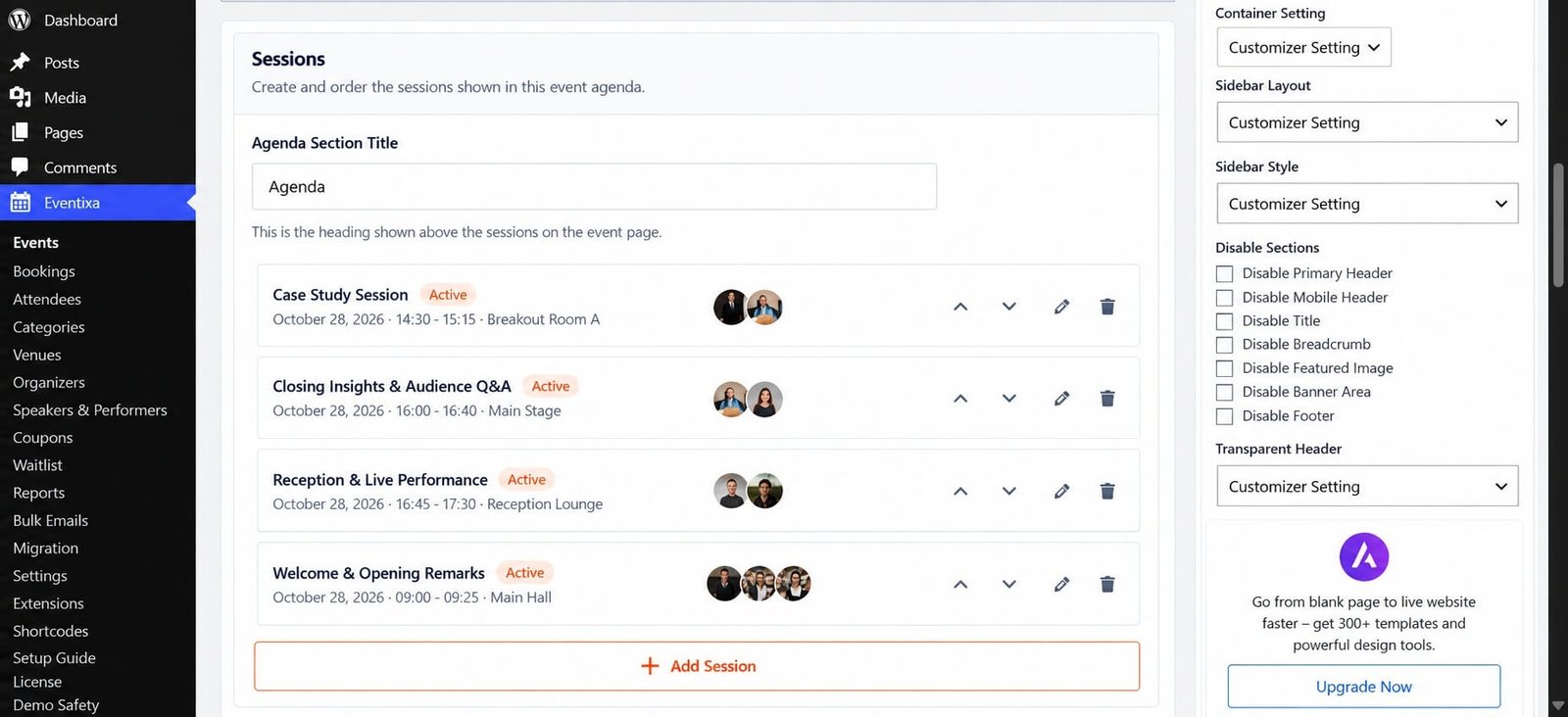
Add a New Session
Click: Add Session
Eventixa opens the session editor.
Enter the session information and save it.
The new session is then added to the event agenda.
Session Title
Enter a clear title for the agenda item.
Examples:
- Welcome & Opening Remarks
- Future of AI Panel
- Case Study Session
- Closing Insights & Audience Q&A
- Reception & Live Performance
Use meaningful titles instead of generic names such as Session 1 whenever possible.
Session Description
Add a short description explaining what the session covers.
For example:
Closing Insights & Audience Q&A
Closing insights followed by audience questions and practical next steps.
Keep descriptions concise so the agenda remains easy to scan.
Session Type
Where applicable, choose the session type.
Examples can include:
- Session
- Performance
- Registration
If no special type is needed, the session type can use the default behavior.
The type can help visitors understand the purpose of an agenda item.
Session Date
For events spanning more than one day, assign the session to the correct event date.
For example:
October 28, 2026
- Case Study Session
- Closing Q&A
- Reception
October 29, 2026
- Welcome & Opening Remarks
- Workshop
This keeps the agenda organized by date.
Start and End Time
Session time fields work as a pair.
For example:
| Setting | Example |
|---|---|
| Start Time | 4:00 PM |
| End Time | 4:40 PM |
Use times that fit within the overall event schedule.
If the session does not require an exact time, leave the optional time pair empty where appropriate.
Session Location
Enter the location where the session takes place.
Examples:
- Main Stage
- Main Hall
- Breakout Room A
- Reception Lounge
- Workshop Room 2
Session locations are especially useful for conferences and multi-room events.
Assign Speakers or Performers
Choose the speakers or performers associated with the session.
For example:
Session: Closing Insights & Audience Q&A
Speakers: Natalie Wong and Ethan Clarke
A session can have:
- One participant
- Multiple participants
- No participant, where appropriate
Use Existing Participant Profiles
Whenever possible, reuse profiles already created under: Eventixa → Speakers & Performers
This keeps names, images, roles, and profile information consistent throughout Eventixa.
Save the Session
After configuring the session:
- Review the title.
- Check the date.
- Confirm the start and end time.
- Verify the location.
- Review assigned speakers.
- Save the session.
The session appears in the event’s Sessions list.
Session List
The Sessions section provides an overview of the agenda items assigned to the event.
Each row can show information such as:
- Session title
- Status
- Date
- Start and end time
- Location
- Speaker avatars
It can also provide controls for:
- Reordering
- Editing
- Deleting
Agenda Section Title
The Sessions area also includes an Agenda Section Title.
For example: Agenda
This heading appears above the session program on the frontend event page.
You can use another visitor-facing title if it better matches the event.
Examples:
- Schedule
- Program
- Conference Agenda
- Event Schedule
Reorder Sessions
Use the ordering controls to arrange sessions in the intended agenda sequence.
For example:
- Welcome & Opening Remarks
- Keynote
- Panel Discussion
- Lunch
- Workshop
- Closing Session
Even when sessions contain times, keeping the stored order logical makes administration easier.
Edit an Existing Session
From the Sessions list, use the edit control for the session you want to modify.
You can update:
- Title
- Description
- Type
- Date
- Time
- Location
- Speakers
Save the session after making changes.
Delete a Session
Use the delete action if a session should no longer belong to the event.
Before deleting it, make sure the agenda item is genuinely no longer required.
Deleting a session does not delete the reusable speaker profiles assigned to it.
Example Session
A finished session could look like:
| Field | Value |
|---|---|
| Title | Case Study Session |
| Type | Session |
| Date | October 28, 2026 |
| Start | 2:30 PM |
| End | 3:15 PM |
| Location | Breakout Room A |
| Speakers | Jordan Reed, Natalie Wong |
On the frontend agenda, visitors can see the relevant schedule and speaker information.
Creating Breaks and Non-Speaker Sessions
Not every agenda item needs a speaker.
You can create sessions for:
- Registration
- Lunch
- Coffee break
- Networking
- Doors open
- Reception
For example:
Title: Lunch Break
Time: 12:30 PM – 1:30 PM
Location: Dining Hall
Speakers: None
Multi-Day Event Sessions
For a multi-day event, make sure each session uses the correct event date.
The frontend agenda can then separate sessions into date-based groups.
This makes longer conferences much easier to navigate.
Frontend Agenda
After sessions are saved, Eventixa can present them on the single event page.
Visitors can see information such as:
- Date
- Time
- Session type
- Title
- Description
- Location
- Speakers
The exact presentation depends on the selected Eventixa single-event layout.
Recurring Events
Recurring events require Eventixa Pro
Recurring events can use sessions in two ways:
- Same agenda for all occurrences
- Different agenda per occurrence
The detailed behavior is covered in Recurring Event Agendas.
Duplicate Events
When an event is duplicated, supported session information can also be copied.
After duplication, verify:
- Session dates
- Session times
- Locations
- Speakers
- Agenda ordering
Copied sessions may need updating for the new event schedule.
Common Problems
Session Does Not Appear
Check that:
- The session was saved.
- It belongs to the correct event.
- The event was updated.
- The session date is valid.
Session Appears on the Wrong Day
Review the session date.
This is especially important for multi-day or recurring events.
Speaker Is Missing
Check that the participant profile exists and is assigned correctly to the session.
Session Time Looks Wrong
Review:
- Event timezone
- Event schedule
- Session start time
- Session end time
Agenda Order Is Incorrect
Use the session ordering controls and save the event again.
Recommended Workflow
- Create the event.
- Create participant profiles.
- Assign participants to the event.
- Open Speakers & Sessions.
- Open Sessions.
- Click Add Session.
- Enter the session title and description.
- Add date and time.
- Add location.
- Assign speakers.
- Save the session.
- Reorder sessions.
- Preview the frontend agenda.


