
Viewing Event Bookings
Logged-in customers can use the Bookings section of Eventixa My Account to review their event registration history and open individual booking details.
The frontend booking area gives customers access to their own Eventixa records without requiring WordPress admin access.
Available in: Eventixa Core
Location: Eventixa My Account → Bookings
User Access: Logged-in customers
Where Customers Can View Their Bookings
Open the Eventixa My Account page and select: Bookings from the account navigation.
Eventixa loads the bookings associated with the currently logged-in customer.
Booking Summary on the Dashboard
The Eventixa My Account dashboard can also show a quick summary of recent bookings.
The dashboard includes information such as:
- Total Bookings
- Recent Bookings
- Event
- Date
- Total
- Status
- View Details action
Customers can use View All to open the complete Bookings section.
Total Bookings
The dashboard displays the number of bookings associated with the customer account.
This gives the customer a quick overview before opening the full booking list.
Open the Bookings Section
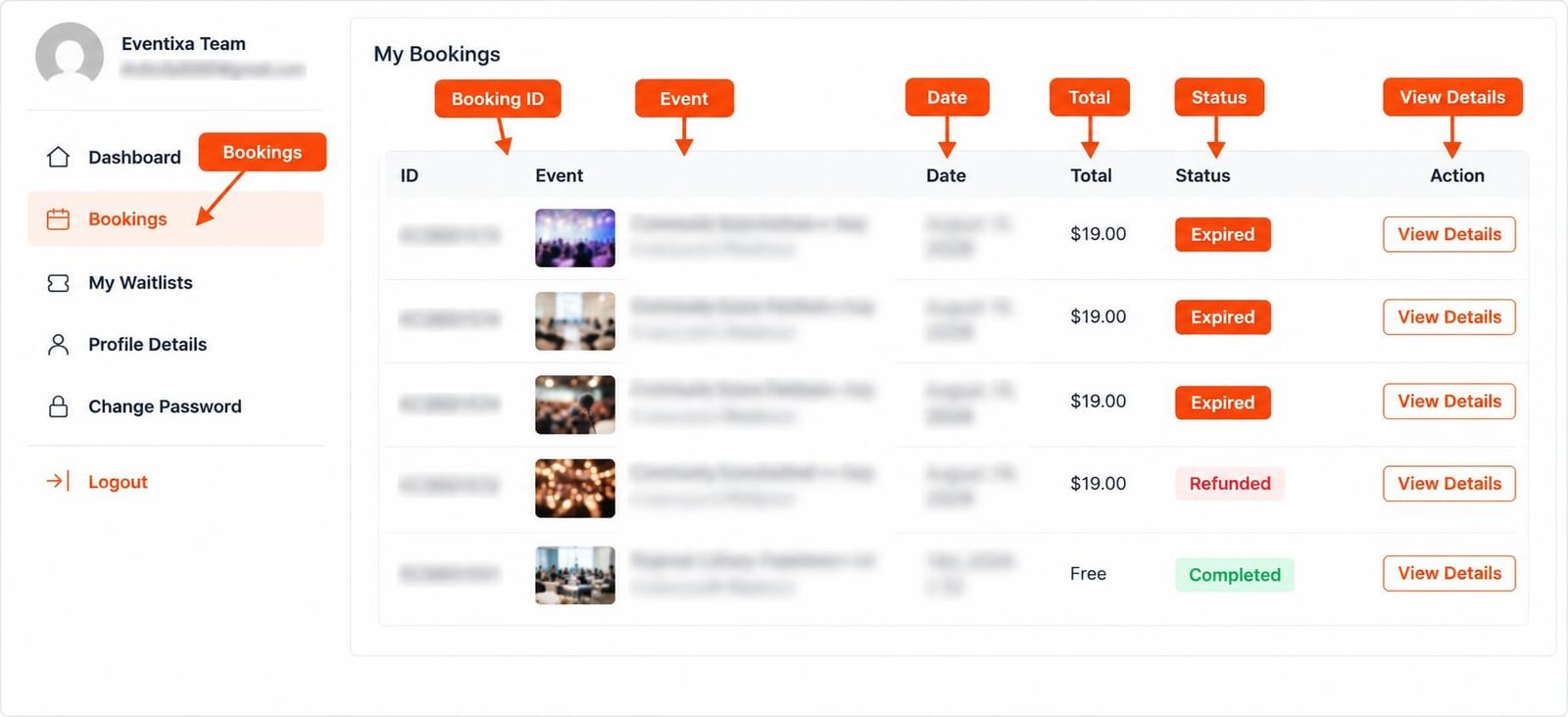
From the left-side My Account navigation, click: Bookings
The Bookings screen provides the customer’s Eventixa booking history.
What Information Is Shown for a Booking?
Depending on the booking, Eventixa can display information such as:
- Booking ID
- Event
- Event date
- Booking total
- Booking status
- Event occurrence
- Ticket or registration information
- View Details action
The exact information depends on the booking type and event configuration.
Booking ID
Each Eventixa booking has its own booking reference.
The booking ID helps customers and administrators identify the correct registration when discussing an order or support request.
Event
The booking displays the event associated with the registration.
This makes it easier for customers with multiple bookings to distinguish one event from another.
Event Date
The booking can show the relevant event date.
For recurring events, the displayed date can correspond to the occurrence associated with that booking.
Booking Total
Paid and supported booking records can display the booking total.
Free or RSVP-based registrations can differ depending on their registration type.
Booking Status
The booking list displays the current Eventixa booking status.
The exact status depends on the booking lifecycle.
Examples can include states such as:
- Pending
- Completed
- Cancelled
- Refunded
- Expired
The customer should use the current displayed status as the source of truth for that booking.
Expired Bookings
An Expired status indicates that the corresponding booking or payment reservation is no longer active.
An expired booking should not be treated as an active event registration.
Cancelled Bookings
A cancelled booking can remain visible in the customer’s history so the previous registration can still be identified.
Its status distinguishes it from active bookings.
Refunded Bookings
If a booking is marked refunded, the customer-facing booking information can reflect that updated state.
Any actual payment refund is handled by the applicable payment workflow rather than from the frontend booking list itself.
Pending Bookings
A pending booking has not yet reached its final confirmed state.
The reason can depend on the registration and payment workflow being used.
Completed Bookings
A completed booking indicates that the Eventixa booking lifecycle has reached the completed state.
Customers can open the booking details to review the registration and related ticket information available for that booking.
View Booking Details
Click View Details beside a booking to open the detailed customer-facing booking view.
The details page provides more information than the compact booking list.
Booking Details Can Include
Depending on the booking, the detailed view can show information such as:
- Booking reference
- Event
- Event date
- Occurrence
- Ticket information
- Quantity
- Registration details
- Booking status
- Payment-related information where applicable
- Attendee information
- Available ticket access
The exact fields depend on the Eventixa workflow used for that booking.
Paid Bookings
For paid Eventixa bookings, the booking details can include the financial information associated with the registration.
The actual payment processing may have been handled by:
- PayPal
- Offline Payment
- Stripe
- WooCommerce
depending on the site’s configuration and enabled features.
Free Ticket Bookings
Free ticket registrations still create Eventixa booking records.
Because no payment is required, the booking details focus on the event and registration information rather than a paid transaction.
RSVP Bookings
RSVP registrations also appear as Eventixa booking activity.
RSVP behavior differs from normal paid or free ticket bookings because the attendee’s response can be Going or Not Going.
RSVP Going
A Going RSVP represents an active attendance response.
Where the event and ticket configuration support it, the attendee can participate in the normal attendee and ticket workflow.
RSVP Not Going
A Not Going response is retained as RSVP information but does not use the same active ticket and check-in workflow as a Going response.
Recurring Event Bookings
When a booking belongs to a recurring event, Eventixa can associate it with a specific occurrence.
This is important because two bookings for the same recurring event can belong to different dates.
Occurrence Information
The booking details should be used to confirm which occurrence the customer registered for.
This is especially important when the same event title is repeated across multiple dates.
Multiple Bookings for the Same Event
A customer can have more than one booking for the same event or recurring series.
Each booking is stored separately and should be reviewed using its booking reference and date.
Ticket Information
If a booking produces Eventixa tickets, the booking details can provide access to the associated ticket information.
Ticket visibility depends on the registration and attendee state.
Ticket Eligibility
A booking does not automatically guarantee that every attendee has an active ticket.
Ticket availability can depend on:
- Booking status
- Registration type
- RSVP response
- Attendee status
- Event configuration
QR Ticket Relationship
Eligible Eventixa tickets can include the QR code used for event check-in.
The related booking gives the customer a way to identify which ticket belongs to which event registration.
Attendee Information
A booking can contain one or more attendee records.
The attendee information stored with the booking depends on the ticket quantity and registration-field configuration.
Multiple Attendees
A booking can contain multiple attendees when multiple ticket quantities were purchased or registered.
Each attendee can have their own registration information where individual attendee collection is enabled.
Registration Fields
If the event requires attendee registration fields, the submitted information is associated with the booking and attendee records.
Examples can include:
- Name
- Additional registration fields
Booking and Attendee Are Different Records
The booking represents the overall registration or purchase.
An attendee represents an individual person registered under that booking.
A single booking can therefore have one or several attendees.
Booking and Ticket Are Different Records
A booking is the overall registration transaction.
The ticket is the attendee-facing event access document created for an eligible registration.
Customers should use the booking details to understand the registration and the ticket area to access the actual ticket where available.
WooCommerce Bookings
When Eventixa uses WooCommerce Checkout, the customer can have:
- An Eventixa booking
- A WooCommerce order
These records are related but serve different purposes.
Eventixa Booking vs WooCommerce Order
The Eventixa booking represents the event registration.
The WooCommerce order represents the WooCommerce payment/order workflow.
Customers may therefore see related information in both Eventixa My Account and WooCommerce My Account.
Booking Status and WooCommerce Status
When WooCommerce integration is enabled, Eventixa synchronizes booking behavior with supported WooCommerce order statuses.
The customer-facing Eventixa booking still displays its Eventixa booking state.
Booking Date vs Event Date
Do not confuse the registration date with the event date.
The event date tells the customer when the event or selected occurrence takes place.
The booking date, where shown, indicates when the registration was created.
Upcoming Events and Recent Bookings
The Eventixa My Account dashboard can show both:
- Upcoming Events
- Recent Bookings
These serve different purposes.
Upcoming Events
The Upcoming Events area focuses on events associated with the customer’s activity that are relevant to upcoming attendance.
Customers can use View Details to open the corresponding event information.
Recent Bookings
The Recent Bookings area focuses on booking records.
It can show:
- Booking ID
- Event
- Date
- Total
- Status
- Action
View All Bookings
Use View All from the Recent Bookings section to access the complete booking list.
This is especially useful for customers with a longer booking history.
Booking History
Eventixa My Account can provide a history of the customer’s Eventixa booking records.
This allows older registrations to remain identifiable even after the event has passed or the booking is no longer active.
Customer Booking Privacy
A customer should only see booking records associated with their own authenticated account.
Booking data is private customer information and should not be exposed publicly.
Always Test Booking Privacy
When configuring the My Account page, test with at least two separate customer accounts.
Confirm that:
- Customer A sees only Customer A’s bookings.
- Customer B sees only Customer B’s bookings.
- Logged-out visitors do not receive private booking data.
Do Not Publicly Cache Booking Pages
Eventixa booking pages contain customer-specific data.
If your site uses full-page caching, exclude personalized logged-in My Account content from any cache configuration that could serve the same HTML to different users.
Guest Checkout Bookings
Eventixa can support guest checkout when enabled.
Guest bookings do not automatically have the same persistent authenticated My Account experience as bookings created for a logged-in WordPress customer.
Guest Booking vs Logged-In Booking
A logged-in customer’s booking can be associated with their WordPress account.
A guest registration primarily relies on the guest checkout data captured during the booking process.
If persistent customer self-service is important, logged-in checkout provides the clearest My Account workflow.
Booking Does Not Appear
If a customer cannot find a booking, first verify:
- They are logged into the correct WordPress account.
- The Eventixa booking exists.
- The booking belongs to the expected customer.
- The booking was not created as a guest or under another account.
- The correct My Account page is being used.
Wrong Booking Appears
If a customer sees a booking that should belong to another user, investigate immediately.
Check:
- Booking/customer ownership
- WordPress user association
- Page caching
- CDN caching
- Account-session behavior
Customer-specific booking pages must not be shared between users.
Booking Status Looks Wrong
Compare the customer-facing status with:
Eventixa → Bookings
in the WordPress admin.
If WooCommerce is involved, also review the linked WooCommerce order status.
Booking Total Looks Wrong
For paid bookings, compare the booking with the applicable payment transaction.
If WooCommerce Checkout was used, WooCommerce can be authoritative for taxes, discounts, payment gateway totals, and other checkout calculations.
Event Date Looks Wrong
For a single event, verify the Eventixa event date.
For a recurring event, confirm the booking is linked to the correct occurrence.
Recurring Booking Shows the Wrong Occurrence
Check the occurrence associated with the booking in Eventixa admin.
Also verify that the recurring event still contains that occurrence.
Ticket Is Missing
A ticket may be unavailable because of:
- Booking status
- Attendee status
- RSVP Not Going response
- Ticket configuration
- Registration not being eligible for ticket generation
Review the booking and attendee before treating the issue as a My Account problem.
Booking Was Cancelled but Still Appears
This can be expected.
The account area can preserve historical booking records while showing their current status.
The presence of the booking does not mean it is still active.
Refunded Booking Still Appears
A refunded booking can remain visible as part of booking history.
The Refunded status distinguishes it from an active registration.
Expired Booking Still Appears
Expired records can remain available as historical bookings.
The status tells the customer that the registration is no longer active.
Virtual Event Access
A booking for a Virtual or Hybrid event does not automatically mean the meeting URL should always be visible.
Eventixa’s Virtual Event access rules determine when eligible attendees can see managed meeting information.
Booking Details Are Not a Public Meeting Link
Do not manually place private Zoom or Google Meet links into public booking-related content.
Use Eventixa’s controlled virtual-event access workflow.
Booking Information Changed After Admin Edit
If an administrator updates the Eventixa booking, the customer-facing account can reflect the current booking state.
Examples include:
- Status changes
- Cancellation
- Refund state
- Attendee updates
Recommended Customer Workflow
A normal customer booking workflow is:
- Sign in to the website.
- Open My Account.
- Select Bookings.
- Find the required event registration.
- Check the event date and status.
- Click View Details.
- Review the booking information.
- Access the related ticket when eligible.
Recommended Administrator Test
Before launching the My Account booking area:
- Create a test customer account.
- Complete a normal booking.
- Sign in as the customer.
- Open My Account → Bookings.
- Confirm the booking appears.
- Open View Details.
- Confirm the event, date, total, and status are correct.
- Test an eligible ticket.
- Test a second customer account.
- Confirm there is no cross-account booking exposure.
Common Questions
Where Can Customers View Their Eventixa Bookings?
Open the Eventixa My Account page and select Bookings.
Can Customers See All Eventixa Bookings?
No. The account area is intended to show bookings associated with the authenticated customer.
Can Customers Open a Booking?
Yes. Use View Details beside the booking.
Can Customers See Booking Status?
Yes, the booking list and/or details can display the current Eventixa booking status.
Can Customers See the Booking Total?
Supported paid booking records can display the total associated with the booking.
Can Customers View Recurring Event Bookings?
Yes. Recurring bookings can include the occurrence-specific event date.
Can Customers See Old Bookings?
Historical booking records can remain available in the customer account depending on the record and workflow.
Why Is a Cancelled Booking Still Visible?
It can remain as booking history while its status indicates that it is cancelled.
Why Is an Expired Booking Still Visible?
Expired bookings can remain in the customer’s history even though they are no longer active.
Does Every Booking Have a Ticket?
No. Ticket availability depends on booking, attendee, RSVP, and ticket configuration.
Can RSVP Not Going Produce a Normal Ticket?
No. A Not Going RSVP does not use the same active ticket/check-in workflow as a Going registration.
Can Customers See WooCommerce Orders Here?
Eventixa My Account focuses on Eventixa bookings. WooCommerce order history is handled separately by WooCommerce My Account.
Does Viewing a Booking Change Its Status?
No. Viewing booking details is a read-only customer action.
Important Notes
- Customers access bookings from Eventixa My Account → Bookings.
- The booking list is customer-specific.
- Customers can use View Details to open an individual booking.
- Booking information can include event, date, total, status, occurrence, attendees, and ticket-related data.
- Recurring bookings can be associated with a specific occurrence.
- Cancelled, refunded, or expired bookings can remain visible as history.
- Guest bookings do not automatically provide the same logged-in My Account experience.
- WooCommerce orders and Eventixa bookings are related but separate records.
- Ticket availability depends on the booking and attendee workflow.
- Private booking pages should not be publicly cached.
- Always test booking privacy with multiple customer accounts.


