
WooCommerce Integration
Eventixa can use WooCommerce as the checkout and payment engine for paid event bookings while Eventixa continues to manage the event, ticket, attendee, and booking workflow.
When WooCommerce Checkout is enabled, customers select tickets through Eventixa and then continue through WooCommerce for cart, checkout, payment gateway, tax, coupon, and order processing.
Available in: Eventixa Core
Settings: Eventixa → Settings → Payments → WooCommerce
Requires: WooCommerce installed and active
Pro enhancements: Reporting controls and event details in WooCommerce emails
What Does the WooCommerce Integration Do?
The WooCommerce integration connects Eventixa ticket registration with WooCommerce commerce features.
WooCommerce can manage:
- Paid checkout
- Payment gateways
- Taxes
- WooCommerce coupons
- Customer billing information
- WooCommerce orders
- Order status
- Payment transactions
- WooCommerce My Account order access
Eventixa continues to manage:
- Events
- Event tickets
- Ticket capacity
- Bookings
- Attendees
- Event-specific checkout information
- QR tickets
- Check-in
WooCommerce Integration Is Available in Eventixa Core
WooCommerce Checkout is available in Eventixa Core.
Eventixa Pro adds additional WooCommerce-related reporting and transactional email options, but the main paid WooCommerce checkout integration does not require Eventixa Pro.
Install and Activate WooCommerce
Before enabling WooCommerce Checkout, install and activate WooCommerce.
If WooCommerce is unavailable, Eventixa disables the WooCommerce Checkout option and displays a message explaining that WooCommerce must be installed and active first.
Open WooCommerce Settings
Go to Eventixa → Settings → Payments → WooCommerce.
The section is titled WooCommerce Checkout.
The description explains that WooCommerce can be used as the checkout and payment engine for paid Eventixa bookings.
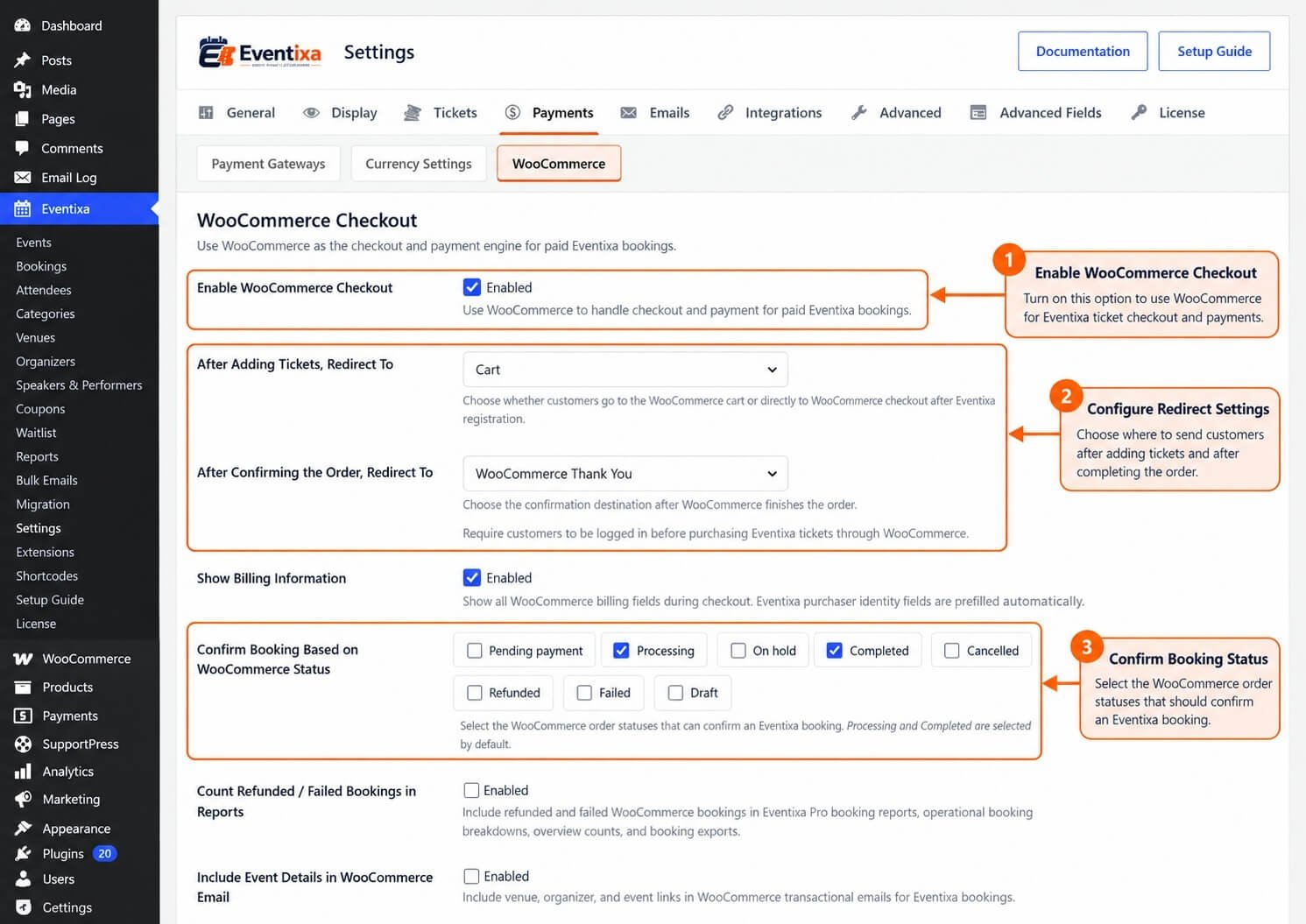
Enable WooCommerce Checkout
Enable Enable WooCommerce Checkout to route eligible paid Eventixa bookings through WooCommerce.
Once enabled, WooCommerce becomes the commerce authority for paid Eventixa checkout.
Paid Tickets Only
WooCommerce Checkout is used for paid Eventixa bookings.
Free tickets and RSVP registrations continue to be completed directly through Eventixa and do not use WooCommerce checkout.
This distinction is important when testing the integration.
Free Ticket Example
If an event has a free ticket, the registration remains inside the normal Eventixa workflow even when WooCommerce Checkout is globally enabled.
The customer is not redirected to WooCommerce simply because WooCommerce integration is active.
RSVP Example
RSVP registrations also remain inside Eventixa.
Going and Not Going RSVP responses do not use WooCommerce checkout.
Paid Ticket Example
For a paid ticket, Eventixa prepares the booking and then hands the registration to WooCommerce for the commerce portion of checkout.
WooCommerce then processes the cart, customer details, taxes, coupons, payment gateway, and order.
After Adding Tickets, Redirect To
The setting After Adding Tickets, Redirect To controls where the customer goes after Eventixa prepares the paid registration.
Available options are:
- Cart
- Checkout
Redirect to Cart
Select Cart when you want customers to review the WooCommerce cart before continuing to payment.
This can be useful when your WooCommerce workflow expects customers to review cart contents or apply coupons before checkout.
Redirect to Checkout
Select Checkout when you want customers to proceed directly to WooCommerce checkout.
This is the default Eventixa setting.
Direct checkout reduces the number of steps between Eventixa ticket selection and payment.
After Confirming the Order, Redirect To
The setting After Confirming the Order, Redirect To controls the confirmation page shown after WooCommerce finishes the order.
Available options are:
- Eventixa Thank You
- WooCommerce Thank You
Eventixa Thank You
Select Eventixa Thank You when you want the completed order to return customers to the Eventixa booking confirmation experience.
This is the default setting.
WooCommerce Thank You
Select WooCommerce Thank You when you want customers to remain on WooCommerce’s normal order-received page.
Choose the option that best matches the rest of your site’s customer experience.
Require Account Login
Enable Require Account Login when customers must be logged in before purchasing Eventixa tickets through WooCommerce.
When disabled, WooCommerce’s normal customer and guest-checkout behavior can be used according to the WooCommerce configuration.
Show Billing Information
Enable Show Billing Information when you want WooCommerce to display its full billing fields during checkout.
Eventixa automatically prepares the purchaser identity information for WooCommerce checkout.
The setting controls whether the broader WooCommerce billing form should be shown.
Purchaser Information
Eventixa carries purchaser information from its registration workflow into WooCommerce.
This reduces duplicate data entry where the same purchaser details are already available.
Confirm Booking Based on WooCommerce Status
The Confirm Booking Based on WooCommerce Status setting determines which WooCommerce order statuses are allowed to confirm the corresponding Eventixa booking.
By default, Eventixa selects:
- Processing
- Completed
Why Confirmation Status Matters
Different WooCommerce gateways use different order-status workflows.
For example, an online card payment may move directly to Processing, while an offline gateway may place an order On hold.
The confirmation-status setting lets you define which WooCommerce states should be sufficient to confirm the Eventixa booking.
Processing
WooCommerce commonly uses Processing after a successful payment for an order that does not yet need to be marked Completed.
Processing is selected as a confirming status by default.
Completed
Completed is also selected by default.
When WooCommerce reaches a configured confirming status, Eventixa can confirm the associated booking according to the order/payment state.
On Hold
You can include On hold if your WooCommerce workflow needs Eventixa bookings to be confirmed while payment remains pending.
This is common with certain offline WooCommerce gateways.
If an unpaid status confirms the booking, Eventixa can keep the payment status pending while the booking itself is confirmed.
Other WooCommerce Statuses
The confirmation control can use WooCommerce order statuses available on your site.
Typical WooCommerce statuses include:
- Pending payment
- Processing
- On hold
- Completed
- Cancelled
- Refunded
- Failed
Choose confirming statuses carefully because they affect when Eventixa treats a WooCommerce-backed registration as confirmed.
Payment Gateways Are Managed by WooCommerce
When WooCommerce Checkout is enabled, WooCommerce payment gateways become authoritative for paid Eventixa commerce.
Configure gateways under WooCommerce → Settings → Payments.
This means you can use WooCommerce-supported gateways such as Stripe, PayPal, Razorpay, bank transfer, check payments, cash on delivery, or other compatible WooCommerce gateways installed on your site.
Native Eventixa Gateways
Eventixa preserves its own native payment gateway settings while WooCommerce Checkout is active, but WooCommerce gateways are used for eligible paid checkout.
If WooCommerce Checkout is later disabled, the preserved Eventixa gateway settings become available again.
At Least One WooCommerce Gateway Is Required
Eventixa validates WooCommerce gateway availability before sending a booking through WooCommerce checkout.
If no WooCommerce payment method is enabled, Eventixa cannot prepare the paid checkout successfully.
WooCommerce Currency Becomes Authoritative
When WooCommerce Checkout is enabled, WooCommerce controls the commerce currency and price formatting used for paid Eventixa checkout.
Eventixa preserves its own currency settings and uses them again if WooCommerce Checkout is disabled.
Currency Must Match Checkout
Eventixa validates the booking currency against the WooCommerce store currency during checkout.
If the booking currency no longer matches WooCommerce, the customer must return to the event and start checkout again.
This helps prevent payment inconsistencies.
WooCommerce Coupons Become Authoritative
When WooCommerce Checkout is enabled, WooCommerce coupons control discounts for WooCommerce-backed Eventixa checkout.
Eventixa’s native coupon system is not used for that WooCommerce checkout session.
Existing Eventixa coupons remain preserved for use when Eventixa’s native checkout is active.
Apply Coupons in WooCommerce
Customers can use compatible WooCommerce coupons according to your WooCommerce coupon configuration.
Eventixa reconciles the applied WooCommerce coupon information back to the associated booking.
WooCommerce Taxes
WooCommerce controls tax calculation for WooCommerce-backed Eventixa commerce.
Eventixa reconciles the resulting WooCommerce tax and total information back to the booking.
This allows the Eventixa booking to reflect the commerce totals calculated by WooCommerce.
WooCommerce Financial Data
Eventixa can store reconciled WooCommerce values including:
- Subtotal
- Discount
- Tax
- Total
- Currency
- Tax details
- Coupon information
This information can be shown in Eventixa booking administration and, with Eventixa Pro, can also participate in reporting and exports.
Internal WooCommerce Bridge Product
Eventixa uses an internal WooCommerce bridge product to transport an Eventixa booking through WooCommerce checkout.
This bridge product is implementation infrastructure rather than a normal product that you create or sell manually.
Bridge Product Is Hidden
The Eventixa bridge product is kept out of the public WooCommerce catalog and product searches.
Customers should not browse to it or add it to the cart directly.
Do Not Edit the Bridge Product
There is normally no reason to manually edit, publish, price, or expose the Eventixa bridge product.
Eventixa manages it automatically while WooCommerce Checkout is enabled.
One Eventixa Booking per Bridge Cart Item
Eventixa carries the prepared booking into WooCommerce as its dedicated commerce item.
The bridge item is treated as sold individually, while the actual Eventixa ticket quantities remain stored with the Eventixa booking.
Dedicated Eventixa WooCommerce Cart
When Eventixa hands a booking to WooCommerce, the integration prepares the cart for that Eventixa checkout.
This prevents unrelated Eventixa bridge items from being mixed together incorrectly.
Cart and Checkout Validation
Eventixa validates its booking reservation again at the WooCommerce cart and checkout boundary.
This protects against situations where ticket availability, checkout sessions, or booking state changed after the Eventixa registration form was submitted.
Expired Checkout Reservation
If the Eventixa payment reservation expires before WooCommerce payment is completed, checkout can be blocked.
The customer must return to the event and start the registration again.
This helps prevent overselling expired ticket inventory.
WooCommerce Order Creation
When WooCommerce creates the order, Eventixa associates the WooCommerce order with the corresponding Eventixa booking.
The connection allows both systems to continue their respective responsibilities.
Eventixa Information in WooCommerce Order Items
WooCommerce order items can contain Eventixa presentation details so administrators can identify the related event registration from the WooCommerce order.
The underlying booking relationship remains managed by Eventixa.
WooCommerce Order Status Synchronization
Eventixa monitors WooCommerce order status changes and synchronizes them with the related Eventixa booking.
This includes paid, failed, cancelled, and refunded workflows.
Successful Payment
When WooCommerce reports an eligible successful payment or configured confirming status, Eventixa can confirm the booking and process the normal post-booking workflow.
This can include attendee creation and ticket delivery according to the Eventixa booking lifecycle.
Pending Payment
If the WooCommerce order is still awaiting payment, Eventixa can keep the corresponding payment status pending.
The final booking behavior depends on your selected confirmation statuses and WooCommerce gateway workflow.
Failed WooCommerce Order
When a WooCommerce order fails before payment completes, Eventixa can mark the associated payment as failed and move the booking into the appropriate failed lifecycle.
Released inventory is handled through Eventixa’s normal booking-status logic.
Cancelled WooCommerce Order
When WooCommerce cancels an unpaid order, Eventixa synchronizes the cancellation to the associated booking.
If a previously paid order is later cancelled, Eventixa preserves the recorded payment history while cancelling the Eventixa booking.
Refunded WooCommerce Order
WooCommerce refund activity is synchronized back to Eventixa’s WooCommerce refund foundation.
Eventixa records refund information so administrators can see the related refund state and refunded totals.
Partial Refunds
WooCommerce can support partial refunds.
Eventixa stores WooCommerce refund information rather than assuming every refund represents a full booking reversal.
Always review the WooCommerce order when detailed financial reconciliation is required.
WooCommerce Offline Payment Methods
Eventixa recognizes supported WooCommerce offline methods such as:
- Direct Bank Transfer
- Check Payments
- Cash on Delivery
These methods may leave payment pending until an administrator confirms payment manually.
Manual Payment Update for WooCommerce Offline Orders
For supported WooCommerce offline payment methods, Eventixa can allow an administrator to update the payment status when the booking is still pending.
This is designed for payment methods where money is collected outside an instant online gateway.
Eventixa Thank You Page
When Eventixa Thank You is selected, Eventixa routes the WooCommerce order-received flow back to the corresponding Eventixa booking confirmation page.
This lets the customer finish in an Eventixa-focused experience even though WooCommerce processed the commerce transaction.
WooCommerce Thank You Page
When WooCommerce Thank You is selected, the standard WooCommerce order-received experience remains the final confirmation destination.
WooCommerce My Account Integration
Eventixa integrates WooCommerce-backed event bookings with the WooCommerce customer account experience where applicable.
Customers can still use the Eventixa booking and ticket features while the WooCommerce order remains available through the normal WooCommerce account workflow.
Classic Checkout and Checkout Blocks
The current Eventixa WooCommerce integration declares compatibility with WooCommerce Cart and Checkout Blocks.
It also supports the traditional WooCommerce checkout workflow.
This lets Eventixa work with both classic and modern WooCommerce checkout surfaces.
High-Performance Order Storage
Eventixa declares WooCommerce order-storage compatibility so the integration can work with current WooCommerce order infrastructure.
You should still test your exact WooCommerce configuration and payment gateways before launching a live event.
Pro — Count Refunded / Failed Bookings in Reports
With Eventixa Pro active, the WooCommerce settings include Count Refunded / Failed Bookings in Reports.
This option controls whether refunded and failed WooCommerce bookings are included in applicable Eventixa Pro booking reports, operational booking breakdowns, overview counts, and booking exports.
Pro — Include Event Details in WooCommerce Email
Eventixa Pro also adds Include Event Details in WooCommerce Email.
Enable this option when you want additional Eventixa event context included in WooCommerce transactional emails.
The enhanced content can include information such as venue, organizer, and event links.
WooCommerce Emails
WooCommerce continues to send its own transactional order emails.
The Pro Event Details option enhances those WooCommerce emails rather than replacing Eventixa’s own ticket and booking notification system.
Recommended Setup Workflow
- Install and activate WooCommerce.
- Configure WooCommerce currency, taxes, and payment gateways.
- Go to Eventixa → Settings → Payments → WooCommerce.
- Enable WooCommerce Checkout.
- Choose Cart or Checkout as the post-registration destination.
- Choose Eventixa Thank You or WooCommerce Thank You.
- Configure account-login behavior.
- Configure billing-field behavior.
- Review the WooCommerce statuses that should confirm Eventixa bookings.
- Configure Pro reporting/email options if Eventixa Pro is active.
- Save the settings.
- Create a paid Eventixa ticket.
- Complete a full test booking.
- Verify the WooCommerce order.
- Verify the Eventixa booking and attendees.
Recommended Payment Test
Before using WooCommerce Checkout on a live event, complete at least one test with the gateway you plan to use.
Verify:
- Eventixa creates the pending booking.
- The customer reaches WooCommerce.
- The correct booking amount appears.
- Taxes and coupons behave correctly.
- The WooCommerce order is created.
- The payment completes.
- The Eventixa booking status updates.
- Attendees are created correctly.
- Ticket capacity updates correctly.
- The customer reaches the configured Thank You page.
Test a Failed Payment
Also test a failed-payment scenario.
Confirm that the WooCommerce order and Eventixa booking move into the expected failed states and that ticket capacity is not incorrectly retained.
Test a Cancelled Order
Cancel a WooCommerce test order and confirm that the corresponding Eventixa booking responds correctly.
This is especially important when validating ticket inventory release.
Test an Offline Gateway
If you use bank transfer, check payments, or cash on delivery, test the entire pending-payment workflow.
Make sure the Eventixa booking behaves correctly before and after the offline payment is confirmed.
Test Free and RSVP Tickets
Even when WooCommerce Checkout is enabled, test free and RSVP registrations separately.
They should remain in Eventixa’s native registration workflow rather than being sent to WooCommerce.
Common Problems
WooCommerce Checkout Option Is Disabled
Confirm WooCommerce is installed and active.
Eventixa disables the setting when WooCommerce is unavailable.
Paid Booking Does Not Redirect to WooCommerce
Check that Enable WooCommerce Checkout is enabled and that at least one WooCommerce payment gateway is available.
Also confirm the ticket is paid rather than Free or RSVP.
Free Ticket Does Not Open WooCommerce Checkout
This is expected because free ticket registrations are completed directly by Eventixa.
RSVP Does Not Open WooCommerce Checkout
This is expected because RSVP registrations remain in Eventixa.
No WooCommerce Payment Methods Appear
Go to WooCommerce → Settings → Payments and enable at least one compatible gateway.
Wrong Page Opens After Ticket Selection
Check After Adding Tickets, Redirect To and choose either Cart or Checkout.
Wrong Thank You Page Appears
Check After Confirming the Order, Redirect To and choose Eventixa Thank You or WooCommerce Thank You.
Eventixa Coupon Does Not Apply in WooCommerce
This is expected because WooCommerce coupons become authoritative while WooCommerce Checkout is active.
Create and use the coupon through WooCommerce.
Currency Looks Different from Eventixa Settings
This is expected because WooCommerce controls commerce currency and formatting while WooCommerce Checkout is enabled.
Checkout Says the Booking Currency No Longer Matches
The Eventixa booking currency and current WooCommerce store currency no longer match.
Return to the event and start checkout again after correcting the configuration.
Booking Remains Pending After WooCommerce Order Is Created
Check the WooCommerce order status and the Confirm Booking Based on WooCommerce Status setting.
Your gateway may use a status that has not been selected as a confirming status.
Offline Order Is On Hold
This can be expected for WooCommerce offline gateways.
Configure the appropriate confirmation status according to your desired booking workflow and manually confirm payment where necessary.
Eventixa Booking Does Not Match WooCommerce Order Status
Open both records and verify the WooCommerce status, Eventixa booking status, payment status, and any administrative notes.
Also confirm that no gateway callback is still pending.
WooCommerce Checkout Says the Reservation Expired
The Eventixa payment reservation expired before WooCommerce checkout completed.
Return to the event and start the registration again.
Event Details Are Missing from WooCommerce Email
The enhanced WooCommerce email option requires Eventixa Pro.
Enable Include Event Details in WooCommerce Email under the WooCommerce settings.
Refunded Bookings Are Missing from Reports
With Eventixa Pro, review Count Refunded / Failed Bookings in Reports.
The setting controls whether those WooCommerce bookings appear in applicable Eventixa Pro reporting datasets.
Recommended Configuration
For a straightforward paid-event checkout, a practical configuration is:
- Enable WooCommerce Checkout: Enabled
- After Adding Tickets, Redirect To: Checkout
- After Confirming the Order, Redirect To: Eventixa Thank You
- Confirm Booking Based on WooCommerce Status: Processing and Completed
Enable Require Account Login, Show Billing Information, and Pro enhancements only when they match your site’s checkout requirements.
Important Notes
- WooCommerce Checkout is available in Eventixa Core.
- WooCommerce must be installed and active.
- WooCommerce Checkout applies to paid Eventixa bookings.
- Free tickets and RSVP registrations remain in Eventixa’s native workflow.
- WooCommerce payment gateways become authoritative for eligible paid checkout.
- WooCommerce currency and price formatting become authoritative while the integration is enabled.
- WooCommerce coupons are used instead of Eventixa coupons during WooCommerce checkout.
- Eventixa reconciles WooCommerce tax, discount, total, coupon, and transaction information back to the booking.
- Processing and Completed confirm Eventixa bookings by default.
- Additional WooCommerce statuses can be selected as confirming statuses.
- Eventixa synchronizes failed, cancelled, paid, and refunded WooCommerce order activity with the related booking.
- Eventixa uses an internal hidden bridge product; administrators should not manage it like a normal WooCommerce product.
- WooCommerce Cart and Checkout Blocks are supported by the current integration.
- Eventixa Pro adds WooCommerce reporting and transactional email enhancements.


