
Event Waitlist Overview
Eventixa Pro includes a Waitlist system that helps organizers manage demand when an event ticket reaches capacity.
Instead of losing visitors when a ticket is sold out, you can allow them to join a waitlist. If capacity later becomes available, Eventixa can temporarily reserve the released seat for an eligible waitlisted customer and give them time to complete the booking.
Available in: Eventixa Pro
Admin Location: Eventixa → Waitlist
Related features: Ticket Capacity, Bookings, Recurring Events, Email Notifications
What Is the Event Waitlist?
The Eventixa Waitlist is designed for tickets that have reached their available capacity.
When an eligible ticket becomes sold out, visitors can join the waitlist instead of completing a normal booking.
Their waitlist entry is stored separately from normal bookings and attendees.
If capacity later becomes available, Eventixa can promote a waitlisted customer and temporarily reserve the seat for them.
Typical Waitlist Workflow
A normal waitlist flow looks like this:
- An event ticket reaches capacity.
- The ticket becomes unavailable for normal booking.
- A visitor joins the waitlist.
- Eventixa stores their waitlist entry.
- An existing booking is cancelled and capacity is released.
- Eventixa reserves the available seat for an eligible waitlisted customer.
- The customer receives a seat-available email.
- The customer opens the provided checkout link.
- They complete the booking before the offer expires.
- If they do not complete the booking, the reservation expires and capacity can be released again.
Why Use a Waitlist?
A waitlist is useful when demand is higher than the available ticket capacity.
Without a waitlist, visitors who reach a sold-out event may simply leave.
With Eventixa Waitlist, you can retain that interest and offer newly available seats when cancellations occur.
Waitlists are especially useful for:
- Limited-capacity events
- Workshops
- Classes
- Conferences
- Venue-limited events
- Popular ticket types
- Recurring event occurrences
- Events where cancellations are common
Waitlist and Ticket Capacity
The waitlist works together with Eventixa’s ticket capacity system.
For example:
Ticket: Standard Event Pass
Capacity: 100
Booked: 100
Available: 0
The ticket is sold out.
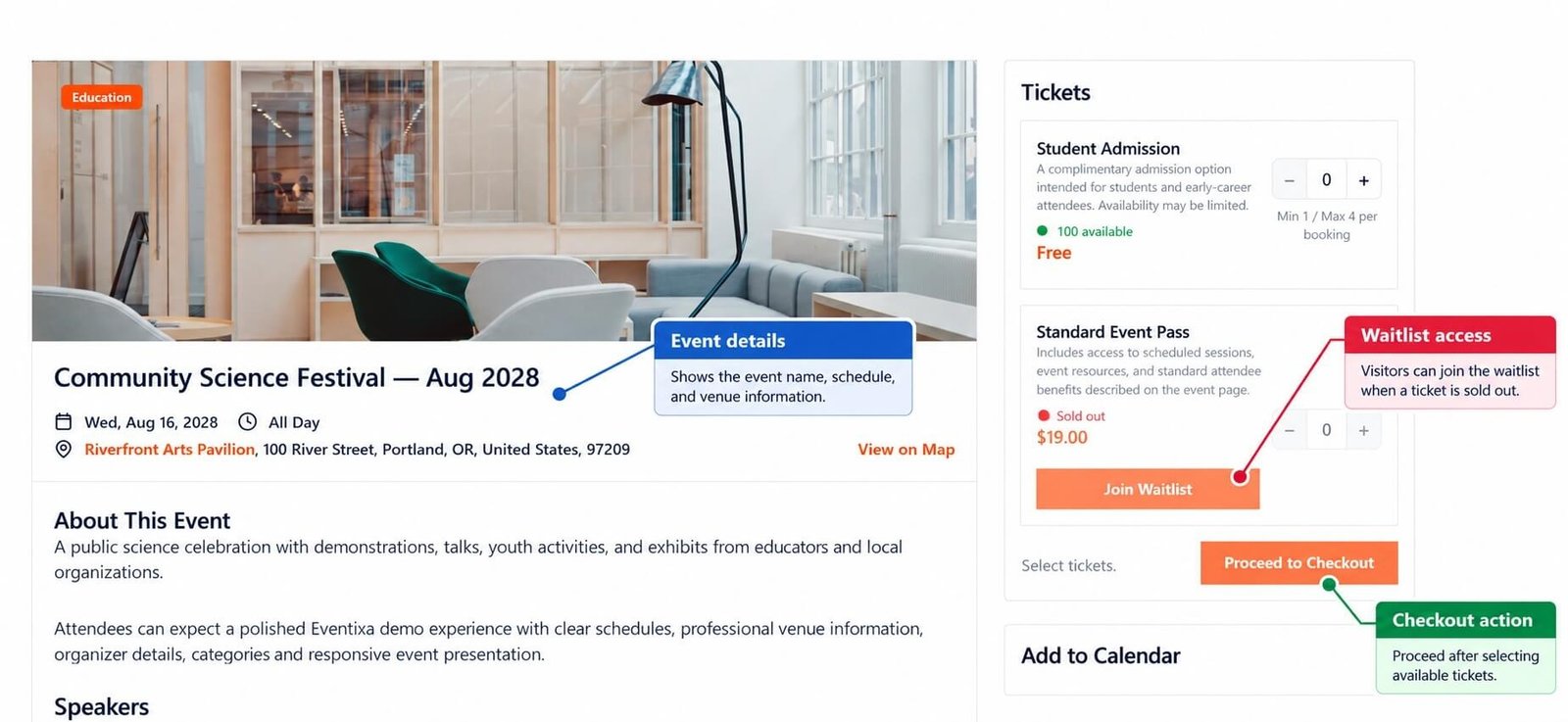
A new visitor cannot complete a normal booking for that ticket, but they can join the waitlist if the feature is enabled.
Joining the Waitlist
When an eligible ticket is sold out, the visitor can submit a waitlist request.
The visitor provides the required information and joins the waitlist for that event ticket.
After submission, Eventixa creates a waitlist entry.
The customer is now waiting for capacity to become available.
Joining the Waitlist Is Not a Booking
A waitlist entry is different from an Eventixa booking.
When someone joins the waitlist:
- No completed booking is created.
- No attendee ticket is issued.
- No QR ticket is created.
- The customer is not checked in.
- Payment is not completed.
- Normal event attendance is not confirmed.
The customer becomes an attendee only after successfully completing the booking process when a seat becomes available.
Waitlist Confirmation
After a visitor successfully joins the waitlist, Eventixa can send a:
Waitlist Confirmation
email.
This email confirms that their request was recorded.
It does not confirm an event booking.
What Happens When Capacity Becomes Available?
Capacity can become available when an existing booking releases a seat.
For example:
- Ticket capacity is full.
- Several customers are waiting.
- One confirmed booking is cancelled.
- One ticket becomes available.
- Eventixa processes the waitlist.
- An eligible waitlisted customer receives a temporary reservation.
Seat Reservation
When a waitlisted customer is promoted, Eventixa can reserve the available seat for them immediately.
This is important because the seat should not become publicly available while the promoted customer is trying to complete their booking.
The reserved capacity belongs temporarily to that waitlist offer.
Why the Seat Is Reserved
Consider this example:
Capacity: 50
Booked: 50
Waitlisted: 5
One booking is cancelled.
Without a reservation:
- Eventixa emails the first waitlisted customer.
- The ticket becomes publicly available.
- Another visitor purchases it.
- The waitlisted customer opens their email.
- The seat is already gone.
A temporary reservation prevents this situation.
Waitlist Seat Available Email
When the waitlisted customer receives a reservation, Eventixa can send the: Waitlist Seat Available email.
This email informs the customer that a seat is now available.
The email can include the link they need to continue with checkout.
Completing the Booking
Receiving a seat offer does not automatically create a completed booking.
The customer still needs to finish the normal Eventixa booking workflow.
Depending on the ticket configuration, this may include:
- Confirming quantity
- Entering attendee information
- Completing attendee fields
- Reviewing booking details
- Selecting a payment method
- Completing payment
Waitlist Offer Expiration
The reserved seat is temporary.
The waitlisted customer has a limited period in which to complete the booking.
If they do not complete the booking before the reservation expires, the offer becomes invalid.
Why Offers Expire
Without expiration, one inactive customer could hold a seat indefinitely.
Offer expiration ensures that released capacity can continue moving through the waitlist.
What Happens After Expiration?
When a waitlist reservation expires:
- The customer’s reservation ends.
- The held capacity is released.
- The expired offer can no longer be used.
- Eventixa can continue processing the waitlist.
- Another eligible waitlisted customer can receive the seat.
Waitlist Offer Expired Email
Eventixa includes a: Waitlist Offer Expired email template.
This can notify the customer when their reservation is no longer available.
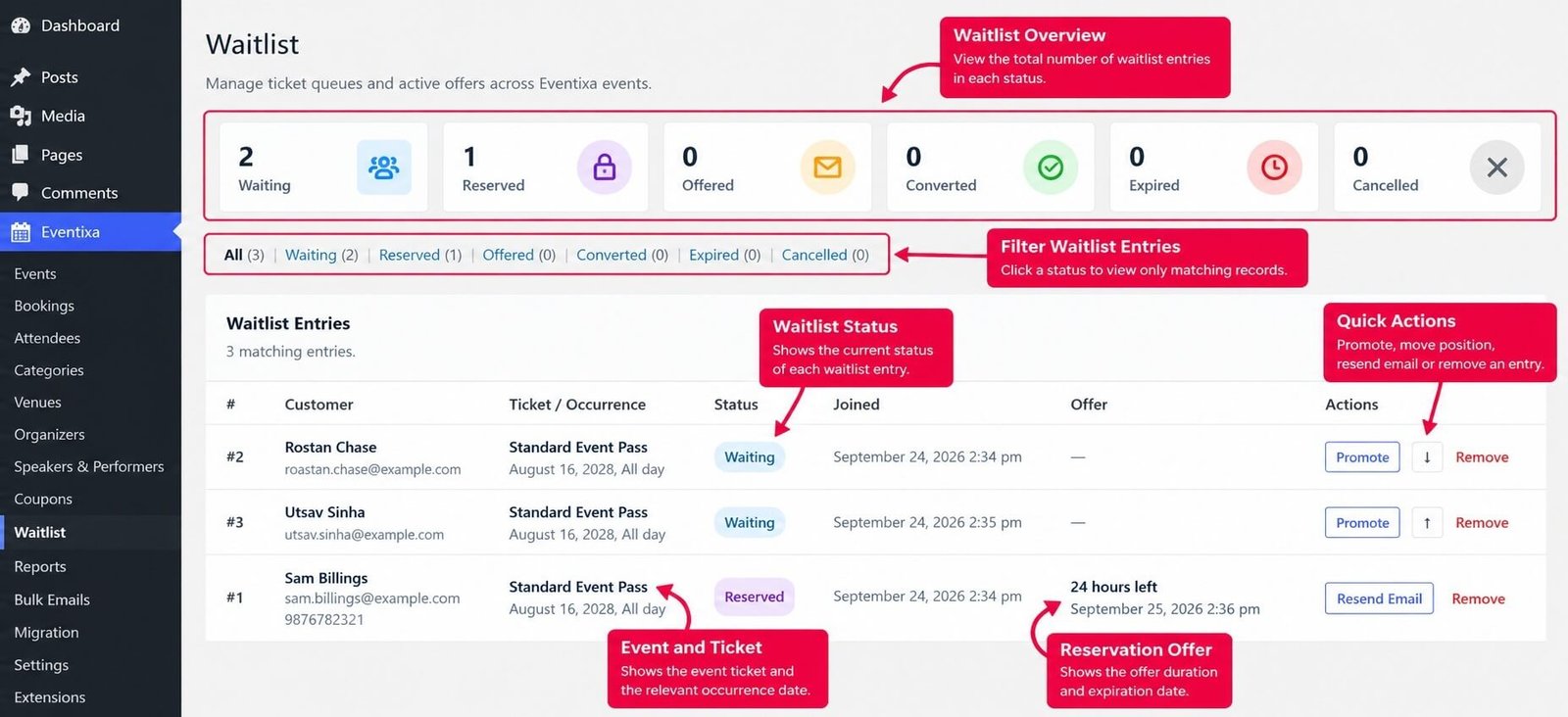
Waitlist Admin Screen
Administrators can manage waitlist records from: Eventixa → Waitlist
The Waitlist screen provides a central place to review customers waiting for event tickets.
Depending on the record and state, you can review information such as:
- Event
- Ticket
- Customer
- Waitlist status
- Reservation
- Offer
- Expiration
Waitlist Status
A waitlist record can move through several stages during its lifecycle.
Common workflow states can include:
Waiting
The customer is on the waitlist and has not received an available seat yet.
Reserved / Offered
A seat has become available and is temporarily reserved for the customer.
Completed
The customer successfully used the offer and completed the booking.
Expired
The customer did not complete the booking before the reservation expired.
Always use the current status shown by Eventixa when reviewing a waitlist record.
Waitlist and Booking Cancellation
Booking cancellations can release ticket capacity.
When capacity is released, Eventixa can use that capacity for the waitlist instead of making it immediately available to everyone.
For example: Before cancellation
Capacity: 100
Booked: 100
Available: 0
Waitlist: 6
One eligible booking is cancelled. After cancellation
Released capacity: 1
That seat can be reserved for an eligible waitlisted customer.
Waitlist and Cancelled Bookings
Cancelling a booking and promoting a waitlist entry are separate operations in the overall workflow.
The important result is that the cancellation releases valid capacity which can then be offered through the waitlist.
Waitlist and Paid Tickets
Paid tickets can use the waitlist workflow where supported.
When a seat becomes available, the promoted customer can continue to the booking process and complete payment using the available Eventixa payment methods.
Waitlist and Free Tickets
Free tickets can also use the waitlist workflow where applicable.
The customer does not need to complete an online payment, but they still need to successfully complete the registration before the reservation expires.
Waitlist and Payment Gateways
Waitlist reservations and payment processing are separate.
The waitlist controls temporary ticket availability.
The configured gateway handles payment.
Depending on your Eventixa configuration, payment may be completed through:
- PayPal
- Stripe
- Offline / Local Payment
- WooCommerce
Incomplete Payment
A customer receiving a waitlist offer does not automatically mean the booking is successful.
If the required checkout or payment is not completed, the reservation remains subject to its expiration rules.
Waitlist and Attendees
A customer on the waitlist is not yet an Eventixa attendee.
The attendee record belongs to the successful event registration.
This keeps:
- Waitlist entries
- Bookings
- Attendees
- Ticket capacity
separate.
Waitlist and QR Tickets
Joining the waitlist does not generate a QR ticket.
QR tickets belong to eligible attendee registrations.
The customer must first successfully complete the booking process.
Waitlist and Event Check-In
A waitlisted customer cannot be checked in merely because they joined the waitlist.
Check-in requires a valid attendee registration.
The normal process is:
Waitlist → Seat Offer → Booking → Attendee → QR Ticket → Check-In
Waitlist and Recurring Events
Waitlist handling is especially important for recurring events because availability may differ between occurrences.
For example:
Community Science Festival
- April 15 — Sold Out
- August 16 — Available
- December 12 — Sold Out
A waitlist for the April occurrence should not automatically consume capacity from August.
The relevant occurrence should remain part of the availability context.
Recurring Event Example
Suppose the August occurrence has:
Capacity: 80
Booked: 80
Waitlisted: 4
If one August booking is cancelled, the newly released August seat can be processed through the waitlist for that occurrence.
It should not affect another recurring date.
Waitlist Capacity Example
Consider this complete example:
Event: Community Science Festival
Ticket: Standard Event Pass
Capacity: 200
Booked: 200
Available: 0
Waitlisted: 8
One completed booking is cancelled.
Eventixa releases one seat.
The next eligible waitlist customer receives a reservation.
While that reservation is active:
Publicly available: protected
Reserved for waitlist customer: 1 seat
If the customer completes checkout, the booking consumes the seat.
If the offer expires, the reserved capacity is released.
Waitlist Does Not Increase Ticket Capacity
The waitlist does not increase the configured capacity.
For example:
Capacity: 100
Booked: 100
Waitlist: 10
The event still has a capacity of:
100
The 10 waitlisted customers are waiting for one of those 100 seats to become available.
Waitlist and Overselling
A proper waitlist workflow helps prevent multiple customers from being offered the same released capacity simultaneously.
The reservation protects the seat during the offer period.
Waitlist Emails
Eventixa includes several waitlist-related email templates.
Waitlist Confirmation
Sent when a visitor joins the waitlist.
Waitlist Seat Available
Sent when a seat is reserved for a waitlisted customer.
Waitlist Offer Expired
Sent when a reserved offer expires.
Waitlist Admin New Signup
Can notify the administrator when a visitor joins the event ticket waitlist.
These templates can be managed alongside the other Eventixa email templates.
Customer Email Address
Waitlist communication depends heavily on email.
Customers should provide an email address they can access.
An incorrect email address may prevent the customer from receiving:
- Waitlist confirmation
- Seat available notification
- Booking link
- Offer expiration notification
Email Delivery
Waitlist records and email delivery are separate systems.
A waitlist entry can exist successfully even if the site’s outgoing email configuration has a delivery problem.
For production websites, configure reliable WordPress email delivery and test the complete workflow.
When Should You Enable Waitlist?
Waitlist is most useful when:
- A ticket has a strict capacity.
- Events regularly sell out.
- Cancellations are possible.
- You want to retain interested customers.
- You want released capacity offered automatically.
- Different recurring occurrences have different availability.
When Waitlist May Not Be Necessary
You may not need a waitlist when:
- Ticket capacity is effectively unlimited.
- The event does not require registration.
- You do not want cancelled seats offered again.
- The ticket will remain available throughout registration.
Recommended Waitlist Workflow
For a new event:
- Create the event.
- Create the ticket.
- Configure accurate capacity.
- Enable the waitlist.
- Test the sold-out state.
- Join with a test customer.
- Confirm the waitlist record.
- Cancel a test booking.
- Confirm capacity is released.
- Verify the waitlist reservation.
- Verify the Seat Available email.
- Complete the booking from the offer link.
- Test another offer and allow it to expire.
- Verify expiration and capacity release.
Testing a Successful Waitlist Offer
To test the complete successful flow:
- Fill the ticket to capacity.
- Join the waitlist.
- Release a seat.
- Confirm the customer receives the offer.
- Open the checkout link.
- Complete the booking.
- Confirm the booking is created.
- Confirm the attendee exists.
- Confirm ticket capacity is correct.
Testing an Expired Waitlist Offer
To test expiration:
- Fill the ticket to capacity.
- Add multiple test waitlist entries.
- Release one seat.
- Allow the first offer to expire.
- Confirm the reservation is released.
- Confirm the expired offer cannot be used.
- Verify continued waitlist processing.
- Confirm ticket availability remains accurate.
Common Problems
Waitlist Option Does Not Appear
Check:
- Eventixa Pro is active.
- Waitlist is enabled.
- Ticket capacity is configured.
- The ticket has reached the state required for waitlisting.
- The event/ticket is eligible for the waitlist workflow.
Customer Joined the Waitlist but Has No Booking
This is expected.
A waitlist entry is not a completed booking.
The customer must wait for an available-seat offer and complete the registration.
Customer Joined the Waitlist but Has No QR Ticket
This is also expected.
QR tickets are issued to eligible attendee registrations, not waitlist entries.
Seat Became Available but Customer Cannot Book
Check:
- Waitlist record status
- Whether the reservation expired
- Offer link validity
- Ticket availability
- Existing booking/reservation state
Waitlist Offer Expired
The customer did not complete the required booking within the reservation period.
The old offer should no longer be considered active.
Customer Did Not Receive an Email
Check:
- Customer email address
- Waitlist record
- Email template status
- WordPress email delivery
- SMTP configuration
- Spam/junk folder
Booking Cancellation Did Not Trigger Expected Availability
Review:
- Booking status
- Ticket capacity
- Whether the cancellation released capacity
- Existing waitlist reservation
- Waitlist entry status
Waitlisted Customer Is Not in Attendees
This is expected until they complete a valid booking.
A waitlist entry alone does not create an attendee.
Important Notes
- Waitlist requires Eventixa Pro.
- Joining the waitlist does not create a completed booking.
- Waitlist entries do not receive attendee QR tickets.
- Released ticket capacity can be temporarily reserved for an eligible waitlisted customer.
- Waitlist offers expire after their reservation period.
- Expired reservations release capacity for continued processing.
- Paid waitlist bookings still follow normal payment processing.
- Ticket capacity remains the source of truth for real availability.
- Recurring-event waitlists should respect the relevant occurrence.
- Always test signup, promotion, checkout, expiration, and email delivery before using the waitlist on a live event.


