
Single Event Page
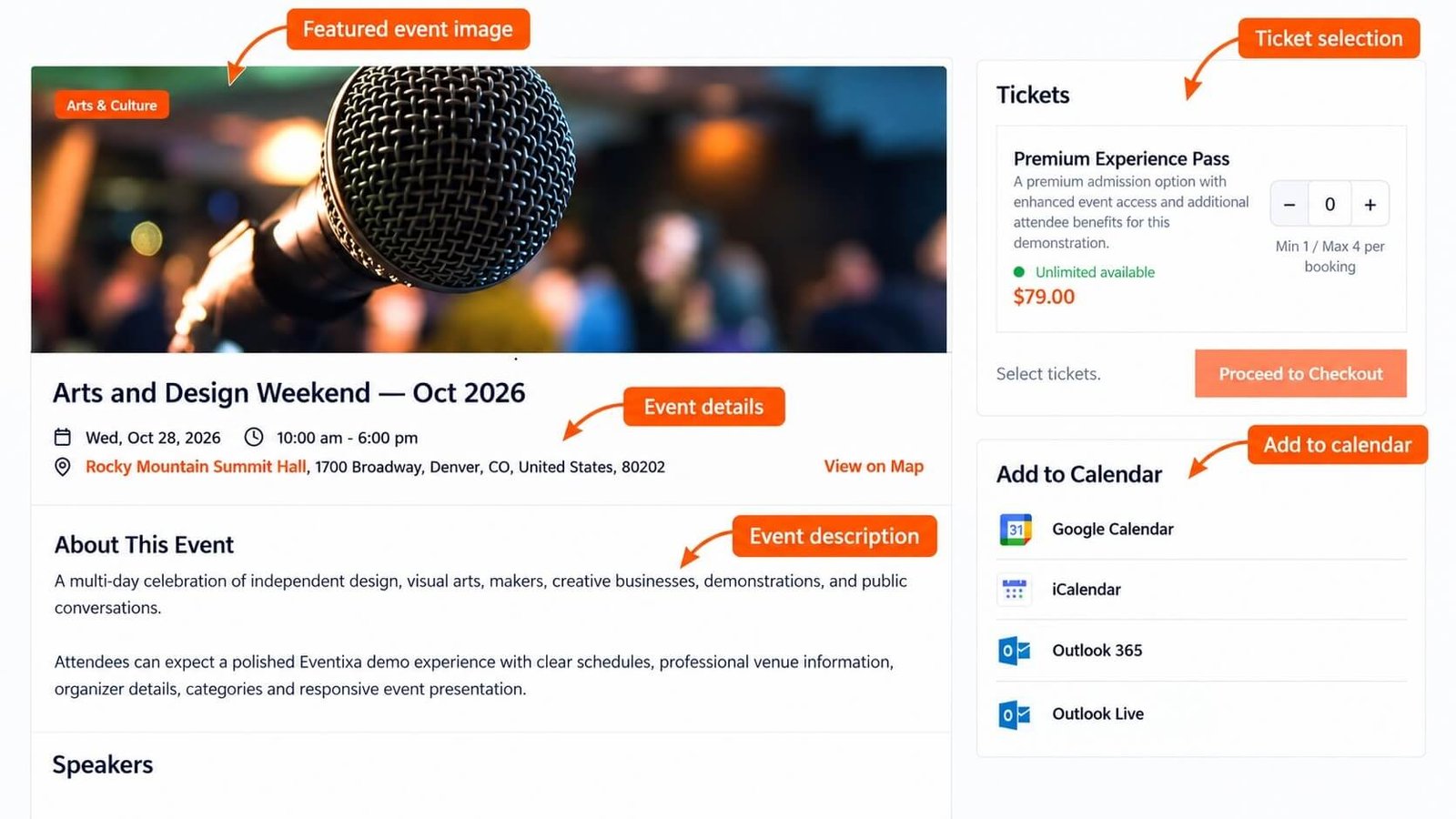
The Eventixa single event page is the main frontend page visitors use to view an individual event.
It can display event information such as the schedule, venue, organizer, tickets, speakers, sessions, registration options, and other event-specific content.
Available in: Eventixa Core
Settings: Eventixa → Settings → Display → Single Page
Event content: Eventixa → Events → Edit Event
Pro enhancements: Recurring events, advanced virtual events, waitlist, QR-related functionality, and other premium features
What the Single Event Page Shows
The exact content depends on how the event is configured.
A single event page can include:
- Event title
- Featured image
- Event description
- Date and time
- Event category
- Venue
- Organizer
- Ticket or RSVP registration
- Speakers and performers
- Sessions and agenda
- Virtual event information
- Recurring event information
- Other supported event details
Not every section appears on every event.
Eventixa shows the information relevant to the event configuration.
Open a Single Event Page
From the WordPress dashboard, go to: Eventixa → Events
Find the event and open its frontend View link.
Visitors can also reach the single event page from the Eventixa event archive or event listing.
Event Title and Description
The event title appears as the main identifier for the event.
The description contains the main event content and can explain:
- What the event is about
- Who should attend
- What attendees will learn
- Schedule information
- Important instructions
- Access information
Keep the description focused and easy to scan.
Event Date and Time
The single event page uses the schedule configured under: Event Settings → Date & Time
This can include:
- Start date
- Start time
- End date
- End time
- All-day status
Make sure the event timezone is correct before publishing.
Event Location
For an in-person event, the page can show the assigned venue.
Depending on your configuration, venue content can include:
- Venue name
- Address
- Map
- Map link
The map display is controlled from the event’s Location & Virtual settings.
Virtual and Hybrid Events
For virtual and hybrid events, the event page can use the configured virtual event information.
Depending on your Eventixa edition, this can include:
- Custom Meeting URL
- Zoom
- Google Meet
Avoid placing attendee-only access information publicly unless the event workflow specifically requires it.
Organizer Information
The event page can display the organizer assigned under: Event Settings → Organizer
Organizer information can help visitors understand who is responsible for the event.
The organizer itself is managed from: Eventixa → Organizers
Tickets and Registration
If the event accepts registrations, the single event page can provide the ticket or RSVP workflow.
Depending on your configuration, registration can include:
- Free tickets
- Paid tickets
- RSVP options
- Ticket quantity
- Availability
- Attendee information
The registration area connects visitors to the Eventixa checkout and booking workflow.
Ticket Availability
Ticket availability can depend on:
- Capacity
- Sale start date
- Sale end date
- Existing bookings
- Reserved capacity
- Event schedule
If a ticket is unavailable, review the ticket configuration before assuming the single event page is incorrect.
Speakers and Performers
If participants are assigned to the event, the single event page can show speaker or performer information.
This can include:
- Profile image
- Name
- Role
- Biography
- Group
- Session association
Speakers and performers are managed separately and then assigned to events.
Sessions and Event Agenda
Events with sessions can display a structured agenda.
Agenda information can help visitors see:
- Session title
- Session time
- Speaker
- Session type
- Location
This is particularly useful for:
- Conferences
- Workshops
- Training programs
- Multi-session events
Recurring Events
Requires: Eventixa Pro
For recurring events, the single event page can display occurrence-aware information.
Depending on the event configuration, visitors may see:
- Current occurrence
- Upcoming dates
- Recurring status
- Occurrence-specific agenda information
Review the recurring event configuration if dates on the frontend do not match expectations.
Single Page Display Settings
Go to: Eventixa → Settings → Display → Single Page
Use these settings to control supported single-event presentation options.
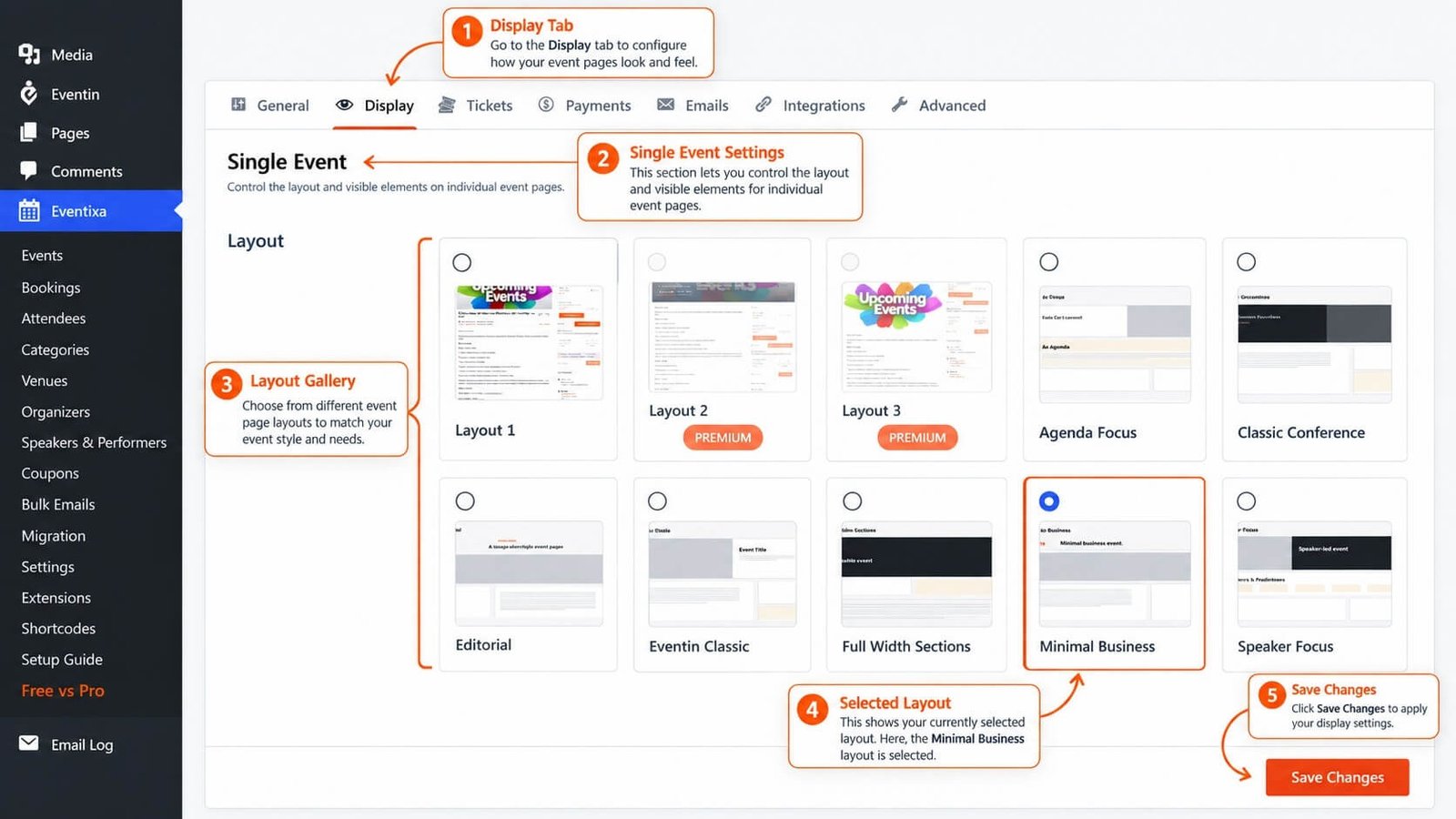
Exact options should be configured according to the current Eventixa UI.
Featured Image
Use a high-quality featured image that represents the event.
The image can appear on:
- Single event pages
- Event listings
- Social previews, depending on the site setup
Use consistent image dimensions across your event catalog for a cleaner appearance.
Event Categories
The assigned event categories can help visitors understand the type of event.
Examples:
- Conference
- Workshop
- Technology
- Networking
Categories are managed from: Eventixa → Categories
Frontend Registration Experience
A typical visitor flow is:
Open event → Review event details → Select ticket → Enter attendee information → Checkout → Booking created
For RSVP events, the registration flow follows the RSVP configuration instead.
Preview Before Publishing
Before publishing or promoting an event, review the frontend single event page.
Check:
- Title
- Description
- Featured image
- Date and time
- Venue
- Organizer
- Ticket availability
- Speaker information
- Agenda
- Virtual event details
- Registration form
Also complete a test registration.
Common Problems
Ticket Area Does Not Appear
Check:
- Ticket configuration
- Ticket sale dates
- Capacity
- Event status
- Registration settings
Venue Does Not Appear
Confirm:
- The event is In-Person or Hybrid.
- A venue is assigned.
- The event has been updated.
Speaker Section Is Missing
Check that the participant is assigned to the event and that the relevant frontend presentation is enabled.
Event Date Is Incorrect
Review:
- Event Date & Time settings
- Eventixa timezone
- WordPress timezone
- Recurrence settings if applicable
Virtual Access Is Missing
Check:
- Event format
- Virtual provider
- Provider connection
- Event-level meeting configuration
Frontend Best Practices
For a clear event page:
- Use a strong event title.
- Keep the description readable.
- Use a consistent featured image.
- Make ticket information easy to understand.
- Keep venue and organizer information accurate.
- Review speaker and session information.
- Test the page on mobile.
- Complete a test registration before promotion.


