
Zoom Integration
Eventixa Pro integrates directly with Zoom so you can create, link, synchronize, disconnect, replace, and delete Zoom meetings from your Eventixa event workflow.
The integration supports both single events and recurring events, including the option to use one meeting for the entire recurring series or create separate Zoom meetings for individual occurrences.
Available in: Eventixa Pro
Connection Settings: Eventixa → Settings → Integrations → Meetings
Event Settings: Eventixa → Events → Add/Edit Event → Location & Virtual
Authentication: Zoom Server-to-Server OAuth
What Does the Zoom Integration Do?
The Eventixa Zoom integration connects your WordPress event directly with Zoom.
After connecting Zoom, you can create a new Zoom meeting from Eventixa or link an existing Zoom meeting to the event.
Eventixa can then keep the linked meeting synchronized with important event information such as the title, date, time, duration, and description.
Zoom Requires Eventixa Pro
Managed Zoom meetings are an Eventixa Pro feature.
Eventixa Core supports Virtual and Hybrid events with Custom Meeting URL, while Eventixa Pro adds managed Zoom and Google Meet providers.
How Eventixa Connects to Zoom
Eventixa uses a Zoom Server-to-Server OAuth application.
This connection method uses:
- Account ID
- Client ID
- Client Secret
You create these credentials in the Zoom App Marketplace and enter them in Eventixa.
Open Zoom Connection Settings
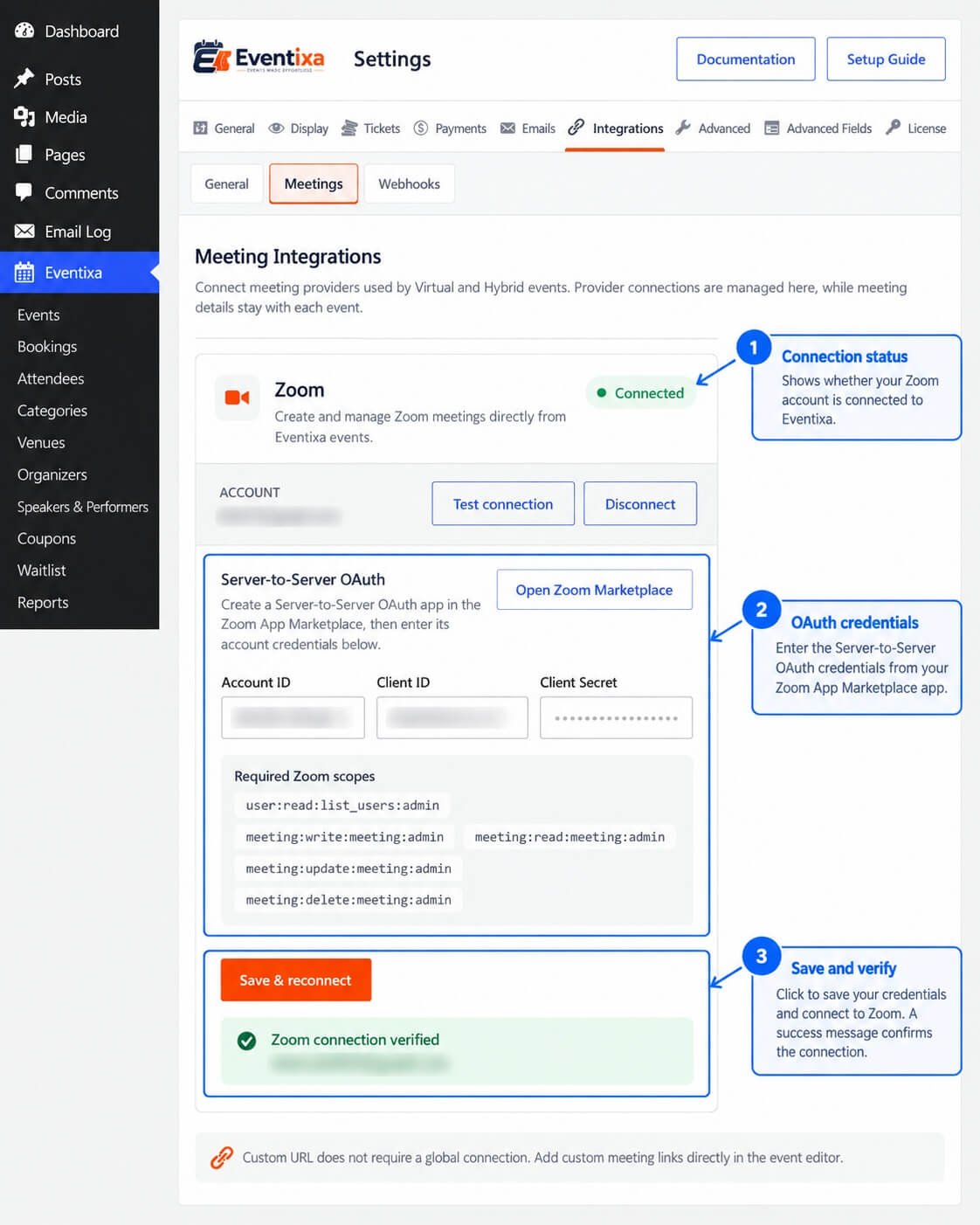
Go to Eventixa → Settings → Integrations → Meetings.
Locate the Zoom provider.
The Zoom card allows you to configure and test the connection.
Configure Zoom
Select Configure Zoom to open the Zoom credentials panel.
The panel is labeled Server-to-Server OAuth and explains that you need to create a Server-to-Server OAuth app in the Zoom App Marketplace.
Open Zoom Marketplace
Eventixa provides an Open Zoom Marketplace button that opens the Zoom App Marketplace in a new browser tab.
Create or open the Server-to-Server OAuth application that you want Eventixa to use.
Account ID
Enter the Zoom Account ID from your Server-to-Server OAuth application.
This identifies the Zoom account Eventixa should connect to.
Client ID
Enter the Zoom Client ID generated for the Server-to-Server OAuth application.
Client Secret
Enter the Zoom Client Secret generated for the Server-to-Server OAuth application.
The Client Secret is sensitive information and should never appear in public screenshots, documentation, or support messages.
Saving an Existing Client Secret
After a Client Secret has already been saved, Eventixa does not display the stored secret in plain text.
The field can show Saved — leave blank to keep current secret.
When reconnecting, leave the field empty if you want to keep the existing saved secret.
Required Zoom Scopes
The current Eventixa Zoom integration requires the following Zoom scopes:
user:read:list_users:adminmeeting:write:meeting:adminmeeting:read:meeting:adminmeeting:update:meeting:adminmeeting:delete:meeting:admin
Add these permissions to the Zoom Server-to-Server OAuth application before connecting it to Eventixa.
Why These Scopes Are Required
The user scope lets Eventixa retrieve available Zoom hosts.
The meeting scopes allow Eventixa to create, read, update, and delete Zoom meetings.
Without the required scopes, some meeting management actions can fail even if the credentials themselves are valid.
Connect Zoom
After entering the Account ID, Client ID, and Client Secret, select Connect Zoom.
Eventixa validates the credentials against the Zoom API before marking the connection as active.
Successful Connection
When the connection succeeds, Eventixa displays Zoom connection verified.
The connected account email can also be shown so you can confirm which Zoom account is connected.
Test Connection
After Zoom is connected, select Test connection to verify that the saved credentials are still working.
A successful test displays Zoom connection is working.
Save & Reconnect
If you update the Zoom credentials while a connection already exists, the primary connection button becomes Save & reconnect.
Use this when the Zoom Server-to-Server OAuth credentials have changed.
Connection Error
If Zoom rejects the credentials or required access is unavailable, Eventixa stores and displays the connection error.
Review the Zoom credentials, application activation state, and required scopes before trying again.
Disconnect Zoom
Select Disconnect when you want to remove the global Zoom connection from Eventixa.
Eventixa asks for confirmation before disconnecting.
Disconnecting Zoom Does Not Delete Existing Meetings
Disconnecting the global Zoom account does not delete Zoom meetings that were already created.
Eventixa removes the connection credentials, while the meetings remain in the Zoom account.
Existing Linked Events After Global Disconnect
Events can still contain stored meeting references after the global Zoom connection is removed.
However, Eventixa cannot create, synchronize, replace, or delete managed Zoom meetings until Zoom is connected again.
Configure a Zoom Event
After connecting Zoom, create or edit an Eventixa event.
Set the event format to Virtual or Hybrid, then select Zoom as the meeting provider under the event’s Location & Virtual settings.
Save the Event Before Managing the Meeting
Publish or update the event before creating or linking a Zoom meeting.
Eventixa requires the saved event so it can use the final event date, time, recurrence, and provider configuration.
If the event has not been saved, Eventixa displays a message asking you to publish or update it first.
Create a New Zoom Meeting
When Zoom is selected and no meeting is linked, Eventixa displays Create New Zoom Meeting.
The interface loads the available Zoom hosts from the connected account.
Select a host and click Create Zoom Meeting.
Select a Zoom Host
A Zoom host is required when Eventixa creates a new meeting.
Eventixa retrieves the users available in the connected Zoom account and provides them in the host selector.
If no host is selected, Eventixa cannot create the meeting.
Information Used to Create the Meeting
Eventixa builds the Zoom meeting using information from the Eventixa event.
This includes:
- Event title
- Start date and time
- Event duration
- Event content or excerpt as the meeting agenda
- Event timing converted for Zoom
The resulting Zoom meeting is then linked back to the Eventixa event.
Meeting Duration
Eventixa calculates the Zoom duration from the event’s start and end time.
The generated duration is constrained to a valid Zoom meeting duration.
For an all-day event without explicit times, Eventixa uses fallback timing when creating the managed meeting.
Meeting Topic
The Zoom meeting topic is based on the Eventixa event title.
For example, an Eventixa event named Community Science Festival creates a Zoom meeting using that event title as the meeting topic.
Meeting Agenda
Eventixa uses the event excerpt or content as the Zoom meeting agenda after removing HTML markup.
Meeting Created Successfully
After creation, Eventixa displays Zoom meeting created and linked to this event.
The event then stores the remote Zoom meeting reference and attendee join URL.
Link an Existing Zoom Meeting
You do not have to create a new meeting from Eventixa.
Use Use Existing Zoom Meeting when you already have a Zoom meeting that should be associated with the event.
Meeting ID or Zoom URL
Enter either:
- A Zoom meeting ID
- An attendee Zoom meeting URL
Then select Link Existing Meeting.
Eventixa resolves the Zoom meeting and links it to the current event.
Invalid Existing Meeting
If the value cannot be recognized as a valid Zoom meeting ID or Zoom meeting URL, Eventixa displays Enter a valid Zoom meeting ID or Zoom meeting URL.
Existing Meeting Must Be Accessible
The connected Zoom account must have API access to the meeting you are attempting to link.
If Zoom cannot return the meeting through the connected account, Eventixa cannot manage it as a linked meeting.
Zoom Meeting Linked
Once the meeting is linked, Eventixa displays Zoom meeting linked together with the Meeting ID.
The available lifecycle actions then change to:
- Sync Meeting
- Replace
- Disconnect
- Delete from Zoom
Sync Meeting
Select Sync Meeting when the Eventixa event details have changed and you want to update the linked Zoom meeting.
Eventixa synchronizes the current event information with Zoom.
What Sync Updates
Synchronization can update meeting information including:
- Topic
- Start time
- Duration
- Agenda
This keeps the managed Zoom meeting aligned with the Eventixa event.
Example Sync Workflow
Suppose you change the Eventixa event from 10:00 AM to 11:00 AM.
After updating the event, select Sync Meeting so the linked Zoom meeting receives the new start time.
Missing Zoom Meeting During Sync
If the Zoom meeting was deleted directly from Zoom, Eventixa detects the missing remote meeting during synchronization.
Eventixa removes the stale meeting reference so you can create or link another meeting.
Replace a Zoom Meeting
Select Replace when you want to unlink the current Zoom meeting and then create or link a different meeting.
Replacing does not delete the existing remote meeting from Zoom.
Replace vs Delete
Replace removes the current Eventixa link while leaving the original meeting in Zoom.
Delete from Zoom removes the remote meeting itself from Zoom.
Use the correct action depending on whether the original Zoom meeting should continue to exist.
Disconnect an Event Meeting
Select Disconnect to remove the relationship between the Eventixa event and the Zoom meeting.
The Zoom meeting remains unchanged in the Zoom account.
Eventixa displays a confirmation message explaining that the meeting will remain in Zoom.
Delete from Zoom
Select Delete from Zoom when you want Eventixa to delete the linked remote meeting from the Zoom account.
This is a destructive action.
Eventixa asks for confirmation because the deletion cannot be undone from Eventixa.
Meeting Already Missing
If Eventixa tries to delete a meeting that has already been removed from Zoom, it clears the stale Eventixa meeting reference.
This lets you continue configuring the event without remaining linked to a nonexistent meeting.
Zoom Join URL
When Eventixa creates or links a Zoom meeting, it stores the attendee-facing join URL returned by Zoom.
This URL becomes part of the Eventixa Virtual Event access workflow.
Attendee Access
The Zoom join URL is not intended to be shown publicly simply because the event has a Zoom meeting.
Eventixa’s Virtual Event access controls determine when eligible users can see the meeting access information.
For complete access behavior, see the Virtual Event Access documentation.
Single Events
For a normal single event, you can create one Zoom meeting or link one existing Zoom meeting.
The meeting remains associated with that Eventixa event until it is disconnected, replaced, or deleted.
Recurring Events
Recurring Eventixa events provide an additional Recurring Meeting Schedule setting.
Available modes are:
- Same meeting for all occurrences
- Separate meeting per occurrence
Same Meeting for All Occurrences
Choose Same meeting for all occurrences when every occurrence should use one shared Zoom meeting link.
This mode follows the same meeting management workflow as a single event.
You can create or link one Zoom meeting and use it across the recurring series.
Separate Meeting per Occurrence
Choose Separate meeting per occurrence when each recurring occurrence should have its own dedicated Zoom meeting.
Eventixa creates and stores a separate remote meeting reference for each occurrence.
Why Use Separate Meetings?
Separate meetings are useful when each occurrence needs its own:
- Meeting ID
- Join URL
- Zoom meeting schedule
- Attendance context
- Lifecycle management
Create Zoom Meetings for Recurring Occurrences
When Separate meeting per occurrence is selected, Eventixa displays Create Zoom Meetings.
Select the Zoom host and click Create Meetings.
Eventixa creates dedicated meetings for the recurring occurrences.
Recurring Meeting Creation Runs in Batches
Eventixa processes separate recurring Zoom meetings in controlled batches.
If the event contains more occurrences than can be processed in one batch, Eventixa continues creating the remaining meetings through the recurring meeting workflow.
The interface reports how many meetings were created and how many remain.
Linked Occurrence Summary
After recurring meetings are created, Eventixa displays a summary such as 5 of 5 occurrence meetings linked.
This lets you see whether every current occurrence has a managed Zoom meeting.
Create Missing Meetings
If new recurring occurrences are added later, Eventixa can show Create Missing Meetings.
Use this action to create Zoom meetings only for occurrences that do not already have one.
Existing occurrence meetings remain unchanged.
Sync All
Select Sync All when recurring event information has changed and you need to update linked occurrence meetings.
Eventixa compares the current occurrence information with the stored synchronization state and updates meetings that require changes.
Disconnect All
Select Disconnect All when you want to remove all occurrence meeting references from Eventixa without deleting the meetings in Zoom.
The remote Zoom meetings remain unchanged.
Delete All from Zoom
Select Delete All from Zoom when you want to remove the linked occurrence meetings from Zoom.
Because multiple remote meetings may be involved, Eventixa processes deletion in controlled batches until all linked occurrence meetings are handled.
Changing Recurring Meeting Mode
Once managed meeting references exist, Eventixa protects the recurring meeting mode from unsafe changes.
Disconnect or otherwise resolve the existing managed meetings before switching between shared and separate meeting modes when the interface requires it.
Zoom and Event Duplication
When you duplicate an Eventixa event, managed Zoom attendee join URLs are not copied to the duplicate.
This prevents a duplicated event from unintentionally exposing or reusing the original event’s managed attendee meeting access.
Configure the Zoom meeting for the duplicated event separately.
Why Join URLs Are Not Duplicated
A managed Zoom join URL belongs to a specific remote meeting and event relationship.
Automatically copying it could cause the duplicated event to send attendees to the original event’s meeting.
Eventixa therefore avoids copying managed Zoom attendee join URLs during duplication.
Zoom and Migrated Virtual Events
Eventixa migration can recognize supported Zoom virtual meeting information from compatible source events.
When an existing managed Zoom meeting cannot be safely adopted through the current connected Zoom account, Eventixa can preserve usable meeting access through the migration’s fallback behavior.
For complete details, see the Migration documentation.
Security Recommendations
Keep the Zoom Account ID, Client ID, and Client Secret private.
The Client Secret should never appear in screenshots, documentation, public support tickets, or shared videos.
When creating documentation screenshots, blur or remove all confidential Zoom credentials.
Recommended Initial Setup
A reliable Zoom setup workflow is:
- Activate Eventixa Pro.
- Create a Zoom Server-to-Server OAuth app.
- Add the required Zoom scopes.
- Copy the Account ID, Client ID, and Client Secret.
- Go to Eventixa → Settings → Integrations → Meetings.
- Configure Zoom.
- Enter the credentials.
- Select Connect Zoom.
- Confirm Zoom connection verified.
- Run Test connection.
- Create or edit a Virtual or Hybrid event.
- Save the event.
- Select Zoom as the provider.
- Create or link the meeting.
- Test attendee access.
Recommended New Meeting Workflow
To let Eventixa create the meeting:
- Create the Eventixa event.
- Configure the event date and time.
- Set the event to Virtual or Hybrid.
- Select Zoom.
- Publish or update the event.
- Select a Zoom host.
- Click Create Zoom Meeting.
- Confirm the Meeting ID appears.
- Test the event’s attendee access workflow.
Recommended Existing Meeting Workflow
To use a meeting already created in Zoom:
- Create or edit the Eventixa event.
- Select Zoom as the provider.
- Publish or update the event.
- Enter the existing Zoom Meeting ID or attendee URL.
- Click Link Existing Meeting.
- Confirm the meeting is linked.
- Test the attendee access workflow.
Recommended Recurring Workflow
For a recurring event:
- Configure the recurring event and save it.
- Select Zoom as the provider.
- Choose Same meeting for all occurrences or Separate meeting per occurrence.
- For shared mode, create or link one Zoom meeting.
- For separate mode, select a host and create occurrence meetings.
- Confirm all required occurrences have linked meetings.
- Use Sync All after changing occurrence timing.
- Create missing meetings when new occurrences are added.
Common Problems
Zoom Shows Connect Zoom First
The event cannot manage Zoom meetings until the global Zoom account is connected under Eventixa → Settings → Integrations → Meetings.
Zoom Connection Fails
Verify the Account ID, Client ID, Client Secret, required Zoom scopes, and Server-to-Server OAuth application status.
Zoom Hosts Cannot Be Loaded
Confirm the Zoom connection is working and that the OAuth application has the required user:read:list_users:admin scope.
Create Zoom Meeting Button Does Not Work
Confirm the event has already been published or updated and that a Zoom host has been selected.
Eventixa Says to Save the Event First
This is expected for an unsaved event because Eventixa needs the saved date, time, recurrence, and provider configuration before creating the meeting.
Existing Zoom Meeting Cannot Be Linked
Confirm that you entered a valid Zoom Meeting ID or attendee meeting URL and that the connected Zoom account can access that meeting.
Event Time Changed but Zoom Still Shows the Old Time
Update the Eventixa event and then use Sync Meeting or Sync All for recurring occurrence meetings.
Sync Says the Meeting No Longer Exists
The remote meeting may have been deleted directly in Zoom.
Eventixa removes the stale link so you can create or link another meeting.
Disconnect Removed the Meeting from Eventixa but It Still Exists in Zoom
This is expected because Disconnect only removes the Eventixa relationship.
Use Delete from Zoom when you intentionally want to delete the remote meeting.
Replace Left the Old Meeting in Zoom
This is expected because Replace unlinks the old meeting without deleting it.
Separate Recurring Meetings Are Missing for New Occurrences
Use Create Missing Meetings after adding new occurrences.
Recurring Meetings Show Old Times
Save the recurring event changes and use Sync All.
Cannot Change the Recurring Meeting Mode
Existing managed meeting references can lock the mode to prevent inconsistent meeting data.
Disconnect or otherwise resolve the linked meetings before changing the mode.
Zoom Join Link Is Not Publicly Visible
This can be expected because attendee access is controlled through Eventixa’s Virtual Event access workflow.
Check the event access and reveal settings rather than exposing the Zoom URL manually.
Important Notes
- Zoom integration requires Eventixa Pro.
- Eventixa uses Zoom Server-to-Server OAuth.
- Account ID, Client ID, and Client Secret are required.
- The current integration requires Zoom user-list and meeting read/write/update/delete scopes.
- Zoom must be globally connected before event meetings can be created or linked.
- The Eventixa event must be saved before managed meeting actions are available.
- New meetings require a Zoom host.
- Existing meetings can be linked using a Meeting ID or attendee Zoom URL.
- Sync Meeting updates the managed Zoom meeting from current Eventixa event information.
- Disconnect leaves the remote Zoom meeting intact.
- Replace unlinks the current meeting but does not delete it from Zoom.
- Delete from Zoom removes the remote meeting.
- Recurring events support one shared meeting or separate meetings per occurrence.
- Separate occurrence meetings support Create Meetings, Create Missing Meetings, Sync All, Disconnect All, and Delete All from Zoom.
- Managed Zoom attendee join URLs are not copied when an Eventixa event is duplicated.
- Never expose Zoom Client Secret credentials in public documentation.


