
Setup Wizard
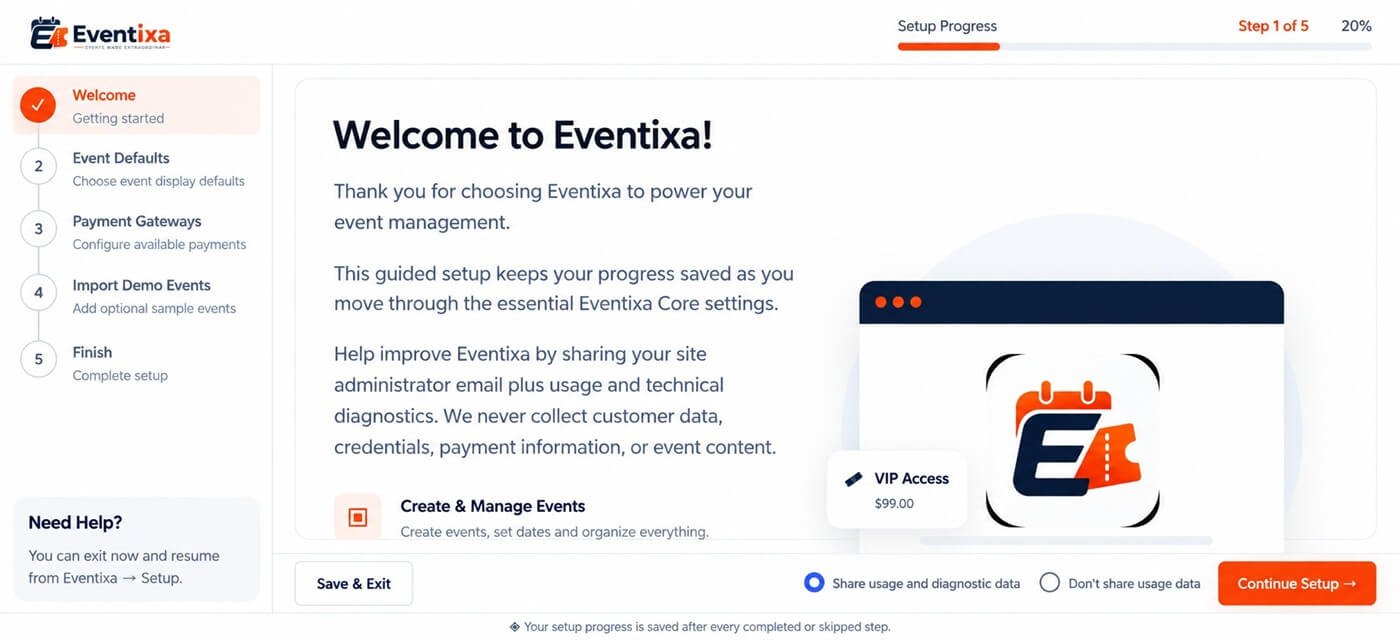
The Eventixa Setup Wizard helps you configure the most important settings before creating your first live event.
Use it to set your timezone, date and time format, event display preferences, guest checkout, currency, and payment options.
Available in: Eventixa Core
Location: Eventixa → Setup Guide
Settings can be changed later from: Eventixa → Settings
Open the Setup Wizard
From your WordPress dashboard, go to: Eventixa → Setup Guide
The wizard guides you through the essential Eventixa configuration.
General Settings
Start by configuring the basic event settings.
| Setting | What it controls |
|---|---|
| Timezone | Event scheduling and time-based functionality |
| Date Format | How dates appear throughout Eventixa |
| Time Format | 12-hour or 24-hour time display |
Use the timezone that matches how your events are scheduled.
Correct timezone configuration is especially important for:
- Event start and end times
- Ticket sale schedules
- Recurring events
- Reminder emails
- Virtual meetings
- Waitlist expiration
- Check-in
Event Display
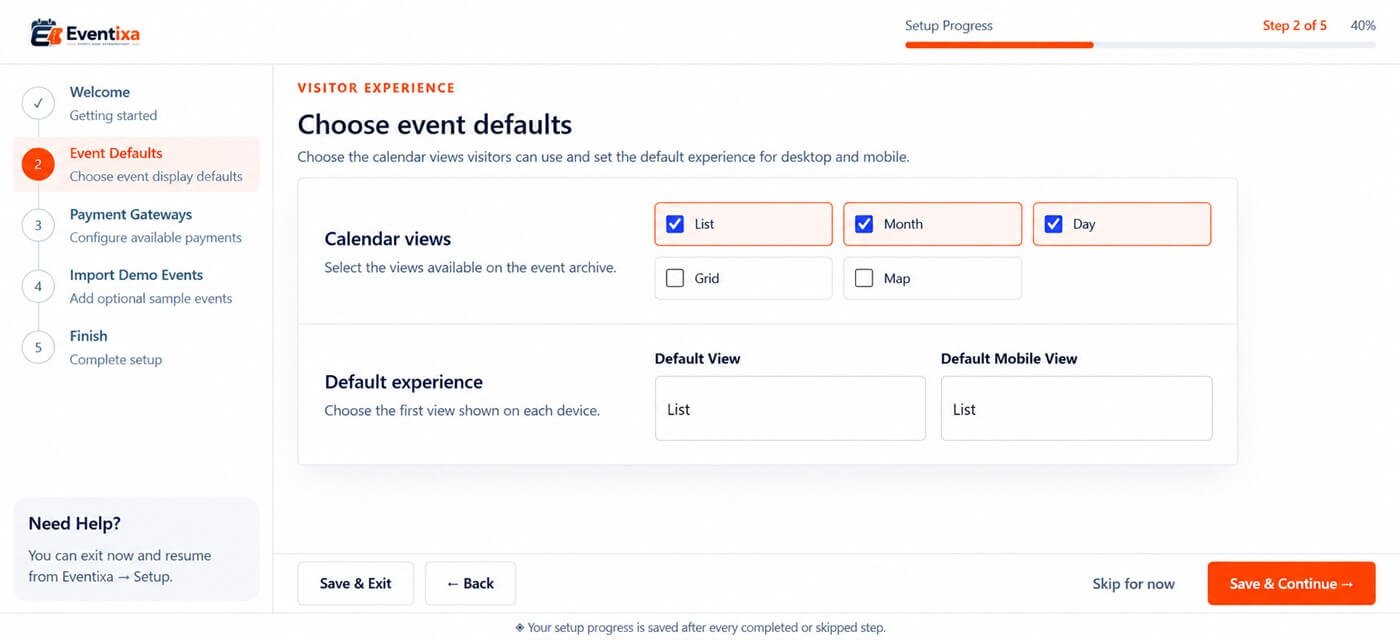
Configure how visitors browse your events.
| Setting | Description |
|---|---|
| View | Available event display style |
| Default View | View shown when visitors first open the event listing |
| Events Per Page | Number of events displayed before pagination |
| Enable Filters | Shows available event filtering controls |
Depending on your Eventixa configuration, available views can include:
- List
- Month
- Day
For most general event directories, List is a practical starting option.
Guest Checkout
Enable guest checkout if visitors should be able to register without signing into a WordPress account.
Guest checkout is useful for:
- Public events
- Conferences
- Workshops
- Webinars
- Community events
If your site requires customer accounts, you can keep guest checkout disabled.
You can change this later from the Eventixa settings.
Currency
For paid events, configure the currency used for ticket prices and payments.
| Setting | Description |
|---|---|
| Currency Code | Currency used for ticket prices |
| Currency Position | Position of the currency symbol relative to the amount |
Examples of currency codes include:
- USD
- EUR
- GBP
- INR
Make sure your currency matches the payment method you intend to use.
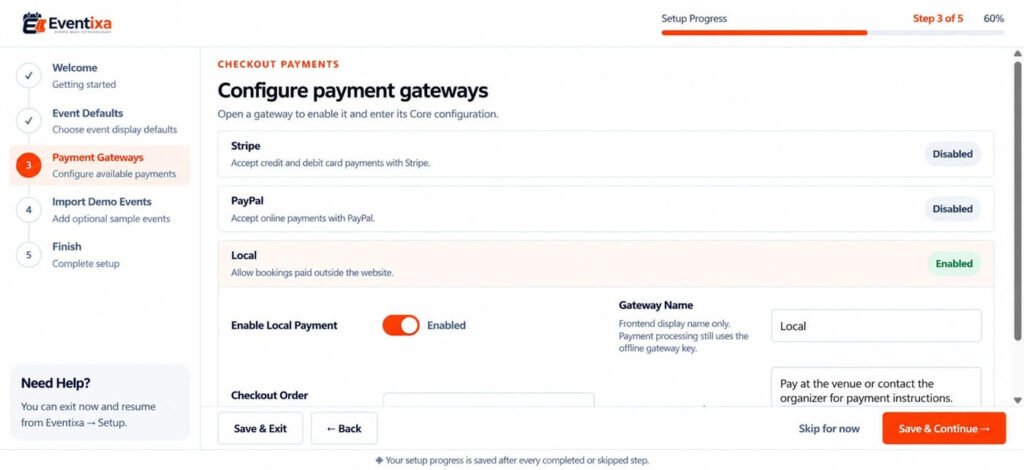
PayPal
Eventixa Core can support PayPal payments.
If you plan to use PayPal, enter the required credentials during setup.
Before accepting live payments, verify that:
- The credentials are correct.
- The appropriate PayPal environment is selected.
- A test payment completes successfully.
- The Eventixa booking status updates correctly.
For detailed setup, see PayPal Payments when that documentation is available.
Offline Payment
Offline Payment can be used when attendees pay outside the online checkout process.
Examples include:
- Bank transfer
- Cash
- Manual payment
- Other organizer-defined methods
Add clear payment instructions so customers understand how to complete payment after creating a booking.
WooCommerce
If WooCommerce is installed, the Setup Wizard can include an option to enable the Eventixa WooCommerce workflow.
Enable it if you want supported Eventixa ticket purchases to use WooCommerce checkout.
For detailed configuration, see WooCommerce Integration when that documentation is available.
Complete the Setup
After reviewing the available settings, complete the wizard.
Eventixa saves the selected configuration and you can continue with event creation.
You do not need to run the Setup Wizard every time you create an event.
Change Settings Later
Most Setup Wizard options can be changed later from: Eventixa → Settings
The full settings area contains more detailed configuration for areas such as:
- General
- Display
- Tickets
- Payments
- Emails
- Integrations
- Advanced settings
- Advanced Fields
- License when Eventixa Pro is active
Recommended Starting Configuration
For a typical new Eventixa website:
| Area | Recommended starting point |
|---|---|
| Timezone | Match your event or website timezone |
| Date Format | Use the format familiar to your audience |
| Time Format | Choose 12-hour or 24-hour format |
| Default View | List for most event directories |
| Filters | Enable when you expect multiple events |
| Guest Checkout | Enable for public events if accounts are not required |
| Currency | Match your ticket pricing and payment gateway |
| Payments | Enable only the methods you intend to use |
You can adjust these settings later as your event workflow becomes more advanced.
Before Accepting Registrations
After completing the wizard, verify:
- Timezone is correct.
- Date and time display correctly.
- Currency is correct.
- Guest checkout behaves as expected.
- At least one payment method is configured for paid events.
Before opening paid registration, complete a test booking.
Troubleshooting
Setup Wizard Does Not Open
Go directly to: Eventixa → Setup Guide
If the page is still unavailable, confirm Eventixa Core is active.
A Payment Option Is Missing
Check the required plugin or Eventixa edition.
For example:
- Stripe requires Eventixa Pro.
- WooCommerce functionality requires WooCommerce to be installed.
- Other premium functionality requires Eventixa Pro.
Event Times Are Incorrect
Check:
- Eventixa timezone.
- WordPress timezone.
- Individual event date and time settings.
Resolve timezone issues before accepting live registrations.
Next Steps
Continue with:


