
Ticket Sale Schedule
Eventixa lets you control when each standard ticket becomes available and when ticket sales stop.
This is useful for early-bird tickets, registration deadlines, limited-time offers, and ticket tiers that should only be available during specific periods.
Available in: Eventixa Core
Location: Eventixa → Events → Edit Event → Tickets & RSVP → Edit Ticket
Related features: Ticket Capacity, Pricing, Checkout, Bookings
Open Ticket Sale Schedule
Go to: Eventixa → Events
Open the event you want to manage.
Then select: Event Settings → Tickets & RSVP
Create a new ticket or edit an existing ticket.
Find the Sale Schedule section.
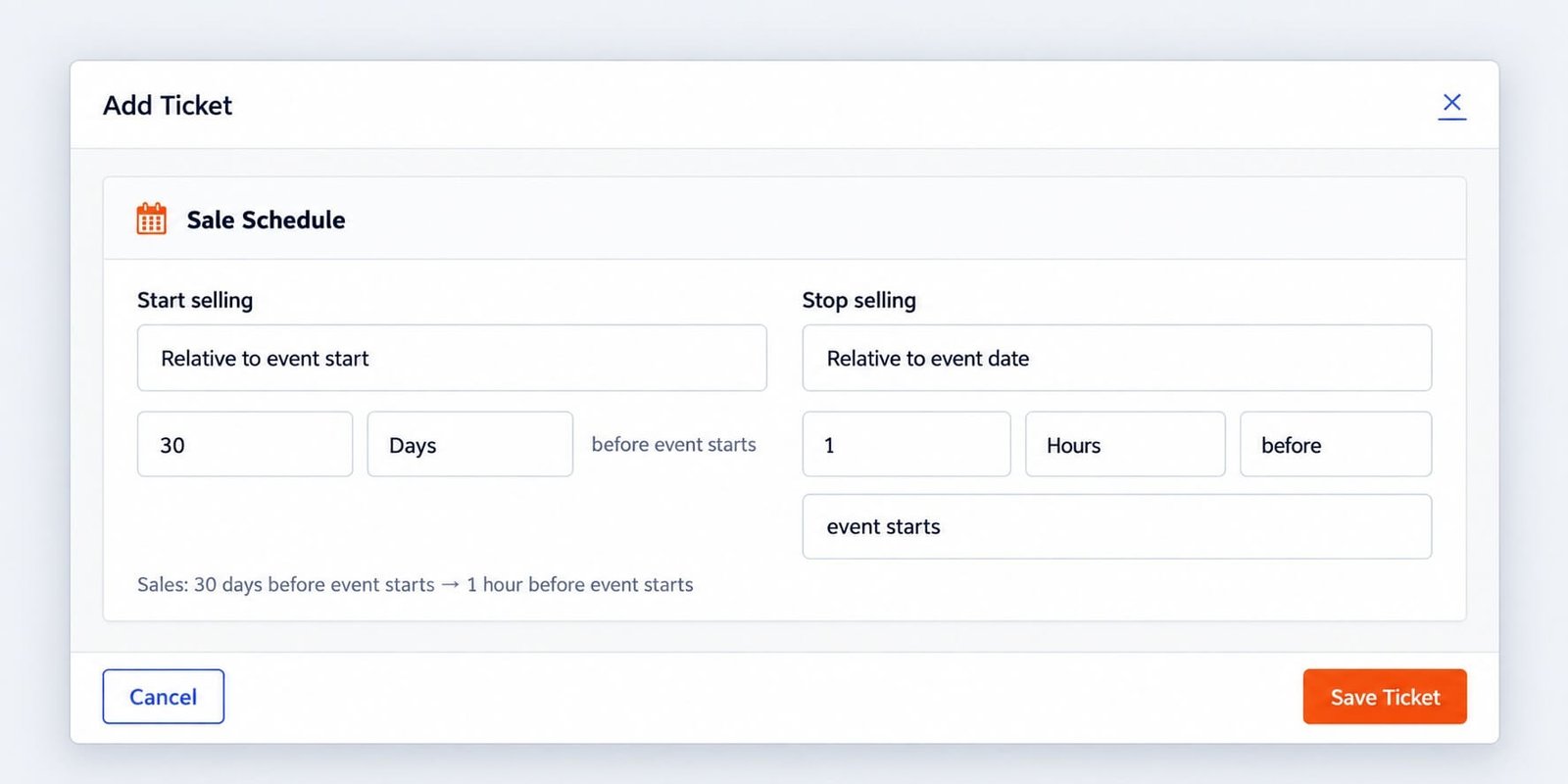
Sale Schedule Settings
The main controls are:
- Start selling
- Stop selling
These determine the window during which the ticket can be selected and purchased.
Start Selling
Use Start selling to control when the ticket becomes available.
For example:
Immediately
means the ticket can be sold as soon as the event and ticket are available.
This is useful for normal registration where no delayed launch is required.
Start Selling Immediately
Choose:
Immediately
when registration should open as soon as the ticket is published.
Typical use cases include:
- General Admission
- Open registration
- Free community events
- Standard event tickets
Start Selling at a Specific Time
If the available workflow lets you choose a specific sale start date and time, use it when registration should begin later.
For example:
Sale starts: October 1 at 9:00 AM
This is useful for:
- Registration launches
- Early-bird campaigns
- Member-only pre-sales
- Scheduled ticket releases
Stop Selling
Use Stop selling to determine when the ticket becomes unavailable.
One common option is: When event starts
This allows ticket sales to remain open until the event begins.
Stop Selling When Event Starts
Choose this when last-minute registrations are allowed.
For example:
Start selling: Immediately
Stop selling: When event starts
This keeps the ticket available until the event start time.
Stop Selling Before the Event
For some events, registration should close before the event begins.
This is useful when organizers need time to prepare:
- Attendee lists
- Catering
- Name badges
- Seating
- Printed materials
- Security lists
Set the sale end time early enough for operational preparation.
Early-Bird Ticket Example
A common setup is:
Early Bird
- Starts: Immediately
- Stops: October 1
General Admission
- Starts: October 1
- Stops: Event start
This creates a clear transition between ticket tiers.
Scheduled Ticket Release
You can also use sale schedules for tickets that should launch later.
For example:
VIP Ticket
- Starts: September 15
- Stops: Event start
Before September 15, the ticket remains unavailable.
Sale Schedule Summary
Eventixa can show a simple summary of the active schedule.
For example:
Sales: Immediately → When event starts
Use this summary to quickly confirm that the ticket timing matches your plan.
Sale Schedule and Ticket Availability
A ticket can have remaining capacity and still be unavailable if the sale window has not started or has already ended.
For example:
Capacity remaining: 100
Sale ended: Yes
The ticket should not be available for new registration.
Sale Schedule and Capacity
Sale schedule and capacity work together.
A ticket is available only when:
- Its sale window is active.
- Capacity remains or is unlimited.
- Ticket sales are enabled.
- The event is in a valid state for registration.
Ticket Sales Enabled
In the ticket settings, Eventixa can also provide an Enable ticket sales control.
If ticket sales are disabled, the ticket should not accept new registrations even if its sale schedule is otherwise active.
Disable Ticket Sales Temporarily
This can be useful when you want to pause registration without deleting the ticket.
Examples:
- Temporary operational pause
- Payment gateway maintenance
- Event details under review
- Registration intentionally paused
Re-enable sales when the ticket is ready again.
Sale Schedule and Free Tickets
Free standard tickets can also use sale schedules.
For example:
Free Student Registration
- Starts: September 1
- Stops: Event start
Even though no payment is required, Eventixa can still control when registration opens and closes.
Sale Schedule and Paid Tickets
Paid tickets use the same availability window.
For example: Standard Pass
- Price: $49
- Starts: Immediately
- Stops: 24 hours before event
Once sales stop, visitors can no longer purchase the ticket through the normal registration flow.
Sale Schedule and Sale Price
If your ticket also uses a sale price, make sure the sale price and sale timing work together logically.
For example:
- Regular price: $79
- Sale price: $59
- Early sale window: September 1–15
Do not leave promotional pricing active longer than intended.
Sale Schedule and Event Date Changes
If you change the event date, review all ticket sale schedules.
This is especially important when using: Stop selling → When event starts or when ticket sale dates were configured relative to the original event timeline.
Duplicated Events
When duplicating an event, review copied ticket sale schedules.
A duplicated event may still contain sale dates intended for the original event.
Always verify:
- Sale start
- Sale end
- Event date
- Event start time
before publishing the duplicated event.
Recurring Events
Recurring events require extra care because later occurrences may happen after the original ticket sale window.
If attendees should register for multiple occurrences, make sure the sale schedule does not close too early.
Review recurring ticket behavior separately.
Example: Registration Opens Next Month
Suppose the event is in December, but registration should open November 1.
Configure:
Start selling: November 1
Stop selling: When event starts
The ticket remains hidden or unavailable until the sale start is reached.
Example: Registration Closes 48 Hours Early
If you need attendee data two days before the event:
Start selling: Immediately
Stop selling: Two days before event
This gives the organizer time to prepare final materials.
Example: Tiered Ticket Strategy
An event could use:
Early Bird
Starts: Immediately
Stops: October 1
Standard
Starts: October 1
Stops: Event start
Last-Minute
Starts: Event week
Stops: Event start
This allows several ticket tiers to activate at different times.
Common Problems
Ticket Does Not Appear
Check:
- Sale start time
- Sale end time
- Ticket sales enabled
- Capacity
- Event status
Ticket Disappeared Too Early
Review the Stop selling value.
The sale may have ended before the event itself starts.
Ticket Is Available Too Early
Check the Start selling configuration.
Ticket Has Capacity but Cannot Be Purchased
Capacity alone does not make a ticket available.
Check whether the sale window is active.
Duplicated Event Uses Old Sale Dates
Edit each copied ticket and update its sale schedule.
Sale Summary Looks Wrong
Review both Start selling and Stop selling before saving the ticket.
Recommended Workflow
- Create or edit the ticket.
- Open Sale Schedule.
- Decide when sales should begin.
- Decide when sales should end.
- Review the schedule summary.
- Save the ticket.
- Preview the event before the sale starts.
- Test during the active sale window.
- Verify the ticket becomes unavailable after sales end.
Important Notes
- Sale schedule controls timing, not capacity.
- A ticket can have capacity but still be unavailable outside the sale window.
- Review schedules after changing the event date.
- Check copied schedules after duplicating an event.
- Use separate schedules for tiered ticket strategies.
- Test the frontend before opening registration.


