
Bulk Emails
Eventixa Bulk Emails let administrators send one-off messages to selected event registrants directly from the WordPress dashboard.
This is useful for operational communication such as venue changes, schedule updates, event instructions, urgent announcements, or other information that needs to reach a defined group of registrants.
Available in: Eventixa Core
Location: Eventixa → Bulk Emails
Related features: Bookings, Attendees, RSVP, Email Notifications, Reminder Emails
What Are Bulk Emails?
Bulk Emails are administrator-triggered messages sent to a selected audience.
Unlike automated transactional emails, Bulk Emails are sent manually when you decide communication is needed.
Typical use cases include:
- Venue changed
- Event start time changed
- New arrival instructions
- Parking information
- Important schedule update
- Virtual-event instructions
- General attendee announcement
Bulk Emails vs Automated Emails
These are different features.
Automated Email
Sent automatically because an Eventixa workflow occurred.
Examples:
- Booking confirmation
- Payment confirmation
- Ticket email
- Reminder email
Bulk Email
Sent manually by an administrator to a selected group.
Example:
The event entrance has moved to Gate B.
Use Bulk Emails for one-off communication rather than predictable transactional events.
Open Bulk Emails
From the WordPress dashboard, go to: Eventixa → Bulk Emails
The Bulk Emails screen lets you define:
- Audience
- Event
- Registration type
- Message content
- Recipient preview
The exact options depend on your current Eventixa installation.
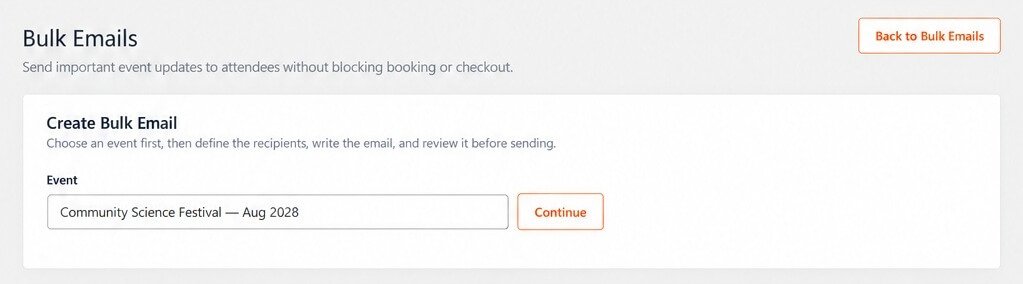
Select the Event
Start by selecting the event whose registrants should receive the message.
This prevents unrelated registrations from being included.
For recurring events, review the available occurrence selection carefully where applicable.
Recipient Filtering
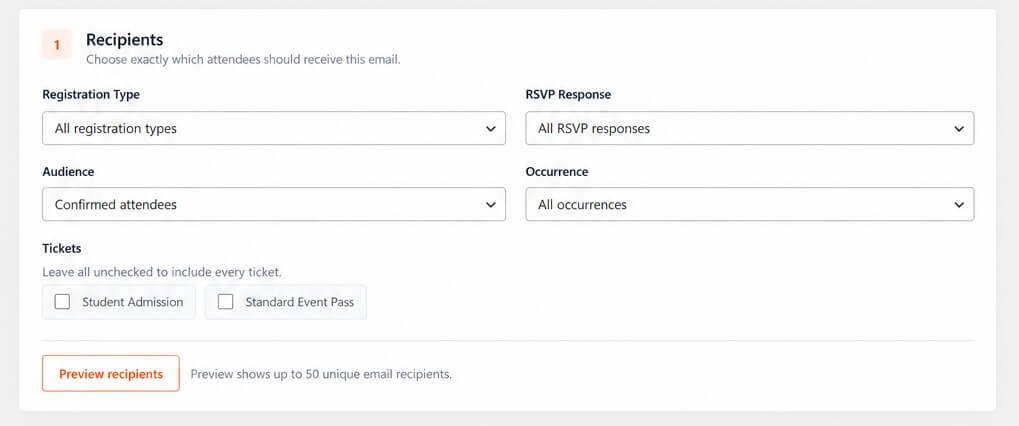
Bulk Emails can use registration-related filters to narrow the audience.
A key filter is: Registration Type
The available filtering behavior can include groups such as:
- Standard
- RSVP
- All
Use this to make sure the message goes only to the relevant registration audience.
Standard Registrations
Choose Standard when the message should target normal Eventixa ticket registrations.
This can include:
- Paid tickets
- Free standard tickets
depending on the selected event and recipient criteria.
RSVP Registrations
Choose RSVP when the message should target RSVP registrations.
This is useful when RSVP attendees require different communication from paid or standard ticket holders.
All Registrations
Choose All when the message is relevant to every eligible registration type for the selected event.
Use this carefully.
Before sending, preview the recipients so you know exactly who will receive the message.
Recipient Preview
Eventixa provides a recipient preview so administrators can review the target audience before sending.
This is one of the most important steps in the Bulk Email workflow.
Always preview recipients before clicking Send.
Why Preview Matters
A recipient preview helps prevent mistakes such as:
- Emailing the wrong event
- Including RSVP attendees unintentionally
- Excluding standard registrants
- Sending to a broader audience than expected
Treat the preview as your final audience check.
Recipient Count
Where displayed, review the number of recipients before sending.
For example:
Recipients: 128
If the number seems unexpectedly high or low, stop and review your filters.
Purchasers vs Attendees
One booking can have a purchaser who is different from the attendee.
Depending on the Bulk Email workflow, recipients should be interpreted according to the selected registration data.
Before sending operational attendee communication, verify which email addresses are represented in the preview.
Multiple Attendees in One Booking
A single booking can contain several attendee records.
For example:
- John Paul
- Jane Paul
- Alex Paul
If each attendee has their own email address, the eligible recipient set may contain multiple people from one booking.
Duplicate Email Addresses
Two attendee records can sometimes use the same email address.
Review the recipient preview if duplicate communication is a concern.
Do not assume every attendee necessarily has a unique inbox.
RSVP Going and Not Going
When sending to RSVP registrants, consider whether the message is appropriate for both:
- Going
- Not Going
If the communication is only for people who are attending, use the available filters or recipient logic that matches your Eventixa setup.
Do not send attendance instructions to people who explicitly responded Not Going unless there is a real reason.
Registration Status
Before sending a bulk email, consider whether cancelled or otherwise inactive registrations should be included.
Operational event messages should generally target currently relevant registrations.
Use the available Eventixa filters and preview to confirm the audience.
Recurring Events
Recurring events require additional care.
A message for: August 16 should not accidentally go to attendees registered only for: August 23
Where occurrence-aware filtering is available, select the correct occurrence.
Example Recurring Event Announcement
Suppose one occurrence changes venue: Community Science Festival — August 16
Do not send the update to every occurrence unless the change applies to all dates.
Virtual Events
Bulk Emails are useful for Virtual and Hybrid events when administrators need to send:
- Last-minute instructions
- Technical guidance
- Access-related updates
- Schedule changes
Do not use Bulk Emails to bypass Eventixa’s managed virtual-access rules.
Zoom or Google Meet Links
If Eventixa manages Zoom or Google Meet access, avoid manually pasting sensitive managed join URLs into a broad email unless that matches the intended access workflow.
Use the Eventixa virtual-access system whenever possible.
Custom Meeting URL
For a Custom Meeting URL, bulk communication can be useful if the organizer intentionally needs to send or update access instructions.
Verify the URL before sending.
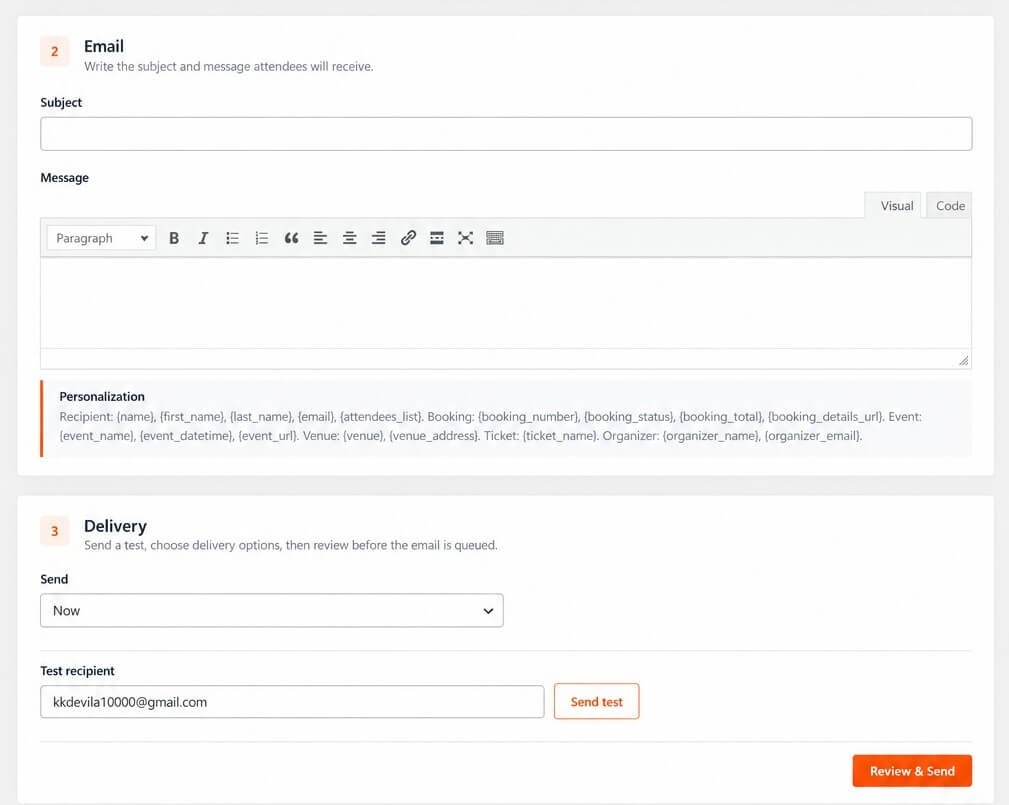
Subject Line
Use a clear subject that tells recipients why the email matters.
Good examples:
Venue Update for Community Science Festival
Important: Event Start Time Changed
Virtual Event Access Information
Avoid vague subjects such as: Update
Message Body
Keep the message concise and actionable.
A useful bulk message should answer:
- What changed?
- Which event?
- When does it apply?
- What should the attendee do?
Example Venue Update
Subject: Venue Update for Community Science Festival
Message:
The event venue has changed to Hall B.
Please arrive at Hall B for the August 16 session.
Everything else remains unchanged.
This is clearer than a long general announcement.
Example Schedule Update
Subject: Event Start Time Updated
Message:
The event will now begin at 10:30 AM instead of 10:00 AM.
Please plan your arrival accordingly.
Example Virtual Event Message
Subject: Important Information for Tomorrow’s Online Event
Message:
Your event begins tomorrow at 2:00 PM.
Please review your registration and virtual access information before the session begins.
Use Relevant Event Information
Whenever possible, clearly identify:
- Event title
- Event date
- Occurrence
- Updated instruction
This is especially important if attendees registered for multiple events.
Do Not Use Bulk Emails for Ticket Re-Send
If one attendee needs another copy of their ticket, use:
Re-Send Ticket
rather than sending a Bulk Email to the entire audience.
Bulk Email is for group communication.
Do Not Use Bulk Emails for Routine Booking Confirmations
Booking confirmations should use Eventixa’s automated email templates.
Do not manually send Bulk Emails after every booking.
Bulk Emails vs Reminder Emails
Reminder Email
Scheduled relative to event start.
Bulk Email
Manually triggered whenever necessary.
Use Reminder Emails for predictable pre-event communication.
Use Bulk Emails for unexpected or one-off updates.
Bulk Emails and MailPoet
MailPoet integration serves a different purpose from Eventixa Bulk Emails.
MailPoet can synchronize selected registration contacts into a marketing/list workflow.
Eventixa Bulk Emails are direct event-specific administrative messages.
Bulk Emails and Mailchimp
Mailchimp requires Eventixa Pro
Mailchimp integration is also separate from Eventixa’s built-in Bulk Email feature.
Use each tool according to its purpose.
Marketing vs Operational Email
Bulk Emails are best used for event-related operational communication.
If you want ongoing newsletters or broader marketing campaigns, a dedicated email marketing platform such as MailPoet or Mailchimp may be more appropriate.
Consent Considerations
Use attendee email addresses responsibly.
Do not automatically treat an event registration as permission for unrelated marketing.
Keep Bulk Emails relevant to the event unless your own consent process supports broader communication.
Email Delivery
Bulk Emails use the site’s WordPress mail environment.
Delivery can depend on:
- Hosting
- SMTP
- Transactional email provider
- Sending domain
- Spam filtering
- Recipient provider
For production use, reliable SMTP is strongly recommended.
Large Recipient Lists
Large email sends can put additional load on the site and mail server.
If you regularly communicate with very large audiences, review:
- Server email limits
- SMTP provider limits
- Sending reputation
- Batch behavior
Use a dedicated email service when appropriate.
Avoid Sending Repeatedly
Before clicking Send again, verify whether the original bulk email was already processed.
Repeated sends can result in duplicate messages.
Test Before Large Send
Before sending an important email to hundreds of recipients, test with a small or controlled audience where possible.
Verify:
- Subject
- Formatting
- Links
- Event details
- Sender
- Reply address
Links in Bulk Emails
If your message contains links, test them before sending.
Confirm:
- URL is correct
- Link opens
- Event page exists
- No staging or localhost URL is included
Sensitive Information
Never send confidential administrative information through a bulk attendee email.
Do not include:
- API keys
- Payment credentials
- Internal notes
- Passwords
- Sensitive transaction data
Booking and Attendee Privacy
Bulk email recipients should not be able to see other recipients’ private information.
The sending workflow should not expose a public list of recipient email addresses.
Internal Notes
Eventixa booking or attendee internal notes should not be included in Bulk Emails.
They are administrative information.
Coupons in Bulk Emails
You can communicate an Eventixa coupon code through a Bulk Email when appropriate.
For example:
Use code THANKYOU20 for 20% off another eligible event.
Only do this when the promotion and audience are intentional.
Event Cancellation Announcement
If an entire event is cancelled, Bulk Emails can help communicate the cancellation quickly.
However, remember that customer booking cancellation and refund workflows still need to be handled separately.
Sending an email does not cancel bookings or return money.
Emergency Event Update
Bulk Emails are useful for operational emergencies such as:
- Venue closure
- Severe weather
- Last-minute access change
For truly urgent communication, consider whether email alone is sufficient for your audience.
Preview Before Every Send
Even if you have sent similar messages before, preview the recipients every time.
Filters, bookings, and registrations may have changed.
Common Problems
Recipient Count Is Zero
Check:
- Event selection
- Registration Type
- Registration records
- Recipient eligibility
Wrong Recipients Appear
Review the selected event and registration filters.
RSVP Registrants Are Missing
Make sure RSVP or All is selected where appropriate.
Standard Registrations Are Missing
Check that Standard or All is selected.
Recurring Event Audience Is Wrong
Verify the selected occurrence.
Cancelled Attendees Are Included
Review status-based eligibility and recipient preview before sending.
Email Was Sent Twice
Check whether the Send action was triggered more than once.
Email Does Not Arrive
Check:
- Recipient address
- WordPress mail
- SMTP
- Mail logs
- Spam folder
Some Recipients Receive Email and Others Do Not
Review:
- Valid email addresses
- Recipient filters
- SMTP delivery logs
- Mail provider limits
Email Contains Wrong Event Information
Confirm you selected the correct event and occurrence before sending.
Recommended Bulk Email Workflow
- Go to Eventixa → Bulk Emails.
- Select the event.
- Select the correct occurrence if applicable.
- Choose Registration Type:
- Standard
- RSVP
- All
- Review any additional recipient filters.
- Preview recipients.
- Verify recipient count.
- Verify sample recipients.
- Enter a clear subject.
- Write the message.
- Check event date and instructions.
- Test all links.
- Send the email.
- Review delivery logs where available.
Recommended Pre-Send Checklist
Before sending, confirm:
- Correct event selected.
- Correct occurrence selected.
- Correct registration type selected.
- Recipient preview is accurate.
- Recipient count looks reasonable.
- Subject is clear.
- Message is concise.
- Event date/time is correct.
- Links work.
- No confidential information is included.
- SMTP is functioning.
Example Workflow: Standard Ticket Holders
Suppose only paid/free standard ticket holders need a venue update.
- Select event.
- Set Registration Type to Standard.
- Preview recipients.
- Confirm RSVP records are not included.
- Write the venue update.
- Send.
Example Workflow: RSVP Audience
Suppose RSVP attendees need an arrival instruction.
- Select event.
- Set Registration Type to RSVP.
- Review recipients.
- Confirm the message is appropriate for the RSVP audience.
- Send.
Example Workflow: Everyone
Suppose the entire event is delayed by one hour.
- Select event.
- Choose All.
- Preview recipients.
- Confirm both Standard and RSVP registrations are represented as intended.
- Send the update.
Important Notes
- Bulk Emails are available from Eventixa → Bulk Emails.
- They are manually triggered and are different from automated transactional emails.
- Registration Type filtering supports targeted recipient selection such as Standard, RSVP, or All.
- Always use Recipient Preview before sending.
- Take extra care with recurring-event occurrences.
- Bulk Emails are useful for one-off event announcements and operational updates.
- Do not use them as a replacement for booking confirmations or ticket re-send.
- Event cancellation emails do not automatically cancel bookings or process refunds.
- Use attendee email information responsibly and keep messages relevant to the event.
- Reliable SMTP is strongly recommended for production delivery.


