
Skip to content
  • Home
  • Features
    • Event Management
    • Email Notifications
    • Payment Processing
    • Recurring Events
  • Documentation
  • Pricing
  • Contact Us
  • Live Demo
    • Simple Event
    • Recurring Event
    • Virtual Event
    • Free Event
    • Paid Event
    • RSVP Event
    • Waitlist Event

EARLY ADOPTER OFFER — Eventixa Pro: $49/year $0 (FREE) · First 100 Pro subscriptions only. Get Pro Free →

Eventixa – Events Calendar, Tickets and Bookings
  • Home
  • Features
    • Event Management
    • Email Notifications
    • Payment Processing
    • Recurring Events
  • Documentation
  • Pricing
  • Contact Us
  • Live Demo
    • Simple Event
    • Recurring Event
    • Virtual Event
    • Free Event
    • Paid Event
    • RSVP Event
    • Waitlist Event
Get Started

EARLY ADOPTER OFFER — Eventixa Pro: $49/year $0 (FREE) · First 100 Pro subscriptions only. Get Pro Free →

Eventixa – Events Calendar, Tickets and Bookings

Getting Started

  • Welcome to Eventixa
  • How to Install Eventixa on WordPress
  • How to Install and Activate Eventixa Pro
  • Setup Wizard
  • Eventixa Admin Dashboard Overview
  • Create Your First Event
  • Eventixa Core vs Pro

Event Management

  • Events Overview
  • Creating an Event
  • Editing and Managing Events
  • Duplicating an Event
  • Event Date and Time Settings
  • Event Categories
  • Venues
  • Organizers
  • Event Archive and Listings
  • Single Event Page
  • Event Templates & Overriding
  • Eventixa Design System

Speakers, Performers & Event Agenda

  • Creating Event Sessions
  • Speakers & Performers Overview
  • Speaker & Performer Groups
  • Creating Speakers & Performers
  • Adding Speakers & Performers to Events
  • Sessions & Event Agenda
  • Recurring Event Agendas

In-Person, Virtual & Hybrid Events

  • In-Person, Virtual & Hybrid Events
  • Virtual Event Access
  • Custom Meeting URL

Tickets & Registration

  • Ticket Management Overview
  • Creating Event Tickets
  • Free and Paid Tickets
  • RSVP Tickets
  • Ticket Capacity and Availability
  • Ticket Sale Schedule
  • Ticket Quantity Rules
  • Attendee Registration Fields
  • Advanced Attendee Fields

Recurring Events

  • Recurring Events Overview
  • Creating a Recurring Event
  • Managing Event Occurrences
  • Recurring Event Tickets
  • Recurring Virtual Events

Checkout & Bookings

  • Checkout Overview
  • Guest Checkout
  • Managing Bookings
  • Booking Details
  • Booking Statuses
  • Manual Bookings
  • Canceling and Refunding Bookings
  • Booking Emails

Attendees

  • Managing Attendees
  • Add and Edit Attendees
  • Resend Event Tickets

Coupons & Discounts

  • Event Coupons Overview
  • Creating a Coupon
  • Advanced Coupon Rules

Payments

  • Payment Overview
  • Currency Settings
  • Stripe Payment
  • PayPal Payment
  • WooCommerce Integration
  • Offline Payment
  • Payment Statuses
  • Transactions
  • Refunds

Emails & Bulk Emails

  • Email Notifications Overview
  • Customer Emails
  • Administrator Emails
  • Email Templates
  • Email Placeholders
  • Reminder Emails
  • Bulk Emails

QR Tickets & Check-In

  • QR Tickets
  • Event Check-In
  • QR Scanner

Waitlist

  • Event Waitlist Overview
  • Enable Waitlist for an Event
  • Waitlist Reservations & Offers
  • Managing the Waitlist
  • Waitlist Emails

Reports

  • Reports Overview
  • Event Reports
  • Ticket & Registration Reports
  • Revenue Reports
  • Filtering Reports

Integration

  • Integrations Overview
  • MailPoet Integration
  • Mailchimp Integration
  • WooCommerce Integration
  • Zoom Integration
  • Google Meet Integration
  • Webhooks

Migration

  • Migration Overview
  • Migration from The Events Calendar
  • Supported Migration Data
  • Recurring Event Migration
  • Migration Warnings & Troubleshooting

My Account & Customer Experience

  • Eventixa My Account
  • Viewing Event Bookings
  • Viewing Event Tickets

Shortcodes, Blocks & Display

  • Eventixa Shortcodes
  • Gutenberg Blocks
  • Elementor Integration

Settings

  • Eventixa Settings Overview
  • General Settings
  • Display Settings
  • Ticket Settings
  • Payment Settings
  • Email Settings
  • Integration Settings
  • License Settings

Troubleshooting

  • Troubleshooting Overview
  • Ticket Availability Problems
  • Checkout Problems
  • Payment Problems
  • Email Delivery Problems
  • Virtual Event Integration Problems
  • QR Ticket & Check-In Problems
View Categories
  • Home
  • Documentations
  • Speakers, Performers & Event Agenda
  • Creating Speakers & Performers

Creating Speakers & Performers

0:00 / 4:20
  • View as Markdown Open this page as plain Markdown (opens in a new tab)
  • Open in ChatGPT Ask questions about this page (opens in a new tab)
  • Open in Claude Ask questions about this page (opens in a new tab)
  • Open in Google AI Studio Ask questions about this page (Google account required) (opens in a new tab)

Eventixa lets you create reusable profiles for speakers, performers, presenters, panelists, hosts, and other event participants.

Once created, a profile can be reused across multiple events and sessions.

Available in: Eventixa Core
Location: Eventixa → Speakers & Performers → Add New Speaker / Performer
Related features: Events, Sessions, Event Agenda, Speaker & Performer Groups

Open the Add Speaker / Performer Screen

Go to: Eventixa → Speakers & Performers

Click: Add New Speaker / Performer

This opens the participant profile editor.
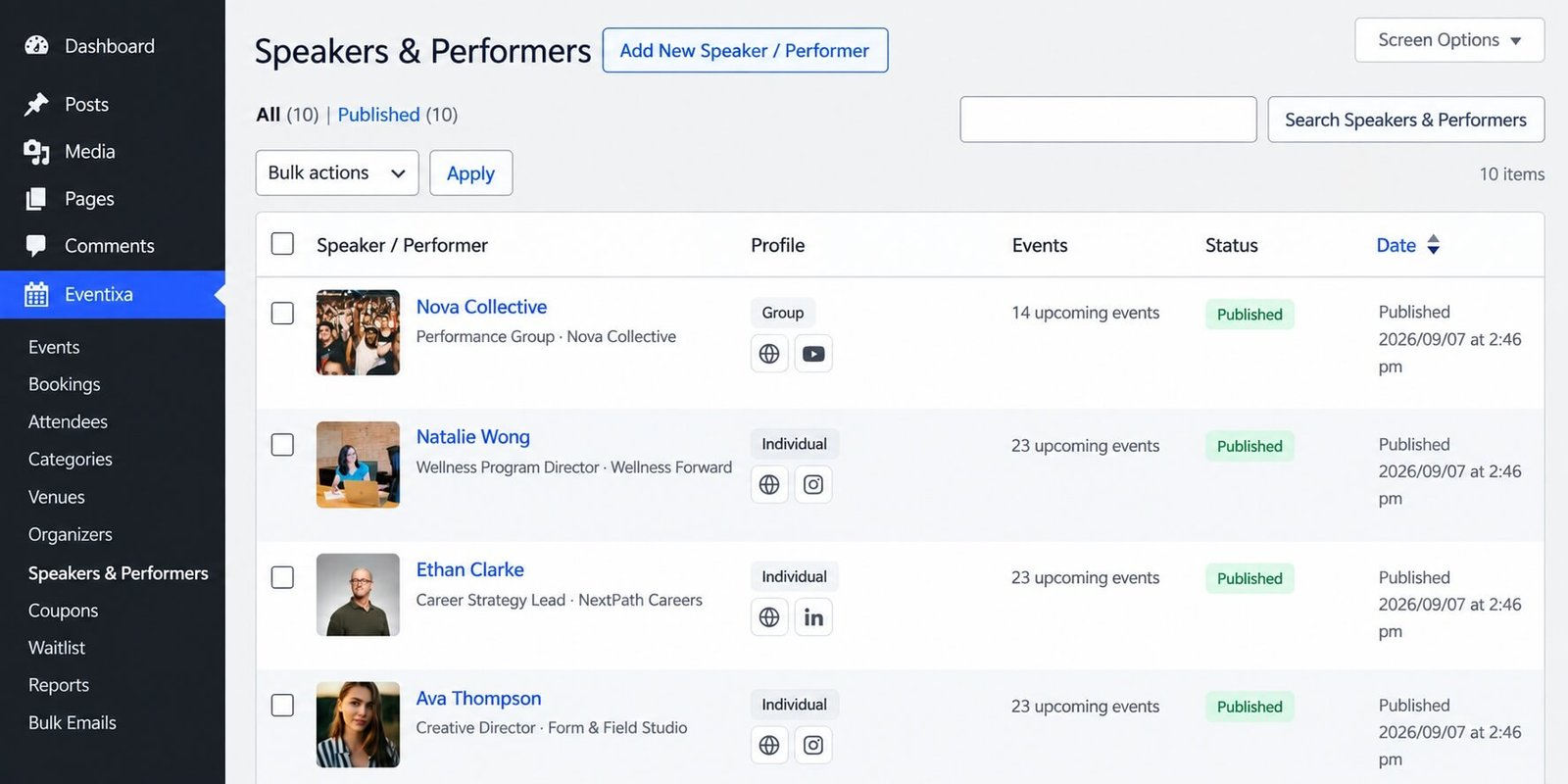
Create a new speaker or performer profile in Eventixa
Create a reusable participant profile from Eventixa → Speakers & Performers → Add New Speaker / Performer.

Enter the Participant Name

Add the public name of the participant.

Examples:

  • Natalie Wong
  • Ethan Clarke
  • Nova Collective
  • Creative Arts Ensemble

Use the name you want visitors to see on the frontend.

Choose the Profile Type

Eventixa supports participant profiles such as:

  • Individual
  • Group

Use Individual for a single speaker, presenter, host, moderator, or performer.

Use Group for:

  • Bands
  • Performance teams
  • Speaker panels
  • Creative groups
  • Other multi-person participant profiles

Add the Role or Designation

Enter the participant’s role or professional designation.

Examples:

  • Product Strategy Director
  • Creative Director
  • Wellness Program Director
  • Keynote Speaker
  • Performer
  • Moderator

This helps visitors understand why the participant is involved in the event.

Add Organization Information

If relevant, add the participant’s company or organization.

For example:

Name: Natalie Wong
Role: Wellness Program Director
Organization: Wellness Forward

This information can appear alongside the participant profile.

Add a Biography

Write a concise biography describing the participant.

A good biography can include:

  • Professional background
  • Expertise
  • Relevant experience
  • Notable achievements
  • Event-related context

Avoid overly long biographies on event pages.

Add a Profile Image

Use a clear image that represents the participant.

For individuals, use:

  • Professional headshot
  • Speaker portrait
  • Performer publicity image

For groups, use:

  • Group photo
  • Band image
  • Team image

Use consistent image dimensions across your participant profiles where possible.

Add Website and Social Profiles

Eventixa participant profiles can include supported profile links.

Depending on the available fields, these can include:

  • Website
  • LinkedIn
  • Instagram
  • YouTube
  • Other supported social profiles

Only add public links that are relevant to the participant.

Profile Settings Explained

SettingPurpose
NamePublic participant name
Profile TypeIndividual or Group
Role / DesignationParticipant’s role or title
OrganizationCompany or organization
BiographyPublic profile description
Profile ImageParticipant image
WebsiteParticipant website
Social LinksPublic social profile links

Use accurate information because the same profile can be reused across multiple events.

Save the Profile

After entering the participant details:

  1. Review the profile.
  2. Confirm the name and image.
  3. Check website and social links.
  4. Publish or save the profile.

The participant becomes available for use in Eventixa events.

Find the Participant After Saving

Go back to:

Eventixa → Speakers & Performers

The profile should appear in the participant list.

The listing can show information such as:

  • Profile image
  • Name
  • Role
  • Organization
  • Profile type
  • Social/profile links
  • Number of upcoming events
  • Publication status

Create an Individual Speaker Example

Example:

FieldValue
NameEthan Clarke
TypeIndividual
RoleCareer Strategy Lead
OrganizationNextPath Careers
WebsiteParticipant website
LinkedInParticipant LinkedIn profile

This profile can later be assigned to one or more events and sessions.

Create a Performer Group Example

Example:

FieldValue
NameNova Collective
TypeGroup
RolePerformance Group
OrganizationNova Collective
WebsiteGroup website
YouTubeGroup channel

The group can then be added to music, entertainment, or cultural events.

Reusing Profiles

Do not create a duplicate profile every time the same person appears at another event.

Instead, reuse the existing profile.

For example:

Natalie Wong can participate in:

  • Wellness Leadership Workshop
  • Future of Health Conference
  • Community Wellness Summit

All three events can use the same participant profile.

Edit a Participant Later

Go to:

Eventixa → Speakers & Performers

Open the participant profile.

Update the required information and save it.

Because profiles are reusable, changes can appear on every event using that participant.

When to Create a Separate Profile

Create a new profile when:

  • It represents a different person or group.
  • The participant is genuinely a separate entity.
  • A group should have its own identity instead of using individual member profiles.

Do not create separate copies just because the same participant appears at different events.

Common Problems

Participant Does Not Appear in the List

Check that:

  • The profile has been saved or published.
  • You are viewing the correct Speakers & Performers screen.
  • The page has been refreshed.

Profile Image Is Missing

Check that a featured/profile image has been assigned and saved.

Social Link Does Not Appear

Confirm:

  • The URL is valid.
  • The correct social profile field is used.
  • The frontend layout supports that social icon or field.

Duplicate Profiles Were Created

Keep one canonical participant profile and remove unnecessary duplicates only after checking event and session usage.

Before Using the Profile

Check:

  • Name
  • Profile type
  • Role
  • Organization
  • Biography
  • Profile image
  • Website
  • Social links

Then continue by assigning the participant to an event.

Related Documentation

  • Speakers & Performers in Eventixa
  • Adding Speakers & Performers to Events
  • Speaker & Performer Groups
  • Sessions & Event Agenda
  • Single Event Page in Eventixa

Share This Article :

  • Facebook
  • X
  • LinkedIn
  • Pinterest
Speaker & Performer GroupsAdding Speakers & Performers to Events

Eventixa is a modern WordPress event management plugin for creating events, selling tickets, managing attendees, and delivering seamless booking experiences—all from a single platform.

Help Center

  • Documentation
  • Starter Guide
  • Contact Us

Features

  • Event Management
  • Email Notifications
  • Payment Processing
  • Recurring Events
  • Live Demo

Company

  • Contact Us
  • Privacy Policy
  • Refund Policy
  • T&Cs

Copyright © 2026 - All rights reserved.