
QR Scanner
Eventixa includes a dedicated check-in scanner that lets event staff validate attendee tickets using a device camera, compatible scanner input, or manual Ticket ID search.
The QR Scanner is designed for event-day entry, where staff need a fast way to find the attendee registration, verify the ticket, and complete check-in.
Available in: Eventixa Pro
Used for: Ticket validation and attendee check-in
Related features: QR Tickets, Event Check-In, Attendees, Recurring Events
What Is the QR Scanner?
The Eventixa QR Scanner is the event-entry interface used to locate a ticket and open its registration details.
The scanner page supports multiple lookup methods:
- Camera QR scanning
- Compatible scanner input
- Ticket ID search
This gives event staff a backup method if camera scanning is unavailable.
Open the Check-In Scanner
Open the Eventixa check-in scanner page from your configured Eventixa check-in workflow.
The page is titled: Event Check-in
The interface explains: Scan a ticket QR code, use a USB scanner, or enter the Ticket ID.
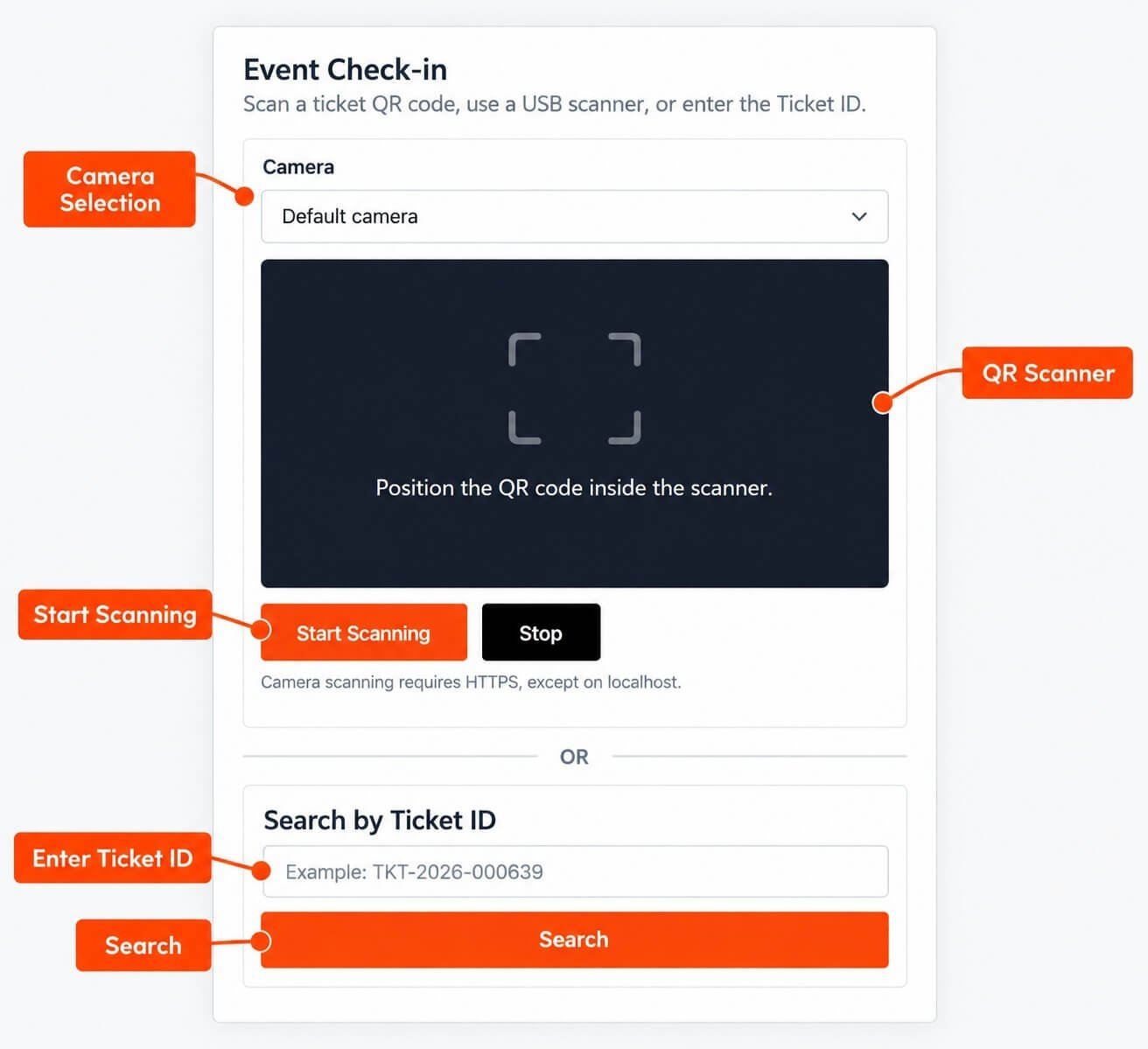
Scanner Interface
The scanner page contains two primary sections.
Camera Scanner
Used to scan the attendee’s QR ticket.
Search by Ticket ID
Used to locate the ticket manually if QR scanning is unavailable.
Select a Camera
At the top of the scanner interface, use the: Camera selector.
For example: Default camera
If the device provides multiple cameras, select the camera appropriate for scanning.
Mobile Devices
On phones or tablets, the rear-facing camera is generally more practical for scanning a ticket presented by another attendee.
If multiple cameras appear, choose the one that provides the clearest QR view.
Desktop or Laptop
A desktop or laptop can use an available webcam if browser and device permissions allow it.
For event entrances, a mobile device or dedicated scanner may be easier operationally.
Start Scanning
Click: Start Scanning to activate the camera scanner.
Then position the attendee’s QR code inside the scanner area.
The interface instructs: Position the QR code inside the scanner.
Stop Scanning
Click: Stop
when you no longer need the camera.
This is useful when:
- Switching to manual Ticket ID search
- Temporarily pausing check-in
- Changing devices
- Troubleshooting camera access
HTTPS Requirement
The scanner interface notes: Camera scanning requires HTTPS, except on localhost.
For a live Eventixa website, use HTTPS so browsers can grant camera access.
Browser Camera Permission
The browser may ask for permission to use the camera.
Choose the appropriate permission to allow scanning.
If camera access is denied, Eventixa cannot use the browser camera until permission is restored.
Scan a QR Ticket
A normal scan workflow is:
- Open the Event Check-in page.
- Select the correct camera.
- Click Start Scanning.
- Ask the attendee to show their QR ticket.
- Position the QR code in the scanner area.
- Let Eventixa read the ticket.
- Review the resulting Ticket Details.
- Verify attendee and event.
- Complete Check In.
Ticket Details Screen
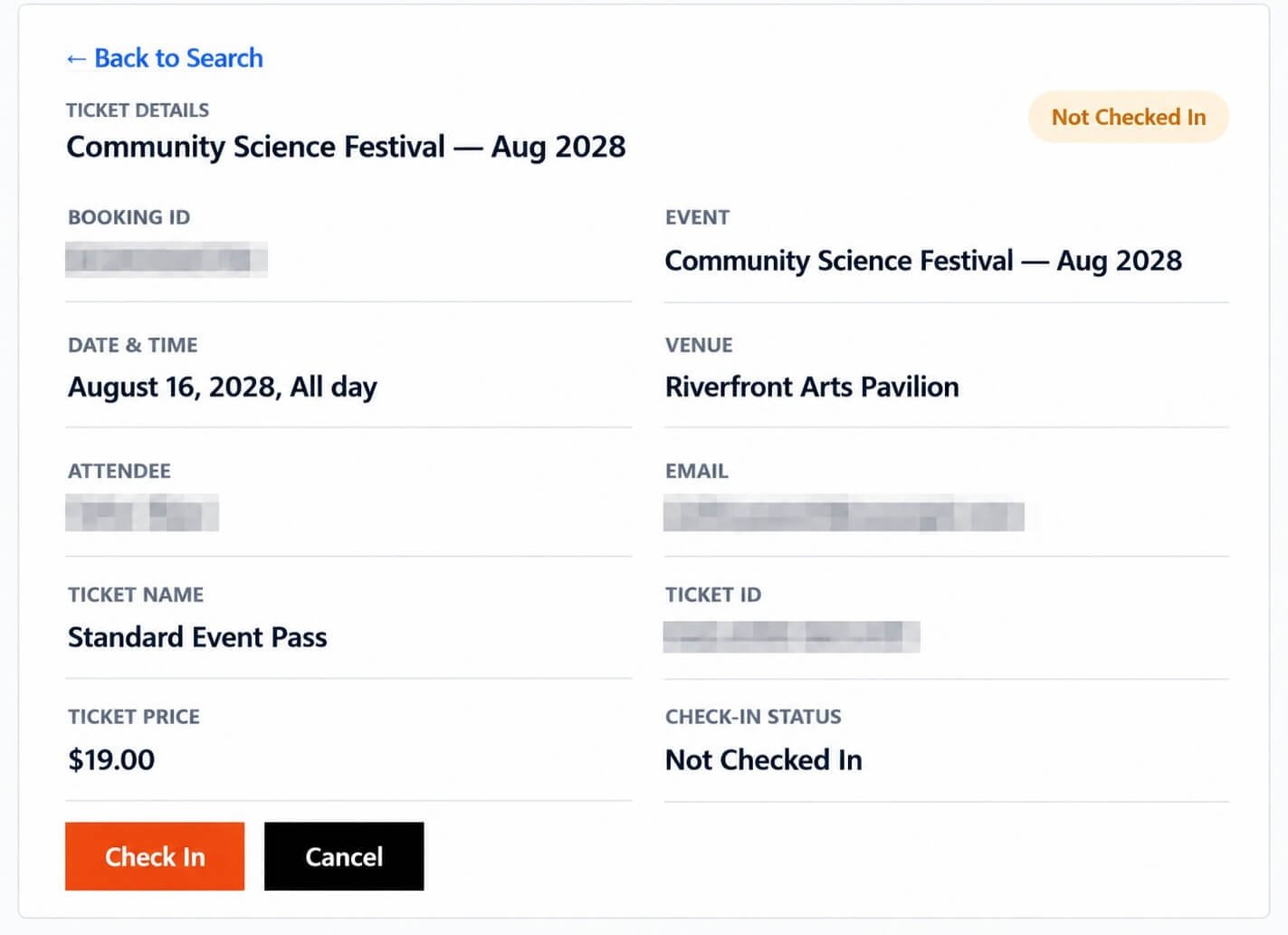
After a successful lookup, Eventixa can show a Ticket Details screen.
Your current interface displays fields including:
- Booking ID
- Event
- Date & Time
- Venue
- Attendee
- Ticket Name
- Ticket ID
- Ticket Price
- Check-In Status
This screen lets staff validate the registration before checking the attendee in.
Check-In Status
The Ticket Details screen clearly shows the current check-in state.
For example: Not Checked In
A status badge is also displayed near the top of the ticket details.
Check In Button
If the attendee is eligible and not yet checked in, click: Check In to record their attendance.
Do this only after verifying the ticket information.
Cancel
The Ticket Details screen also provides: Cancel
Use this when you do not want to continue with the check-in action.
Back to Search
Use: Back to Search to return to the scanner/search workflow.
This is useful when:
- Wrong ticket was scanned
- Wrong Ticket ID was entered
- You want to process the next attendee
Search by Ticket ID
If the QR code cannot be scanned, use: Search by Ticket ID
Enter the Ticket ID and click: Search
This provides a manual lookup alternative.
Example Ticket ID
A Ticket ID can follow an Eventixa-style format such as:
EVX-2026-001575
Use the exact Ticket ID printed on the attendee’s ticket.
Ticket ID vs Booking ID
Do not confuse these identifiers.
Ticket ID
Identifies the attendee ticket.
Booking ID
Identifies the Eventixa booking.
The scanner’s manual search is intended for the Ticket ID field shown in the scanner workflow.
QR Code vs Ticket ID Search
Both methods lead to the same goal: Locate the correct attendee ticket.
QR Code
Faster for normal event entry.
Ticket ID
Useful when:
- Camera does not work
- QR image is damaged
- Screen is cracked
- Printed ticket is unclear
- Attendee provides the Ticket ID directly
Compatible Scanner Input
The scanner page also indicates support for a USB scanner workflow.
A compatible scanner can provide an alternative to using a browser camera.
This can be useful at high-volume check-in desks.
Dedicated Scanner Workflow
With a compatible scanner:
- Open the Event Check-in page.
- Keep the ticket lookup interface ready.
- Scan the attendee QR ticket using the device.
- Review the resulting Ticket Details.
- Verify the attendee.
- Complete Check In.
Test the scanner hardware before event day.
Verify the Event
After scanning, confirm the displayed: Event
matches the event currently being checked in.
A valid Eventixa ticket for another event should not be admitted automatically.
Verify Date and Time
Check: Date & Time
This is particularly important for:
- Recurring events
- Multi-day events
- Similar event names
Verify Venue
The Ticket Details screen can also show: Venue
Use this as another check that the registration belongs to the intended event.
Verify Attendee
Confirm the attendee name shown on the ticket details.
Where required by your event policy, compare it with the person presenting the ticket.
Verify Ticket Name
The screen also shows: Ticket Name
For example: Standard Event Pass
This can help staff enforce ticket-specific access rules where applicable.
Verify Ticket Price
Ticket price may also appear on the Ticket Details screen.
This is useful context, but price alone should not be used as payment verification.
For financial questions, use the associated Eventixa booking.
Verify Booking
The scanner result can display the related: Booking ID
Use this to open the Eventixa booking if further investigation is needed.
Verify Email
The attendee email may be shown on the Ticket Details page.
Treat this as personal data and avoid exposing it unnecessarily at a public check-in desk.
Privacy at Check-In
Position devices so that unrelated attendees cannot easily view another attendee’s:
- Booking ID
- Ticket ID
- Personal information
Already Checked-In Ticket
If the attendee was previously checked in, the current check-in state should indicate that.
Do not treat another scan as a new attendee registration.
Duplicate Ticket Use
A copied or re-sent ticket can still represent the same attendee.
The scanner should be used to inspect the current registration and check-in state rather than trusting the QR image by itself.
Re-Sent Ticket
If an administrator re-sends an attendee ticket, the attendee does not receive another independent seat.
The newly delivered ticket still represents the existing registration.
Downloaded Ticket PDF
A downloaded Ticket PDF also represents the same attendee registration.
Whether the attendee presents:
- Original email ticket
- Re-sent ticket
- Printed copy
Eventixa should validate the underlying ticket registration.
QR Screenshot
A screenshot of a QR code may still be readable by the scanner.
This is why the real validation comes from Eventixa’s current ticket and attendee state.
Cancelled Registration
If the underlying attendee or booking has been cancelled, staff should not rely on an old QR image as proof of entry eligibility.
Review the current registration.
Refunded Booking
A refunded/cancelled attendee may still possess an old ticket.
The scanner workflow should be used together with current Eventixa registration information.
Pending Payment
If there is a financial concern, open the related booking and verify:
- Booking Status
- Payment Status
- Gateway
Do not assume a scannable QR code proves that payment succeeded.
Free Tickets
Eligible free registrations can use the QR Scanner normally.
Payment is not required simply to validate a free attendee ticket.
RSVP
Eligible RSVP attendance should respect the attendee’s current RSVP response.
A Not Going response should not normally be treated as an active attendee registration for entry.
Recurring Events
Recurring events require special attention during scanning.
Make sure the scanned ticket belongs to the occurrence being checked in.
For example: August 16, 2028 should not be confused with another occurrence of the same recurring event.
Occurrence Validation
When processing recurring events, verify:
- Event
- Occurrence date
- Ticket
- Attendee
before clicking Check In.
Camera Scanning Tips
For faster QR recognition:
- Use good lighting
- Clean the camera lens
- Keep QR code fully visible
- Avoid strong glare
- Hold devices steady
- Increase attendee screen brightness
Printed Ticket Tips
For printed tickets:
- Keep QR code flat
- Avoid folds through the QR
- Use clear printing
- Avoid very small scaling
If the print cannot be scanned, use Ticket ID search.
Scanner Does Not Detect QR Code
Try:
- Move QR closer/farther.
- Improve lighting.
- Increase phone brightness.
- Clean camera lens.
- Restart scanning.
- Use Ticket ID search.
Camera Does Not Start
Check:
- Site uses HTTPS
- Browser camera permission
- Camera is not being used by another app
- Correct camera selected
- Browser supports camera access
Camera Permission Was Blocked
Open the browser’s site permissions and restore camera access.
Reload the scanner page if required.
Wrong Camera Selected
Use the Camera selector to switch devices.
On mobile, try the rear camera.
QR Scan Opens Wrong Ticket
Do not check in immediately.
Verify the ticket details and use Back to Search if the result does not belong to the attendee.
Ticket ID Search Finds Nothing
Check:
- Ticket ID entered correctly
- No missing characters
- Correct Eventixa ticket
- Registration exists
Use the attendee/admin screens for additional investigation.
Ticket Shows Wrong Event
Do not admit the attendee for the current event.
Review their actual Eventixa registration.
Ticket Shows Wrong Occurrence
For recurring events, verify the date before taking action.
Attendee Is Not Checked In but Button Does Not Work
Check:
- Registration validity
- User permissions
- Browser/network
- Eventixa Pro/check-in functionality
Reload the Ticket Details page if necessary.
Scanner Page Is Too Slow
Check:
- Internet connection
- Device performance
- Browser
- Camera
- Other heavy WordPress scripts
For large events, test the intended hardware under realistic conditions before doors open.
Multiple Check-In Stations
For larger events, you may use more than one check-in device.
Make sure each staff member uses the live Eventixa system so attendee check-in states remain current.
Network Synchronization
When multiple staff members check attendees in, reliable network access is important.
A current attendee state helps prevent the same ticket from being accepted at two separate stations.
Staff Training
Before the event, staff should understand:
- Start Scanning
- Stop
- Ticket ID search
- Ticket Details
- Check-In Status
- Check In
- Back to Search
A short practice session can significantly speed up the real event.
Recommended Scanner Test
Before event day:
- Open the Event Check-in page.
- Select camera.
- Grant camera permission.
- Click Start Scanning.
- Scan a test ticket.
- Verify Ticket Details.
- Complete Check In.
- Scan the same ticket again.
- Verify already-checked-in state.
- Test Ticket ID search.
- Test Back to Search.
- Test on the actual event-day device.
Recommended Event-Day Workflow
For each attendee:
- Open scanner.
- Start camera.
- Scan QR ticket.
- Verify event.
- Verify date/occurrence.
- Verify attendee.
- Review check-in state.
- Click Check In.
- Return to search/scanner.
- Process next attendee.
Backup Workflow
If scanning fails:
- Ask for Ticket ID.
- Enter Ticket ID.
- Click Search.
- Verify Ticket Details.
- Check in attendee.
If the ticket still cannot be located:
- Search Eventixa Attendees.
- Open attendee record.
- Verify booking.
- Use manual check-in if appropriate.
Recommended Event-Day Checklist
Before opening:
- Site uses HTTPS.
- Camera permission works.
- Correct device camera is available.
- Test QR scans successfully.
- Ticket ID search works.
- Staff have Eventixa access.
- Venue internet is reliable.
- Manual attendee search is available.
- Recurring occurrence is correct.
- Staff understand duplicate/already-checked-in behavior.
Common Problems
Camera Scanner Is Blank
Verify HTTPS and browser camera permissions.
Start Scanning Does Nothing
Check the selected camera and browser permissions.
Scanner Reads No QR Codes
Test a known valid Eventixa ticket and improve lighting/focus.
Search by Ticket ID Returns No Result
Check the exact Ticket ID printed on the ticket.
Ticket Details Show Wrong Attendee
Do not check in. Return to search and investigate the registration.
Ticket Details Show Already Checked In
The attendee has already been recorded as checked in.
Customer Has a Ticket but Scanner Shows Invalid Registration
Review the current Eventixa attendee and booking state.
Scanner Works on Desktop but Not Mobile
Check mobile browser camera permission, HTTPS, and camera selection.
Scanner Works on One Phone but Not Another
Test browser/device compatibility and camera permission on the affected device.
Important Notes
- QR Scanner requires Eventixa Pro.
- The scanner page supports camera scanning and manual Ticket ID search.
- Camera scanning requires HTTPS except on localhost.
- Always review Ticket Details before completing Check In.
- A QR ticket represents an attendee registration, not an additional seat.
- Re-sent, downloaded, printed, or screenshot copies still refer to the underlying attendee ticket.
- Current registration and check-in state should determine entry eligibility.
- Recurring-event tickets must be checked against the correct occurrence.
- Keep Ticket ID search and manual attendee search available as backup workflows.
- Test the actual event-day devices before the event.


