
Recurring Event Tickets
Eventixa supports ticketing and registration for recurring events, allowing repeated event dates to use the Eventixa booking workflow without requiring you to manually rebuild the same event for every occurrence.
Recurring event ticket behavior works together with the event’s recurrence schedule, capacity, bookings, and occurrence records.
Available in: Eventixa Pro
Ticketing: Eventixa Core
Location: Eventixa → Events → Edit Event → Tickets & RSVP
Requires: Recurring Events enabled
Related features: Occurrences, Bookings, RSVP, Waitlist, Checkout
How Recurring Event Tickets Work
A recurring Eventixa event has:
- One recurring event configuration
- A generated occurrence schedule
- Ticket and registration settings
- Occurrence-aware booking data
The recurrence controls when the event happens.
The ticket configuration controls how attendees register.
Before You Begin
First create the recurring event.
Configure:
- Event date and time
- Recurrence rule
- Generated occurrences
Then open: Event Settings → Tickets & RSVP
Create the ticket or RSVP options for the event.
Standard Tickets
Recurring events can use normal Eventixa tickets.
A ticket can contain information such as:
- Ticket name
- Description
- Price
- Capacity
- Sale schedule
- Minimum quantity
- Maximum quantity
- Attendee fields
The same overall ticket configuration can participate in the recurring event workflow.
Create a Ticket
Open:
Event Settings → Tickets & RSVP
Click: Add New Ticket
Configure the ticket information and save it.
For example:
Ticket: General Admission
Price: $25
Capacity: 50
Occurrence-Aware Availability
For recurring events, ticket availability must account for the relevant event occurrence.
This prevents the registration system from treating the entire recurring series as one undifferentiated date.
Availability can depend on:
- Occurrence
- Existing bookings
- Capacity
- Pending reservations
- Ticket sale schedule
Capacity
Capacity controls how many registrations the ticket can accept.
For recurring events, always verify availability across more than one occurrence.
For example:
Ticket capacity: 50
If an occurrence already has 40 confirmed registrations, that occurrence should only have the remaining availability appropriate to its booking state.
Booking Association
Recurring event bookings need to remain associated with the correct occurrence.
This is important because two attendees may purchase the same ticket type for different dates.
For example:
- Attendee A → October 5 occurrence
- Attendee B → October 12 occurrence
Both can use General Admission, but the bookings refer to different occurrences.
Review Bookings by Occurrence
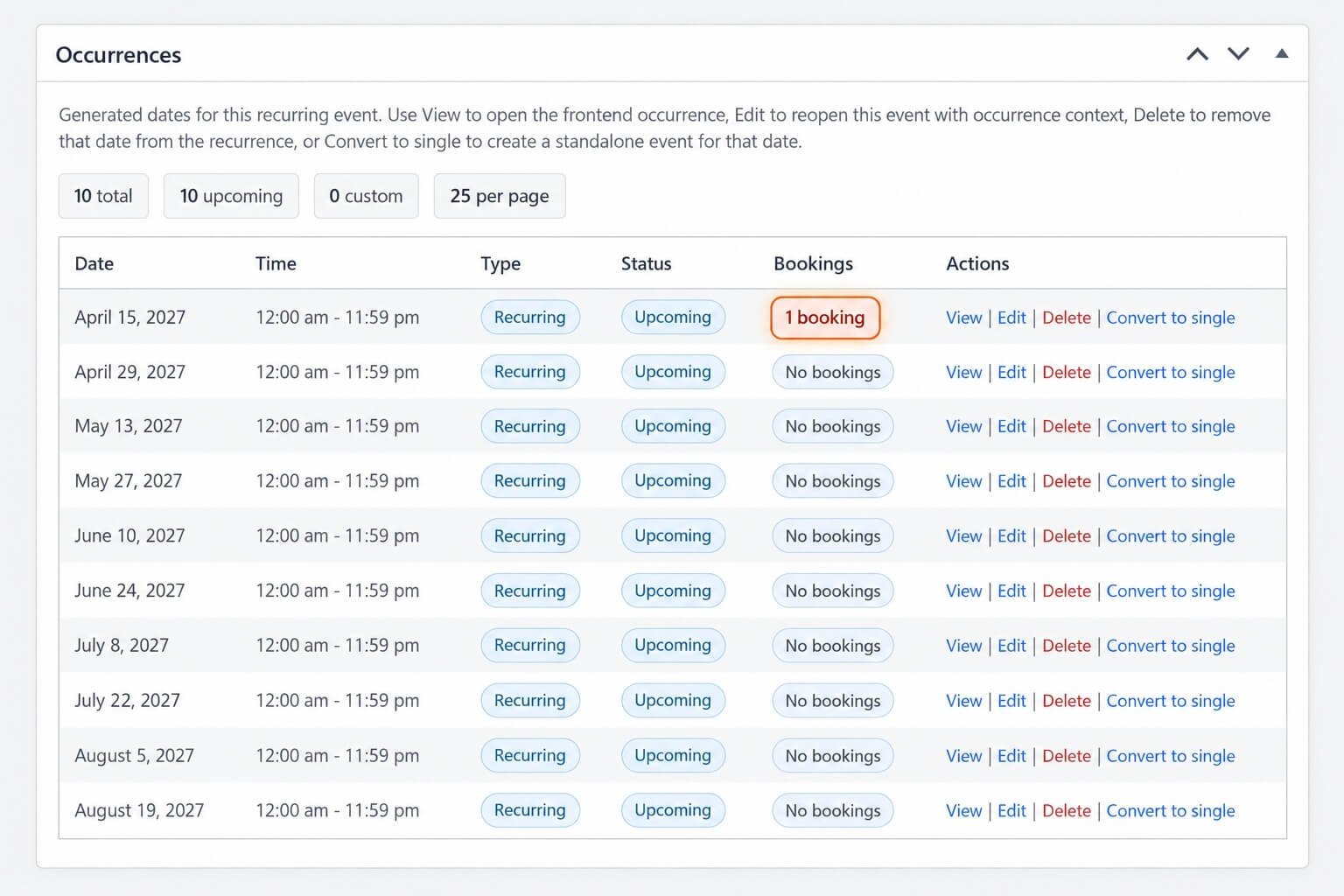
Open the event’s Occurrences section.
The occurrence table can show booking activity for each date.
This helps you identify whether a specific occurrence has:
- No bookings
- Existing registrations
- Active booking references
Review this before deleting or significantly modifying an occurrence.
Ticket Availability and Occurrence Changes
If you change the recurrence schedule, review ticket availability afterward.
Changes such as:
- Deleting an occurrence
- Adding an occurrence
- Excluding a date
- Adding an additional date
- Changing the main recurrence rule
can change which event dates are available for registration.
Ticket Sale Schedule
Tickets can have their own sale start and end schedule.
For recurring events, make sure the ticket sale period makes sense for the overall recurring series and the registration workflow you intend to provide.
For example, avoid closing ticket sales before later occurrences if attendees should still be able to register for them.
Ticket Quantity Rules
Minimum and maximum ticket quantities continue to apply to recurring-event bookings.
For example:
Minimum: 1
Maximum: 4
A purchaser can select between 1 and 4 tickets in the applicable booking workflow.
RSVP Tickets
Recurring events can also use RSVP registration where supported.
RSVP tickets can provide:
- Going
- Not Going
- Quantity
- Individual attendee information
The recurrence schedule still determines the event occurrence being registered for.
Going and Not Going
For RSVP workflows, Eventixa can track attendee intent.
For example:
October 5
- Going: 40
- Not Going: 5
October 12
- Going: 33
- Not Going: 4
Occurrence awareness is important so one date’s RSVP activity does not incorrectly represent another occurrence.
Attendee Information
If individual attendee collection is enabled, Eventixa can gather attendee details for each registration.
Common required information includes:
- Name
Additional fields can also be used depending on the event configuration.
Free Tickets
Recurring events can use free ticket types.
A free ticket still creates registration and attendee records even though no payment is required.
This can be useful for:
- Classes
- Community events
- Free workshops
- Repeated training
Paid Tickets
Paid recurring-event tickets use the normal Eventixa checkout and payment workflow.
Depending on the enabled payment methods, attendees can complete payment through available gateways.
The booking must still remain connected to the correct occurrence.
Pending Bookings and Capacity
Pending booking states can affect availability depending on the Eventixa capacity workflow.
This helps prevent overselling when a booking is in progress but not yet fully completed.
Occurrence-aware capacity is especially important for recurring events because availability must remain accurate per date.
Checkout Session
If the Eventixa checkout session reserves capacity while the purchaser completes registration, that temporary reservation also needs to remain associated with the intended booking flow.
Avoid testing only the first occurrence.
Test multiple recurring dates to confirm stock handling behaves correctly.
Waitlist
Requires Eventixa Pro
When a ticket or occurrence reaches capacity, Eventixa’s Waitlist feature can be used where configured.
If capacity later becomes available, the waitlist workflow can reserve the released place for an eligible waitlisted attendee.
Recurring events should be tested carefully to ensure the reservation belongs to the intended occurrence.
Cancellation and Released Capacity
When an eligible booking is cancelled, its capacity can become available again.
For recurring events, the released capacity should return to the relevant occurrence rather than another date.
This is another reason occurrence association is important.
Manual Refund Workflow
If a paid booking is cancelled and later marked refunded manually, remember that:
- Eventixa manages booking state and capacity.
- The actual payment refund may need to be performed through the payment provider.
Review the booking’s occurrence before processing changes.
Editing Tickets After Registrations Start
Be cautious when editing a recurring-event ticket that already has bookings.
Changes to:
- Price
- Capacity
- Sale dates
- Quantity limits
can affect future registrations.
Avoid reducing capacity below the number of registrations already recorded for an active occurrence.
Deleting an Occurrence with Tickets
Before deleting an occurrence, check whether it has bookings.
Use the Occurrences table to review booking activity.
If registrations exist:
- Review the bookings.
- Contact affected attendees.
- Handle cancellations or refunds.
- Review capacity and waitlist records.
- Then decide whether the occurrence should be removed.
Converting an Occurrence to Single
When an occurrence is converted into a standalone event, review its ticket configuration afterward.
The new event may need:
- Different ticket capacity
- Different price
- New sale dates
- Different attendee fields
- Different checkout configuration
Do not assume the converted event should use the same operational ticket rules as the recurring series.
Duplicate Recurring Events
If you duplicate a recurring event, review the copied ticket configuration.
Check:
- Ticket names
- Prices
- Capacity
- Sale schedule
- Quantity rules
- Recurrence dates
Ticket dates from the original event may no longer make sense for the duplicated schedule.
Example: Weekly Paid Workshop
Suppose a workshop repeats every Saturday.
Configuration:
| Setting | Value |
|---|---|
| Recurrence | Weekly |
| Ticket | Workshop Admission |
| Price | $30 |
| Capacity | 25 |
Attendees register through the recurring event workflow, and each booking is associated with the relevant occurrence.
Example: Free Recurring Class
A weekly free class could use:
| Setting | Value |
|---|---|
| Ticket | Free Registration |
| Price | Free |
| Capacity | 40 |
No payment is required, but Eventixa still records the registrations and attendees.
Example: Recurring RSVP Event
A monthly community meeting could use:
RSVP: Going / Not Going
The RSVP data should remain tied to the appropriate monthly occurrence.
Common Problems
Ticket Shows the Wrong Availability
Check:
- Occurrence
- Existing bookings
- Pending reservations
- Ticket capacity
- Recurrence configuration
One Occurrence Appears Sold Out but Another Should Be Available
Review booking association and occurrence-specific availability.
Do not assume all recurring dates share the same current registration count.
Ticket Sale Ends Too Early
Review the ticket sale schedule and compare it against later recurring occurrences.
Booking Appears Under the Wrong Date
Check the occurrence associated with the booking.
Capacity Did Not Return After Cancellation
Review:
- Booking status
- Occurrence
- Capacity handling
- Waitlist reservation state
RSVP Counts Look Incorrect
Check whether the attendees are associated with the correct occurrence and RSVP status.
Recommended Testing
Before launching a recurring ticketed event, test at least:
- First occurrence booking.
- Later occurrence booking.
- Capacity reduction.
- Last available place.
- Pending checkout.
- Cancellation.
- Capacity release.
- RSVP if used.
- Waitlist if enabled.
- Occurrence deletion or schedule changes.
Recommended Workflow
- Create the recurring event.
- Review generated occurrences.
- Open Tickets & RSVP.
- Create ticket or RSVP types.
- Configure capacity.
- Configure sale dates.
- Configure quantity limits.
- Save the event.
- Test registration on multiple occurrences.
- Review bookings and attendees.
- Test cancellation and released capacity.
- Review waitlist behavior if enabled.
Important Notes
- Recurrence defines dates; tickets define registration.
- Bookings should remain connected to the correct occurrence.
- Test ticket availability across multiple dates.
- Review occurrence bookings before deleting a date.
- Check ticket sale schedules against the full recurrence range.
- Verify capacity after cancellations.
- Test RSVP and Waitlist separately when enabled.


