
Recurring Events Overview
Eventixa Pro lets you create repeating events from a single event configuration.
Instead of manually creating the same event again and again, you can define a recurrence rule and let Eventixa generate the matching event occurrences.
Available in: Eventixa Pro
Location: Eventixa → Events → Edit Event → Recurring Events
Related features: Tickets, Sessions, Virtual Events, QR Check-In, Waitlist
What Is a Recurring Event?
A recurring event is one event that repeats on a schedule.
Examples include:
- Weekly classes
- Monthly networking events
- Daily workshops
- Annual conferences
- Repeating webinars
- Multi-week training programs
You configure the event once and define how often it should repeat.
Open Recurring Event Settings
Go to: Eventixa → Events
Create a new event or edit an existing event.
Then open: Event Settings → Recurring Events
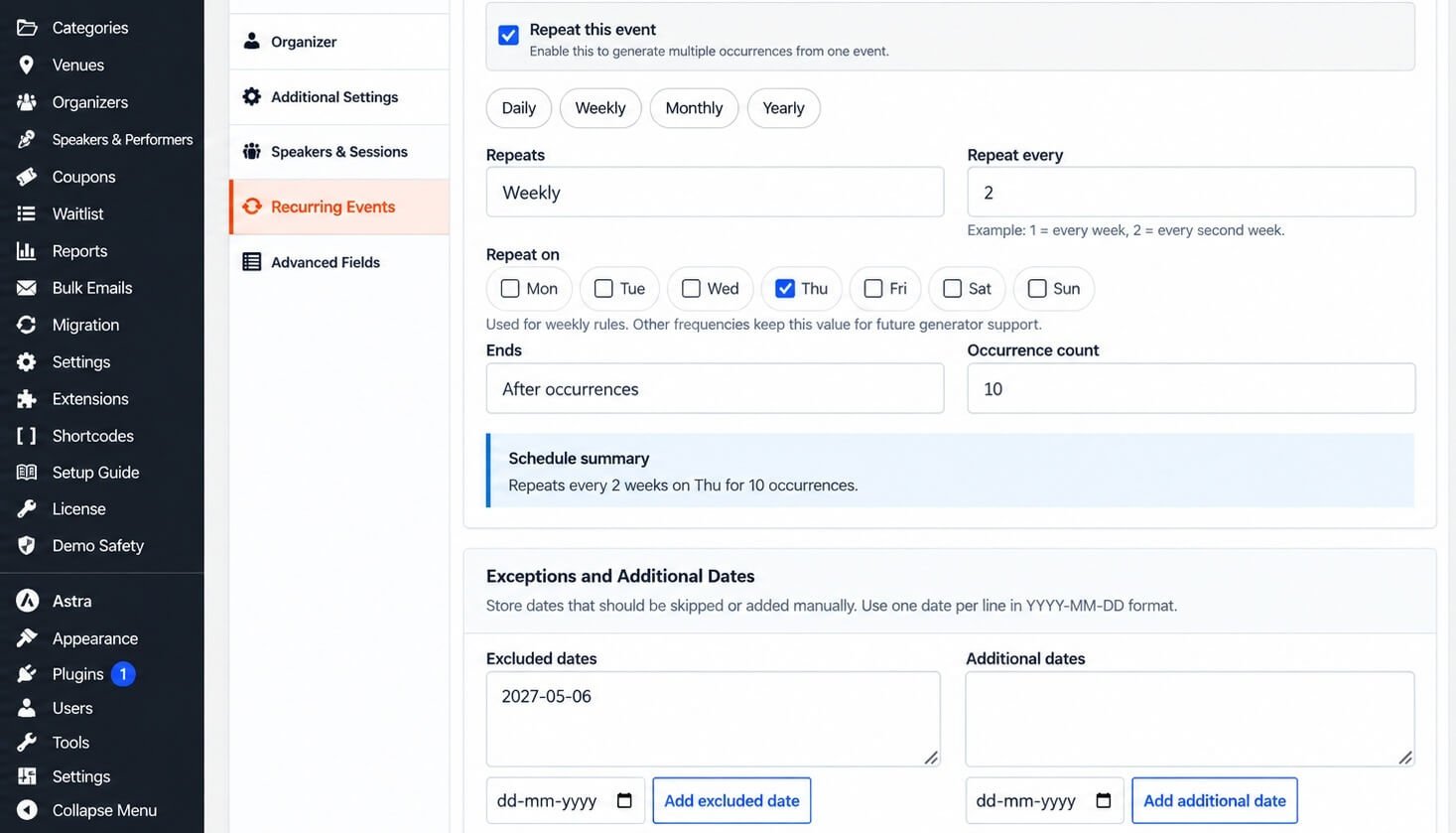
Enable: Repeat this event
The recurrence options then become available.
Recurrence Frequency
Eventixa supports recurrence patterns such as:
- Daily
- Weekly
- Monthly
- Yearly
Choose the frequency that matches your event.
Repeat Every
Use Repeat every to control the recurrence interval.
For example:
| Setting | Result |
|---|---|
| Weekly + 1 | Every week |
| Weekly + 2 | Every second week |
| Monthly + 1 | Every month |
| Monthly + 3 | Every three months |
This gives you more flexibility than a simple fixed repeat schedule.
Recurrence End
You can define when recurrence stops.
Depending on the selected configuration, recurrence can:
- Continue without a fixed end
- Stop after a defined period
- Stop based on the recurrence settings available in the event editor
Review the generated schedule before publishing.
Schedule Summary
Eventixa provides a schedule summary to help you understand the current recurrence rule.
Use the summary to confirm:
- Frequency
- Interval
- End behavior
- Generated event dates
Always review the schedule before opening registrations.
Excluded Dates
Use Excluded Dates when a normally generated occurrence should not happen.
For example, a weekly class might normally occur every Monday but skip:
- Public holidays
- Venue closure dates
- Instructor unavailable dates
Add the dates that should be removed from the recurrence schedule.
Additional Dates
Use Additional Dates when you want to add an extra event date outside the normal recurrence pattern.
For example:
A weekly event occurs every Friday, but you also want a special Wednesday occurrence.
Add that date as an additional date.
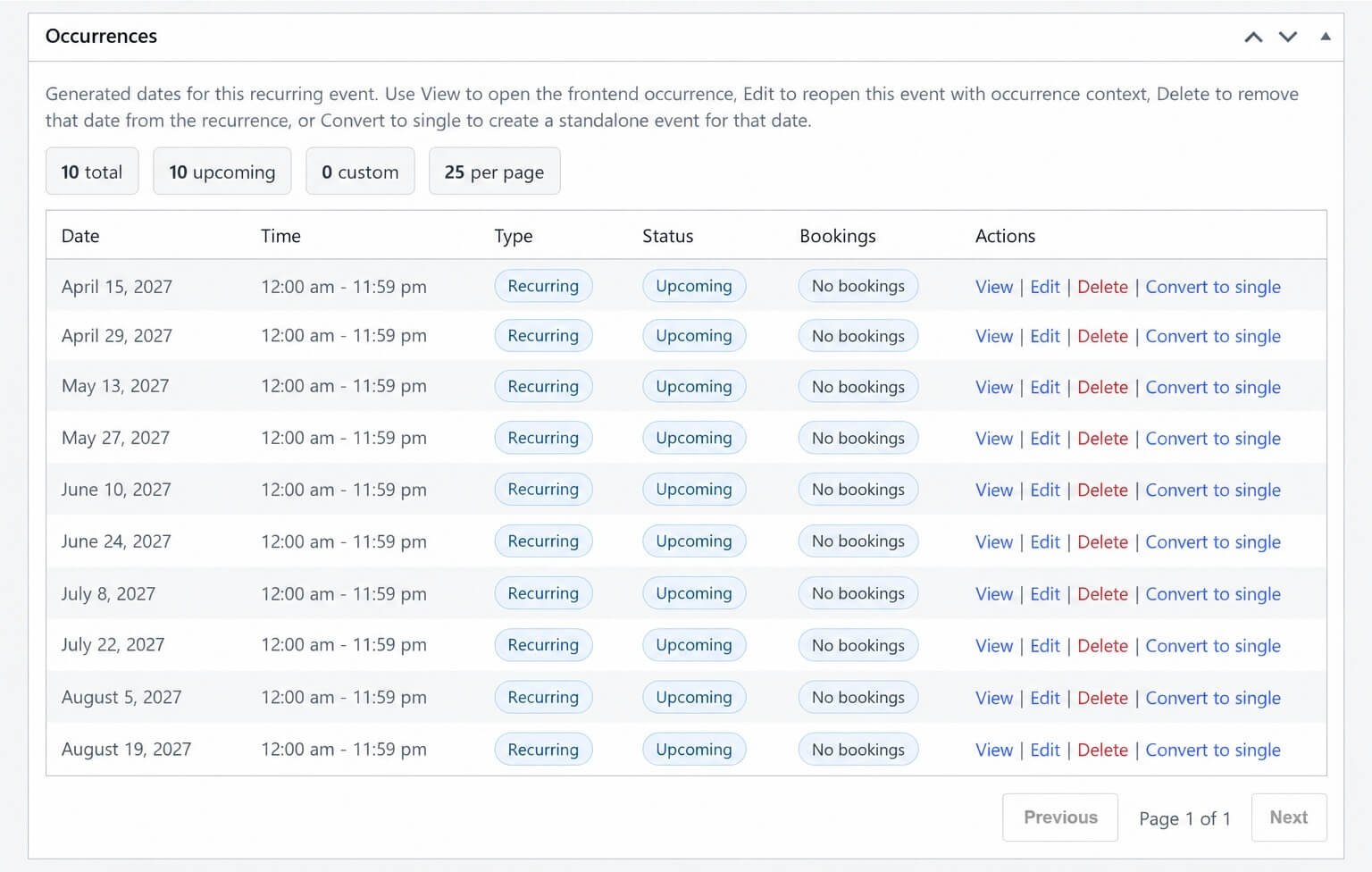
Generated Occurrences
The recurrence rule produces event occurrences.
Each occurrence represents one date in the recurring schedule.
For example:
Recurring Event: Weekly Training
Occurrences:
- October 2
- October 9
- October 16
- October 23
The main recurring event remains the central configuration.
Recurring Events in the Events List
Recurring events can be identified in the Eventixa Events screen.
Depending on the listing, Eventixa can show:
- Recurring badge
- Next occurrence
- Number of upcoming occurrences
- Event status
- Registration count
This helps distinguish recurring events from single events.
Tickets and Recurring Events
Recurring events can work with Eventixa tickets.
Depending on the configuration, ticket availability and attendee registration can be connected to the recurring event workflow.
A dedicated guide covers recurring ticket behavior in detail.
RSVP and Recurring Events
RSVP registration can also be used with recurring events where supported.
The RSVP workflow remains part of the event registration system, while the recurrence determines the event dates.
Review attendee and occurrence behavior carefully when building recurring RSVP events.
Sessions and Agenda
Recurring events can use Eventixa sessions and agendas.
There are two agenda modes:
- Same agenda for all occurrences
- Different agenda per occurrence
This lets you reuse one program across every occurrence or create occurrence-specific schedules.
See Recurring Event Agendas for the full workflow.
Virtual Recurring Events
Recurring events can also be Virtual or Hybrid.
With Eventixa Pro, managed providers such as Zoom and Google Meet can support recurring meeting workflows.
Recurring virtual events can use:
- Same meeting for all occurrences
- Separate meeting per occurrence
This is covered in the dedicated Recurring Virtual Events guide.
Venues and Organizers
A recurring event can still use the normal Eventixa event configuration.
This includes:
- Venue
- Organizer
- Categories
- Speakers
- Sessions
- Tickets
The recurrence controls the schedule, while the rest of the event configuration continues to define the event itself.
Duplicate a Recurring Event
When a recurring event is duplicated, Eventixa can preserve supported recurrence configuration.
After duplication, review:
- Start date
- Recurrence frequency
- Repeat interval
- End behavior
- Excluded dates
- Additional dates
- Tickets
- Sessions
- Virtual meetings
Do not publish the duplicated event until its new schedule has been verified.
Editing a Recurring Event
You can edit the recurring event configuration from the normal Eventixa event editor.
Changes to recurrence can affect multiple generated occurrences.
Before making major changes, review:
- Existing registrations
- Event schedule
- Tickets
- Sessions
- Virtual meetings
- Attendee communication
Changing the Recurrence Rule
If you change the recurrence rule after the event has already been configured, generated dates may change.
For example:
Before: Every week
After: Every two weeks
This can alter the occurrence schedule.
Review the generated dates immediately after changing recurrence.
Changing the Base Event Date
The main event date forms part of the recurrence configuration.
If you change the base date, review:
- Future occurrences
- Session dates
- Virtual meetings
- Ticket schedules
- Attendee registrations
The rest of the recurring workflow can depend on that schedule.
Recurring Event Frontend Display
The frontend can present recurring event information such as:
- Recurring status
- Relevant occurrence date
- Upcoming occurrences
- Agenda
- Ticket information
The exact frontend presentation depends on the selected event layout and active Eventixa features.
Common Problems
Recurring Settings Do Not Appear
Check that:
- Eventixa Pro is active.
- You are editing an Eventixa event.
No Occurrences Are Generated
Check:
- Repeat this event is enabled.
- The recurrence frequency is valid.
- The interval is valid.
- The end configuration allows future dates.
An Expected Date Is Missing
Review:
- Excluded dates
- Recurrence interval
- Start date
- End behavior
An Unexpected Date Appears
Check:
- Additional dates
- Recurrence frequency
- Repeat interval
Agenda Is Wrong for an Occurrence
Review the recurring agenda mode.
The event may be configured for:
- Same agenda for all occurrences
- Different agenda per occurrence
Virtual Meeting Is Wrong
Check whether the event uses:
- Same meeting for all occurrences
- Separate meeting per occurrence
Then review the relevant provider configuration.
Recommended Workflow
- Create the event.
- Configure the base date and time.
- Open Recurring Events.
- Enable Repeat this event.
- Choose the recurrence frequency.
- Set the repeat interval.
- Configure the end behavior.
- Add excluded dates if needed.
- Add additional dates if needed.
- Review the schedule summary.
- Configure tickets, agenda, and virtual access.
- Preview multiple occurrences.
- Test registration before launch.
Important Notes
- Recurrence is available in Eventixa Pro.
- Configure the event schedule carefully before adding complex occurrence-specific content.
- Review occurrences after changing the recurrence rule.
- Check excluded and additional dates.
- Review tickets and agendas after schedule changes.
- Test multiple occurrences, not only the first one.


