
Sessions & Event Agenda
Eventixa lets you create structured sessions and build an agenda for conferences, workshops, training programs, festivals, and other multi-session events.
Sessions can include their own title, time, speakers, location, and other schedule information.
Available in: Eventixa Core
Location: Eventixa → Events → Edit Event → Speakers & Sessions
Related features: Speakers & Performers, Recurring Events, Single Event Page
Pro enhancement: Recurring events can use occurrence-aware agenda behavior
What Is an Event Session?
A session represents one scheduled part of an event.
Examples include:
- Opening Keynote
- Registration
- Workshop
- Panel Discussion
- Networking Break
- Lunch
- Performance
- Closing Session
Multiple sessions together form the event agenda.
Open Sessions & Agenda
Go to: Eventixa → Events
Open the event you want to manage.
Then select: Event Settings → Speakers & Sessions
This area contains both:
- Speakers & Performers
- Sessions / Agenda
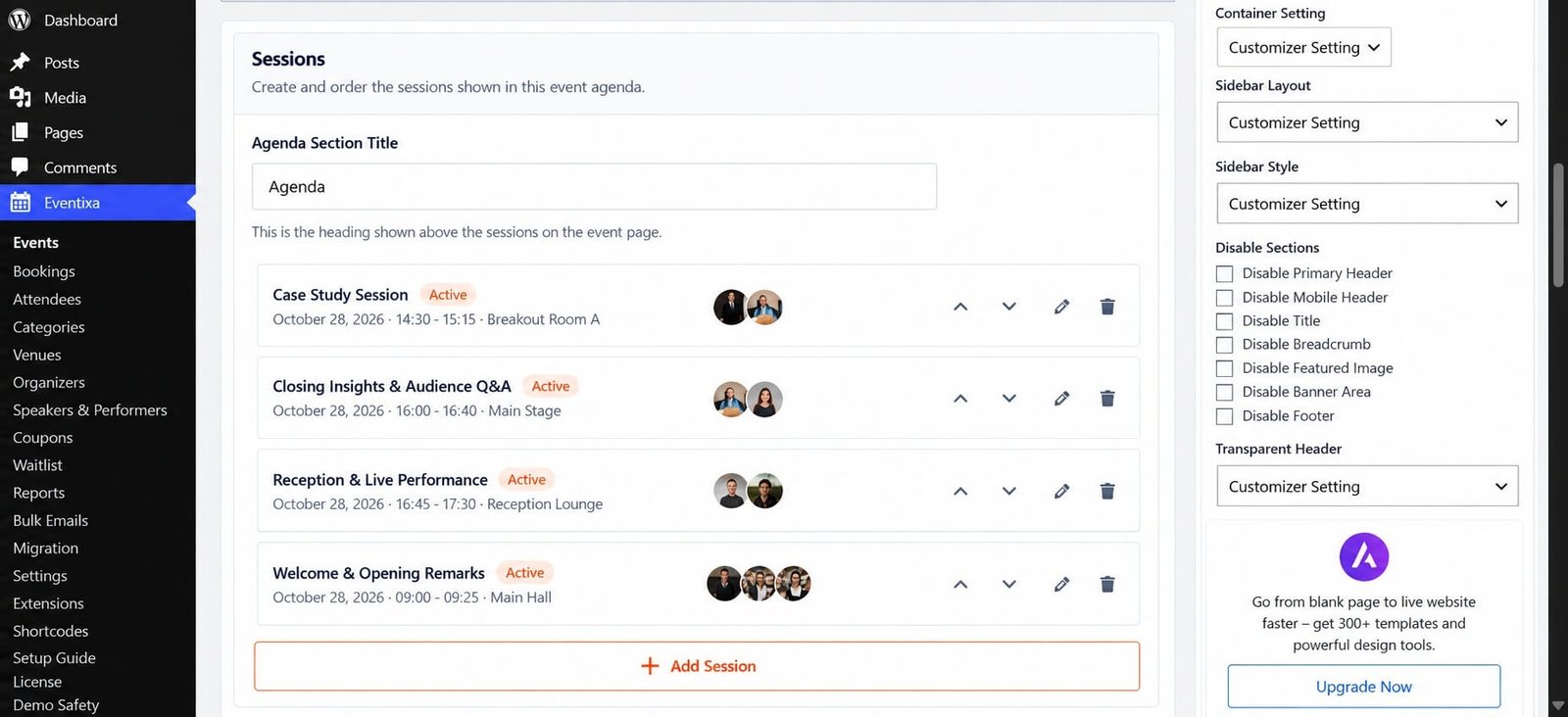
How the Agenda Works
A typical agenda can look like:
| Time | Session |
|---|---|
| 9:00 AM | Registration |
| 10:00 AM | Opening Keynote |
| 11:00 AM | Product Strategy Panel |
| 12:30 PM | Lunch |
| 2:00 PM | Workshop |
| 4:30 PM | Closing Session |
Eventixa uses the individual session records to build the frontend agenda.
Create Sessions
You can add sessions to the event from the Sessions area.
Each session can represent a separate part of the program.
A session can include information such as:
- Session title
- Description
- Session type
- Start time
- End time
- Speakers or performers
- Location
- Agenda date where applicable
A dedicated guide will cover session creation step by step.
Session Title
Use a clear session title that visitors can understand.
Examples:
- Opening Keynote
- Future of AI Panel
- Leadership Workshop
- Lunch Break
- Closing Performance
Avoid vague titles such as:
- Session 1
- Part 2
- Block A
unless they genuinely match your event structure.
Session Type
Sessions can use a session type where applicable.
The default session type can remain empty when no special classification is required.
You can use session types to distinguish parts of the program when the event needs it.
Session Start and End Time
Session times are optional as a pair.
If you enter one session time, make sure the corresponding time information is complete where required.
For a normal timed session:
| Setting | Example |
|---|---|
| Start Time | 10:00 AM |
| End Time | 11:00 AM |
Session times should normally fit within the overall event schedule.
Untimed Sessions
Some agenda items may not require exact start and end times.
Examples:
- All-day exhibitions
- Ongoing networking areas
- Flexible activity zones
Where the session workflow allows time to remain empty, you can use the session without forcing an artificial schedule.
Assign Speakers to Sessions
Sessions can be connected to speakers and performers already associated with the event.
For example:
Session: Opening Keynote
Speaker: Natalie Wong
Session: Leadership Panel
Speakers: Jordan Reed, Ethan Clarke, Amelia Brooks
This lets the frontend agenda show who is presenting each session.
Session Locations
A session can have location information when required.
This is useful for events with multiple rooms or areas.
Examples:
- Main Hall
- Workshop Room A
- Stage 2
- Conference Room B
Use clear location names so attendees can move between sessions easily.
Order Sessions
Sessions should appear in the order visitors expect.
For a timed agenda, this normally means chronological order.
For example:
- Registration
- Opening Keynote
- Morning Sessions
- Lunch
- Afternoon Sessions
- Closing Session
Review the frontend agenda after changing session order.
Speakers vs Sessions
Speakers and sessions are related but separate.
| Feature | Purpose |
|---|---|
| Speaker / Performer | Reusable participant profile |
| Session | Scheduled agenda item |
| Agenda | Collection of sessions shown for the event |
A speaker can appear in multiple sessions.
A session can also contain multiple speakers.
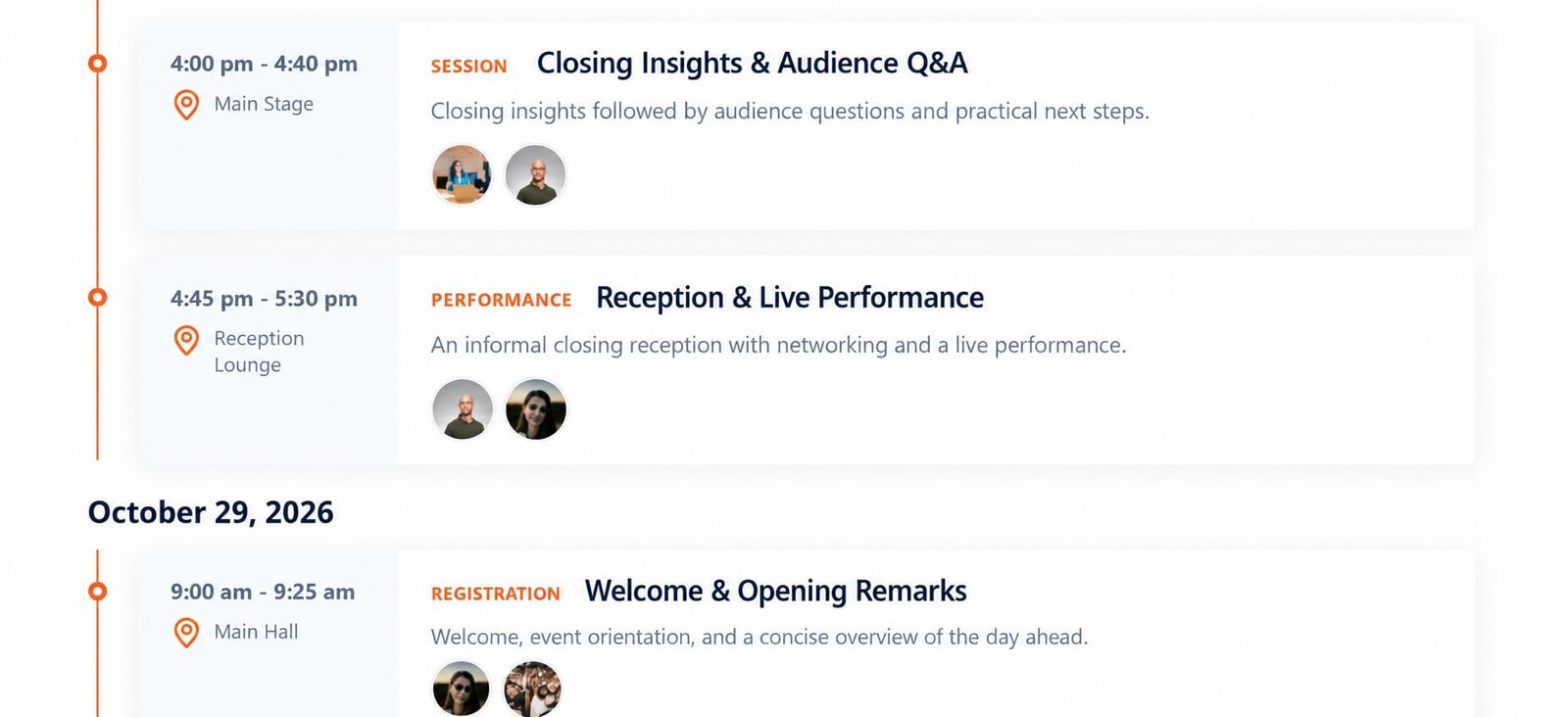
Event Agenda on the Frontend
When sessions are configured, Eventixa can display them as part of the event agenda.
Depending on the selected event presentation, visitors can see:
- Session title
- Time
- Speaker
- Location
- Session type
- Description
The agenda helps attendees understand the full program before registering or attending.
Agenda and the Single Event Page
The agenda appears as part of the single-event experience.
Its exact presentation depends on the current Eventixa layout and presentation settings.
For more information, see Single Event Page in Eventixa.
Recurring Events
Recurring events require Eventixa Pro
Recurring events can use agenda behavior that accounts for individual occurrences.
Eventixa supports two agenda modes:
- Same agenda for all occurrences
- Different agenda per occurrence
This allows you to decide whether every occurrence uses the same session structure or whether specific dates need different sessions.
The detailed recurring agenda workflow is covered separately.
Same Agenda for All Occurrences
Use this mode when every occurrence follows the same schedule.
Example:
A weekly training class always uses:
- 9:00 AM Introduction
- 10:00 AM Workshop
- 12:00 PM Q&A
You can maintain one agenda and reuse it across all occurrences.
Different Agenda per Occurrence
Use this when each occurrence needs different sessions.
For example:
October 1
- Introduction
- Beginner Workshop
October 8
- Advanced Workshop
- Q&A
October 15
- Final Project Review
The agenda can then be associated with the relevant occurrence date.
Duplicate Events
When an event is duplicated, supported sessions and agenda relationships can also be copied.
After duplication, review:
- Session titles
- Times
- Speakers
- Locations
- Agenda dates
- Recurrence behavior
Do not assume the copied schedule is correct for the new event.
Common Problems
Session Does Not Appear in the Agenda
Check that:
- The session is saved.
- It belongs to the correct event.
- The session date is correct where applicable.
- The event has been updated.
Speaker Is Missing from a Session
Confirm:
- The speaker profile exists.
- The speaker is associated with the event.
- The correct profile is assigned to the session.
Session Times Are Incorrect
Check:
- Event timezone
- Event date and time
- Session start time
- Session end time
Agenda Order Is Wrong
Review the session ordering and session times.
Then update the event and preview the frontend agenda.
Recurring Agenda Shows the Wrong Sessions
Check whether the event is configured for:
- Same agenda for all occurrences
- Different agenda per occurrence
Then verify the occurrence date assigned to the affected sessions.
Recommended Workflow
- Create the event.
- Add speakers and performers.
- Open Speakers & Sessions.
- Create session records.
- Add session title and description.
- Add times where required.
- Assign speakers.
- Add session location if needed.
- Arrange the sessions.
- Preview the frontend agenda.


