
Payment Settings
Eventixa Payment Settings control the currency used for Eventixa prices and the payment methods available when customers register for paid events.
Eventixa Core supports PayPal, offline payments, free checkout, and supported WooCommerce checkout. Eventixa Pro adds native Stripe payment support. eventixa-core-readme-final
Available in: Eventixa Core + Eventixa Pro enhancements
Location: Eventixa → Settings → Payments
Requires: Eventixa Core
Related features: Paid Tickets, Checkout, Bookings, PayPal, Stripe, Offline Payments, WooCommerce
Overview
The Payments area is the central location for configuring Eventixa payment behavior.
The current Eventixa settings structure contains:
- Currency
- Payment Gateways
- WooCommerce when the integration is available
The Currency section controls how prices are displayed in Eventixa checkout and administration screens, while the Payment Gateways section controls which payment methods are active and therefore available during checkout.
Before You Begin
Before accepting paid event registrations:
- Create at least one paid Eventixa ticket.
- Configure the Eventixa currency.
- Enable at least one suitable payment method.
- Add any credentials required by the selected online gateway.
- Test the payment workflow before opening ticket sales.
- Use test or sandbox credentials where the gateway supports them during initial setup.
- Confirm the resulting Eventixa booking and payment status after testing.
For Stripe, Eventixa Pro must be active. eventixa-core-readme-final
How to Open Payment Settings
- Sign in to your WordPress dashboard.
- Go to Eventixa → Settings.
- Open the Payments tab.
- Select Currency, Gateways, or another available payment subtab.
- Configure the required options.
- Click Save Changes.
- Complete a test booking using a paid ticket.
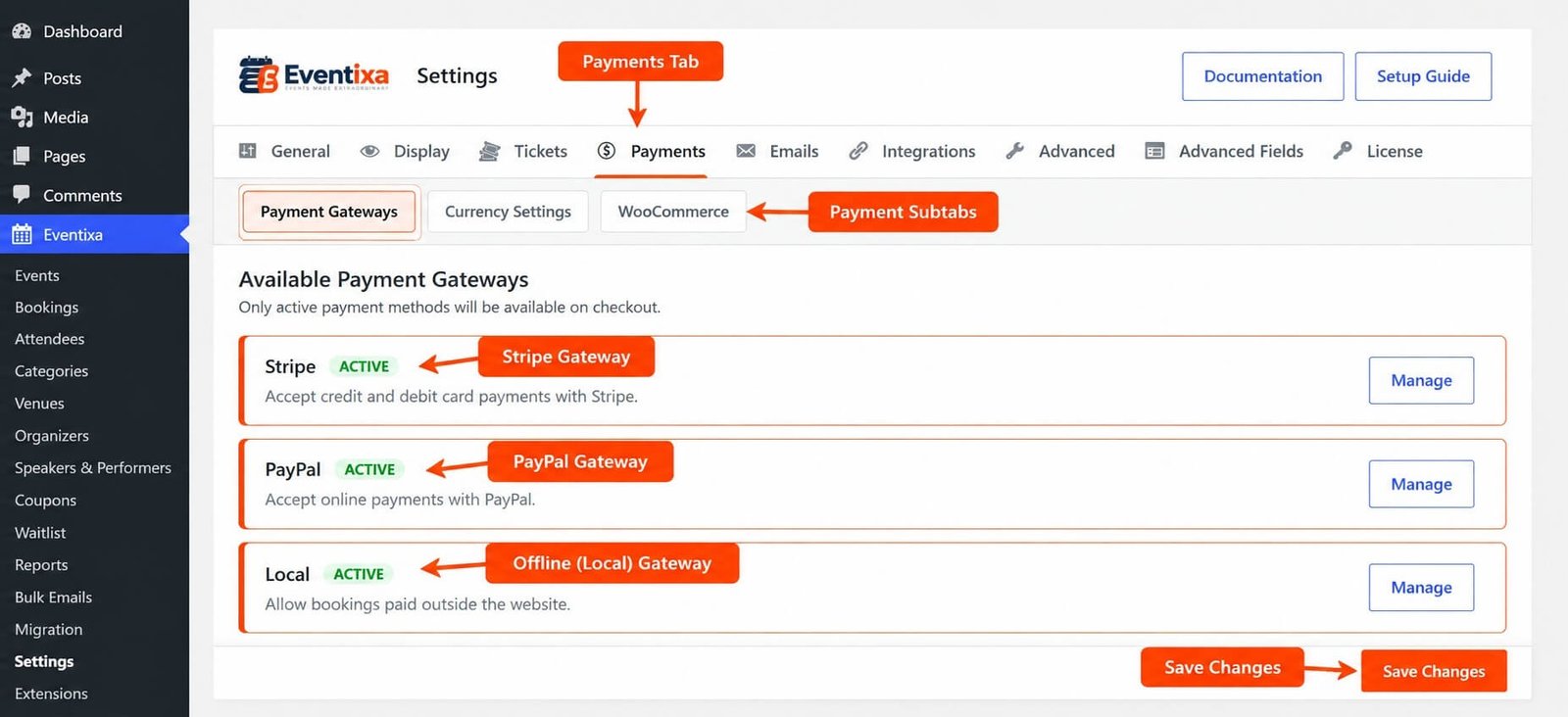
Payment Settings Explained
| Settings Area | Description |
|---|---|
| Currency | Controls how Eventixa monetary values are displayed in checkout and administration |
| Gateways | Lists the Eventixa payment methods that can be activated for checkout |
| WooCommerce | Configures WooCommerce checkout when the supported integration is available |
Only active payment methods are presented through the supported Eventixa checkout workflow.
Currency Settings
Open: Eventixa → Settings → Payments → Currency
The Currency Settings section controls how prices are displayed in Eventixa checkout and WordPress administration.
Configure your currency before selling paid tickets so ticket prices and checkout amounts use the intended monetary format.
Why Currency Configuration Matters
Currency affects monetary information throughout supported Eventixa workflows.
It can affect the presentation of:
- Ticket prices
- Checkout totals
- Booking payment information
- Event administration
- Supported reports and exports
Set your currency before beginning live ticket sales.
Changing Currency on a Live Website
Changing currency after transactions have already been processed should be handled carefully.
Existing transactions were completed using the currency and amount recorded at the time of payment.
Changing the current Eventixa currency does not turn a historical transaction into a transaction in the new currency.
For an established event site, verify the impact before changing currency configuration.
Available Payment Gateways
Open: Eventixa → Settings → Payments → Gateways
The Available Payment Gateways section controls the payment methods that Eventixa can offer during checkout.
Only active payment methods are available to customers.
Eventixa currently supports payment workflows including:
- PayPal
- Offline Payments
- Free Checkout
- WooCommerce Checkout
- Stripe with Eventixa Pro eventixa-core-readme-final
Core and Pro Payment Availability
| Payment Method | Availability |
|---|---|
| PayPal | Eventixa Core |
| Offline Payments | Eventixa Core |
| Free Checkout | Eventixa Core |
| WooCommerce Checkout | Eventixa Core |
| Stripe | Eventixa Pro |
Eventixa Core does not require Eventixa Pro to accept supported PayPal, offline, free, or WooCommerce-based registrations. Native Stripe is an Eventixa Pro payment integration. eventixa-core-readme-final
PayPal
PayPal is available in Eventixa Core.
It can be used to accept supported online payments for paid Eventixa ticket bookings. eventixa-core-readme-final
The PayPal gateway must be enabled and correctly configured before it can be offered during checkout.
For detailed PayPal configuration, see the dedicated PayPal Payments documentation.
Stripe
Stripe provides native card payment processing through Eventixa Pro.
Requires: Eventixa Pro
When Stripe is installed, enabled, and configured, eligible customers can use it for paid Eventixa ticket registrations. eventixa-core-readme-final
Stripe configuration should be completed before testing a paid booking.
For full setup instructions, see the dedicated Stripe Payments documentation.
Offline Payments
Offline Payments are available in Eventixa Core.
They allow Eventixa to create a booking while the actual payment is completed outside the online gateway flow.
Offline payment workflows can be useful for arrangements such as:
- Payment at the venue
- Bank transfer
- Direct organizer payment
- Other supported local payment arrangements
Because money is not necessarily confirmed online at checkout, administrators should manage the related booking and payment status appropriately.
Free Checkout
A free Eventixa ticket does not require an online payment gateway.
The registration flow can proceed without a payment transaction: Ticket Selection → Customer / Attendee Details → Booking Confirmation
Eventixa can still create the related booking and attendee records for a free registration.
Free Checkout is therefore different from a disabled or incorrectly configured payment gateway.
WooCommerce Checkout
Eventixa Core supports WooCommerce checkout for supported Eventixa ticket bookings.
When enabled, WooCommerce can act as the commerce layer while Eventixa continues to manage the event, tickets, bookings, registrations, and attendee context. eventixa-core-readme-final
The Eventixa Payments settings can contain a dedicated: WooCommerce Checkout
section when the WooCommerce integration is available.
What WooCommerce Can Handle
Depending on your WooCommerce configuration, WooCommerce can provide supported commerce functionality such as:
- Payment gateways
- Taxes
- Coupons
- Currency
- Customer account flows
Eventixa remains responsible for the Eventixa event and registration context. eventixa-core-readme-final
Eventixa vs WooCommerce Payment Configuration
When using native Eventixa gateways such as PayPal, payment settings are configured through Eventixa.
When WooCommerce Checkout is used, the applicable WooCommerce commerce configuration also becomes important.
For example, an Eventixa ticket can be connected to a checkout workflow where WooCommerce controls the payment methods available through WooCommerce.
Do not assume Eventixa and WooCommerce gateway settings are interchangeable.
How Payment Gateways Appear at Checkout
For a paid ticket, the general Eventixa checkout flow is: Select Ticket → Enter Details → Choose Payment Method → Complete Payment → Booking Updated
The payment methods shown to the customer depend on which supported gateways are enabled and correctly configured.
If only one eligible gateway is active, the available payment choice can be correspondingly limited.
Payment and Booking Records
Payment activity remains connected with the Eventixa booking workflow.
Eventixa booking records can track booking and payment status so administrators can distinguish registration state from payment state. eventixa-core-readme-final
A booking existing in Eventixa should therefore not automatically be interpreted as a successfully paid booking.
Review the associated payment status when payment confirmation matters.
Booking Status vs Payment Status
These represent different parts of the workflow.
Booking Status describes the booking lifecycle.
Payment Status describes the payment state associated with the booking.
For example, an offline booking can exist before payment has been confirmed manually.
Similarly, a failed online payment should not be interpreted in the same way as a successfully completed payment.
Payment Settings and Ticket Price
Payment Settings do not define the price of an individual ticket.
Ticket pricing is configured while creating or editing the event ticket.
Payment Settings determine how eligible paid amounts can be processed and how currency is presented.
A simplified relationship is: Ticket Price → Checkout → Payment Gateway → Payment Result → Booking
Payment Settings and Guest Checkout
Guest Checkout is configured separately under: Eventixa → Settings → Tickets → General
When Guest Checkout is enabled, eligible visitors can register without signing into WordPress.
For paid tickets, the guest visitor must still complete the configured payment workflow.
Enabling Guest Checkout does not automatically enable a payment gateway.
Example: PayPal Event Ticket
Suppose you create a paid conference ticket.
A typical setup is:
- Go to Eventixa → Settings → Payments.
- Configure the correct currency.
- Open the Payment Gateways section.
- Enable and configure PayPal.
- Save your changes.
- Create or edit the conference.
- Create a paid ticket.
- Publish the event.
- Open the event on the frontend.
- Select the paid ticket.
- Proceed through checkout.
- Complete the PayPal test transaction.
- Verify the Eventixa booking.
- Verify the payment status.
- Confirm attendee and email results.
Example: Offline Registration
For an event that accepts bank transfer or payment at the venue:
- Configure Eventixa currency.
- Enable the supported Offline Payment method.
- Save the settings.
- Create a paid ticket.
- Complete a test checkout.
- Verify that the Eventixa booking is created.
- Follow your offline payment process.
- Update the applicable booking/payment state when payment is confirmed.
Example: WooCommerce Checkout
If you already use WooCommerce:
- Ensure WooCommerce is installed and configured.
- Open Eventixa → Settings → Payments.
- Configure the supported WooCommerce Checkout integration.
- Review your WooCommerce currency and payment gateways.
- Create a paid Eventixa ticket.
- Test the complete frontend checkout.
- Verify the WooCommerce transaction.
- Verify the corresponding Eventixa booking and attendee records.
Recommended Payment Testing
Before opening paid registrations, test:
- Correct currency display
- Ticket price
- Checkout total
- Free ticket checkout
- Paid ticket checkout
- PayPal where enabled
- Stripe where enabled
- Offline Payment where enabled
- WooCommerce Checkout where enabled
- Guest Checkout if used
- Logged-in checkout
- Booking creation
- Payment status
- Attendee creation
- Confirmation emails
- Coupon calculations where applicable
- Capacity updates after checkout
Use a low-risk test environment or the payment provider’s supported test mode before processing live customer payments.
Important Notes
- Payment Settings are located under Eventixa → Settings → Payments.
- Eventixa has dedicated Currency Settings and Available Payment Gateways sections.
- Only active payment methods are available through supported checkout.
- PayPal is available in Eventixa Core. eventixa-core-readme-final
- Offline Payments are available in Eventixa Core. eventixa-core-readme-final
- Free Checkout is available for free Eventixa registrations. eventixa-core-readme-final
- WooCommerce Checkout is available in Eventixa Core for supported workflows. eventixa-core-readme-final
- Native Stripe requires Eventixa Pro. eventixa-core-readme-final
- Ticket price is configured at ticket level rather than in global Payment Settings.
- Booking status and payment status should be treated as separate pieces of information.
- Always test payment configuration before opening live ticket sales.
Troubleshooting
Payment Method Does Not Appear at Checkout
Go to:
Eventixa → Settings → Payments
Confirm that:
- The gateway is active.
- Required gateway configuration has been completed.
- The customer is purchasing a paid ticket.
- The selected workflow uses the intended Eventixa payment system.
- Eventixa Pro is active if you are trying to use native Stripe.
Only active supported payment methods are available at checkout.
Currency Is Incorrect
Open:
Eventixa → Settings → Payments → Currency
Review the Currency Settings and save your changes.
Then verify the ticket and checkout again.
Free Ticket Is Asking for Payment
Confirm that the ticket itself is configured as a free ticket.
Free registrations should not require an online payment transaction.
PayPal Is Not Available
Confirm that the PayPal gateway is enabled and fully configured.
Then test an eligible paid Eventixa ticket.
Stripe Is Missing
Native Stripe is an Eventixa Pro feature.
Confirm Eventixa Pro is active and that Stripe has been configured. eventixa-core-readme-final
WooCommerce Payment Methods Are Missing
When using WooCommerce Checkout, review both:
- Eventixa WooCommerce Checkout configuration
- WooCommerce payment gateway configuration
WooCommerce controls its own configured commerce methods.
Offline Booking Is Not Marked as Paid
Offline Payment is completed outside the immediate online payment flow.
Review the booking/payment status after the offline payment has actually been received.
Booking Exists but Payment Was Not Completed
A booking and a successful payment are not the same state.
Review the booking’s payment information and payment status before treating the registration as paid.
Related Documentation
- Eventixa Settings Overview
- Payment Overview
- PayPal Payments
- Stripe Payments
- Offline Payments
- WooCommerce Payments
Frequently Asked Questions
Where Are Eventixa Payment Settings?
Go to: Eventixa → Settings → Payments
Which Payment Methods Are Available in Eventixa Core?
Eventixa Core supports PayPal, supported Offline Payments, Free Checkout, and WooCommerce Checkout. eventixa-core-readme-final
Does Stripe Require Eventixa Pro?
Yes. Native Stripe payment support is provided by Eventixa Pro. eventixa-core-readme-final
Can I Use WooCommerce to Process Eventixa Tickets?
Yes. Eventixa Core supports WooCommerce checkout for supported Eventixa ticket bookings while Eventixa continues to manage the event, booking, registration, and attendee context. eventixa-core-readme-final
Do Free Tickets Need a Payment Gateway?
No. Free Checkout allows eligible free registrations without an online payment gateway. eventixa-core-readme-final


