
Skip to content
  • Home
  • Features
    • Event Management
    • Email Notifications
    • Payment Processing
    • Recurring Events
  • Documentation
  • Pricing
  • Contact Us
  • Live Demo
    • Simple Event
    • Recurring Event
    • Virtual Event
    • Free Event
    • Paid Event
    • RSVP Event
    • Waitlist Event

EARLY ADOPTER OFFER — Eventixa Pro: $49/year $0 (FREE) · First 100 Pro subscriptions only. Get Pro Free →

Eventixa – Events Calendar, Tickets and Bookings
  • Home
  • Features
    • Event Management
    • Email Notifications
    • Payment Processing
    • Recurring Events
  • Documentation
  • Pricing
  • Contact Us
  • Live Demo
    • Simple Event
    • Recurring Event
    • Virtual Event
    • Free Event
    • Paid Event
    • RSVP Event
    • Waitlist Event
Get Started

EARLY ADOPTER OFFER — Eventixa Pro: $49/year $0 (FREE) · First 100 Pro subscriptions only. Get Pro Free →

Eventixa – Events Calendar, Tickets and Bookings

Getting Started

  • Welcome to Eventixa
  • How to Install Eventixa on WordPress
  • How to Install and Activate Eventixa Pro
  • Setup Wizard
  • Eventixa Admin Dashboard Overview
  • Create Your First Event
  • Eventixa Core vs Pro

Event Management

  • Events Overview
  • Creating an Event
  • Editing and Managing Events
  • Duplicating an Event
  • Event Date and Time Settings
  • Event Categories
  • Venues
  • Organizers
  • Event Archive and Listings
  • Single Event Page
  • Event Templates & Overriding
  • Eventixa Design System

Speakers, Performers & Event Agenda

  • Creating Event Sessions
  • Speakers & Performers Overview
  • Speaker & Performer Groups
  • Creating Speakers & Performers
  • Adding Speakers & Performers to Events
  • Sessions & Event Agenda
  • Recurring Event Agendas

In-Person, Virtual & Hybrid Events

  • In-Person, Virtual & Hybrid Events
  • Virtual Event Access
  • Custom Meeting URL

Tickets & Registration

  • Ticket Management Overview
  • Creating Event Tickets
  • Free and Paid Tickets
  • RSVP Tickets
  • Ticket Capacity and Availability
  • Ticket Sale Schedule
  • Ticket Quantity Rules
  • Attendee Registration Fields
  • Advanced Attendee Fields

Recurring Events

  • Recurring Events Overview
  • Creating a Recurring Event
  • Managing Event Occurrences
  • Recurring Event Tickets
  • Recurring Virtual Events

Checkout & Bookings

  • Checkout Overview
  • Guest Checkout
  • Managing Bookings
  • Booking Details
  • Booking Statuses
  • Manual Bookings
  • Canceling and Refunding Bookings
  • Booking Emails

Attendees

  • Managing Attendees
  • Add and Edit Attendees
  • Resend Event Tickets

Coupons & Discounts

  • Event Coupons Overview
  • Creating a Coupon
  • Advanced Coupon Rules

Payments

  • Payment Overview
  • Currency Settings
  • Stripe Payment
  • PayPal Payment
  • WooCommerce Integration
  • Offline Payment
  • Payment Statuses
  • Transactions
  • Refunds

Emails & Bulk Emails

  • Email Notifications Overview
  • Customer Emails
  • Administrator Emails
  • Email Templates
  • Email Placeholders
  • Reminder Emails
  • Bulk Emails

QR Tickets & Check-In

  • QR Tickets
  • Event Check-In
  • QR Scanner

Waitlist

  • Event Waitlist Overview
  • Enable Waitlist for an Event
  • Waitlist Reservations & Offers
  • Managing the Waitlist
  • Waitlist Emails

Reports

  • Reports Overview
  • Event Reports
  • Ticket & Registration Reports
  • Revenue Reports
  • Filtering Reports

Integration

  • Integrations Overview
  • MailPoet Integration
  • Mailchimp Integration
  • WooCommerce Integration
  • Zoom Integration
  • Google Meet Integration
  • Webhooks

Migration

  • Migration Overview
  • Migration from The Events Calendar
  • Supported Migration Data
  • Recurring Event Migration
  • Migration Warnings & Troubleshooting

My Account & Customer Experience

  • Eventixa My Account
  • Viewing Event Bookings
  • Viewing Event Tickets

Shortcodes, Blocks & Display

  • Eventixa Shortcodes
  • Gutenberg Blocks
  • Elementor Integration

Settings

  • Eventixa Settings Overview
  • General Settings
  • Display Settings
  • Ticket Settings
  • Payment Settings
  • Email Settings
  • Integration Settings
  • License Settings

Troubleshooting

  • Troubleshooting Overview
  • Ticket Availability Problems
  • Checkout Problems
  • Payment Problems
  • Email Delivery Problems
  • Virtual Event Integration Problems
  • QR Ticket & Check-In Problems
View Categories
  • Home
  • Documentations
  • Event Management
  • Eventixa Design System

Eventixa Design System

0:00 / 4:51
  • View as Markdown Open this page as plain Markdown (opens in a new tab)
  • Open in ChatGPT Ask questions about this page (opens in a new tab)
  • Open in Claude Ask questions about this page (opens in a new tab)
  • Open in Google AI Studio Ask questions about this page (Google account required) (opens in a new tab)

The Eventixa Design System lets you change the primary frontend color used by Eventixa so your event pages can better match your WordPress theme and website branding.

Instead of configuring several separate colors, you choose one Primary Color. Eventixa automatically uses that color across supported frontend elements and generates matching hover, active, and soft color states.

Note: The Design System affects Eventixa frontend elements only. It does not change the Eventixa WordPress admin interface colors.

What the Design System Controls

The selected Primary Color is used across supported Eventixa frontend elements, including:

  • Primary buttons and important actions
  • Links and interactive elements
  • Active and selected states
  • Highlights and UI accents
  • Event listing components
  • Single event components
  • Default event and category color accents
  • Supported Eventixa Pro frontend components that use the shared Eventixa design system

Eventixa automatically derives related hover, active, and soft color states from the selected Primary Color.

You do not need to configure these states separately.

Configure the Primary Color from Eventixa Settings

You can manage the Design System directly from the Eventixa settings area.

  1. Go to WordPress Dashboard → Eventixa → Settings.
  2. Open the Advanced tab.
  3. Select Design System.
  4. Click the Primary Color field.
  5. Choose the main brand color used by your website.
  6. Save your changes.
  7. Visit an Eventixa frontend page to review the updated styling.
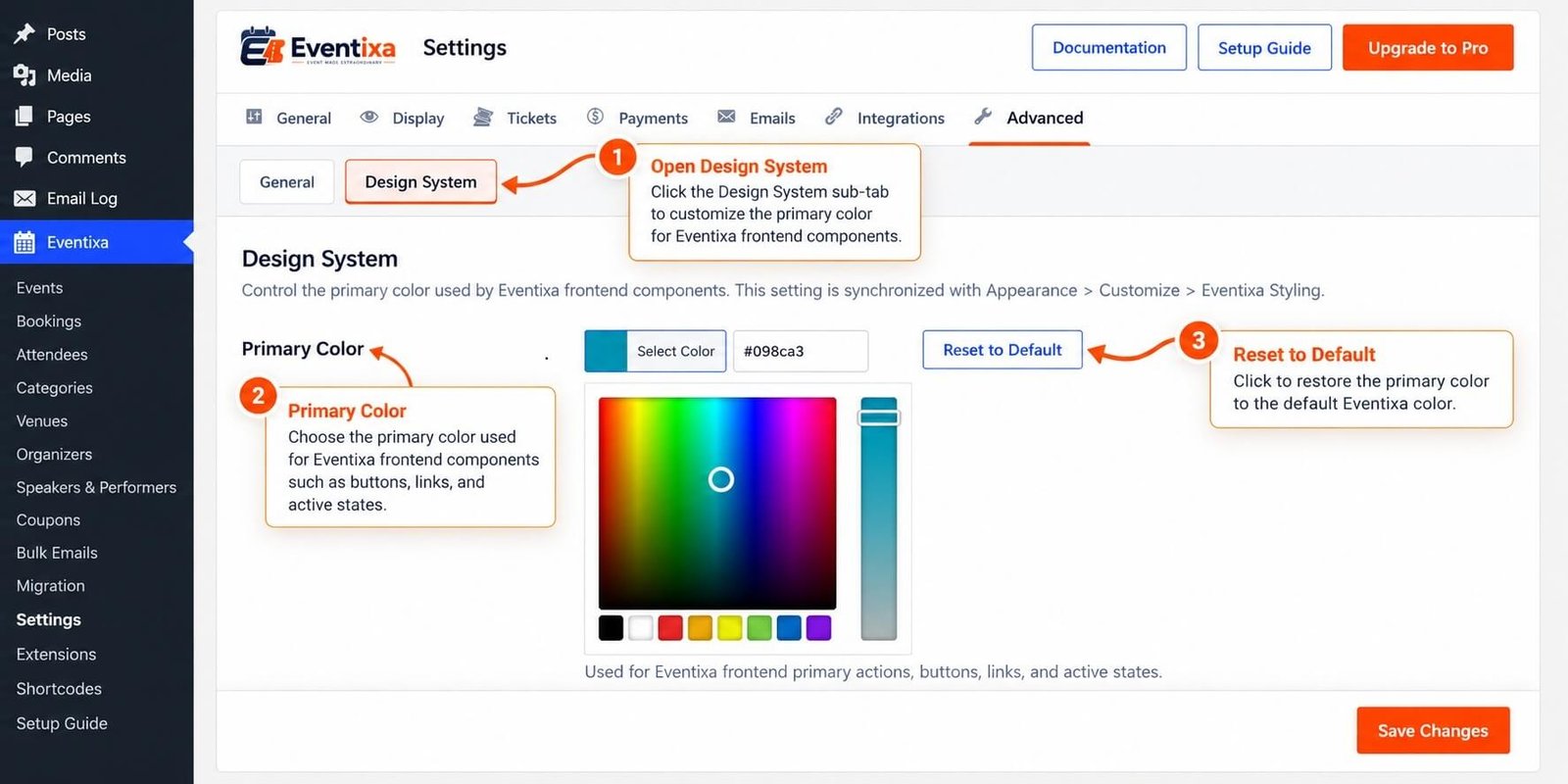
Eventixa Design System settings in WordPress showing the Primary Color picker and Reset to Default option under Advanced settings.
Configure the Eventixa Primary Color from Eventixa → Settings → Advanced → Design System to match Eventixa frontend elements with your website branding.

Choosing the Right Primary Color

For the most consistent result, use the same primary or accent color already used by your WordPress theme.

For example, if your website uses blue for its main buttons and important links, use that same blue as the Eventixa Primary Color.

This helps Eventixa feel like a natural part of your website instead of a separate interface.

Configure the Same Color from the WordPress Customizer

The same Primary Color setting is also available from the WordPress Customizer.

Go to: Appearance → Customize → Eventixa Styling

Then:

  1. Open Eventixa Styling.
  2. Select the Primary Color.
  3. Choose your preferred color.
  4. Publish the Customizer changes.

The Customizer and Eventixa Settings use the same stored setting.

This means changing the Primary Color from either location updates the same Eventixa Design System value.

Reset to the Eventixa Default Color

If you want to restore the original Eventixa color, use Reset to Default.

The default Eventixa Primary Color is: #F14B0E

After resetting and saving the setting, supported Eventixa frontend elements return to the default Eventixa orange color.

Event Category Default Color

Event Categories can have their own calendar color.

When a category uses the default color, Eventixa uses the current Design System Primary Color.

For example:

  • Eventixa Primary Color: #2563EB
  • Event Category color: Default
  • Effective category color: #2563EB

If you manually select a custom color for a category, that custom color remains independent from the global Primary Color.

Event Calendar Color

Individual events also support a Calendar Color.

Go to: Events → Add/Edit Event → Additional Settings → Calendar Color

When you use Default, Eventixa uses the current Design System Primary Color.

You can still choose a custom color for an individual event when needed.

An explicitly selected event color takes priority for event-specific color elements.
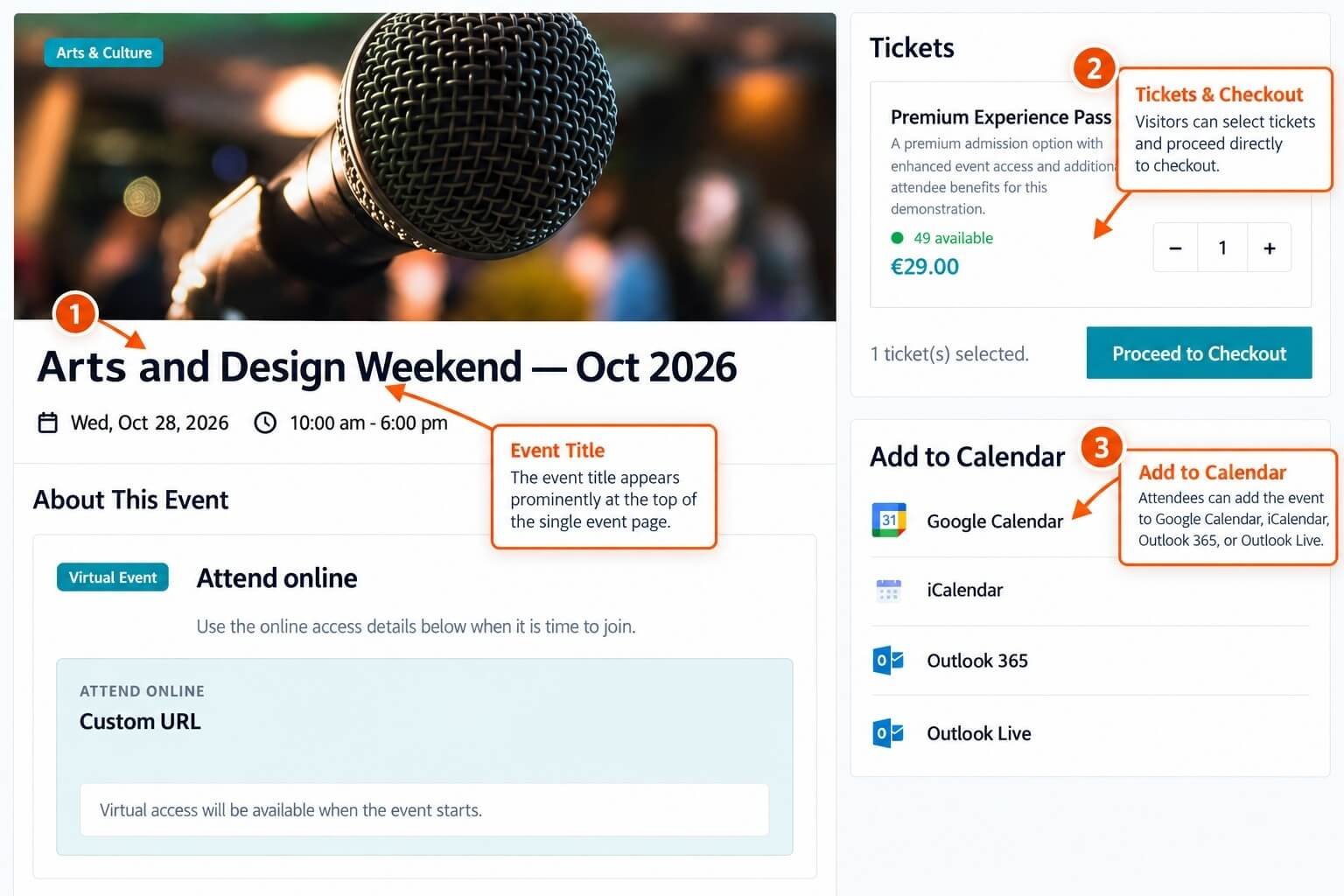
Eventixa single event page showing the event title, ticket selection and checkout area, and Add to Calendar options.
Single event page in Eventixa showing the event title, ticket purchase section, and Add to Calendar options available to attendees.

Eventixa Core and Pro

The Design System is provided by Eventixa Core.

Eventixa Pro uses the same shared frontend design system, so supported Pro frontend components automatically use the Primary Color configured in Core.

You do not need to configure a separate Design System color in Eventixa Pro.

For the best experience, keep both Eventixa Core and Eventixa Pro updated to their latest versions.

Check Your Eventixa Pages After Changing the Color

After changing the Primary Color, review the Eventixa frontend areas you use on your website.

We recommend checking:

  • Event archive and event listing pages
  • Event listing shortcodes
  • Single event pages
  • Ticket and registration sections
  • Buttons and interactive states
  • Event and category color accents
  • Eventixa Pro frontend components used on your site

If your website uses page caching, a CDN, or browser caching, clear the relevant cache before checking the updated styling.

Troubleshooting

The Old Eventixa Color Is Still Showing

Make sure the new Primary Color has been saved.

Then:

  1. Clear your WordPress caching plugin, if used.
  2. Clear your server or CDN cache, if applicable.
  3. Clear or refresh your browser cache.
  4. Reload the Eventixa frontend page.

If one specific Eventixa frontend element still uses the old color, contact Eventixa support so we can investigate it.

An Event or Category Is Showing a Different Color

Check whether that event or category has a custom color assigned.

Custom event or category colors may take priority over the global Design System Primary Color.

To use the global Primary Color again, return the relevant color setting to its default value.

The Eventixa Admin Area Did Not Change Color

This is expected.

The Eventixa Design System controls the frontend Eventixa interface.

The Eventixa WordPress admin interface keeps its standard Eventixa design.

Need Help?

If you need help configuring the Design System or notice an Eventixa frontend element that does not follow the selected Primary Color, contact us.

Email: support@eventixawp.com

We’ll be happy to help.

Share This Article :

  • Facebook
  • X
  • LinkedIn
  • Pinterest
Event Templates & OverridingEvents Overview

Eventixa is a modern WordPress event management plugin for creating events, selling tickets, managing attendees, and delivering seamless booking experiences—all from a single platform.

Help Center

  • Documentation
  • Starter Guide
  • Contact Us

Features

  • Event Management
  • Email Notifications
  • Payment Processing
  • Recurring Events
  • Live Demo

Company

  • Contact Us
  • Privacy Policy
  • Refund Policy
  • T&Cs

Copyright © 2026 - All rights reserved.