
Integration Settings
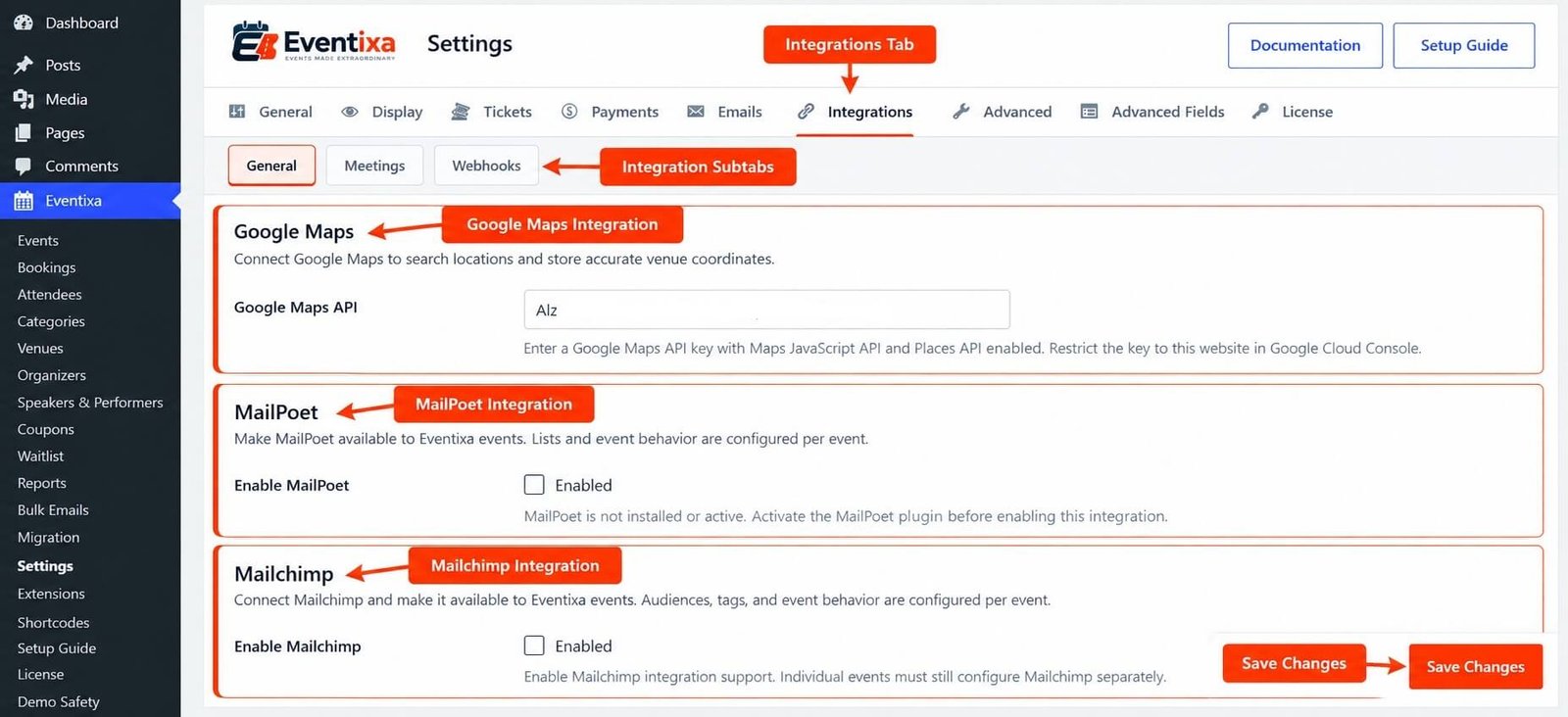
Eventixa Integration Settings provide the global configuration area for connecting Eventixa with supported external services.
Use these settings to enable integrations, add required connection details, test or manage connections where supported, and make integrations available to Eventixa events.
Available in: Eventixa Core + Eventixa Pro integrations
Location: Eventixa → Settings → Integrations
Requires: Eventixa Core
Related features: Google Maps, MailPoet, Mailchimp, Zoom, Google Meet, Webhooks
Overview
The Integrations area contains global settings for services that extend Eventixa beyond its native event-management workflow.
Eventixa Core includes integration configuration such as:
- Google Maps
- MailPoet
Eventixa Pro extends the integration system with additional supported services such as Mailchimp, managed virtual-meeting providers, and Webhooks. 106-eventixa-settings-overview
Most integrations use a two-level configuration model: Global Integration Settings → Event-Level Integration Settings
The global configuration makes the integration available to Eventixa.
Where the integration supports event-specific behavior, you then configure how the selected event uses it.
Before You Begin
Before configuring an integration:
- Eventixa Core must be installed and active.
- Eventixa Pro must be active for Pro-only integrations.
- The third-party service or WordPress plugin required by the integration must be available.
- Prepare any required API credentials or authorization details.
- Save the global connection before configuring individual events.
- Test the connection where Eventixa provides a connection test.
Do not assume that enabling an integration globally automatically enables it for every event.
How to Open Integration Settings
- Sign in to your WordPress dashboard.
- Go to Eventixa → Settings.
- Open the Integrations tab.
- Open General or the relevant integration subtab.
- Find the integration you want to configure.
- Enable it where required.
- Enter the required credentials or connection information.
- Save your changes.
- Use the available connection test or authorization action.
- Configure individual events where the integration supports event-level options.
Integration Settings Explained
| Integration | Availability | Purpose |
|---|---|---|
| Google Maps | Eventixa Core | Location search and accurate venue coordinates |
| MailPoet | Eventixa Core | Synchronize selected event contacts to MailPoet lists |
| Mailchimp | Eventixa Pro | Synchronize purchasers and/or attendees to a Mailchimp audience |
| Zoom | Eventixa Pro | Managed virtual meeting integration for supported virtual/hybrid events |
| Google Meet | Eventixa Pro | Managed Google Meet integration for supported virtual/hybrid events |
| Webhooks | Eventixa Pro | Send Eventixa activity to external HTTP endpoints |
Google Maps
The Google Maps integration connects Eventixa with Google Maps functionality for location search and venue coordinates.
The current Core settings describe this integration as:
Connect Google Maps to search locations and store accurate venue coordinates.
Use Google Maps when you want Eventixa venue workflows to use map-assisted location information.
Google Maps and Venues
Google Maps is most relevant to Eventixa venue management.
It can support workflows where venue addresses need to be associated with accurate geographic coordinates.
The global integration should be configured before relying on Google Maps functionality inside venue-related Eventixa screens.
MailPoet
MailPoet is available through Eventixa Core.
The global MailPoet integration makes MailPoet available to Eventixa events.
List selection and event-specific behavior are then configured per event. 106-eventixa-settings-overview
MailPoet Global vs Event Settings
MailPoet follows a global-plus-event configuration model.
First, enable the integration globally.
Then edit the relevant Eventixa event and configure its MailPoet behavior.
Event-level options include the selected list and recipient type where supported.
The current architecture does not use a checkout marketing-consent checkbox for MailPoet synchronization.
MailPoet Recipient Types
The current MailPoet event workflow supports recipient selection such as:
- Purchaser
- Attendees
This lets you choose whether the booking customer, registered attendees, or both should be synchronized.
Mailchimp
Mailchimp requires Eventixa Pro.
The global Mailchimp configuration is available from:
Eventixa → Settings → Integrations → General
The current setup includes:
- Enable Mailchimp
- API Key
- Server Prefix
- Test connection
- Disconnect when connected 07-mailchimp-integration
Connect Mailchimp
To configure Mailchimp:
- Go to Eventixa → Settings → Integrations → General.
- Find Mailchimp.
- Enable Enable Mailchimp.
- Enter the Mailchimp API Key.
- Enter the Server Prefix if required.
- Save the settings.
- Click Test connection.
- Confirm Eventixa can retrieve the available Mailchimp audiences. 07-mailchimp-integration
A successful connection makes those audiences available for event-level configuration.
Mailchimp Event Settings
After the global connection is ready:
- Go to Eventixa → Events.
- Edit the relevant event.
- Open Event Settings → Integrations.
- Enable Mailchimp for the event.
- Select the Mailchimp audience.
- Optionally enter an Event tag.
- Select Purchaser, Attendees, or both under Send to.
- Update the event. 07-mailchimp-integration
The optional Event tag is applied as a Mailchimp member tag when Eventixa synchronizes the contact.
Mailchimp Synchronization
For an eligible booking, Eventixa reads the event-level Mailchimp configuration and synchronizes the selected contacts to the configured audience.
The integration can synchronize:
- Purchaser
- Attendees
- Both
It can also apply the configured event tag. 07-mailchimp-integration
There is no separate checkout marketing-consent workflow in the current Mailchimp architecture. 07-mailchimp-integration
Zoom
Zoom is used by Eventixa Pro for managed virtual-meeting workflows.
It is relevant when an event is configured as:
- Virtual
- Hybrid
The global integration must be connected before Eventixa can use Zoom as a managed meeting provider for supported events.
Zoom Global and Event-Level Configuration
Zoom uses global connection settings for the service itself and event-level configuration for the actual meeting workflow.
The general model is:
Connect Zoom Globally → Edit Event → Choose Zoom Provider → Configure Meeting
For recurring events, Eventixa also supports recurring virtual meeting behavior such as using the same meeting for all occurrences or separate meetings per occurrence where supported.
For full connection and meeting-management details, use the dedicated Zoom Integration documentation.
Google Meet
Google Meet is another managed virtual meeting provider available through Eventixa Pro.
Like Zoom, it uses a global connection/authorization workflow followed by event-level configuration.
The general flow is:
Connect Google Integration → Edit Event → Choose Google Meet → Configure Meeting
Google Meet is intended for supported Virtual and Hybrid Eventixa events.
For exact authorization and meeting settings, use the dedicated Google Meet Integration documentation.
Custom Meeting URL Is Different
Custom Meeting URL is not a managed third-party connection like Zoom or Google Meet.
It is an Eventixa virtual-event option that allows you to enter an external meeting URL directly.
Because no provider connection is managed by Eventixa, it does not require the same global integration setup.
Webhooks
Webhooks require Eventixa Pro.
Unlike MailPoet and Mailchimp, the current webhook system is global.
Webhooks are not configured separately inside each event. 09-webhooks
Open: Eventixa → Settings → Integrations → Webhooks
Then enable: Webhook Settings / Enable Webhooks
Webhook Manager
The Webhook manager lets you create global webhook definitions.
Each webhook can include:
- Webhook Name
- Status
- Trigger
- Delivery URL
- Secret Key
- Description 09-webhooks
Use separate webhook records when different endpoints or triggers are required.
Webhook Triggers
The current Eventixa webhook registry includes triggers for:
Booking
- Booking Completed
- Booking Cancelled
- Booking Refunded
RSVP
- RSVP Registered
- RSVP Response Updated
- RSVP Cancelled
Check-In
- Attendee Checked In 09-webhooks
Webhook Test
After saving a webhook, use Send Test to verify the configured Delivery URL.
Testing the webhook before relying on it in production helps confirm that the receiving service can accept Eventixa requests.
Webhook Security
Eventixa creates a Secret Key for each webhook.
Use the secret according to your receiving application’s verification logic.
For production endpoints, use HTTPS and apply appropriate endpoint security.
The current admin interface does not provide a separate per-event webhook configuration or dedicated delivery-history screen.
WooCommerce Is Configured Under Payments
WooCommerce is an Eventixa integration, but its main global configuration belongs under:
Eventixa → Settings → Payments → WooCommerce
It is not configured as a normal Integration Settings card.
This keeps payment and commerce settings together in the Payments area.
Global Integrations vs Event-Level Integrations
It is important to understand the difference between global and event-level configuration.
Global Configuration
Global settings normally handle:
- Enabling an integration
- API credentials
- Account authorization
- Connection state
- Global integration availability
Event-Level Configuration
Event settings can handle:
- Enabling the integration for a specific event
- Selecting lists or audiences
- Choosing recipient types
- Selecting a virtual meeting provider
- Configuring event-specific meeting behavior
Not every integration uses both levels.
For example, Webhooks are currently managed globally rather than per event. 09-webhooks
How Integration Settings Work
Eventixa uses its shared settings architecture to register integration configuration.
Core integrations can register settings directly, while Eventixa Pro can extend the same Integrations area with additional integration sections. 106-eventixa-settings-overview
A simplified integration flow is:
Enable Integration → Connect Service → Configure Event if Required → Eventixa Workflow Uses Integration
For Mailchimp, this could be:
Enable Mailchimp → Add API Key → Test Connection → Select Event Audience → Booking Synchronizes Contact
For a managed virtual meeting provider: Connect Provider → Select Provider on Event → Create/Manage Meeting → Attendee Access
Example: Configure Mailchimp
A typical Mailchimp setup is:
- Open Eventixa → Settings → Integrations → General.
- Enable Mailchimp.
- Enter the API Key.
- Enter the Server Prefix if required.
- Save the settings.
- Test the connection.
- Edit an Eventixa event.
- Open Event Settings → Integrations.
- Enable Mailchimp.
- Select an audience.
- Select Purchaser, Attendees, or both.
- Save the event.
- Complete a test registration.
- Verify the contact appears in Mailchimp.
Example: Configure a Webhook
To notify an external CRM when a booking completes:
- Open Eventixa → Settings → Integrations → Webhooks.
- Enable Webhooks.
- Create a new webhook.
- Enter a Webhook Name.
- Set the Status to Active.
- Select Booking Completed.
- Enter the HTTPS Delivery URL.
- Save the webhook.
- Use Send Test.
- Verify the request in the receiving system.
- Complete a test Eventixa booking.
- Confirm the live webhook delivery. 09-webhooks
Recommended Integration Testing
After configuring an integration, test the complete workflow rather than only saving the settings.
Recommended checks include:
- Integration enable/disable state
- Credentials
- Connection or authorization state
- Connection test where available
- Event-level enable setting
- Event-specific options
- Test booking or registration
- External service result
- Disconnect behavior
- Error handling
For virtual providers, also test:
- Meeting creation
- Attendee access
- Recurring-event behavior
- Provider switching where supported
Important Notes
- Integration Settings are available from Eventixa → Settings → Integrations.
- Google Maps and MailPoet are available through the Core integration settings architecture. 106-eventixa-settings-overview
- Mailchimp requires Eventixa Pro.
- Mailchimp uses a global connection plus per-event audience and recipient settings. 07-mailchimp-integration
- Current MailPoet and Mailchimp workflows do not use a checkout marketing-consent checkbox.
- Zoom and Google Meet are managed virtual meeting integrations for supported Pro workflows.
- Webhooks require Eventixa Pro.
- Webhooks are configured globally rather than per event. 09-webhooks
- WooCommerce global configuration is located under Payments rather than the normal Integrations screen.
- Always test an integration before using it with live events.
Troubleshooting
An Integration Does Not Appear
Check whether:
- Eventixa Core is active.
- Eventixa Pro is active for a Pro-only integration.
- The required external WordPress plugin is active where applicable.
- The required Eventixa module is available.
Integration sections can be registered dynamically by Eventixa Core, Pro, and supported modules.
Mailchimp Connection Test Fails
Check:
- API Key
- Server Prefix
- Mailchimp account access
If the Server Prefix is entered manually, make sure it matches the Mailchimp data center associated with the API key.
No Mailchimp Audiences Appear
Run Test connection again from the global Mailchimp settings.
Eventixa uses the audiences retrieved by the current connection for event-level selection.
Mailchimp Contact Is Not Synchronized
Confirm that:
- Mailchimp is enabled globally.
- Mailchimp is enabled for the event.
- An audience is selected.
- Purchaser and/or Attendees is selected.
- The contact has a valid email address.
Webhook Does Not Send
Check:
- Webhooks are globally enabled.
- The webhook Status is Active.
- The correct Trigger is selected.
- The Delivery URL is correct.
- The receiving endpoint is available.
Use Send Test before troubleshooting live trigger behavior.
Virtual Provider Is Not Available
Confirm:
- Eventixa Pro is active.
- The provider is globally connected.
- The event is configured for an applicable Virtual or Hybrid workflow.
- The correct provider has been selected in the event settings.
Related Documentation
- Integrations Overview
- MailPoet Integration
- Mailchimp Integration
- WooCommerce Integration
- Zoom Integration
- Google Meet Integration
- Webhooks
Frequently Asked Questions
Where Are Eventixa Integration Settings?
Go to: Eventixa → Settings → Integrations
Are All Integrations Available in Eventixa Core?
No. Core includes integrations such as Google Maps and MailPoet, while additional integrations require Eventixa Pro.
Does Enabling an Integration Globally Enable It for Every Event?
Not always. Integrations such as Mailchimp use global connection settings plus event-level configuration. 07-mailchimp-integration
Are Webhooks Configured Per Event?
No. The current Eventixa webhook manager is global. 09-webhooks
Where Is WooCommerce Configured?
WooCommerce Checkout is configured under: Eventixa → Settings → Payments → WooCommerce
Can I Disconnect Mailchimp?
Yes. The global integration provides a Disconnect action once connected. Disconnecting Eventixa does not remove contacts already stored in Mailchimp.


