
Ticket Settings
Eventixa Ticket Settings control global checkout access and the default behavior used by tickets created through the Eventixa event editor.
Use these settings to configure site-wide ticket and checkout behavior before creating or selling Eventixa tickets.
Available in: Eventixa Core + Eventixa Pro enhancements
Location: Eventixa → Settings → Tickets → General
Requires: Eventixa Core
Related features: Tickets, Checkout, Guest Checkout, Bookings, Attendees, Payments
Overview
The Ticket settings area contains the Ticket & Checkout Settings section.
Its purpose is to control global checkout access and establish default behavior used by tickets created from the Eventixa event editor.
Ticket Settings are global.
Individual ticket configuration such as pricing, capacity, sale schedule, quantity rules, attendee collection, and other ticket-specific options is managed while editing the corresponding event and ticket.
How to Open Ticket Settings
- Sign in to your WordPress dashboard.
- Go to Eventixa → Settings.
- Open the Tickets tab.
- Open General.
- Review the Ticket & Checkout Settings section.
- Configure the required options.
- Click Save Changes.
- Test the checkout workflow before opening registrations.
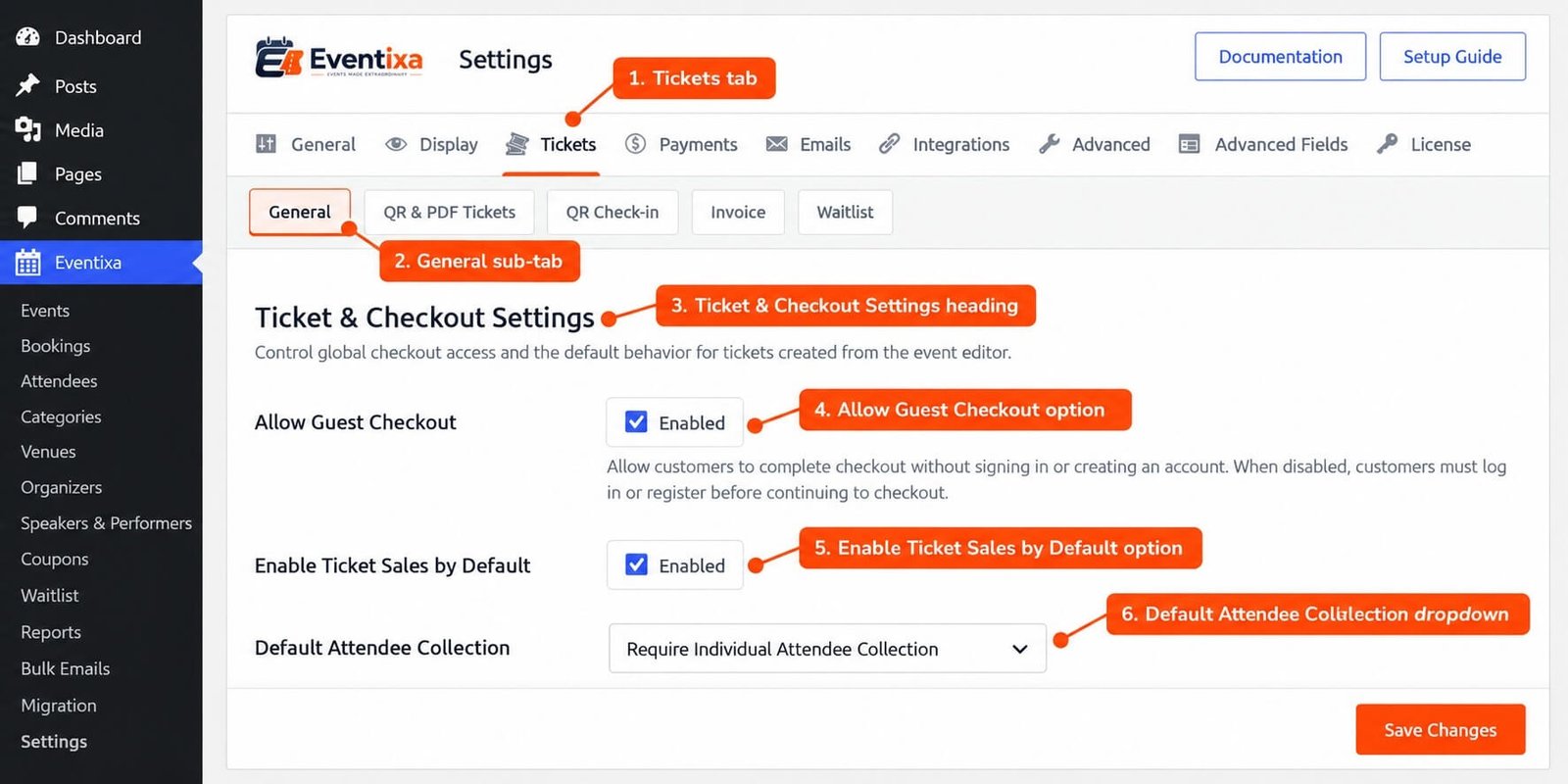
Ticket Settings vs Individual Ticket Settings
Eventixa separates global settings from individual ticket configuration.
Global Ticket Settings
Configured from: Eventixa → Settings → Tickets → General
These settings control site-wide checkout access and ticket defaults.
Individual Ticket Settings
Configured from the Eventixa event editor.
Individual ticket configuration can include ticket-specific information such as:
- Ticket name
- Price
- Capacity
- Sale schedule
- Quantity rules
- Attendee collection
- Other ticket-level options
This separation allows you to establish global behavior while still configuring each ticket according to the needs of an event.
Guest Checkout
One of the global checkout settings available in Eventixa Core is Allow Guest Checkout.
Guest Checkout allows visitors to complete eligible Eventixa registrations without signing in to a WordPress account.
Open: Eventixa → Settings → Tickets → General
Then enable: Allow Guest Checkout
Save the settings after enabling the option.
What Happens When Guest Checkout Is Enabled?
When Guest Checkout is enabled, eligible visitors can:
- Select tickets
- Proceed to checkout
- Enter purchaser information
- Enter attendee information where required
- Complete payment for paid tickets
- Receive booking confirmation
without creating or signing into a WordPress account first.
Guest registrations still create the normal Eventixa booking and attendee records.
What Happens When Guest Checkout Is Disabled?
When Guest Checkout is disabled, unauthenticated visitors can be required to sign in before completing checkout.
This can be useful for:
- Member-only events
- Private training
- Customer-only registrations
- Internal events
- Websites where bookings need to stay linked to WordPress accounts
Choose the setting based on how you want visitors to access registration.
Guest Purchaser Information
Guest purchasers are not authenticated WordPress users, so purchaser information is collected through checkout.
The purchaser email is especially important because Eventixa can use it for workflows such as:
- Booking confirmation
- Ticket delivery
- Event communication
- Virtual-event information
- Booking-related access
Visitors should use an email address they can access.
Purchaser vs Attendee
A purchaser and an attendee are not always the same person.
For example, one purchaser can buy three tickets for:
- Themselves
- A colleague
- A friend
Where individual attendee collection is enabled, Eventixa can store separate attendee information for each participant.
Guest Checkout and Attendee Collection
Guest Checkout works alongside the ticket’s attendee collection configuration.
Depending on the individual ticket setup, Eventixa can collect:
- Purchaser information
- Individual attendee information where configured
- Multiple attendees for multiple ticket quantities
Attendee collection behavior is configured at ticket level rather than from the global Ticket Settings page.
Guest Checkout with Free Tickets
Guest Checkout can be used with free standard tickets.
A typical workflow is:
- Visitor selects a free ticket.
- Visitor proceeds to checkout.
- Purchaser details are entered.
- Attendee information is entered where required.
- Registration is completed.
- Eventixa creates the booking and attendee records.
No payment transaction is required for a free ticket.
Guest Checkout with Paid Tickets
Guest visitors can also complete paid ticket bookings when a supported payment method is configured.
The typical flow is: Ticket Selection → Guest Details → Attendee Details → Payment → Booking Confirmation
The payment methods available at checkout are controlled separately under Eventixa Payment Settings.
Guest Checkout and Capacity
Guest registrations consume ticket capacity in the same Eventixa booking workflow as authenticated registrations.
Enabling Guest Checkout changes the account requirement.
It does not bypass:
- Ticket capacity
- Ticket availability
- Sale schedules
- Quantity rules
- Payment requirements
- Attendee requirements
Guest Checkout and Payments
Guest Checkout does not replace payment configuration.
For paid tickets, the visitor still needs to use an available Eventixa payment method.
Configure payment methods from: Eventixa → Settings → Payments
The available checkout method depends on the payment gateways and integrations active on the website.
Guest Checkout and WooCommerce
If Eventixa is using WooCommerce as the checkout engine, WooCommerce can also have its own account and guest-checkout requirements.
If Eventixa Guest Checkout is enabled but visitors are still being asked to sign in, review the WooCommerce checkout configuration as well.
Logged-In Checkout
When a visitor is already logged in, Eventixa can use their authenticated account information during checkout.
For authenticated checkout, the account-linked email can remain tied to the current user.
Use authenticated checkout when bookings need to remain associated with recognized WordPress users.
How Global Ticket Defaults Work
The Ticket & Checkout Settings section is also designed to provide default behavior for tickets created through the Eventixa event editor.
These global settings establish the starting configuration.
You can then configure the individual ticket according to the event’s requirements.
This keeps common behavior consistent while still allowing ticket-level customization.
Global Defaults vs Existing Tickets
Global settings and ticket-level settings should be treated separately.
A global default is intended to guide site-wide ticket behavior and ticket creation.
An individual ticket retains the configuration saved for that ticket.
When changing global ticket behavior on a live website, review existing tickets and test the affected checkout workflows rather than assuming every previously created ticket has changed.
Example: Public Conference
Suppose you are running a public conference where most visitors do not already have accounts.
A suitable workflow is:
- Go to Eventixa → Settings → Tickets → General.
- Enable Allow Guest Checkout.
- Save the settings.
- Create your event tickets.
- Configure ticket price, capacity, and attendee requirements.
- Configure a payment gateway for paid tickets.
- Log out of WordPress.
- Open the event as a visitor.
- Select a ticket.
- Complete checkout as a guest.
- Verify the booking and attendee records.
- Confirm the customer receives the expected email.
Example: Members-Only Event
For a private members-only event, you may prefer to disable Guest Checkout.
Visitors must then authenticate before completing the supported checkout workflow.
This helps keep registrations associated with recognized WordPress accounts.
Recommended Testing
After changing Ticket Settings, test:
- Guest checkout while logged out
- Authenticated checkout while logged in
- Free ticket registration
- Paid ticket registration
- Multiple ticket quantities
- Attendee information collection
- Capacity updates
- Ticket availability
- Confirmation emails
- Payment completion
- Coupons if used
- Recurring-event tickets where applicable
- Virtual-event access where applicable
Testing a real frontend booking is the best way to confirm that your global and individual ticket settings work together correctly.
Important Notes
- Ticket Settings are available from Eventixa → Settings → Tickets → General.
- The settings section is named Ticket & Checkout Settings.
- It controls global checkout access and default behavior for tickets created through the Eventixa event editor.
- Allow Guest Checkout is available in Eventixa Core.
- Guest Checkout allows eligible visitors to register without a WordPress account.
- Guest registrations still create Eventixa bookings and attendees.
- Guest registrations consume capacity normally.
- Ticket-specific configuration remains managed from the individual event or ticket.
- Payment settings are configured separately.
- WooCommerce can have its own guest-checkout requirements when it is used as the checkout engine.
- Always test checkout after changing global ticket settings.
Troubleshooting
Guests Are Asked to Log In
Go to: Eventixa → Settings → Tickets → General
Confirm that Allow Guest Checkout is enabled.
Save the settings and test again while logged out.
Guest Checkout Is Enabled but Login Is Still Required
Check whether the site is using another checkout system such as WooCommerce.
WooCommerce can apply its own account or guest-checkout requirements.
Also verify that you are testing the intended Eventixa checkout workflow.
Guest Booking Is Missing
Guest bookings should still appear in Eventixa booking management.
Review:
- Checkout result
- Booking status
- Payment result for paid tickets
- Ticket availability
Guest Does Not Receive Confirmation
Check:
- Purchaser email
- Eventixa email settings
- WordPress email delivery
- Spam or junk folder
- Email delivery logs where available
Capacity Does Not Update
Guest Checkout does not bypass capacity rules.
Review:
- Ticket capacity
- Booking status
- Ticket quantity
- Checkout result
Then verify the booking under Eventixa → Bookings.
Paid Ticket Cannot Complete Checkout
Check: Eventixa → Settings → Payments
Make sure an appropriate payment method is enabled and correctly configured.
Related Documentation
- Ticket Management Overview
- Creating Event Tickets
- Guest Checkout
- Checkout Overview
- Ticket Capacity and Availability
- Payment Overview
Frequently Asked Questions
Where Are Eventixa Ticket Settings?
Go to: Eventixa → Settings → Tickets → General
What Does the Ticket & Checkout Settings Section Control?
It controls global checkout access and the default behavior used by tickets created through the Eventixa event editor.
Can Visitors Register Without a WordPress Account?
Yes. Enable Allow Guest Checkout to allow eligible visitors to complete Eventixa bookings without signing in.
Do Guest Registrations Create Normal Bookings?
Yes. Guest registrations still create Eventixa booking and attendee records.
Does Guest Checkout Ignore Ticket Capacity?
No. Guest registrations consume ticket capacity normally.
Are Payment Gateways Configured in Ticket Settings?
No. Payment gateways are configured separately under: Eventixa → Settings → Payments


