
Elementor Integration
Eventixa integrates with Elementor so you can add Eventixa event listings, venues, organizers, single events, ticket selectors, customer account content, and Pro check-in functionality directly from the Elementor editor.
The Elementor integration uses the same shared Eventixa widget architecture as Gutenberg, which helps keep frontend behavior consistent across both builders.
Available in: Eventixa Core
Requires: Elementor
Core Widgets: Events, Venues, Organizers, Single Event, Event Tickets, My Account
Pro Widget: Check-In
What Does the Eventixa Elementor Integration Do?
The integration registers Eventixa widgets inside Elementor.
Instead of manually adding shortcodes, you can drag an Eventixa widget into your page and configure it from the Elementor panel.
This is useful when your site layout is already built with Elementor and you want Eventixa functionality to fit naturally into that workflow.
Where to Find Eventixa Widgets
Open a page with Elementor.
In the Elementor widget panel, look for the: Eventixa widget category.
The available Eventixa widgets are listed there.
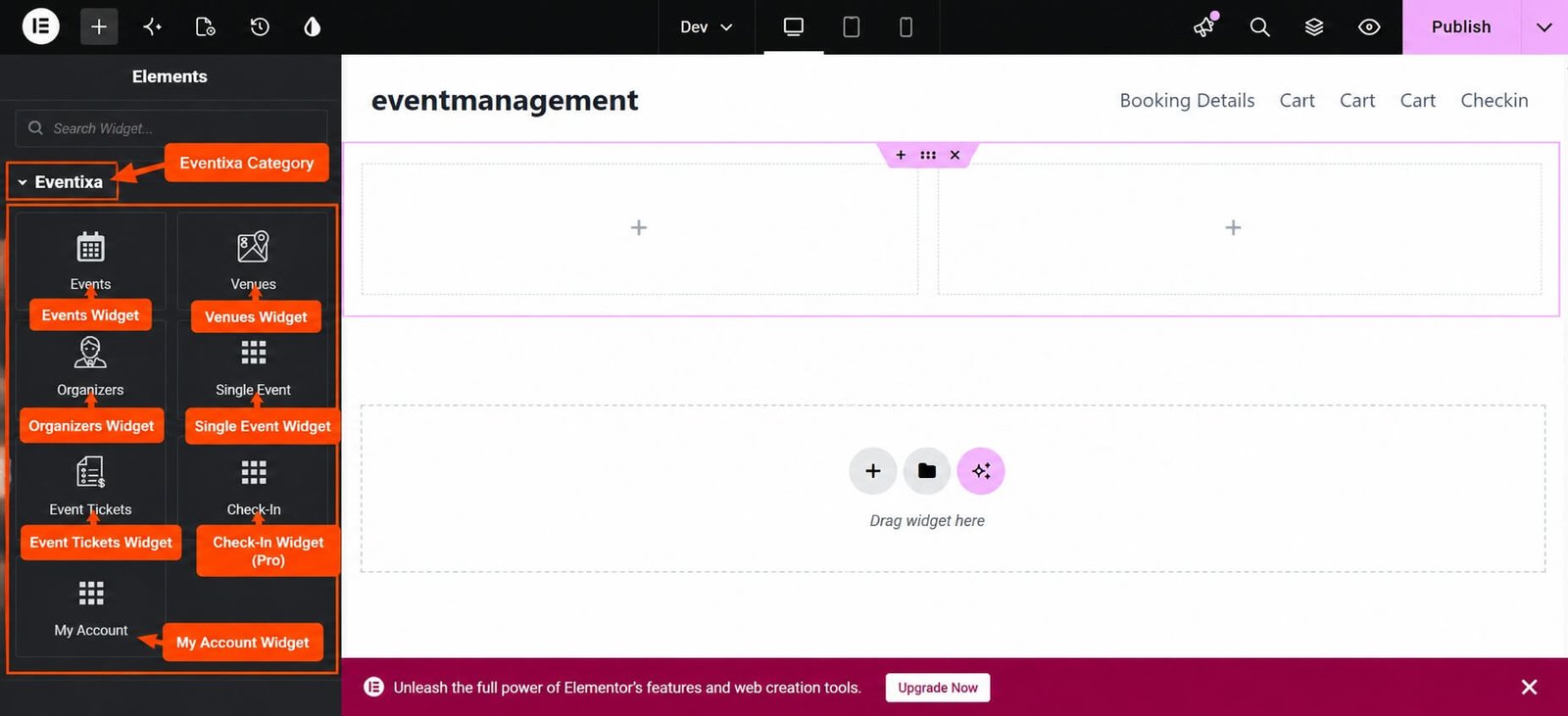
Available Eventixa Elementor Widgets
Eventixa Core currently provides these Elementor widgets:
- Events
- Venues
- Organizers
- Single Event
- Event Tickets
- My Account
Eventixa Pro adds:
- Check-In
Core and Pro Behavior
Eventixa Core provides the main display widgets.
Eventixa Pro extends the existing Events widget with additional event views and adds the Check-In widget.
Grid and Map are not separate Elementor widgets.
They are additional views inside the Events widget.
Events Widget
The Events widget displays the Eventixa event listing.
It is the Elementor equivalent of: [eventixa_events] and the Gutenberg Events block.
Events Widget Controls
The current Events widget supports controls for:
- Default View
- Available Views
- Events per page
- Categories
- Venues
- Organizers
- Sort
- Show filters
- Show search
- Show pagination
These controls use Eventixa’s shared event-listing architecture.
Default View
Use Default View to choose which event presentation appears first.
Eventixa Core supports:
- List
- Calendar
- Day
Eventixa Pro adds:
- Grid
- Map
Available Views
Use Available Views to control which view choices visitors can switch between.
For example, you can create an Events widget that supports only:
- List
- Calendar
even if more views are available on the installation.
Events Per Page
Use Events per page to control how many events appear before pagination.
This value applies to that widget instance.
Categories
The Events widget can filter the listing by Eventixa categories.
This lets you build pages such as:
- Conferences
- Workshops
- Webinars
- Training Events
using the same central Eventixa event data.
Venues
The widget can also restrict events by selected Eventixa venues.
This is useful for venue landing pages.
Organizers
You can filter the event listing by selected Eventixa organizers.
This is useful when building organizer-specific pages.
Sort
The shared Eventixa listing system supports initial sort choices such as:
- Upcoming
- Newest
- Oldest
- Title
The selected option controls the initial event order.
Show Filters
Enable Show filters when visitors should be able to refine the event listing.
Disable it when you want a fixed, simplified list.
Show Search
Enable Show search to provide the Eventixa event search interface.
Show Pagination
Enable Show pagination when there may be more events than the configured per-page value.
Core Event Views
Eventixa Core supports these views in the Events widget:
List — traditional event-list format.
Calendar — calendar-based event browsing.
Day — day-focused event view.
Eventixa Pro Views
Eventixa Pro adds:
Grid — card-based event presentation.
Map — map-based event listing.
These are added to the same Events widget.
Grid and Map Are Not Separate Widgets
You do not need to search Elementor for separate Event Grid or Event Map widgets.
Add the normal Events widget and choose Grid or Map from its view settings when Eventixa Pro is active.
Venues Widget
The Venues widget displays the Eventixa venue directory.
It uses the same frontend venue renderer as:
[eventixa_venues]
and the Gutenberg Venues block.
Venues Widget Controls
The Venues widget supports:
- Show search
- Items per page
- Show pagination
Venue Search
Enable search if visitors should be able to find venues directly from the directory.
Items Per Page
Set the number of venues displayed before pagination.
Venue Pagination
Enable pagination when the venue directory contains more items than the configured per-page amount.
Organizers Widget
The Organizers widget displays the Eventixa organizer directory.
Its controls mirror the Venues widget:
- Show search
- Items per page
- Show pagination
Single Event Widget
The Single Event widget lets you embed one selected Eventixa event inside an Elementor layout.
This is useful when you want a custom landing page around a specific event.
Select an Event
The Single Event widget includes an Event selector.
Choose the Eventixa event you want to render.
No Event Selected
If no Event is selected while editing or previewing the widget, Eventixa shows an informational editor message instead of silently rendering an empty area.
Select the event before publishing the final page.
Single Event Uses Eventixa Frontend Components
The Elementor widget does not create a separate Elementor-only event template.
It reuses the existing Eventixa single-event rendering system.
This helps keep event presentation consistent across:
- Native Eventixa event pages
- Gutenberg
- Elementor
Single Event Use Cases
The widget is useful for:
- Featured event landing pages
- Homepage event sections
- Campaign pages
- Sponsor pages
- Custom Elementor layouts
Event Tickets Widget
The Event Tickets widget displays the standard Eventixa ticket selector for a selected event.
It corresponds to:
[eventixa_tickets]
and the Gutenberg Event Tickets block.
Select an Event for Tickets
Choose the Eventixa event in the widget settings.
The widget then renders the standard ticket selector for that event.
Standard Ticket Workflow
The Event Tickets widget is for Eventixa’s standard commerce ticket selector.
RSVP uses Eventixa’s RSVP registration workflow rather than being rendered as a normal standard ticket form.
No Ticket Form Appears
If the Event Tickets widget shows no ticket selector, check:
- The correct Event is selected.
- The event has standard tickets.
- Ticket sales are currently available.
- Ticket configuration is valid.
- Recurring occurrence context is valid where applicable.
Recurring Event Tickets
For recurring events, the shared Eventixa ticket-rendering layer resolves the relevant occurrence.
The Elementor widget therefore follows the same recurring-ticket logic as the shortcode and Gutenberg block.
My Account Widget
The My Account widget renders the Eventixa customer account experience.
It corresponds to: [eventixa_my_account] and the Gutenberg My Account block.
My Account Widget Controls
The current My Account widget does not require content-specific controls.
Add the widget and Eventixa renders the customer account interface for the current WordPress user.
Customer Account Areas
The Eventixa My Account experience can include areas such as:
- Dashboard
- Bookings
- Waitlists where available
- Profile Details
- Change Password
- Logout
My Account Is User-Specific
The My Account widget does not display one fixed account for every visitor.
Its content depends on the currently authenticated WordPress user.
Do Not Publicly Cache My Account Pages
Because My Account contains private customer data, avoid full-page caching rules that could serve one user’s account content to another visitor.
Check-In Widget
Eventixa Pro adds the Check-In Elementor widget.
This widget renders the frontend Eventixa QR/manual attendee check-in interface.
It corresponds to: [eventixa_checkin] and the Gutenberg Check-In block.
Check-In Requires Eventixa Pro
The Check-In widget is provided by Eventixa Pro.
The QR Check-In feature must also be enabled for the live frontend workflow.
Check-In Widget Controls
The Check-In widget does not require separate widget-specific content controls.
It renders the shared Eventixa check-in application.
Check-In Methods
Depending on your Eventixa settings, the frontend interface can support:
- Camera QR scanning
- USB scanner input
- Manual Ticket ID lookup
Check-In Requires Login
The Check-In widget is not intended as a public anonymous scanner.
The user must be logged in and authorized to use Eventixa frontend check-in.
Manual Ticket Lookup
Manual lookup depends on the Eventixa QR Check-In settings.
If manual lookup is disabled, the manual Ticket ID field and search action are not available.
Camera Scanner and HTTPS
Browser camera access generally requires HTTPS on a production site.
Use SSL before relying on camera-based QR scanning.
Localhost can be used for development and testing.
Shared Elementor and Gutenberg Architecture
Eventixa registers Elementor widgets from the same shared widget registry used by Gutenberg.
This means Eventixa does not maintain a second independent builder feature system.
The same frontend components and configuration concepts are reused wherever possible.
Why Shared Rendering Matters
Using shared renderers helps keep behavior consistent.
For example, an Events listing built with Elementor should follow the same core event-query and frontend behavior as the Gutenberg Events block or Events shortcode.
Elementor Integration Is Available When Elementor Is Active
Eventixa registers its Elementor integration when Elementor itself is installed and active.
If Elementor is not available, Eventixa does not need to load its Elementor widgets.
Add an Eventixa Widget
To add an Eventixa widget:
- Edit a WordPress page with Elementor.
- Open the Elementor widget panel.
- Find the Eventixa category.
- Drag the required widget into the page.
- Configure its Eventixa options.
- Preview the page.
- Update or publish it.
- Verify the frontend output.
Example: Create an Event Listing
To create a normal Eventixa event listing:
- Add the Events widget.
- Choose the Default View.
- Select the Available Views.
- Set Events per page.
- Choose category, venue, or organizer filters if needed.
- Select the initial Sort.
- Enable or disable filters.
- Enable or disable search.
- Enable or disable pagination.
- Publish and test the frontend.
Example: Grid Event Listing
With Eventixa Pro active:
- Add the Events widget.
- Enable Grid in Available Views.
- Set Grid as the Default View.
- Configure event filters.
- Publish the page.
No separate Grid widget is required.
Example: Map Event Listing
With Eventixa Pro:
- Add the Events widget.
- Enable Map.
- Select Map as the Default View if desired.
- Configure the event listing.
- Test the map on the frontend.
Example: Calendar Page
Add the Events widget and choose: Calendar as the Default View.
If you want a dedicated calendar experience, limit the Available Views accordingly.
Example: Category-Specific Event Page
Add the Events widget and select one or more Eventixa categories.
The widget then displays only events that match the selected category restriction.
Example: Venue Directory
Add the Venues widget and configure:
- Search
- Items per page
- Pagination
Example: Organizer Directory
Add the Organizers widget and configure the corresponding directory controls.
Example: Feature One Event
Add the Single Event widget and choose the required Eventixa event.
You can then place other Elementor widgets around it to create a custom marketing page.
Example: Add Tickets to an Elementor Landing Page
Add the Event Tickets widget and select the event.
This lets you show ticket selection inside a custom Elementor landing page without embedding the entire Single Event experience.
Example: Add My Account
Add the My Account widget to the customer account page.
Test it while signed in as a normal customer rather than only while logged in as an administrator.
Example: Add Frontend Check-In
With Eventixa Pro:
- Add the Check-In widget.
- Publish the page.
- Log in as an authorized check-in user.
- Open the page over HTTPS.
- Test QR camera scanning.
- Test USB scanner input.
- Test manual lookup if enabled.
Elementor Widgets vs Shortcodes
Both methods can render Eventixa content.
Use Eventixa Elementor widgets when you want visual controls directly inside Elementor.
Use shortcodes when:
- No dedicated widget exists.
- You need direct shortcode parameters.
- You are inserting Eventixa into a generic Elementor Shortcode widget.
- A particular Eventixa feature is shortcode-only.
Features Without Dedicated Elementor Widgets
Based on the current Eventixa widget registry, there are no dedicated Elementor widgets for:
- Checkout
- Booking Details
- Waitlist
These can be embedded using Elementor’s standard Shortcode widget when needed.
Add Checkout in Elementor
Use Elementor’s Shortcode widget with:
[eventixa_checkout]
This should normally be used on the configured Eventixa Checkout page.
Add Booking Details in Elementor
Use:
[eventixa_booking_details]
inside Elementor’s Shortcode widget.
Keep Eventixa’s secure booking-details workflow intact.
Add Waitlist in Elementor
When Eventixa Pro Waitlist is enabled, use: [eventixa_waitlist] inside Elementor’s Shortcode widget.
The shortcode can target event, ticket, and occurrence context.
Elementor Widgets vs Gutenberg Blocks
The current Eventixa Core feature set is intentionally similar across both builders.
Both provide:
- Events
- Venues
- Organizers
- Single Event
- Event Tickets
- My Account
Eventixa Pro adds Check-In to both.
Eventixa Pro Extends Existing Widgets
Pro does not replace the Core Events widget.
Instead, it adds additional capabilities such as Grid and Map to the existing Events widget.
This preserves one consistent event-listing component across Core and Pro.
Multiple Event Widgets on One Page
You can use several Events widgets on the same Elementor page when each one has a different purpose.
For example:
- Upcoming Conferences
- Online Workshops
- Local Events
Configure each widget independently.
Avoid Accidental Duplicate Output
Do not add both an Eventixa widget and the equivalent shortcode unless you intentionally want duplicate content.
For example, adding both the Events widget and [eventixa_events] will display two event listings.
Theme and Elementor Styling
Eventixa provides its own frontend styling, but Elementor and the active WordPress theme can influence:
- Container width
- Typography
- Background
- Section spacing
- Responsive behavior
Always review the finished page on the frontend.
Elementor Editor Preview
The editor preview helps with placement and configuration, but some Eventixa behavior depends on live frontend context.
Examples include:
- Logged-in customer state
- Event occurrence
- Ticket availability
- Filter interaction
- Search
- Pagination
- QR camera permissions
- Check-in capabilities
Widget Does Not Appear in Elementor
Check:
- Elementor is installed and active.
- Eventixa Core is active.
- Elementor editor assets have loaded.
- Browser/admin cache has been cleared.
For Check-In, also confirm Eventixa Pro is active.
Eventixa Category Is Missing
If the Eventixa category does not appear, confirm Elementor is active and reload the editor.
Also check for JavaScript errors or optimization plugins interfering with Elementor widget registration.
Grid or Map Is Missing
Grid and Map are Eventixa Pro views.
If Pro is inactive, the Events widget correctly exposes Core views only:
- List
- Calendar
- Day
Single Event Widget Shows a Message
This commonly means no Event has been selected.
Choose the desired Eventixa event in the widget controls.
Event Tickets Widget Is Empty
Check:
- Selected Event
- Standard ticket existence
- Ticket availability
- Sale schedule
- Recurring occurrence context
My Account Looks Empty
Test with a logged-in customer account that has Eventixa activity.
A user with no Eventixa bookings can legitimately have little or no account data.
Check-In Widget Shows Access Error
Confirm:
- Eventixa Pro is active.
- QR Check-In is enabled.
- Current user is logged in.
- User has the required frontend check-in capability.
Camera Does Not Open
Use HTTPS and confirm the browser has camera permission.
Manual Check-In Is Disabled
The manual Ticket ID lookup option may be disabled in Eventixa settings.
This is expected when administrators choose to allow only scanner-based workflows.
Frontend Looks Different from Elementor Preview
Compare:
- Theme styles
- Elementor container width
- Eventixa styles
- Responsive breakpoint
- Logged-in state
- Event data
- Ticket state
The Elementor editor is not a complete substitute for frontend testing.
Recommended Elementor Testing
Before launching an Eventixa Elementor page:
- Test desktop layout.
- Test tablet layout.
- Test mobile layout.
- Test event search.
- Test filters.
- Test sorting.
- Test pagination.
- Test all enabled event views.
- Test Grid and Map with Pro where applicable.
- Test Event Tickets.
- Test My Account as a normal customer.
- Test Check-In as an authorized user.
- Test the actual frontend, not only the Elementor editor.
Common Questions
Does Eventixa Work with Elementor?
Yes. Eventixa Core registers native Elementor widgets when Elementor is active.
Which Elementor Widgets Are Included in Eventixa Core?
Events, Venues, Organizers, Single Event, Event Tickets, and My Account.
What Does Eventixa Pro Add?
Eventixa Pro adds the Check-In widget and extends the Events widget with Grid and Map views.
Are Grid and Map Separate Elementor Widgets?
No. They are additional views inside the Events widget.
Can I Filter Events by Category?
Yes. The Events widget supports category, venue, and organizer restrictions.
Does the Events Widget Support Search?
Yes.
Does It Support Pagination?
Yes.
Can I Display One Specific Event?
Yes. Use the Single Event widget.
Can I Add Event Tickets?
Yes. Use Event Tickets and select the Event.
Does Eventixa Have a My Account Elementor Widget?
Yes.
Is There a Checkout Elementor Widget?
No dedicated Eventixa Checkout widget exists in the current integration. Use [eventixa_checkout] in Elementor’s Shortcode widget.
Is There a Booking Details Widget?
No. Use [eventixa_booking_details].
Is There a Waitlist Elementor Widget?
No dedicated Eventixa Waitlist widget exists currently. Use [eventixa_waitlist] when Waitlist is enabled.
Does Check-In Require Eventixa Pro?
Yes.
Does Check-In Require Login?
Yes. The user must be authenticated and authorized.
Do Elementor and Gutenberg Use Different Event Logic?
No. Eventixa reuses the same shared widget and frontend rendering architecture where applicable.
Important Notes
- Elementor integration is available through Eventixa Core when Elementor is active.
- Eventixa registers its widgets under the Eventixa Elementor category.
- Core provides Events, Venues, Organizers, Single Event, Event Tickets, and My Account.
- Eventixa Pro adds Check-In.
- Eventixa Pro also adds Grid and Map to the existing Events widget.
- Grid and Map are not standalone Elementor widgets.
- Events supports views, pagination, filters, search, sorting, categories, venues, and organizers.
- Venues and Organizers support search, items per page, and pagination.
- Single Event requires selecting an Event.
- Event Tickets requires selecting an Event.
- My Account renders current-user account information.
- Check-In requires an authenticated, authorized user.
- Checkout, Booking Details, and Waitlist currently use shortcodes rather than dedicated Elementor widgets.
- Elementor and Gutenberg both use Eventixa’s shared widget architecture wherever possible.


