
Manual Bookings
Eventixa allows administrators to create bookings manually from the WordPress dashboard.
Manual Bookings are useful when a registration is received outside the normal frontend checkout flow, such as by phone, at the venue, through an organizer, or through another offline process.
Available in: Eventixa Core
Location: Eventixa → Bookings → Add Booking
Supported registration: Standard tickets
Related features: Bookings, Attendees, Offline Payment, Capacity
What Is a Manual Booking?
A Manual Booking is a registration created by an administrator instead of by the attendee through the public Eventixa checkout.
The resulting booking still becomes part of the normal Eventixa booking system.
It can contain:
- Event
- Ticket
- Customer
- Quantity
- Attendees
- Payment method
- Booking status
When to Use Manual Bookings
Manual Bookings are useful for situations such as:
- Phone registrations
- Walk-in registrations
- Organizer-created registrations
- VIP registrations
- Staff-entered bookings
- Offline orders
- Complimentary registrations
- Registrations received through another channel
This allows the Eventixa admin system to remain the central source for event registration data.
Open Add Booking
Go to: Eventixa → Bookings
Click: Add Booking
This opens the Manual Booking interface.
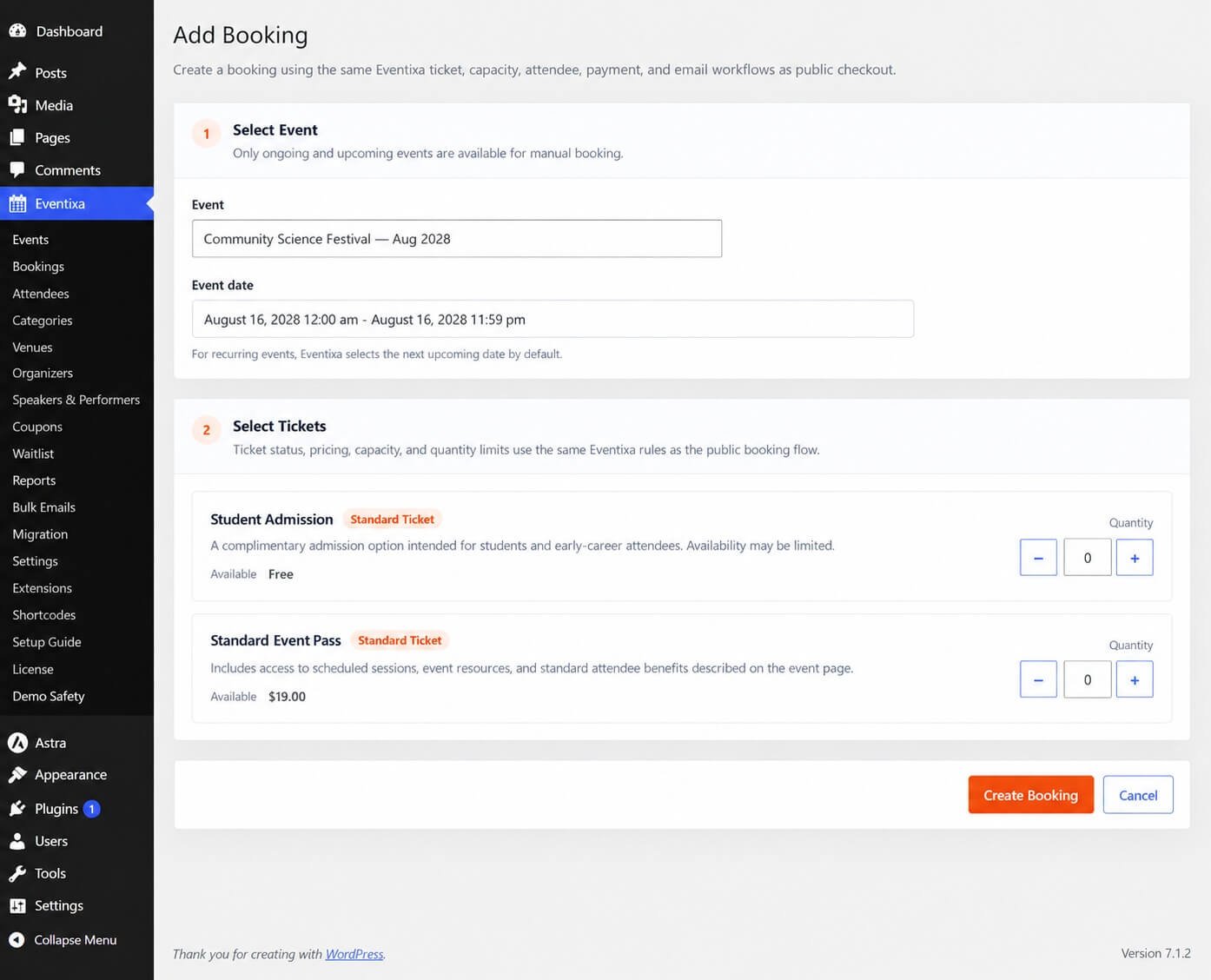
Supported Ticket Types
Manual Booking supports standard Eventixa tickets.
RSVP registration is not supported through the Manual Booking workflow.
For RSVP responses, use the normal RSVP registration flow.
Why RSVP Is Not Supported
RSVP is built around response-specific behavior such as:
- Going
- Not Going
- RSVP attendee collection
Manual Booking is intended for standard ticket registration rather than manually creating RSVP responses.
Select the Event
Start by selecting the event for the booking.
Make sure you choose the correct event before continuing.
For recurring events, also verify the applicable occurrence where the Manual Booking workflow provides occurrence selection.
Recurring Events
A recurring event can have multiple dates.
For example:
Weekly Training may contain:
- September 10
- September 17
- September 24
A Manual Booking must belong to the correct occurrence so that capacity, attendee lists, and reporting remain accurate.
Select the Ticket
After choosing the event, select the standard ticket to use for the registration.
For example:
- Standard Event Pass
- Student Admission
- VIP Pass
- Free Workshop Ticket
Only tickets valid for the selected event should be used.
Ticket Availability
Before creating a Manual Booking, verify that sufficient ticket capacity remains.
If the ticket has limited capacity, the manual registration should respect the same availability rules as normal bookings.
Ticket Quantity
Choose the number of tickets included in the booking.
For example:
Quantity: 3
This represents three attendee places.
The selected quantity affects the event’s remaining ticket availability.
Quantity Limits
Manual booking should follow the applicable ticket rules and available capacity.
Before creating a large registration, review:
- Ticket capacity
- Remaining availability
- Intended attendee count
Customer Details
Enter the purchaser or customer information for the booking.
Depending on the Manual Booking interface, this can include:
- First name
- Last name
- Phone
Use accurate details because the booking may later be used for confirmation, attendee management, or support.
Customer Email
The customer email can be important for:
- Booking confirmation
- Ticket delivery
- Event communication
- Booking lookup
Double-check the email address before saving.
Guest-Style Manual Customer
A Manual Booking does not require the customer to complete the frontend checkout.
The administrator can create the booking directly using the customer’s provided information.
This is useful when the customer does not have a WordPress account.
Existing Users
If the Manual Booking workflow supports selecting or associating an existing user, make sure the booking is linked to the correct customer.
Avoid connecting a booking to the wrong WordPress account.
Attendee Information
If the selected ticket uses individual attendee collection, enter the required attendee details.
For example:
Quantity: 2 can require:
Attendee 1
- Name
Attendee 2
- Name
This creates accurate individual attendee records.
Purchaser vs Attendee
The customer creating or paying for the booking may not be one of the attendees.
For example:
A company administrator can create one booking for three employees.
The booking can have:
- One purchaser
- Three attendees
Advanced Attendee Fields
Requires Eventixa Pro
If the selected ticket uses Advanced Attendee Fields, additional attendee information may also be required.
Examples include:
- Company
- Job title
- Telephone
- Dietary requirements
- Custom registration questions
Enter the required data for each attendee as appropriate.
Payment Method
A Manual Booking may need a payment method or registration method assigned.
Depending on the applicable workflow, common options can include:
- Offline / Local
- Free
- Other supported manual-compatible methods
Use the method that accurately represents how the booking was handled.
Offline Payment
Offline / Local Payment is especially useful for Manual Bookings.
Examples include:
- Cash received at venue
- Bank transfer
- Invoice payment
- Organizer-collected payment
The financial transaction itself happens outside Eventixa.
Free Manual Booking
If the ticket price is zero, the booking can be created without a paid transaction.
For example:
Ticket: Staff Pass
Price: $0
The registration can still create normal booking and attendee records.
Paid Manual Booking
For a paid ticket, the administrator should make sure the payment information reflects the real-world transaction.
Do not mark a booking as paid unless payment was actually received.
Booking Status
Choose or confirm the appropriate booking status according to the real registration state.
For example, a booking may need to be:
- Completed
- Pending
depending on whether payment or registration is fully confirmed.
Payment Status
Payment status is separate from booking status.
For example:
Booking: Completed
Payment: Paid
or:
Booking: Pending
Payment: Pending
Use statuses that accurately represent what has happened.
Create the Booking
After reviewing all information, create the Manual Booking.
Before saving, verify:
- Event
- Occurrence
- Ticket
- Quantity
- Customer
- Attendees
- Payment method
- Booking status
This reduces administrative mistakes.
After the Booking Is Created
The new Manual Booking appears under: Eventixa → Bookings
It can then be managed like other Eventixa bookings.
You can review:
- Booking details
- Attendees
- Status
- Payment information
- Notes
Manual Booking and Capacity
Manual Bookings consume ticket capacity.
For example:
Ticket capacity: 100
Existing attendees: 80
Manual booking quantity: 5
Remaining availability becomes: 15 subject to other active reservations.
Avoid Overbooking
Before adding a Manual Booking, always verify current availability.
Manual registration should not be used to bypass event capacity unless the organizer intentionally changes the ticket capacity first.
Manual Booking and Attendee Count
The number of attendees created should match the booking quantity where individual attendee records are required.
For example:
Quantity: 4 should correspond to four attending places.
Manual Booking and Check-In
Attendees created through Manual Booking participate in the normal attendee workflow.
They can be checked in just like attendees created from frontend registration.
Manual Booking and QR Tickets
Where QR ticketing is enabled, manually registered attendees can participate in the applicable ticket/check-in workflow.
Make sure their attendee information is accurate before ticket delivery.
Manual Booking and Confirmation Emails
Depending on Eventixa email behavior and the applicable action, a Manual Booking can participate in booking and attendee communication workflows.
Before relying on automatic email delivery, test the manual booking flow on your site.
Re-Send Ticket
Requires Eventixa Pro
Where supported, an administrator can resend the ticket after the Manual Booking has created the attendee record.
This can be useful when the booking was created on behalf of the attendee.
Manual Booking and Virtual Events
Manual Bookings can also be used for eligible Virtual and Hybrid events.
The attendee still needs to satisfy the configured access rules.
A manually created booking should not bypass:
- Reveal timing
- Registration eligibility
- Occurrence rules
Manual Booking and Recurring Virtual Events
If the event is both recurring and virtual, verify the correct occurrence before creating the booking.
This ensures the attendee receives access associated with the intended meeting occurrence.
Manual Booking and Coupons
Manual Booking is an administrative registration workflow.
Do not assume frontend coupon behavior automatically applies in the same way.
Use the actual booking total and payment state that reflects the manual transaction.
Booking Notes
After creating the booking, add an internal note when useful.
For example:
Manual booking created after phone registration. Payment received by bank transfer.
This provides context for other administrators.
Why Internal Notes Are Useful
Manual bookings often originate outside the normal checkout history.
An internal note can explain:
- Who created the booking
- Why it was created
- How payment was received
- Whether organizer approval was required
This makes later support and reconciliation easier.
Example: Phone Registration
A customer calls to register for an event.
The administrator:
- Opens Add Booking.
- Selects the event.
- Selects Standard Event Pass.
- Sets quantity to 1.
- Enters customer information.
- Enters attendee information.
- Records the appropriate payment method.
- Creates the booking.
The booking now appears with all normal Eventixa registrations.
Example: Group Registration
An organization sends registration details for five employees.
The administrator creates: 1 booking
with Quantity: 5 and enters five attendee records.
This keeps the group under one booking while preserving individual attendee data.
Example: Complimentary VIP
An organizer wants to provide a complimentary VIP registration.
Use the correct ticket and pricing configuration so the booking accurately reflects that no payment is required.
Avoid manually changing financial data in a way that does not match the ticket configuration.
Example: Cash at Venue
A customer registers at the event desk and pays cash.
The administrator can create a Manual Booking and record the appropriate Offline / Local payment workflow.
Add an internal note if needed for reconciliation.
Manual Booking for Sold-Out Tickets
If a ticket is sold out, do not create a Manual Booking merely to bypass the capacity check.
Instead, determine whether the organizer intends to:
- Increase capacity
- Use Waitlist
- Create another ticket type
Keeping capacity accurate prevents overbooking.
Manual Booking and Waitlist
Requires Eventixa Pro
If the ticket uses Waitlist, manually adding attendees outside that process can affect fairness and capacity.
Review the current reservation and waitlist state before creating a manual registration for a sold-out ticket.
Editing After Creation
After the booking is created, open it from the Bookings screen.
You can review:
- Event
- Customer
- Tickets
- Attendees
- Payment
- Status
- Notes
Use the normal Eventixa booking-management workflow for subsequent changes.
Cancelling a Manual Booking
Manual Bookings can be cancelled using the same applicable booking cancellation process.
When cancelled, the associated capacity can be released.
Refunding a Manual Booking
If the Manual Booking involved payment, the actual financial refund must be handled through the method used to receive the payment.
For example:
- Return cash
- Reverse bank transfer
- Refund through applicable gateway
Then update Eventixa to the appropriate booking/refund state.
Common Problems
RSVP Ticket Cannot Be Selected
This is expected.
Manual Booking supports standard tickets, not RSVP registration.
Event Is Missing
Make sure the event exists and is available for the applicable booking workflow.
Ticket Is Missing
Check that the ticket belongs to the selected event and is a supported standard ticket.
Not Enough Capacity
Review the ticket’s current availability.
Do not use Manual Booking to bypass sold-out capacity unintentionally.
Wrong Occurrence Was Selected
For recurring events, cancel or correct the booking according to the supported workflow and recreate it for the correct occurrence if necessary.
Attendees Are Missing
Check:
- Quantity
- Attendee collection mode
- Required attendee information
Payment Shows Pending
Review whether the manual payment has actually been received.
Do not mark it paid until the financial transaction is confirmed.
Customer Did Not Receive Email
Check:
- Customer email
- Attendee email
- Eventixa email configuration
- WordPress email delivery
Booking Appears in the Wrong Event
Verify the selected event and occurrence before saving.
Recommended Manual Booking Workflow
- Go to Eventixa → Bookings.
- Click Add Booking.
- Select the event.
- Select the correct occurrence if applicable.
- Select a standard ticket.
- Enter ticket quantity.
- Confirm available capacity.
- Enter customer information.
- Enter attendee information.
- Review payment method.
- Set the appropriate booking/payment state.
- Review all information.
- Create the booking.
- Open the new booking.
- Verify attendees.
- Verify capacity.
- Add an internal note if needed.
- Verify email delivery if applicable.
Important Notes
- Manual Bookings are created from Eventixa → Bookings → Add Booking.
- Manual Booking supports standard tickets.
- RSVP tickets are not supported in the Manual Booking workflow.
- Manual Bookings consume normal ticket capacity.
- One Manual Booking can contain multiple attendees.
- Always verify the correct recurring occurrence.
- Payment state should reflect the actual financial transaction.
- Manual Booking should not be used to unintentionally bypass sold-out capacity.
- Add internal notes when the registration was created through an offline process.
- Manual Bookings can be managed from the standard Eventixa Bookings screen after creation.


