
Managing Bookings
Eventixa provides a centralized Bookings screen where administrators can review and manage event registrations.
Each booking represents a registration transaction and can contain one or more attendees, depending on the selected ticket quantity.
Available in: Eventixa Core
Location: Eventixa → Bookings
Related features: Tickets, Checkout, Attendees, Payments, RSVP
Open the Bookings Screen
From the WordPress dashboard, go to: Eventixa → Bookings
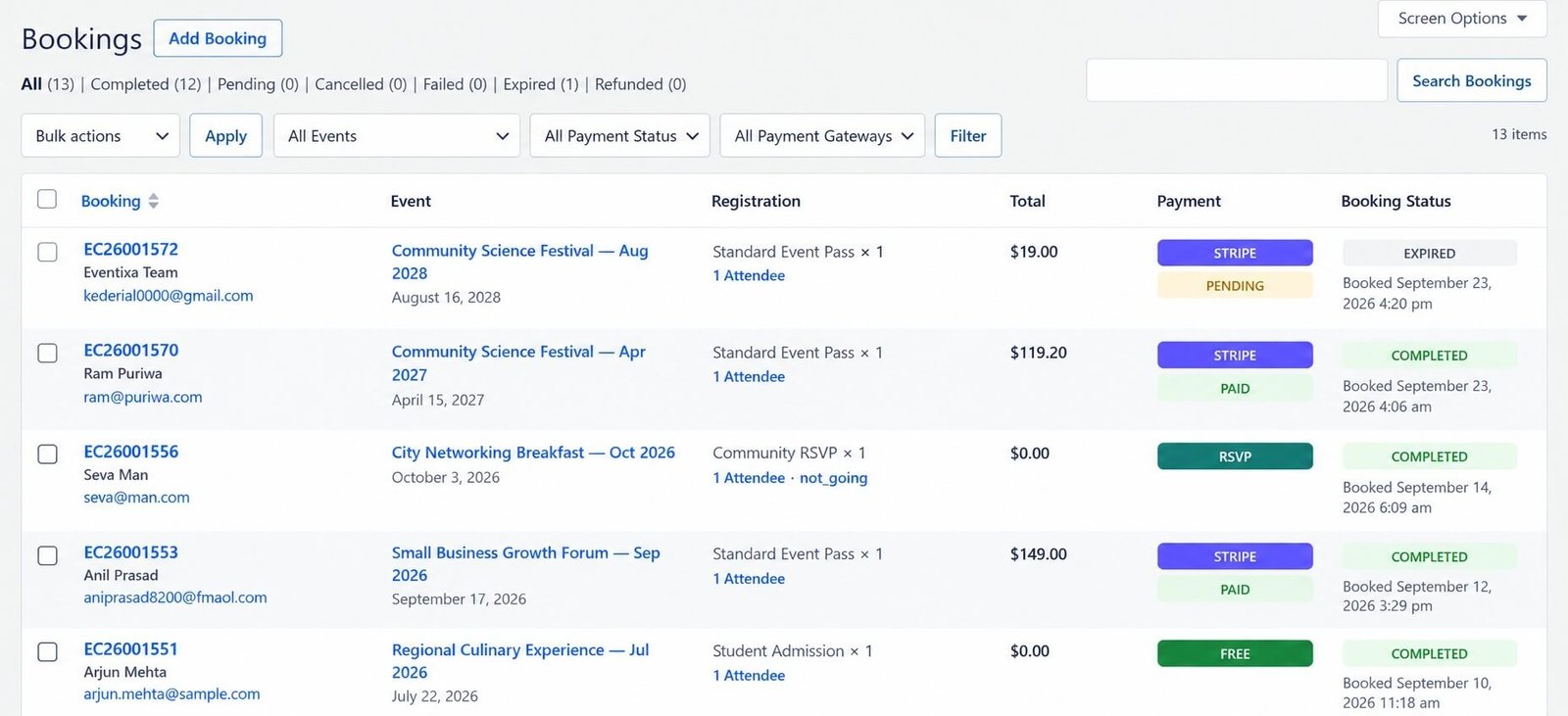
The Bookings screen lists registrations created through Eventixa.
From here, you can review important booking information and open individual bookings for more details.
What Is an Eventixa Booking?
A booking represents a completed or active registration workflow for an event.
A booking can contain information such as:
- Booking ID
- Event
- Ticket
- Registration type
- Purchaser
- Attendees
- Quantity
- Payment method
- Booking status
- Payment status
One booking may contain multiple attendees.
Booking vs Attendee
Bookings and attendees are related but are not the same thing.
For example:
A customer purchases: 3 Standard Event Passes
Eventixa can create: 1 booking
containing: 3 attendees
This is why booking count and attendee count may differ.
Booking List
The Eventixa Bookings page provides a compact overview of registrations.
Depending on the booking type, the listing can show information such as:
- Booking / purchaser
- Event
- Registration
- Attendee quantity
- Payment method
- Booking status
- Booking date
The exact information displayed can vary according to registration type.
Purchaser Information
The purchaser is the person who completed the booking.
Purchaser information can include:
- Name
The purchaser does not necessarily need to be one of the attendees.
For example, one person may purchase tickets for colleagues or family members.
Event Information
Each booking remains associated with the relevant Eventixa event.
The Bookings screen helps administrators quickly identify which event a registration belongs to.
For recurring events, the booking should also remain connected to the correct occurrence.
Registration Information
The Registration column can summarize what was booked.
Depending on the registration type, this can include:
- Ticket name
- Ticket quantity
- Number of attendees
- RSVP response
This helps administrators understand the booking without opening it.
Attendee Count
Eventixa can display the number of attendees associated with a booking.
For example: 3 Attendees
means the booking contains three individual attendee records.
The attendee count is especially important for capacity and check-in workflows.
Standard Ticket Bookings
A Standard ticket booking represents a normal free or paid ticket registration.
For example:
Standard Event Pass × 2 can create one booking with two attendees.
The booking may also contain payment information where the ticket is paid.
Free Ticket Bookings
Free ticket bookings do not require an online payment transaction.
They still create normal Eventixa booking and attendee records.
Depending on the interface, the payment method can appear as: FREE or another appropriate free-registration indicator.
Paid Ticket Bookings
Paid bookings contain the applicable payment information.
Depending on your setup, the payment method can include:
- PayPal
- Stripe
- WooCommerce
- Local / Offline
The payment method helps administrators quickly understand how the booking was processed.
RSVP Bookings
RSVP registrations also appear in booking management.
Unlike standard tickets, RSVP responses represent attendance intentions such as:
- Going
- Not Going
The Bookings screen can display the RSVP response directly in the registration information.
Going RSVP
A Going RSVP represents an attendee who plans to attend.
Going responses can participate in attendee and capacity workflows where applicable.
Not Going RSVP
A Not Going response represents a decline.
Not Going responses remain useful as registration records but should not behave like normal attending ticket holders.
Payment Method Badges
Eventixa uses payment-method badges to make bookings easier to scan.
Depending on the booking, you may see methods such as:
- PayPal
- Stripe
- WooCommerce
- RSVP
- FREE
- LOCAL / OFFLINE
These badges identify the registration/payment method at a glance.
Booking Status
Each booking has a booking status.
Statuses help administrators understand where the registration currently stands.
Examples can include:
- Pending
- Confirmed
- Cancelled
- Refunded
The exact statuses available depend on the booking workflow.
Booking statuses are covered in detail in the Booking Statuses documentation.
Payment Status
Payment status is separate from booking status.
For example:
Booking status: Confirmed
Payment status: Paid
or:
Booking status: Pending
Payment status: Pending
Do not treat these two values as interchangeable.
Booking Date
The booking date shows when the registration was created.
This can help administrators:
- Review recent registrations
- Investigate payment issues
- Confirm registration order
- Understand event activity
In the current Bookings listing, the booking date is shown together with booking status information.
Opening a Booking
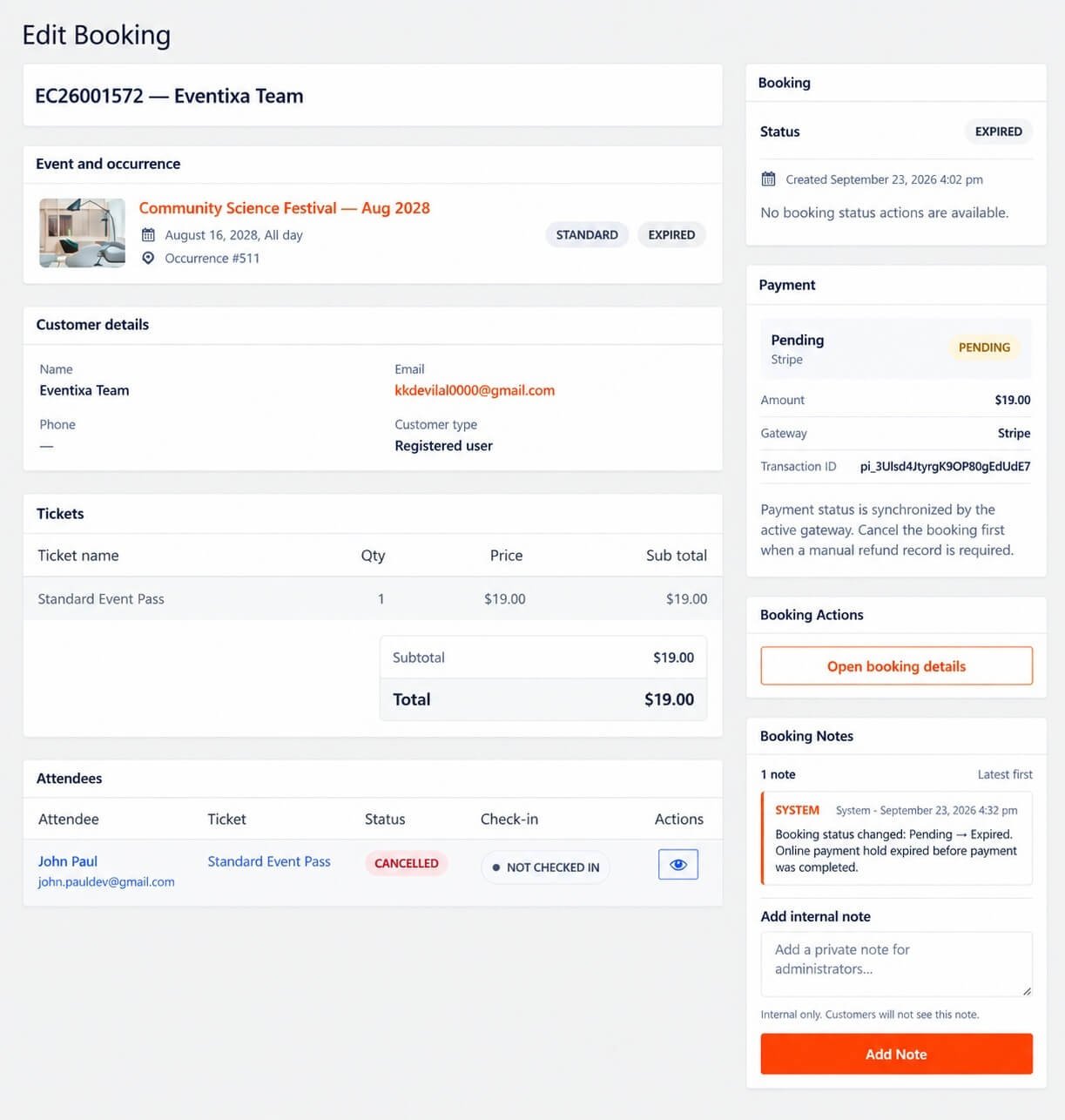
Select a booking from the Bookings screen to view its detailed information.
The Booking Details screen can provide more information about:
- Purchaser
- Event
- Tickets
- Attendees
- Payment
- Status
- Booking metadata
The full Booking Details interface is covered in the next documentation article.
Search Bookings
Use the available booking search to locate registrations quickly.
Depending on the current interface, useful search values may include:
- Purchaser name
- Booking reference
- Event
Search is especially useful when handling support requests from attendees.
Filtering Bookings
Where available, booking filters can help narrow the list by relevant booking information.
Use filters together with search when managing events with a large number of registrations.
Booking Actions
Booking management can provide actions appropriate to the current booking state.
Depending on the booking, administrators may be able to:
- Open booking details
- Update booking status
- Cancel a booking
- Mark a booking refunded
- Review attendees
Always verify the booking before applying a state-changing action.
Managing Attendees from a Booking
A booking can contain one or more attendees.
Attendee records can be reviewed through:
Eventixa → Attendees
This is useful when you need to manage individual participants rather than the overall booking.
Booking and Attendee Relationship
Consider this example:
Booking #1205
Purchaser: Alex Johnson
Ticket: Standard Pass × 3
Attendees:
- Alex Johnson
- Priya Singh
- John Lee
The booking represents the transaction.
The attendee records represent the individual participants.
Multiple Ticket Quantity
A booking quantity can be greater than one.
For example:
Ticket quantity: 4
This consumes four attendee places.
Capacity calculations are based on attendee quantity rather than simply the number of booking records.
Booking Capacity
When a valid booking is created, its attending quantity can reduce the available ticket capacity.
For example:
Ticket capacity: 100
Booked attendees: 6
Remaining capacity becomes: 94 subject to any other active reservations.
Pending Bookings and Capacity
Relevant pending bookings can temporarily affect ticket availability.
This helps prevent the same remaining capacity from being sold to multiple customers during active checkout or payment workflows.
Checkout Session and Bookings
Before the booking is fully completed, Eventixa can temporarily reserve capacity through the checkout session.
The standard checkout session lasts: 10 minutes
If the session expires without completion, the temporary capacity can be released.
Guest Bookings
Bookings created by guest purchasers appear in the normal Eventixa Bookings screen.
Guest registrations are not stored in a separate booking area.
They can contain:
- Purchaser information
- Tickets
- Attendees
- Payment method
- Status
just like authenticated bookings.
Logged-In Bookings
When a logged-in user completes checkout, the booking follows the authenticated user workflow.
The purchaser email remains connected to the logged-in account.
Recurring Event Bookings
Bookings for recurring events must remain connected to the selected occurrence.
For example:
Event: Weekly Training
Occurrence: September 12 is different from:
Event: Weekly Training
Occurrence: September 19 even when both use the same ticket configuration.
Why Occurrence Information Matters
Occurrence-specific booking information is important for:
- Capacity
- Attendee lists
- Check-in
- Virtual-event access
- Reports
Always verify the correct occurrence when troubleshooting a recurring-event booking.
Virtual Event Bookings
Bookings for Virtual and Hybrid events are managed from the same Bookings screen.
Successful registration does not automatically expose meeting information immediately.
Virtual access still follows the configured:
- Access rules
- Reveal timing
- Occurrence
- Registration eligibility
Booking and Check-In
A booking itself can contain several attendees.
Check-in is normally handled at attendee level.
For example:
One booking with three attendees can have:
- Attendee 1 — Checked in
- Attendee 2 — Checked in
- Attendee 3 — Not checked in
This allows individual attendance tracking.
Booking and PDF Tickets
Where PDF Tickets are enabled, individual attendee tickets can be associated with the attendees inside a booking.
Ticket delivery remains separate from the overall booking record.
Booking Confirmation Emails
After a valid booking is created, Eventixa can send booking-related emails according to the site’s configuration.
These emails can include:
- Event information
- Booking information
- Attendee information
- Ticket information
- Virtual-event information where allowed
Cancelling a Booking
Administrators can cancel an applicable booking.
Cancellation can:
- Change the booking status
- Release the booked capacity
- Prevent the booking from being treated as active
Cancellation is covered in detail in Canceling and Refunding Bookings.
Capacity After Cancellation
When an applicable booking is cancelled, its capacity is released.
For example:
Booking quantity: 3
Cancelling the booking can return three places to availability.
Cancellation and Waitlist
Requires Eventixa Pro
If Waitlist is active for a sold-out ticket, released capacity may immediately be reserved for the next eligible waitlisted visitor.
This means cancelled capacity may not simply return to normal public availability.
Refunded Booking
After a cancellation, an administrator can mark an applicable booking as Refunded once the financial refund has been handled.
The actual payment refund may need to be processed separately through the payment provider.
Cancellation vs Refund
These are separate actions.
Cancellation
Changes the Eventixa booking and releases capacity.
Refund
Represents the financial repayment to the purchaser.
Do not mark a booking refunded unless the actual financial refund has been handled appropriately.
Manual Bookings
Administrators can also create bookings manually where supported.
Manual booking is useful for:
- Phone registrations
- Walk-in registrations
- Organizer-entered attendees
- Administrative registrations
Manual Booking does not support RSVP registration; standard tickets are used for manual booking.
This workflow is documented separately.
Editing Attendee Information
Where attendee editing is available, administrators can correct individual attendee details after registration.
This is separate from editing the overall booking.
Use the Attendees interface when the change belongs to one attendee rather than the entire booking.
Re-Send Ticket
Requires Eventixa Pro
Where supported, administrators can resend an attendee ticket after registration.
This can be useful when:
- The attendee lost the email
- An email address was corrected
- The ticket needs to be delivered again
Duplicate Registrations
If a customer believes they registered twice, review:
- Purchaser email
- Event
- Ticket
- Booking date
- Payment method
- Payment status
Do not delete or cancel a booking until you confirm which registration is valid.
Failed Payment Bookings
A booking associated with a failed payment should not be treated as successfully paid.
Check the payment state before making manual changes.
If the customer was charged, verify the transaction directly with the payment provider before attempting another payment.
Booking Payment Mismatch
Eventixa validates applicable payment references to prevent one payment from being attached to the wrong booking.
If Eventixa reports that a payment does not match the booking, verify:
- Booking reference
- Payment reference
- Amount
- Customer
- Ticket
before taking further action.
Deleting Bookings
Use caution when permanently deleting booking data.
In most operational cases, changing the booking status is safer than deleting historical records.
Keeping booking history is useful for:
- Support
- Payment reconciliation
- Reports
- Attendance records
- Refund investigation
Common Problems
Booking Exists but No Attendees Appear
Check:
- Ticket quantity
- Attendee collection configuration
- Booking completion status
A normal completed booking with attendee quantity should have the expected attendee records.
Booking Count Is Lower Than Attendee Count
This is normal.
One booking can contain multiple attendees.
RSVP Shows No Payment
This is expected.
RSVP does not require payment.
Free Booking Shows No Paid Status
Free tickets do not require an online payment transaction.
Wrong Payment Method Appears
Open the booking and verify which gateway actually processed the registration.
Booking Is Pending
Review:
- Payment result
- Booking state
- Checkout status
- Offline payment workflow
Pending is not the same as confirmed.
Cancelled Booking Still Shows Payment Was Made
Cancellation does not automatically refund the financial transaction.
Check the payment provider separately.
Capacity Did Not Return After Cancellation
Confirm that the booking cancellation completed successfully.
If Waitlist is enabled, the released capacity may have been reserved for a waitlisted visitor.
Recurring Booking Appears on Wrong Date
Check the booking’s occurrence information.
Attendee Cannot Be Checked In
Check:
- Attendee status
- Booking status
- Event occurrence
- Registration type
Not Going RSVP attendees should not behave like normal attending ticket holders.
Recommended Booking Management Workflow
- Go to Eventixa → Bookings.
- Locate the booking.
- Confirm the purchaser.
- Verify the event.
- Review the registration type.
- Check attendee quantity.
- Check payment method.
- Review booking status.
- Open the booking when more detail is required.
- Review individual attendees if necessary.
- Apply cancellation or status actions only after verification.
- Confirm capacity after any booking-state change.
- Verify the financial transaction separately when refunds are involved.
Recommended Daily Review
For active events, regularly review:
- New bookings
- Pending bookings
- Failed payments
- Offline payments
- Cancelled bookings
- Refunded bookings
- High-capacity events
- Waitlist-related bookings
This helps keep registration, capacity, and payment information accurate.
Important Notes
- Eventixa bookings are managed from Eventixa → Bookings.
- One booking can contain multiple attendees.
- Booking count and attendee count are not the same.
- RSVP responses also appear in booking management.
- Payment method and booking status represent different information.
- Pending bookings can affect capacity.
- Recurring bookings must remain associated with the correct occurrence.
- Cancelling a booking and refunding a payment are separate actions.
- Cancelled bookings can release capacity.
- Waitlist may immediately claim released capacity when enabled.
- Use booking history rather than deleting records unnecessarily.


