
Recurring Virtual Events
Eventixa Pro lets recurring Virtual and Hybrid events use online meetings across multiple occurrences.
You can choose whether every occurrence shares the same meeting or whether each occurrence uses its own meeting.
Available in: Eventixa Pro
Location: Eventixa → Events → Edit Event → Location & Virtual
Requires: Recurring Events enabled
Supported managed providers: Zoom and Google Meet
Also supported: Custom Meeting URL
How Recurring Virtual Events Work
A recurring virtual event combines two Eventixa systems:
- Recurring Events
- Virtual Event Access
The recurrence defines when the event happens.
The virtual-event configuration defines how attendees join online.
Before You Begin
Make sure:
- Eventixa Core is active.
- Eventixa Pro is active.
- The event format is Virtual or Hybrid.
- The recurrence rule has been configured.
- The required virtual provider is available.
- Zoom or Google Meet is connected if you plan to use a managed provider.
Configure the Recurring Event First
Go to: Event Settings → Recurring Events
Enable: Repeat this event
Then configure:
- Daily, Weekly, Monthly, or Yearly recurrence
- Repeat interval
- Weekly days where applicable
- End behavior
- Excluded dates
- Additional dates
Save the event and review the generated occurrences.
Open Virtual Event Settings
Go to: Event Settings → Location & Virtual
Choose:
- Virtual, or
- Hybrid
The Online Meeting settings become available.
Choose a Meeting Provider
Select the provider attendees will use.
Available options can include:
- Custom URL
- Zoom
- Google Meet
Custom URL is available in Eventixa Core.
Zoom and Google Meet require Eventixa Pro and their respective integrations.
Recurring Meeting Modes
Recurring virtual events can use one of two meeting strategies:
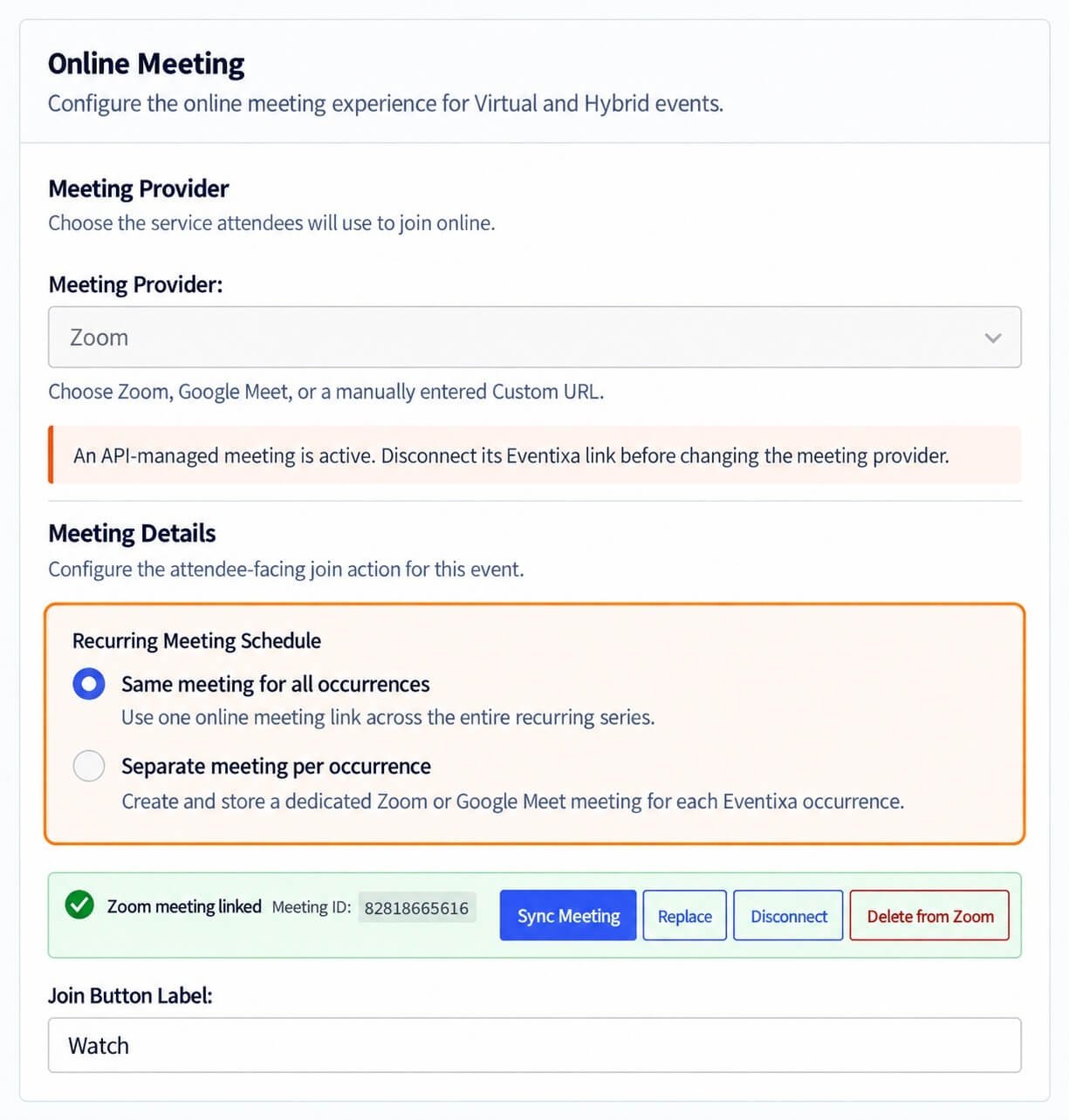
- Same meeting for all occurrences
- Separate meeting per occurrence
This setting determines how Eventixa handles meeting data across the recurring schedule.
Same Meeting for All Occurrences
Choose this when all recurring dates should use the same online meeting.
For example:
A training course runs every Thursday for eight weeks.
All eight occurrences use the same Zoom meeting.
This keeps the attendee experience simple because the same meeting can be reused throughout the series.
When to Use the Same Meeting
This mode works well for:
- Weekly classes
- Monthly team meetings
- Recurring webinars
- Ongoing training programs
- Repeating workshops
Use it when the same online room is intended for the entire recurring series.
Separate Meeting per Occurrence
Choose this when every occurrence needs its own meeting.
For example:
| Occurrence | Meeting |
|---|---|
| October 5 | Meeting A |
| October 12 | Meeting B |
| October 19 | Meeting C |
This is useful when each date needs independent meeting records or provider-side management.
When to Use Separate Meetings
Use separate meetings when:
- Each occurrence should have a unique join link.
- You need independent provider records.
- Different occurrences have different access requirements.
- You want occurrence-level meeting management.
- Meeting reporting needs to stay separated.
Recurring Meeting Schedule
When separate meetings are used, Eventixa can display a Recurring Meeting Schedule based on the generated event occurrences.
This helps you review which recurring dates have corresponding meeting information.
Check the schedule after:
- Creating recurrence
- Changing recurrence rules
- Excluding dates
- Adding dates
- Switching providers
Zoom Recurring Events
Requires Eventixa Pro
If Zoom is connected, you can select Zoom as the meeting provider for a recurring Virtual or Hybrid event.
Depending on your recurring meeting mode, Eventixa can use:
- One Zoom meeting for the series
- Separate Zoom meeting handling per occurrence
The Zoom account connection itself should be configured under Eventixa Integrations.
Google Meet Recurring Events
Requires Eventixa Pro
Google Meet can also be used for recurring virtual events.
Once connected, select Google Meet as the provider and choose the recurring meeting strategy.
As with Zoom, Eventixa can support:
- Same meeting across the series
- Separate meeting handling per occurrence
Custom URL and Recurrence
Custom Meeting URL can also be used with recurring events.
Because the URL is managed manually, you are responsible for ensuring the external meeting setup matches the recurring Eventixa schedule.
For example, if the same URL is intended for every date, reuse it consistently.
If each occurrence needs a different external link, make sure the configured workflow reflects that requirement.
Same Meeting Example
Suppose a course runs:
- October 5
- October 12
- October 19
- October 26
You configure:
Event Format: Virtual
Provider: Zoom
Meeting Mode: Same meeting for all occurrences
All four dates use the same managed meeting.
Separate Meetings Example
Using the same schedule:
- October 5
- October 12
- October 19
- October 26
Configure:
Meeting Mode: Separate meeting per occurrence
Each date can have its own provider-side meeting information.
Hybrid Recurring Events
Recurring Hybrid events can combine:
- Physical venue
- Recurring online meetings
For example:
A monthly workshop takes place at the same venue and is also streamed through Google Meet.
The venue remains part of the event configuration while the virtual meeting follows the selected recurring meeting mode.
Changing the Recurrence Rule
Be careful when changing recurrence after meetings have already been created.
Changes can affect:
- Existing occurrence dates
- Meeting schedule
- Occurrence-to-meeting relationships
- Attendee access
- Sessions
- Tickets
After changing recurrence:
- Save the event.
- Review Occurrences.
- Review Recurring Meeting Schedule.
- Check virtual provider data.
- Test attendee access again.
Excluded Dates
If an occurrence is removed using Excluded Dates, review its meeting as well.
For separate-meeting mode, a meeting associated with that removed occurrence may no longer be required.
Do not leave unnecessary provider-side meetings active without reviewing them.
Additional Dates
If you add an extra recurring date through Additional Dates, review whether that new occurrence also needs meeting configuration.
This is especially important in separate-meeting mode.
Switching Meeting Providers
Eventixa allows provider switching where supported.
For example: Zoom → Google Meet
or Google Meet → Custom URL
After switching:
- Review the recurring meeting mode.
- Check all occurrence meeting data.
- Make sure old provider information is no longer being used.
- Test the new join workflow.
Provider Disconnect
If a managed provider is disconnected, existing recurring events using that provider should be reviewed.
A disconnect may affect:
- Meeting creation
- Meeting updates
- New occurrences
- Recurring meeting schedule
- Attendee join links
Reconnect the provider or move the event to another supported provider before relying on the event for new registrations.
Duplicate a Recurring Virtual Event
When duplicating a recurring Virtual or Hybrid event, Eventixa preserves supported configuration while avoiding unsafe reuse of attendee-specific managed join URLs.
After duplication, review:
- Recurrence rule
- Provider
- Meeting mode
- Meeting schedule
- Event dates
- Occurrence list
Do not assume the duplicated event should reuse the original event’s meetings.
Attendee Join URLs
Managed virtual providers may generate attendee-facing join information.
Eventixa avoids copying attendee-specific join URLs when duplicating supported managed virtual events.
This helps prevent access information from one event leaking into another.
Recurring Agenda and Virtual Meetings
Recurring Virtual events can also use occurrence-specific agendas.
For example:
October 5
- Beginner Workshop
- Zoom Meeting A
October 12
- Advanced Workshop
- Zoom Meeting B
This lets the program and the meeting configuration both vary by occurrence where required.
Tickets and Recurring Virtual Events
Recurring Virtual events can use standard tickets or RSVP registration.
Bookings should remain connected to the correct occurrence so the attendee receives the intended event context.
Always test:
- First occurrence
- Later occurrence
- Join access
- Ticket availability
- Registration emails
Common Problems
Recurring Meeting Options Do Not Appear
Check that:
- Eventixa Pro is active.
- The event is recurring.
- The event format is Virtual or Hybrid.
Zoom or Google Meet Is Disabled
Check that the relevant integration is connected.
One Occurrence Has No Meeting
If using separate meetings, review:
- Occurrence list
- Recurring Meeting Schedule
- Provider connection
- Event save/update state
Wrong Meeting Appears for an Occurrence
Check whether the event uses:
- Same meeting for all occurrences
- Separate meeting per occurrence
Then verify the occurrence-specific meeting information.
Removed Occurrence Still Has a Provider Meeting
Review the external provider and delete or disconnect any meeting that is no longer needed.
Duplicate Event Uses Old Join Information
Review the duplicated event’s provider and meeting configuration.
Attendee-specific join links should not be reused.
Changing Recurrence Broke Meeting Alignment
Save the event and review both:
- Occurrences
- Recurring Meeting Schedule
Then regenerate or update meeting data where required.
Recommended Workflow
- Create the event.
- Configure the recurrence rule.
- Save and review occurrences.
- Choose Virtual or Hybrid.
- Select the meeting provider.
- Choose same meeting or separate meetings.
- Create or link the meeting configuration.
- Review the recurring meeting schedule.
- Configure tickets and agenda.
- Test multiple occurrences.
- Complete a test registration.
- Verify attendee join access.
Important Notes
- Configure recurrence before building separate occurrence meetings.
- Same-meeting mode is simpler when every occurrence uses one online room.
- Separate-meeting mode gives occurrence-level control.
- Review meetings after recurrence changes.
- Check excluded and additional dates.
- Test more than one occurrence.
- Do not manually copy attendee-specific managed join URLs between events.


