
Custom Meeting URL
Eventixa Core lets you connect a Virtual or Hybrid event to any external online meeting or streaming service using a Custom Meeting URL.
This is useful when you do not need Eventixa’s managed Zoom or Google Meet integrations, or when your event uses another online platform.
Available in: Eventixa Core
Location: Eventixa → Events → Edit Event → Location & Virtual
Requires: Event format set to Virtual or Hybrid
Related features: Virtual Event Access, Hybrid Events
What Is a Custom Meeting URL?
A Custom Meeting URL is an externally managed link that attendees use to join the online portion of an event.
You create or obtain the meeting link outside Eventixa and then connect that URL to the Eventixa event.
It can be used with services such as:
- Microsoft Teams
- Cisco Webex
- Webinar platforms
- Livestream services
- Private video rooms
- Custom conferencing systems
- Other online event platforms
Eventixa does not require the external service to have a dedicated Eventixa integration when using this option.
When to Use Custom Meeting URL
Use Custom Meeting URL when:
- Your meeting platform is not directly integrated with Eventixa.
- You already created the meeting externally.
- You want to manage the online meeting manually.
- You use a private streaming platform.
- You do not need Eventixa to create or manage the meeting through Zoom or Google Meet.
For many simple virtual events, this is the fastest way to provide online access.
Open the Virtual Event Settings
Go to: Eventixa → Events
Create a new event or edit an existing one.
Then open: Event Settings → Location & Virtual
Choose the Event Format
Select either:
- Virtual
- Hybrid
The online meeting settings become available for these event formats.
Virtual
Use this when attendees participate entirely online.
Hybrid
Use this when attendees can participate either:
- At a physical venue
- Online
Hybrid events can therefore use both a venue and a Custom Meeting URL.
Select Custom Meeting URL
In the Online Meeting section, find Meeting Provider.
Choose: Custom URL
Eventixa then uses the manually configured meeting link instead of a managed Zoom or Google Meet meeting.
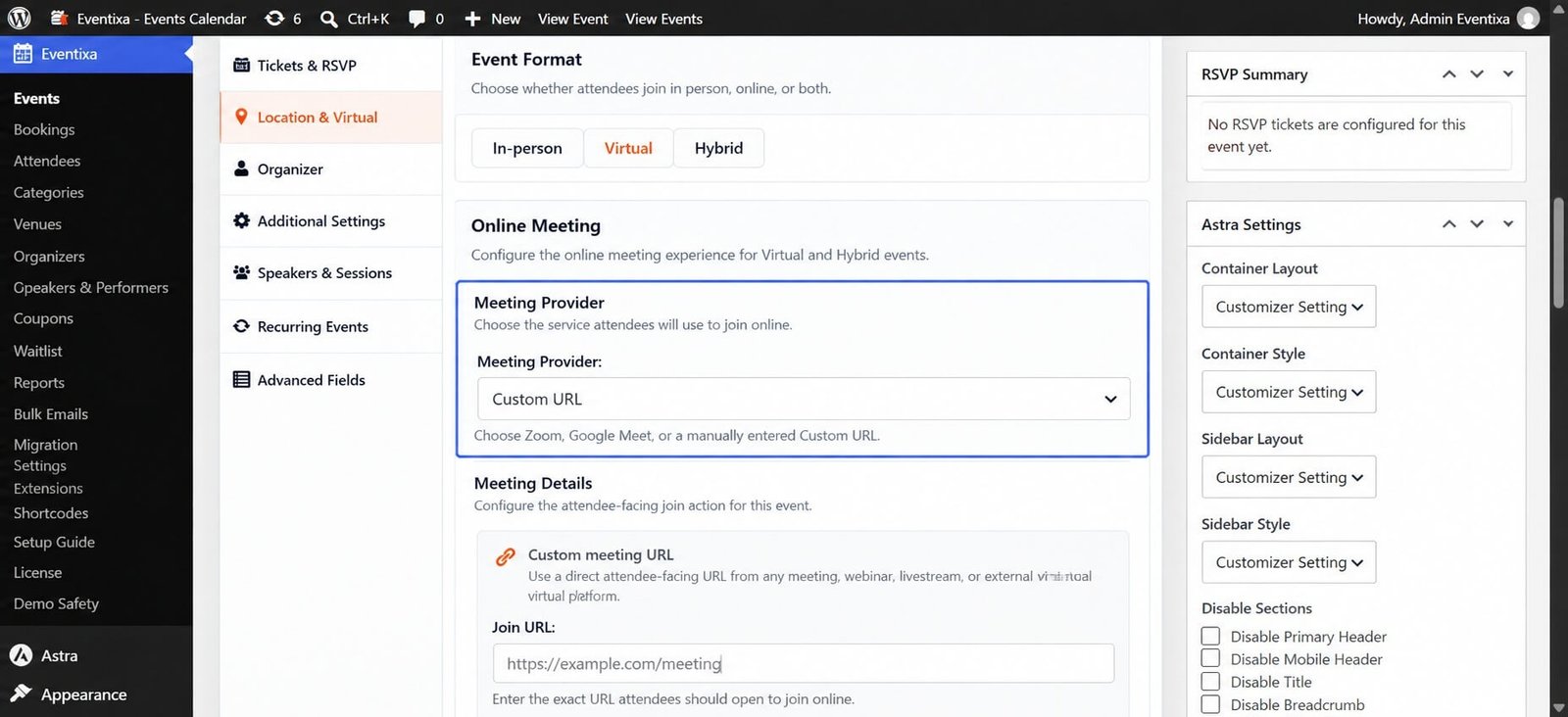
Enter the Meeting URL
Enter the full online meeting or event access URL supplied by your external platform.
Always use the complete HTTPS URL.
Before saving, open the URL in a separate browser window and confirm that it points to the correct event.
Use a Valid URL
Good:
Avoid incomplete values such as:
example.com/meeting
or:
meeting-room
A complete URL reduces the chance of attendees receiving a broken access link.
Save the Event
After configuring the meeting URL:
- Confirm the event format.
- Verify Custom URL is selected as the provider.
- Check the meeting URL.
- Save or update the event.
- Preview the frontend event.
- Test the attendee access workflow.
Example: Virtual Webinar
Suppose you are running an online marketing webinar using an external webinar platform.
You could configure:
| Setting | Value |
|---|---|
| Event Format | Virtual |
| Meeting Provider | Custom URL |
| Meeting URL | External webinar URL |
Visitors can register through Eventixa while the actual webinar remains hosted on the external service.
Example: Hybrid Conference
A hybrid conference could use:
| Setting | Value |
|---|---|
| Event Format | Hybrid |
| Venue | Manhattan Summit Center |
| Meeting Provider | Custom URL |
| Meeting URL | Livestream access URL |
In-person attendees use the physical venue.
Remote attendees use the online event access workflow.
Custom URL vs Zoom and Google Meet
Eventixa provides different approaches to online meetings.
| Provider | Availability | Meeting Management |
|---|---|---|
| Custom URL | Eventixa Core | Managed manually |
| Zoom | Eventixa Pro | Managed integration |
| Google Meet | Eventixa Pro | Managed integration |
Use Custom URL when you want to manage the meeting outside Eventixa.
Use Zoom or Google Meet when you want to use the corresponding Eventixa Pro integration.
Eventixa Does Not Create the External Meeting
With Custom URL, Eventixa does not create the meeting on the external platform.
You are responsible for:
- Creating the meeting or stream.
- Configuring its date and time.
- Setting its security options.
- Obtaining the attendee access URL.
- Entering the URL into Eventixa.
This is different from managed integrations such as Zoom and Google Meet.
Keep the External Schedule in Sync
Because the external meeting is managed separately, make sure its schedule matches the Eventixa event.
Check:
- Event date
- Start time
- End time
- Timezone
- External meeting date
- External meeting timezone
If the Eventixa event schedule changes, remember to update the external meeting manually if required.
Access Security
Consider whether the external meeting URL is intended to be:
- Public
- Registration-only
- Password protected
- Restricted by the external provider
A meeting URL can effectively act as an access credential.
Do not publish sensitive access information unnecessarily.
Use External Platform Security
When available, configure the external meeting platform’s security controls.
These may include:
- Meeting passwords
- Waiting rooms
- Registration approval
- Authenticated users
- Participant limits
These controls are managed by the external provider rather than Eventixa.
Changing the Custom URL
You can replace the meeting URL if the online meeting changes.
To update it:
- Edit the event.
- Open Location & Virtual.
- Confirm Custom URL remains selected.
- Replace the existing URL.
- Update the event.
- Test the new link.
If attendees already registered, determine whether they need to receive updated access information.
Changing to Zoom or Google Meet
With Eventixa Pro active, you can switch from Custom URL to another supported provider.
For example:
Custom URL → Zoom
After changing providers:
- Configure the new provider.
- Save the event.
- Verify the new meeting information.
- Test attendee access.
- Make sure the old Custom URL is no longer being communicated.
Changing Back to Custom URL
You can also move from a managed provider back to Custom URL where supported.
After switching:
- Enter the correct external URL.
- Review attendee communication.
- Confirm the previous managed meeting should no longer be used.
Recurring Events
Recurring Events require Eventixa Pro
A recurring Virtual or Hybrid event can also use Custom URL.
When configuring recurring virtual access, review whether the event should use the same access information across occurrences or whether the workflow requires different meeting handling.
For externally managed links, make sure the URL and external platform configuration match the intended recurring schedule.
Duplicating an Event
If you duplicate an event using a Custom Meeting URL, review the copied virtual settings carefully.
The new event may require:
- A different URL
- A different meeting
- A different date
- Different access permissions
Do not assume the original link should be used for the duplicated event.
Test Before Publishing
Before opening registration:
- Copy the configured meeting URL.
- Open it in a private or incognito browser window.
- Confirm it reaches the correct meeting or event.
- Check whether login is required.
- Verify any password or waiting-room behavior.
- Test the Eventixa registration flow.
- Confirm attendees receive the intended access experience.
Common Problems
Custom URL Option Does Not Appear
Make sure the event format is set to:
- Virtual
- Hybrid
An In-Person event does not require an online meeting provider.
Meeting Link Does Not Open
Check that:
- The full URL was entered.
- The URL begins with
https://. - The external meeting still exists.
- The external service is available.
Attendees See the Wrong Meeting
Edit the event and verify the configured Custom URL.
If the event was duplicated, make sure the original event’s URL was not unintentionally reused.
Meeting Time Does Not Match the Event
Eventixa cannot automatically update an externally managed meeting.
Update the schedule on the external platform manually.
External Meeting Requires a Password
Configure the password and access instructions according to the external platform’s workflow.
Do not expose private credentials publicly unless that is intentionally how the event is operated.
Recommended Workflow
- Create the meeting on the external platform.
- Copy the attendee access URL.
- Create or edit the Eventixa event.
- Open Location & Virtual.
- Choose Virtual or Hybrid.
- Select Custom URL as the meeting provider.
- Enter the external meeting URL.
- Save the event.
- Test the meeting URL.
- Complete a test registration.
- Verify the attendee access experience.
Important Notes
- Custom Meeting URL is available in Eventixa Core.
- Eventixa does not manage the external meeting itself.
- Keep the external meeting schedule synchronized with Eventixa.
- Verify the URL before opening registration.
- Review access security carefully.
- Check the meeting URL again when duplicating an event.
- Notify registered attendees if you replace an active meeting link.


