
Skip to content
  • Home
  • Features
    • Event Management
    • Email Notifications
    • Payment Processing
    • Recurring Events
  • Documentation
  • Pricing
  • Contact Us
  • Live Demo
    • Simple Event
    • Recurring Event
    • Virtual Event
    • Free Event
    • Paid Event
    • RSVP Event
    • Waitlist Event

EARLY ADOPTER OFFER — Eventixa Pro: $49/year $0 (FREE) · First 100 Pro subscriptions only. Get Pro Free →

Eventixa – Events Calendar, Tickets and Bookings
  • Home
  • Features
    • Event Management
    • Email Notifications
    • Payment Processing
    • Recurring Events
  • Documentation
  • Pricing
  • Contact Us
  • Live Demo
    • Simple Event
    • Recurring Event
    • Virtual Event
    • Free Event
    • Paid Event
    • RSVP Event
    • Waitlist Event
Get Started

EARLY ADOPTER OFFER — Eventixa Pro: $49/year $0 (FREE) · First 100 Pro subscriptions only. Get Pro Free →

Eventixa – Events Calendar, Tickets and Bookings

Getting Started

  • Welcome to Eventixa
  • How to Install Eventixa on WordPress
  • How to Install and Activate Eventixa Pro
  • Setup Wizard
  • Eventixa Admin Dashboard Overview
  • Create Your First Event
  • Eventixa Core vs Pro

Event Management

  • Events Overview
  • Creating an Event
  • Editing and Managing Events
  • Duplicating an Event
  • Event Date and Time Settings
  • Event Categories
  • Venues
  • Organizers
  • Event Archive and Listings
  • Single Event Page
  • Event Templates & Overriding
  • Eventixa Design System

Speakers, Performers & Event Agenda

  • Creating Event Sessions
  • Speakers & Performers Overview
  • Speaker & Performer Groups
  • Creating Speakers & Performers
  • Adding Speakers & Performers to Events
  • Sessions & Event Agenda
  • Recurring Event Agendas

In-Person, Virtual & Hybrid Events

  • In-Person, Virtual & Hybrid Events
  • Virtual Event Access
  • Custom Meeting URL

Tickets & Registration

  • Ticket Management Overview
  • Creating Event Tickets
  • Free and Paid Tickets
  • RSVP Tickets
  • Ticket Capacity and Availability
  • Ticket Sale Schedule
  • Ticket Quantity Rules
  • Attendee Registration Fields
  • Advanced Attendee Fields

Recurring Events

  • Recurring Events Overview
  • Creating a Recurring Event
  • Managing Event Occurrences
  • Recurring Event Tickets
  • Recurring Virtual Events

Checkout & Bookings

  • Checkout Overview
  • Guest Checkout
  • Managing Bookings
  • Booking Details
  • Booking Statuses
  • Manual Bookings
  • Canceling and Refunding Bookings
  • Booking Emails

Attendees

  • Managing Attendees
  • Add and Edit Attendees
  • Resend Event Tickets

Coupons & Discounts

  • Event Coupons Overview
  • Creating a Coupon
  • Advanced Coupon Rules

Payments

  • Payment Overview
  • Currency Settings
  • Stripe Payment
  • PayPal Payment
  • WooCommerce Integration
  • Offline Payment
  • Payment Statuses
  • Transactions
  • Refunds

Emails & Bulk Emails

  • Email Notifications Overview
  • Customer Emails
  • Administrator Emails
  • Email Templates
  • Email Placeholders
  • Reminder Emails
  • Bulk Emails

QR Tickets & Check-In

  • QR Tickets
  • Event Check-In
  • QR Scanner

Waitlist

  • Event Waitlist Overview
  • Enable Waitlist for an Event
  • Waitlist Reservations & Offers
  • Managing the Waitlist
  • Waitlist Emails

Reports

  • Reports Overview
  • Event Reports
  • Ticket & Registration Reports
  • Revenue Reports
  • Filtering Reports

Integration

  • Integrations Overview
  • MailPoet Integration
  • Mailchimp Integration
  • WooCommerce Integration
  • Zoom Integration
  • Google Meet Integration
  • Webhooks

Migration

  • Migration Overview
  • Migration from The Events Calendar
  • Supported Migration Data
  • Recurring Event Migration
  • Migration Warnings & Troubleshooting

My Account & Customer Experience

  • Eventixa My Account
  • Viewing Event Bookings
  • Viewing Event Tickets

Shortcodes, Blocks & Display

  • Eventixa Shortcodes
  • Gutenberg Blocks
  • Elementor Integration

Settings

  • Eventixa Settings Overview
  • General Settings
  • Display Settings
  • Ticket Settings
  • Payment Settings
  • Email Settings
  • Integration Settings
  • License Settings

Troubleshooting

  • Troubleshooting Overview
  • Ticket Availability Problems
  • Checkout Problems
  • Payment Problems
  • Email Delivery Problems
  • Virtual Event Integration Problems
  • QR Ticket & Check-In Problems
View Categories
  • Home
  • Documentations
  • Event Management
  • Duplicating an Event

Duplicating an Event

0:00 / 3:17
  • View as Markdown Open this page as plain Markdown (opens in a new tab)
  • Open in ChatGPT Ask questions about this page (opens in a new tab)
  • Open in Claude Ask questions about this page (opens in a new tab)
  • Open in Google AI Studio Ask questions about this page (Google account required) (opens in a new tab)

Eventixa lets you duplicate an existing event so you can reuse its configuration instead of creating a similar event from scratch.

This is useful for recurring-style programs, repeated workshops, conferences, webinars, or any event that shares the same basic setup.

Available in: Eventixa Core
Location: Eventixa → Events
Pro-aware: Supported Pro settings can also be copied where applicable

When to Duplicate an Event

Duplicating an event is useful when the new event will use much of the same configuration.

For example:

  • Monthly workshops
  • Similar conferences
  • Repeated webinars
  • Training sessions
  • Events with the same speakers
  • Events using the same venue
  • Events with similar ticket structures

Duplication saves time and helps keep similar events consistent.

Duplicate an Existing Event

Go to: Eventixa → Events

Find the event you want to copy.

Use the available duplicate action for that event.

Eventixa creates a new event using supported information from the original event.

Open the duplicated event and review it before publishing.
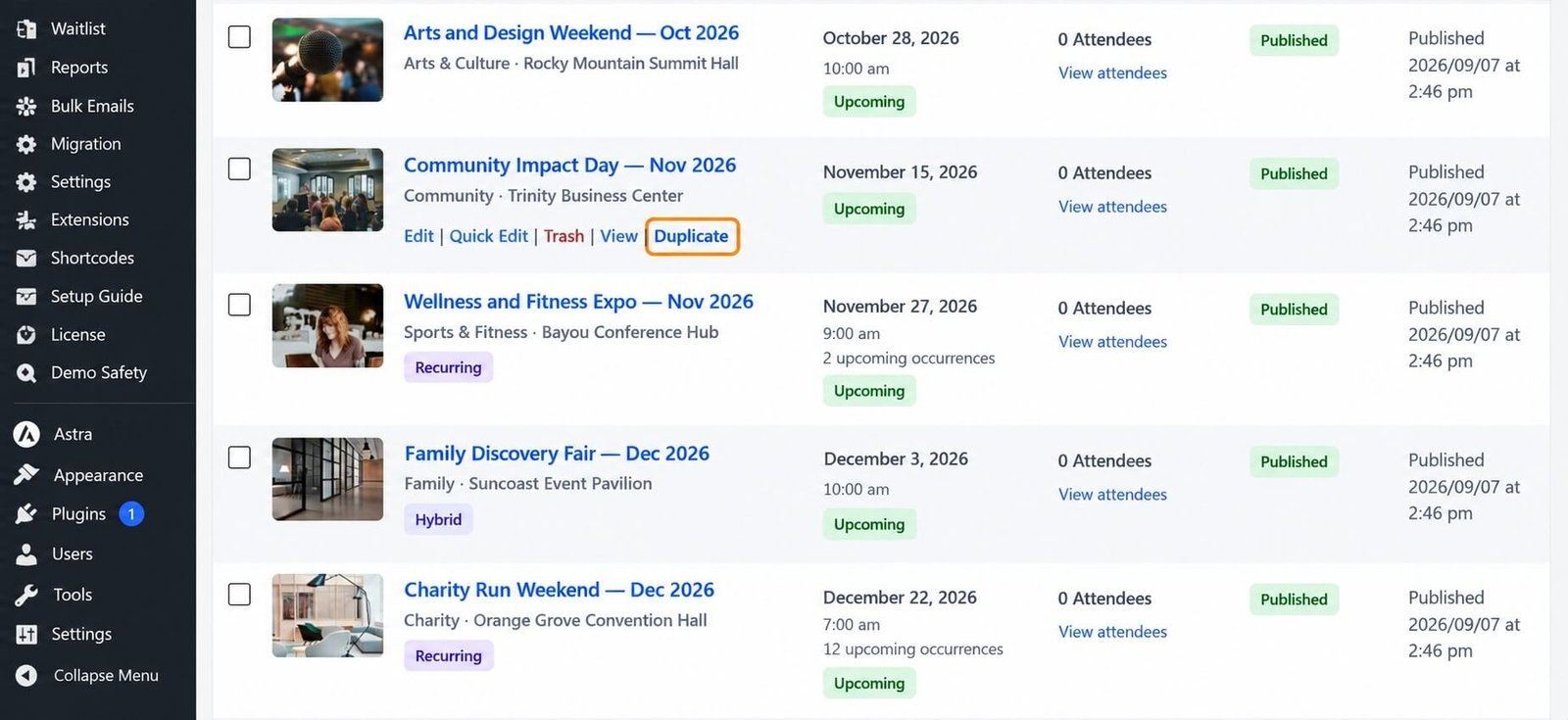
Duplicate event action in the Eventixa events list
Use the duplicate action from Eventixa → Events to create a new event from an existing configuration.

What Can Be Copied

Depending on the event configuration, duplication can preserve supported information such as:

  • Event settings
  • Venue
  • Organizer
  • Categories
  • Tickets and registration configuration
  • Speakers and performers
  • Sessions
  • Event agenda
  • Recurrence configuration

The exact copied information depends on the features used by the original event.

Speakers and Sessions

If the original event contains:

  • Speakers
  • Performers
  • Sessions
  • Agenda information

Eventixa can preserve the supported relationships in the duplicated event.

Always review the new event to make sure the speakers and sessions are still appropriate.

Recurring Event Configuration

Requires: Eventixa Pro for recurring events

If the original event uses recurrence, supported recurrence settings can also be duplicated.

After duplication, review:

  • Recurrence frequency
  • Repeat interval
  • End conditions
  • Excluded dates
  • Additional dates

Do not assume the old recurrence schedule is automatically suitable for the new event.

Virtual Event Information

If the event is virtual or hybrid, review the meeting configuration carefully.

Depending on your setup, the event may use:

  • Custom Meeting URL
  • Zoom
  • Google Meet

Generated or attendee-specific meeting information should remain unique where required.

For example, Eventixa does not duplicate managed attendee join URLs that should belong only to the original event or meeting.

Tickets and Capacity

If ticket configuration is duplicated, review:

  • Ticket name
  • Price
  • Capacity
  • Sale start
  • Sale end
  • Quantity limits

Do not publish the duplicated event without checking whether the original ticket dates and limits still make sense.

Update the New Event

After duplication, edit the new event and review the main settings.

At minimum, check:

SettingWhat to review
TitleGive the new event the correct name
Date & TimeSet the new schedule
VenueConfirm the location
OrganizerConfirm who manages the event
TicketsReview price, capacity, and sale dates
SpeakersConfirm the correct participants
SessionsReview the event agenda
Virtual AccessConfirm meeting information
RecurrenceReview repeated dates

Publish the Duplicated Event

Once the new event has been reviewed:

  1. Update the event title.
  2. Set the correct date and time.
  3. Review tickets.
  4. Check virtual or recurring settings if applicable.
  5. Preview the frontend event page.
  6. Publish the event.

Before accepting registrations, complete a test registration if the duplicated event uses tickets or payments.
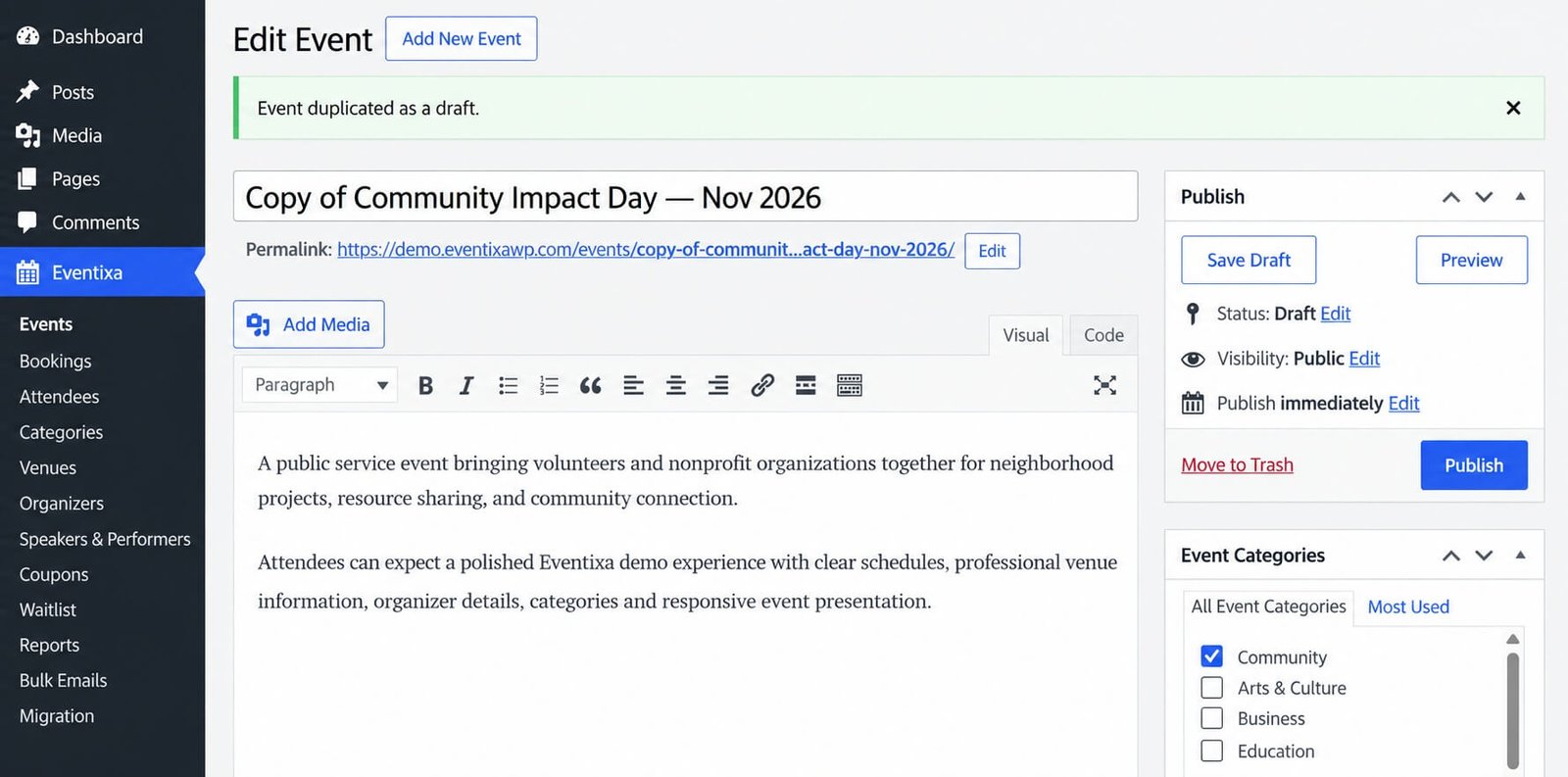
Review Eventixa event settings after duplicating an event
Review the duplicated event’s date, tickets, speakers, sessions, virtual access, and recurrence before publishing.

Important Notes

  • Always review duplicated ticket sale dates.
  • Check capacity before publishing.
  • Review speaker and session assignments.
  • Verify virtual meeting information.
  • Review recurrence rules carefully.
  • Do not assume generated attendee access data should be reused.

Related Documentation

Continue with:

  1. How to Edit and Manage Events in Eventixa
  2. How to Create an Event in WordPress with Eventixa
  3. WordPress Event Management with Eventixa
  4. Create Your First WordPress Event with Eventixa

Share This Article :

  • Facebook
  • X
  • LinkedIn
  • Pinterest
Editing and Managing EventsEvent Date and Time Settings

Eventixa is a modern WordPress event management plugin for creating events, selling tickets, managing attendees, and delivering seamless booking experiences—all from a single platform.

Help Center

  • Documentation
  • Starter Guide
  • Contact Us

Features

  • Event Management
  • Email Notifications
  • Payment Processing
  • Recurring Events
  • Live Demo

Company

  • Contact Us
  • Privacy Policy
  • Refund Policy
  • T&Cs

Copyright © 2026 - All rights reserved.