
Editing and Managing Events
Eventixa makes it easy to update existing events, review schedules, monitor registrations, and manage event status from the WordPress dashboard.
Available in: Eventixa Core
Location: Eventixa → Events
Pro enhancements: Recurring event management and additional advanced controls
Open the Events Screen
Go to: Eventixa → Events
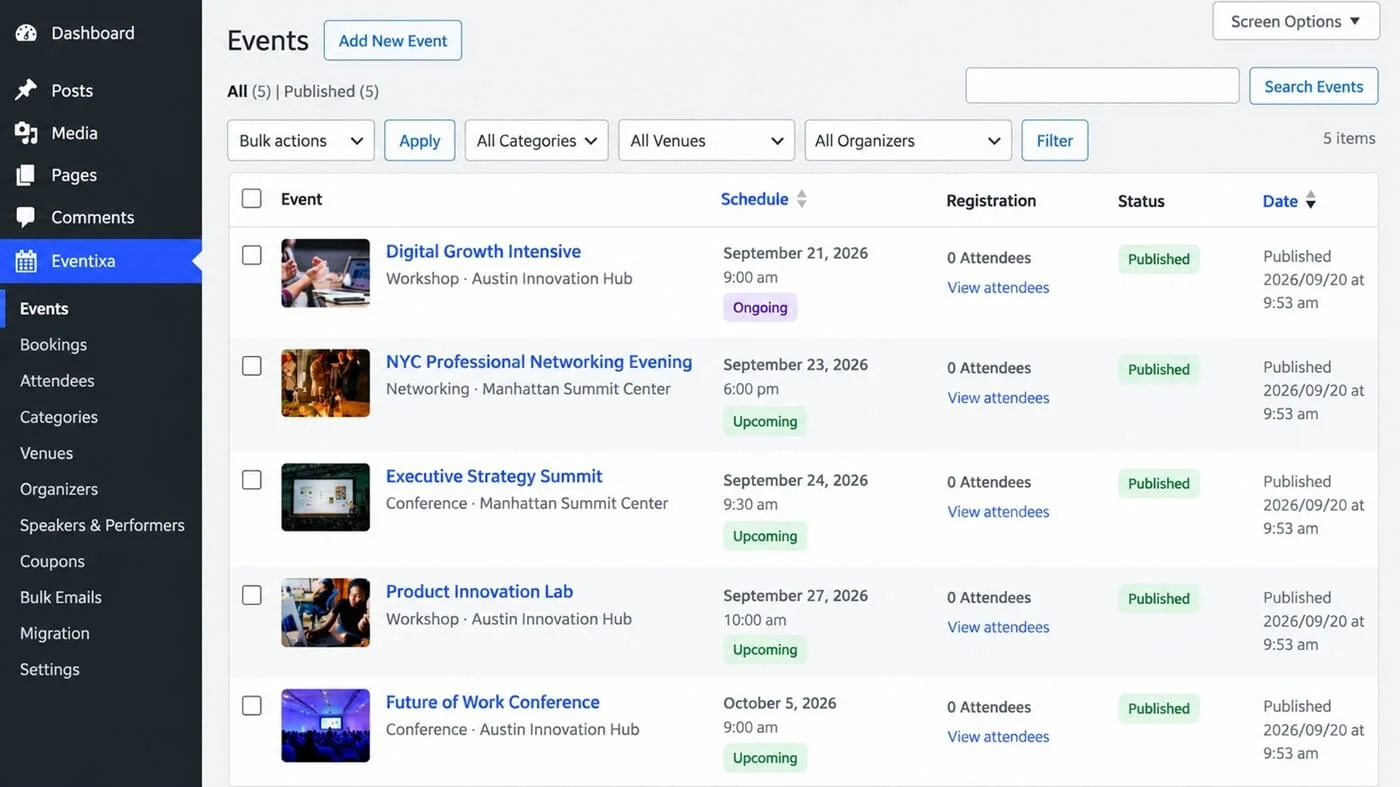
The Events screen displays your existing Eventixa events.
From here, you can review:
- Event name
- Schedule
- Registration count
- Event status
- Publication information
- Recurring status where applicable
Edit an Existing Event
To edit an event:
- Go to Eventixa → Events.
- Find the event you want to update.
- Open the event.
- Change the required settings.
- Click Update.
You can edit areas such as:
- Date and time
- Tickets & RSVP
- Location & Virtual
- Organizer
- Additional Settings
- Speakers & Sessions
- Recurring Events
- Advanced Fields
The available sections depend on your Eventixa edition and active features.
Update the Event Schedule
Open the Date & Time section to change the event schedule.
You can update:
- Start date
- Start time
- End date
- End time
- All-day event setting
- Timezone-related options
If registrations have already started, be careful when changing the event schedule.
For major date or time changes, notify existing attendees.
Update Tickets or RSVP
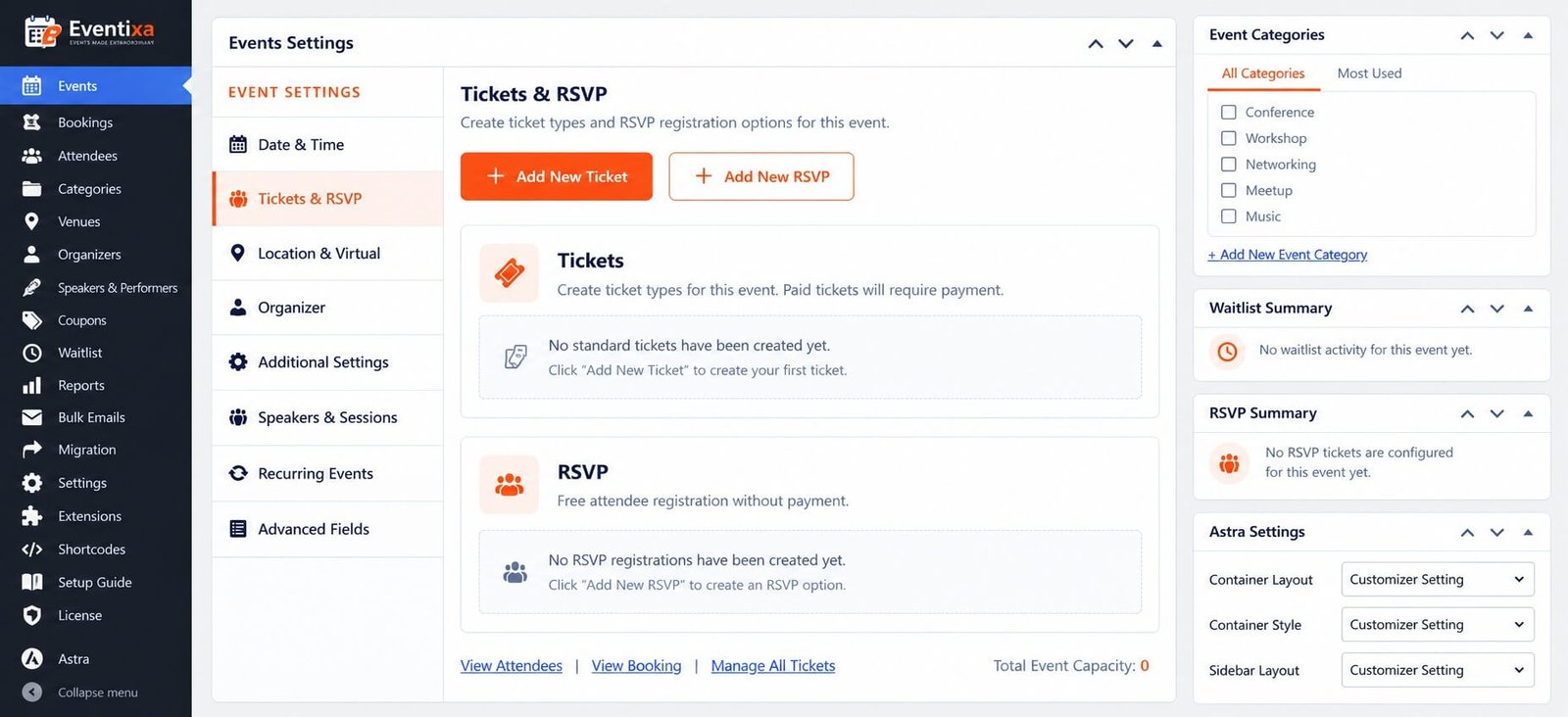
Open: Tickets & RSVP
From here, you can manage the registration options connected to the event.
Depending on the event, you can:
- Add a ticket
- Add RSVP registration
- Edit existing ticket settings
- Review ticket capacity
- View attendees
- View bookings
Changing ticket capacity or availability can affect future registrations.
Update the Event Location
Open: Location & Virtual
This section controls whether the event is:
- In-Person
- Virtual
- Hybrid
You can also update the venue or supported virtual event configuration.
If you change the venue after attendees have registered, make sure they are notified.
Update the Organizer
Open: Organizer
Choose the organizer associated with the event.
Organizers can be reused across multiple events.
If the correct organizer does not exist yet, create one from: Eventixa → Organizers
Manage Speakers and Sessions
Open: Speakers & Sessions
Use this section to update event participants and agenda content.
Depending on the event, you can:
- Add speakers
- Add performers
- Reorder participants
- Add sessions
- Update session details
- Adjust the event agenda
For detailed setup, use the dedicated Speakers & Performers and Sessions documentation.
Manage Recurring Events
Requires: Eventixa Pro
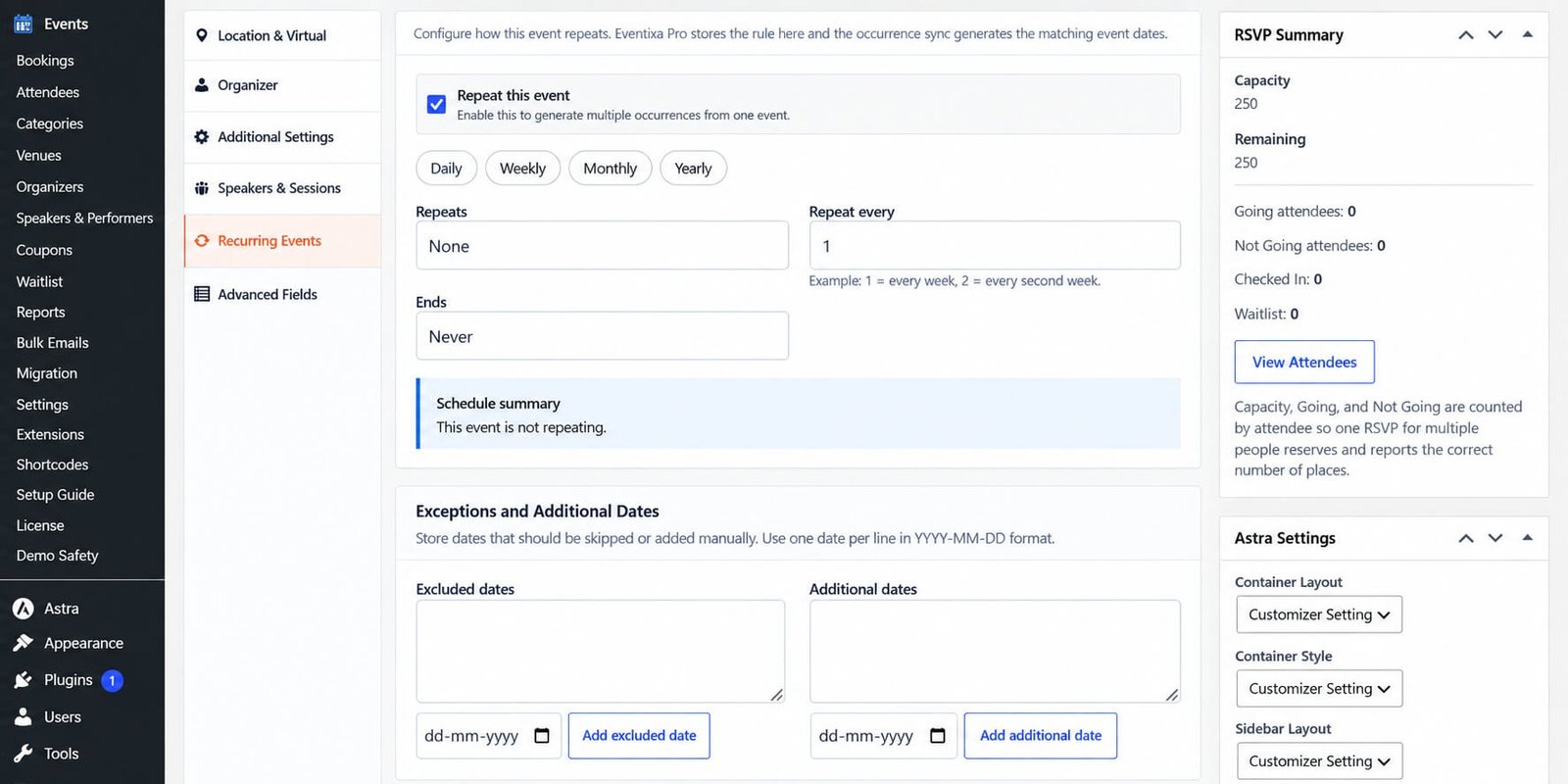
Open: Recurring Events
Use this section to configure or update recurrence behavior.
Depending on the event, you can manage:
- Recurrence rules
- Event occurrences
- Occurrence-specific settings
- Recurring agendas
- Recurring virtual meetings
Be especially careful when changing recurrence after bookings already exist.
Review Registration Activity
The Events list can show registration information for each event.
Depending on the event, you can review:
- Number of attendees
- Upcoming occurrences
- Event status
- Publication status
For more detailed registration information, use: Eventixa → Bookings or Eventixa → Attendees
Duplicate an Event
If you need to create a similar event, Eventixa can duplicate supported event settings.
This can save time when events share:
- Similar schedules
- Tickets
- Speakers
- Sessions
- Recurring configuration
Some generated or sensitive information should remain unique to the new event.
For complete details, see Duplicating an Event.
Event Status
The Events screen can display status information such as:
- Upcoming
- Ongoing
- Past
- Published
- Recurring
This helps you quickly understand the current state of each event.
Before Updating a Live Event
If an event already has registrations, review the impact before making major changes.
Pay special attention to:
- Date
- Time
- Venue
- Virtual meeting access
- Ticket capacity
- Ticket price
- Registration rules
Changes to these areas can affect existing attendees.
Recommended Workflow for Major Changes
When making an important update:
- Edit the event.
- Save the changes.
- Review the frontend event page.
- Check affected tickets or registrations.
- Notify existing attendees if required.
- Re-test the event workflow if the change affects checkout or payments.
Related Documentation
Continue with:


