
Display Settings
Eventixa Display Settings control how events, event archives, venues, organizers, and individual Eventixa pages are presented on the frontend.
Use these settings to configure event date and time behavior, archive views, directory pagination and search, and the visible elements shown on single event, venue, and organizer pages.
Available in: Eventixa Core + Eventixa Pro enhancements
Location: Eventixa → Settings → Display
Requires: Eventixa Core
Related features: Event Archive, Event Date & Time, Venues, Organizers, Single Event Pages
Overview
The Display area is divided into focused subtabs and sections so you can control different parts of the Eventixa frontend independently.
The current Display settings contain:
- Date and Time Settings
- Event Archive
- Venue Archive
- Organizer Archive
- Single Event
- Single Venue
- Single Organizer
These sections control global presentation behavior rather than the content of an individual event.
How to Open Display Settings
- Sign in to your WordPress dashboard.
- Go to Eventixa → Settings.
- Open the Display tab.
- Choose the relevant Display subtab.
- Update the required settings.
- Click Save Changes.
- Check the corresponding frontend page to confirm the result.
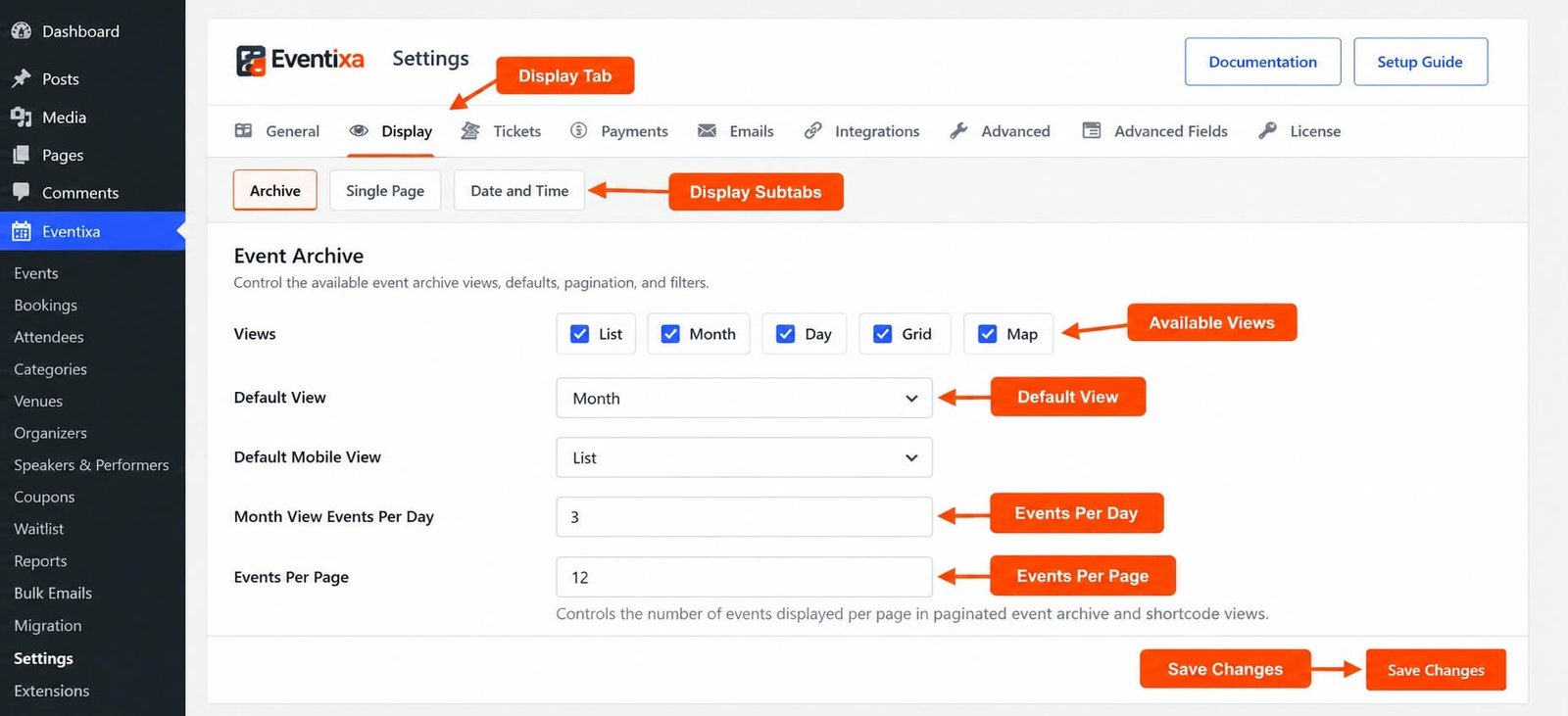
Display Settings Explained
| Section | What It Controls |
|---|---|
| Date and Time Settings | Date/time behavior used by the event editor and Eventixa event/occurrence data |
| Event Archive | Available event archive views, default view, pagination, and filters |
| Venue Archive | Venue directory search and pagination |
| Organizer Archive | Organizer directory search and pagination |
| Single Event | Layout and visible elements on individual event pages |
| Single Venue | Visible elements and upcoming events on venue pages |
| Single Organizer | Visible elements and upcoming events on organizer pages |
The sections above are registered as part of the current Eventixa Display settings architecture.
Date and Time Settings
The Date and Time Settings section controls date and time behavior used by the Eventixa event editor and Eventixa event/occurrence data.
Open: Eventixa → Settings → Display → Date and Time
This section is separate from the date and time formatting options found under General Settings.
General Settings control how Eventixa formats dates and times for display.
Display → Date and Time controls the event date/time behavior used by Eventixa’s event and occurrence system.
Event Timezone
Eventixa uses the Event Timezone configuration from the Display → Date and Time area.
If no custom Event Timezone is selected, Eventixa follows the WordPress site timezone.
This makes the Event Timezone important for:
- Event schedules
- Recurring events
- Virtual events
- International events
- Occurrence calculations
- Time-sensitive event information
Choose a timezone that matches how your events should be interpreted and displayed.
General Date Format vs Event Timezone
These two settings serve different purposes.
General → Date Format / Time Format Controls how the value is presented.
For example:
September 26, 2026 at 7:30 pm
Display → Date and Time
Controls the timezone and date/time behavior used for Eventixa event and occurrence data.
Changing the format does not change the actual event timezone.
Event Archive
The Event Archive section controls the frontend Eventixa event listing experience.
It is specifically designed to control:
- Available event archive views
- Default archive view
- Pagination
- Filters
Open: Eventixa → Settings → Display → Archive
Available Event Views
The Event Archive controls which supported views are available to visitors.
Eventixa Core provides its standard event views, while Eventixa Pro can extend the presentation options with additional supported views.
Only enable the views you want visitors to use.
This keeps the event archive simpler and avoids presenting unnecessary view options.
Default View
The default view determines which event archive layout is shown when visitors first open the Eventixa events page.
For example, if your preferred experience is a traditional chronological listing, choose the corresponding list-style view as the default.
Visitors can then switch between other enabled views where the frontend view selector is available.
Archive Pagination
Pagination controls how event results are divided across pages.
A sensible event-per-page configuration helps balance:
- Page load size
- Number of events visible at once
- Ease of navigation
- Mobile usability
A very large archive can be easier to browse when pagination is enabled.
Archive Filters
Event Archive settings also control frontend filtering behavior.
Filters help visitors narrow the event list rather than browsing every event manually.
The available archive configuration should match the way your event catalog is organized.
Venue Archive
The Venue Archive section controls the frontend venue directory.
It is designed specifically to manage:
- Venue search
- Venue pagination
Open: Eventixa → Settings → Display → Archive
The Venue Archive settings help visitors browse reusable Eventixa venues independently from individual events.
Venue Search
Venue search helps visitors locate a particular Eventixa venue without browsing the entire directory.
This is particularly useful when your site contains many event locations.
Venue Pagination
Venue pagination controls how many venue records are presented across directory pages.
Use pagination to keep large venue directories easier to navigate.
Organizer Archive
The Organizer Archive section controls the Eventixa organizer directory.
It is designed to manage:
- Organizer search
- Organizer pagination
This section is also located within the Display archive configuration.
Organizer Search
Organizer search helps visitors find a specific organizer when the website contains many Eventixa organizers.
Organizer Pagination
Organizer pagination controls how the organizer directory is divided across pages.
This is especially useful for websites running events from many different organizers.
Single Page Settings
Eventixa also provides a dedicated Single Page display area.
The current Single Page settings include:
- Single Event
- Single Venue
- Single Organizer
Open: Eventixa → Settings → Display → Single Page
These sections control global frontend presentation for individual Eventixa objects.
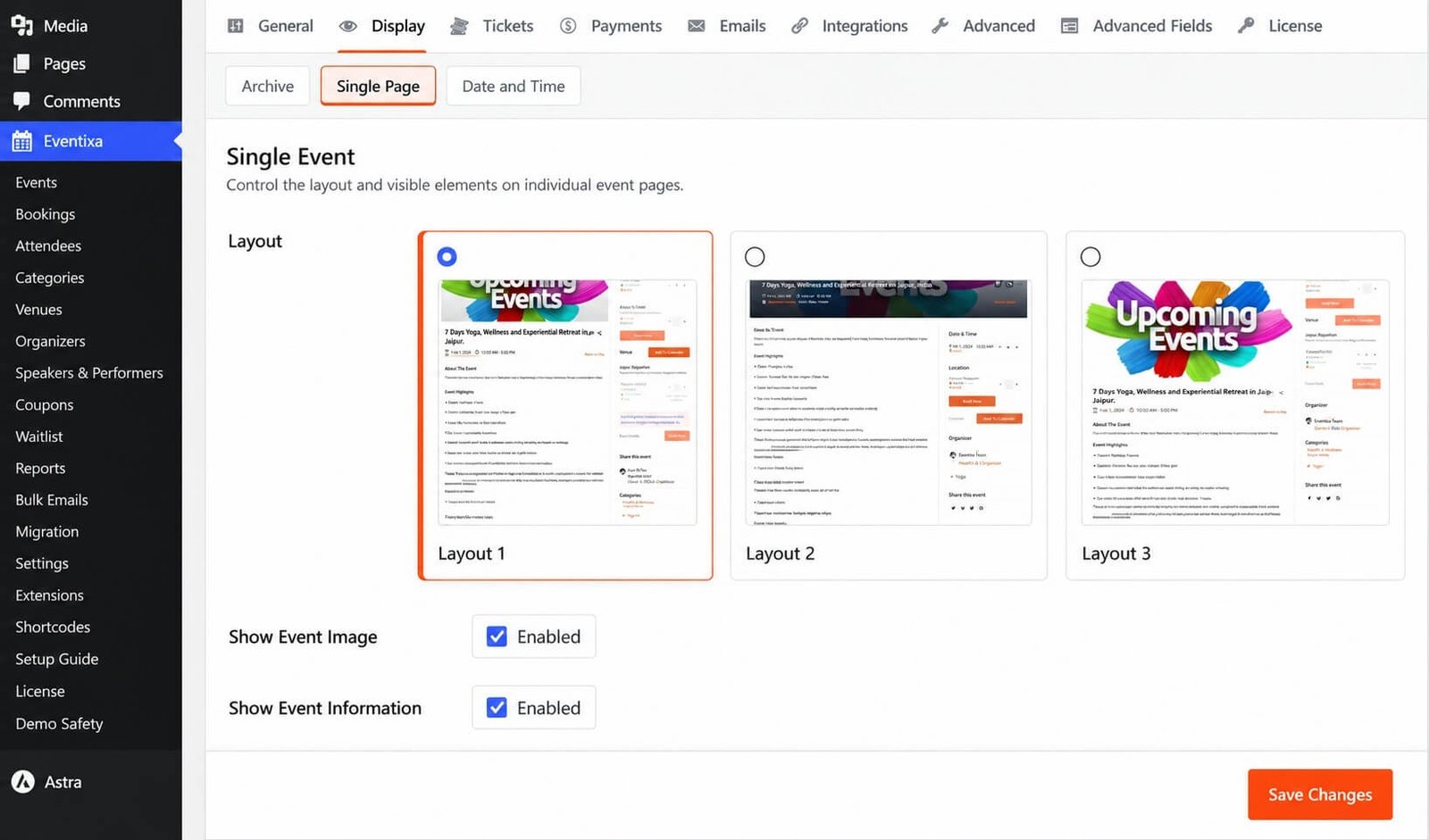
Single Event
The Single Event section controls the layout and visible elements on individual Eventixa event pages.
Use this section when you want to adjust global single-event presentation without editing each event separately.
Single Event settings are presentation settings.
They do not replace the actual content and configuration stored on the event itself.
Single Venue
The Single Venue section controls the visible elements and upcoming-event information shown on individual venue pages.
This is useful when venue pages act as landing pages for location-specific event discovery.
Single Organizer
The Single Organizer section controls the visible elements and upcoming-event information shown on individual organizer pages.
This lets visitors view organizer information together with events associated with that organizer.
Archive Settings vs Single Page Settings
Eventixa separates archive and individual-page presentation.
Archive settings control lists and directories.
Examples:
- Events archive
- Venue directory
- Organizer directory
Single Page settings control individual records.
Examples:
- One event page
- One venue page
- One organizer page
This separation allows you to optimize discovery pages and detail pages independently.
Global Display Settings vs Event Content
Display Settings control global presentation.
They do not replace information entered while creating or editing an event.
For example:
- Event title is managed on the event itself.
- Event schedule is managed in the event configuration.
- Display Settings determine how supported information is presented globally.
This distinction is important when troubleshooting an event page.
If the underlying information is incorrect, edit the event.
If the information exists but its presentation needs to change, review Display Settings.
Core and Pro Display Features
The base Display settings system is available with Eventixa Core.
Eventixa Pro can extend Eventixa presentation with additional supported frontend options.
When Eventixa Pro is active, extra display choices can appear in the relevant Eventixa settings or frontend presentation workflows.
Core and Pro settings use the same Eventixa settings architecture rather than separate configuration systems.
How Display Settings Work
Eventixa stores Display configuration globally and applies it when rendering the relevant frontend interfaces.
A simplified workflow is: Display Settings → Eventixa Frontend Renderer → Archive or Single Page
For archive pages, settings determine available views, defaults, filters, search, and pagination behavior.
For single pages, settings determine supported layout and visible-element behavior.
Example: Configure an Event Archive
Suppose you want visitors to browse upcoming events from a clean event archive.
A practical workflow is:
- Go to Eventixa → Settings → Display.
- Open Archive.
- Review Event Archive.
- Configure the available event views.
- Select the default view.
- Configure pagination.
- Configure archive filters.
- Save the settings.
- Open the Eventixa event archive on the frontend.
- Test the archive on desktop and mobile.
Example: Configure Single Event Presentation
To adjust individual event pages:
- Go to Eventixa → Settings → Display.
- Open Single Page.
- Find Single Event.
- Configure the supported layout and visible elements.
- Save your changes.
- Open a published Eventixa event on the frontend.
- Verify the presentation.
Important Notes
- Display Settings are located at Eventixa → Settings → Display.
- Display configuration applies globally unless a more specific feature provides its own supported presentation control.
- Date and Time Settings are used by Eventixa’s event and occurrence workflow.
- Event Archive controls available views, default view, pagination, and filters.
- Venue Archive controls venue directory search and pagination.
- Organizer Archive controls organizer directory search and pagination.
- Single Event controls layout and visible elements on event pages.
- Single Venue controls visible elements and upcoming events on venue pages.
- Single Organizer controls visible elements and upcoming events on organizer pages.
- Eventixa Pro can extend the available frontend presentation options.
Troubleshooting
Event Archive Does Not Use the Expected View
Check:
- The required view is enabled.
- The correct Default View is selected.
- The settings were saved.
- Cached frontend output has been cleared.
Then reload the Eventixa event archive.
Event Filters Are Not Visible
Review: Eventixa → Settings → Display → Archive
Confirm the relevant Event Archive filter configuration is enabled.
Also make sure you are testing the Eventixa archive rather than a custom page that does not use the archive interface.
Venue or Organizer Search Is Missing
Review the corresponding Venue Archive or Organizer Archive configuration.
These sections control directory search and pagination behavior.
Single Event Page Does Not Match the Settings
Confirm that:
- The Single Event settings were saved.
- You are viewing an Eventixa single-event page.
- Your theme or custom template is not overriding the normal Eventixa output.
- Page caching has been cleared where applicable.
Event Time Is Incorrect
Go to: Eventixa → Settings → Display → Date and Time
Review the Event Timezone.
If no custom Event Timezone is configured, also verify: WordPress → Settings → General → Timezone
Date Format Is Incorrect
Date and time formatting is configured separately under: Eventixa → Settings → General → General
Use Display → Date and Time for timezone/date-time behavior and General for formatting.
Related Documentation
- Eventixa Settings Overview
- General Settings
- Event Archive and Listings
- Single Event Page
- Venues
- Organizers
Frequently Asked Questions
Where Are Eventixa Display Settings?
Go to: Eventixa → Settings → Display
What Does the Event Archive Section Control?
It controls available event archive views, the default view, pagination, and filters.
Where Is Event Timezone Configured?
Use: Eventixa → Settings → Display → Date and Time
If no custom Event Timezone is selected, Eventixa follows the WordPress site timezone.
Are Venue and Organizer Directories Configurable?
Yes. Eventixa has dedicated Venue Archive and Organizer Archive sections for search and pagination.
Can I Configure Individual Event Page Presentation?
Yes. Use the Single Event section under Display → Single Page to control supported global layout and visible-element options.


